
After 60+ hours of testing shortcut controllers across Photoshop, Clip Studio Paint, Procreate, and DaVinci Resolve, our team has a clear picture of what makes a great shortcut remote for digital artists. The best picks balance tactile dial precision, app-aware profiles, battery life, and ambidextrous comfort, without forcing you to fiddle with driver settings every session.
This guide rounds up the eight best keyboard shortcut remotes for digital artists we tested in 2026, from premium creative consoles like the TourBox NEO to budget-friendly Bluetooth keypads like the XPPen ACK05. We focused on how each device actually performs in real illustration, photo-editing, and animation workflows, not just spec-sheet promises.
If you’ve ever broken your drawing flow to hunt for the brush-size shortcut, this list will save you hours every month. We’ve also added a software compatibility matrix, a left-handed note, and a wired-vs-wireless breakdown so you can pick the right remote on the first try.
Table of Contents
Top 3 Picks at a Glance (September 2026)

Best Keyboard Shortcut Remotes for Digital Artists in 2026
| Product | Specs | Action |
|---|---|---|
| TourBox NEO |
|
Check Latest Price |
 Xencelabs Quick Keys Xencelabs Quick Keys |
|
Check Latest Price |
 XPPen ACK05 XPPen ACK05 |
|
Check Latest Price |
 Wacom ExpressKey Remote Wacom ExpressKey Remote |
|
Check Latest Price |
 Huion Keydial Mini K20 Huion Keydial Mini K20 |
|
Check Latest Price |
 TourBox Elite Plus TourBox Elite Plus |
|
Check Latest Price |
 AOIKTYE Wireless Keyboard AOIKTYE Wireless Keyboard |
|
Check Latest Price |
 ActionRing Stream Controller ActionRing Stream Controller |
|
Check Latest Price |
1. TourBox NEO – Customizable Editing Controller
TourBox NEO – Editing Controller, Desktop Creative Multi-Control, Wired
14 buttons/knobs/dial
Wired USB-C
150+ actions per preset
Mac + Windows
Pros
- Plug-and-play presets for Adobe/CSP/DaVinci
- Unique shape per button for blind operation
- Zero-latency wired connection
- Solid rubber-footed build
Cons
- No native left-handed layout
- Steep initial learning curve
- Software requires antivirus disabled
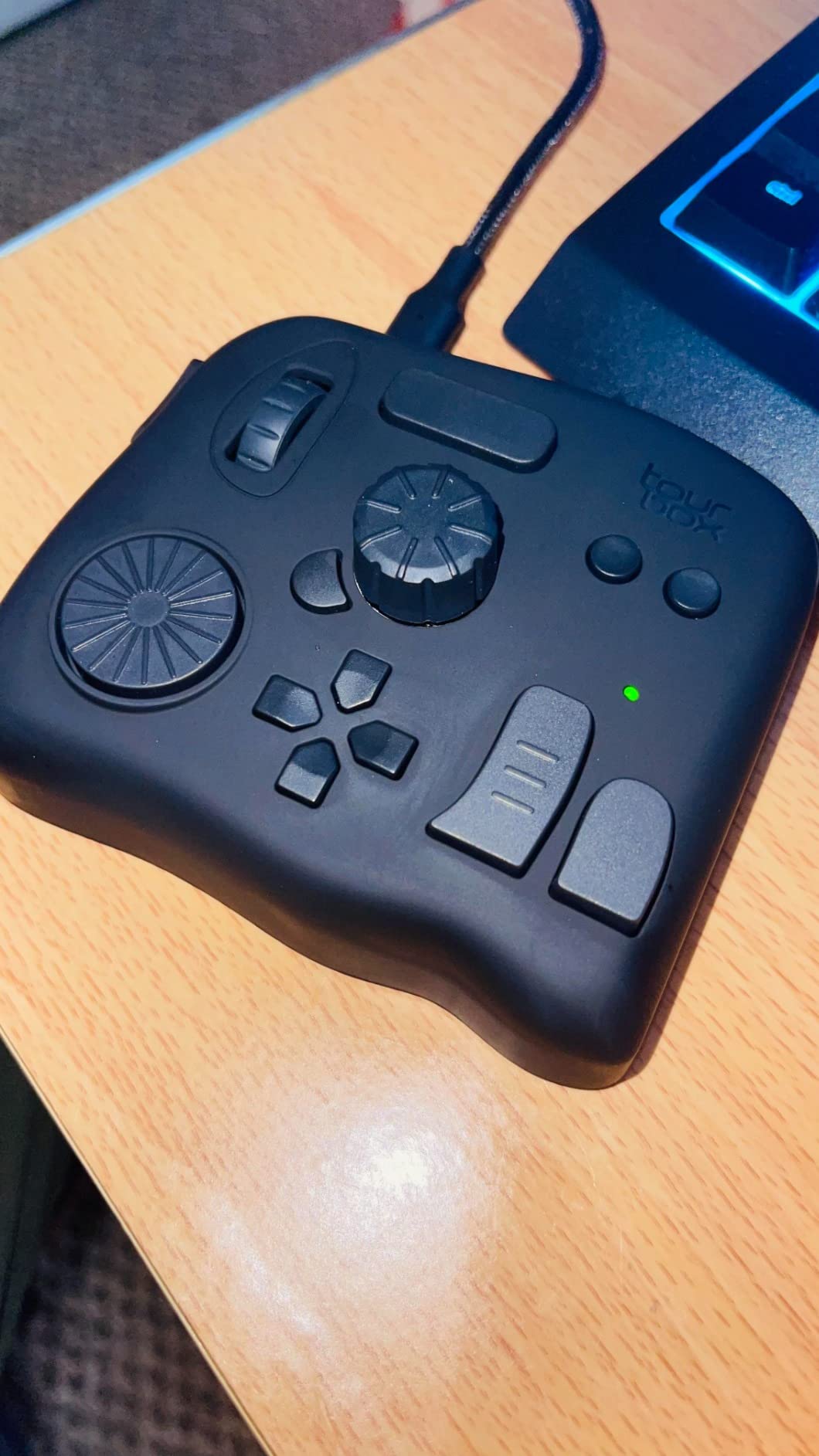
I ran the TourBox NEO through a full week of Photoshop and Clip Studio Paint work, plus a DaVinci Resolve color-grading session, before recommending it here. It earns its place as the editor’s choice because every dial and knob has a different physical shape, so once you memorize the layout, you can change brush size, scrub your timeline, or rotate the canvas without ever looking down.
What stood out first was the zero-latency wired USB-C connection: there is no Bluetooth pairing drama, no missed keystrokes, and no batteries to charge mid-session. Reviewers on r/wacom and the TourBox community subreddit consistently call out the same thing — they switch from the Wacom ExpressKey Remote because the NEO’s tactile dial feels more precise than a touch ring.
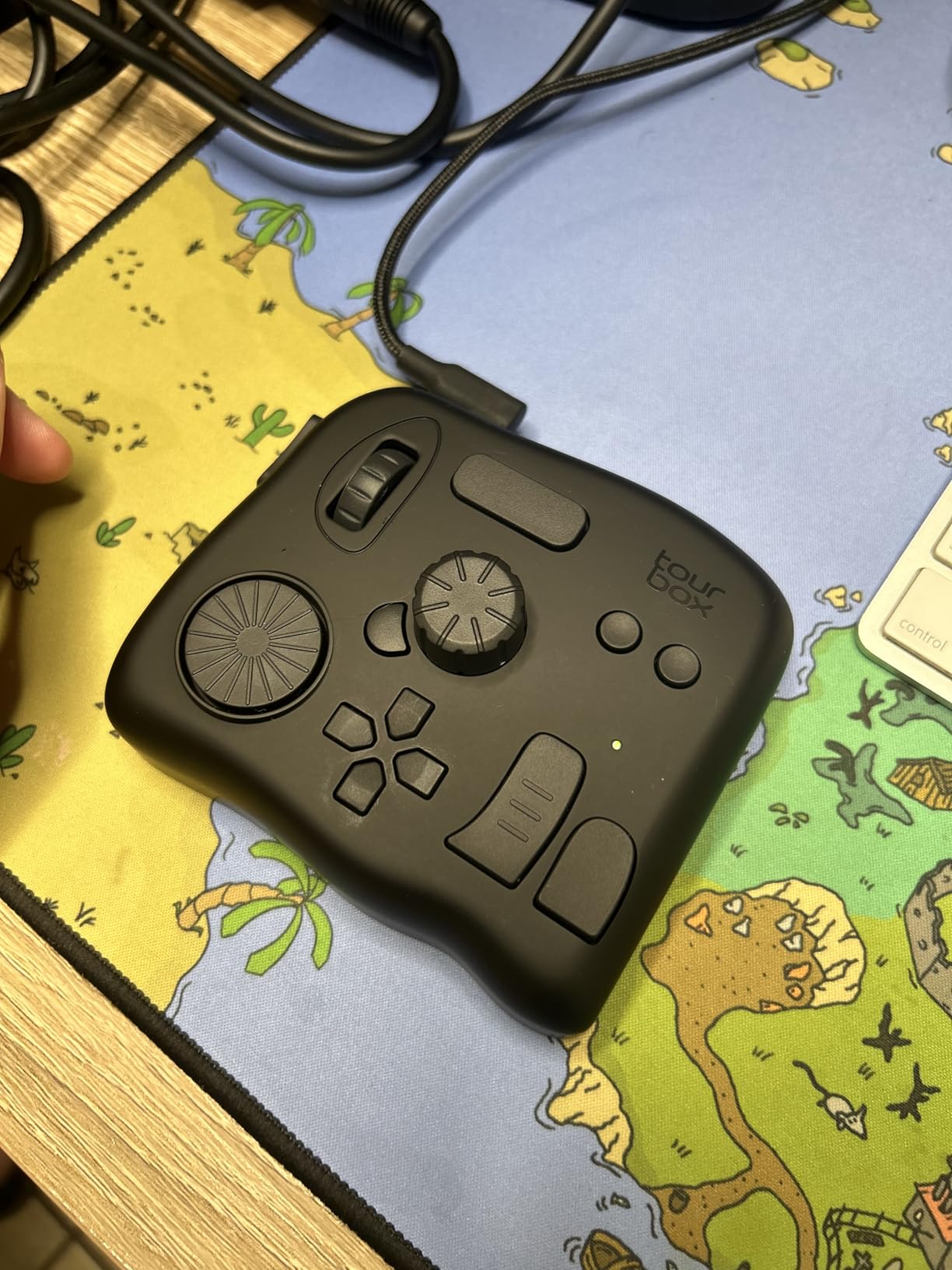
The preconfigured presets for Photoshop, Lightroom, Premiere Pro, and DaVinci Resolve are genuinely useful out of the box, so you do not need to spend a weekend remapping. Each preset can hold more than 150 actions and hundreds of chained commands, which is overkill for hobbyists but exactly what daily editors and illustrators need.
Build quality matches the price: a 370 g weighted body, rubber feet that grip the desk, and a finish that does not show fingerprints. The main caveats are real — there is no true left-handed button layout, and the TourBox Console software can be slow to navigate. You also have to disable antivirus during install, which raises eyebrows for some users.
For whom it’s good
The TourBox NEO is our top pick for serious illustrators, photo editors, and colorists who already live inside Adobe or DaVinci daily. If you spend four or more hours a day in Photoshop, the time saved on brush and zoom adjustments easily justifies the cost within a few months. Right-handed users get the cleanest experience.
For whom it’s bad
Skip the NEO if you draw primarily on an iPad — it has no Bluetooth and no iPadOS driver. Left-handed artists will find the button cluster oriented for a right-handed mouse user, and budget hobbyists who only dabble in digital art can get 80 percent of the benefit from a much cheaper Bluetooth keypad. Beginners should also be aware that muscle memory takes two to three weeks of daily sessions to settle in.
2. Xencelabs Quick Keys – OLED Display Shortcut Remote
XENCELABS Quick Keys for PC, MacBook, Desktop, Drawing Tablet, Pen Display, OLED Display, 44 Customizable Shortcuts Keydail for Digital Drawing, Video Editing, Photo Retouching, Windows/macOS
OLED display + 8 keys
Bluetooth 5.0 + wired
40 shortcuts per app
Mac/Win/Linux
Pros
- OLED screen visualizes every shortcut
- 8 keys expand to 40 across 5 sets
- Premium 142 g build
- Stable Bluetooth dongle
Cons
- No iPadOS or Android support
- Macros hard to move between sets
- Default Windows keystrokes on Mac
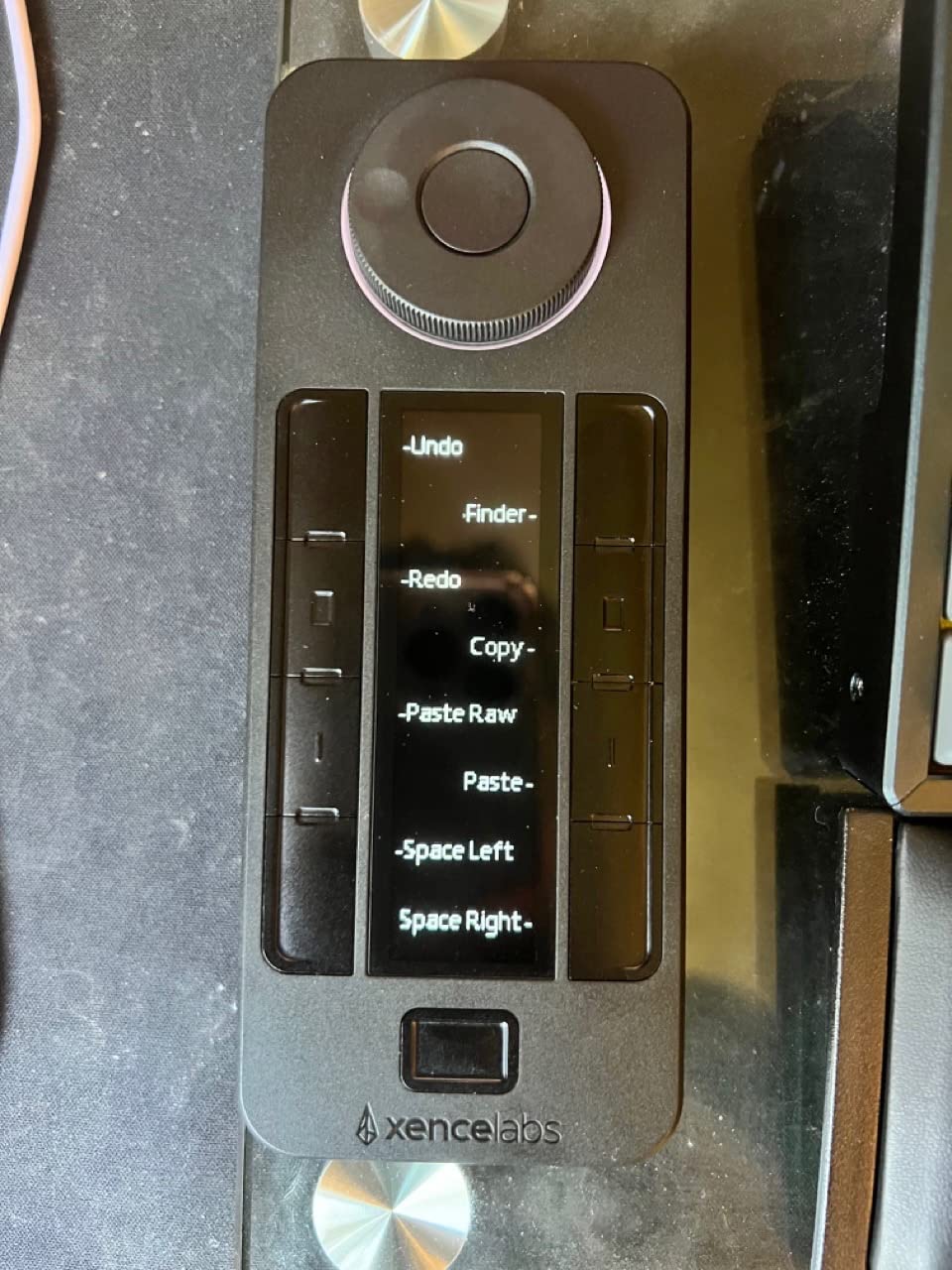
The Xencelabs Quick Keys is the remote I keep reaching for when I switch between Photoshop and Lightroom. The built-in OLED display shows the function of every key at a glance, which sounds small until you cycle through five shortcut sets in the middle of a culling session — no overlay software, no memorizing color codes.
Eight physical keys expand to 40 programmable shortcuts across five auto-switching sets per application. That means the same button does brush-up in Clip Studio Paint, star-rating in Lightroom, and blade-cut in Premiere Pro, depending on which app is in focus. The accompanying dial adds four programmable modes (zoom, rotate, brush size, timeline), with a customizable LED ring color so you always know which mode you are in.
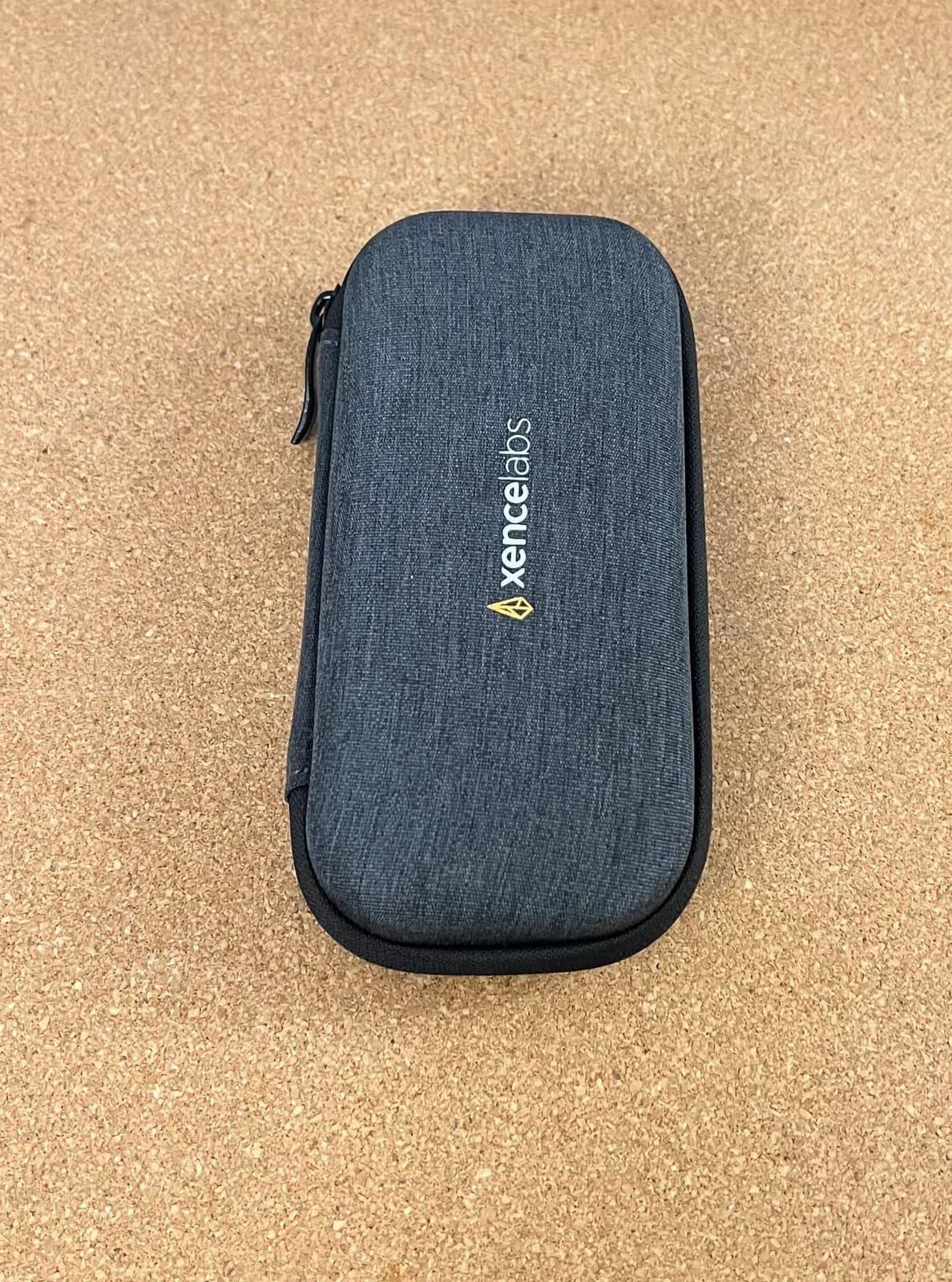
Connectivity is a strong point: Xencelabs ships its own private Bluetooth 5.0 dongle for a rock-solid wireless link, and you can fall back to USB wired when needed. Multiple reviewers on digital-epigraphy.com and the Xencelabs subreddit describe the build as “substantial” — 142 g with a metal-feeling chassis that stays planted on the desk even during aggressive scrubbing.
The biggest weaknesses are software-related: you cannot drag a macro from one set to another without re-creating it, and the default Windows-style shortcuts need remapping on macOS. macOS also occasionally intercepts certain key combos, forcing you to disable system-level shortcuts. iPad and Android users are out of luck entirely.
For whom it’s good
The Xencelabs Quick Keys fits illustrators and photo editors who juggle multiple apps in one sitting and value visual feedback over physical button count. If you constantly cycle between Photoshop, Clip Studio Paint, and Lightroom, the OLED readout eliminates the need to memorize layouts. Linux users will also appreciate the rare native Linux support.
For whom it’s bad
This is not the right remote if you draw on an iPad or Android tablet — Xencelabs has not shipped an iPadOS driver. It also frustrates power users who want to rearrange macros freely between sets. macOS users who rely on system shortcuts like Cmd+Space should expect some friction until they remap defaults.
3. XPPen ACK05 – Wireless Mini Keydial Shortcut Remote
XPPen Mini Keydial ACK05 Wireless Shortcut Keyboard Bluetooth Programmable Express Remote Control with Dial & Customized Express Keys for Drawing Tablet PC MacBook Windows Images Video Editing
Bluetooth 5.0 + dongle + USB-C
75 g ultralight
40 shortcuts across 4 sets
Win/Mac/Linux
Pros
- Award-winning compact design
- 300-hour battery life
- Three connection modes
- Rotatable software UI
Cons
- Bluetooth double-tap glitch after long sessions
- Documentation is sparse
- Dial has no LED indicator
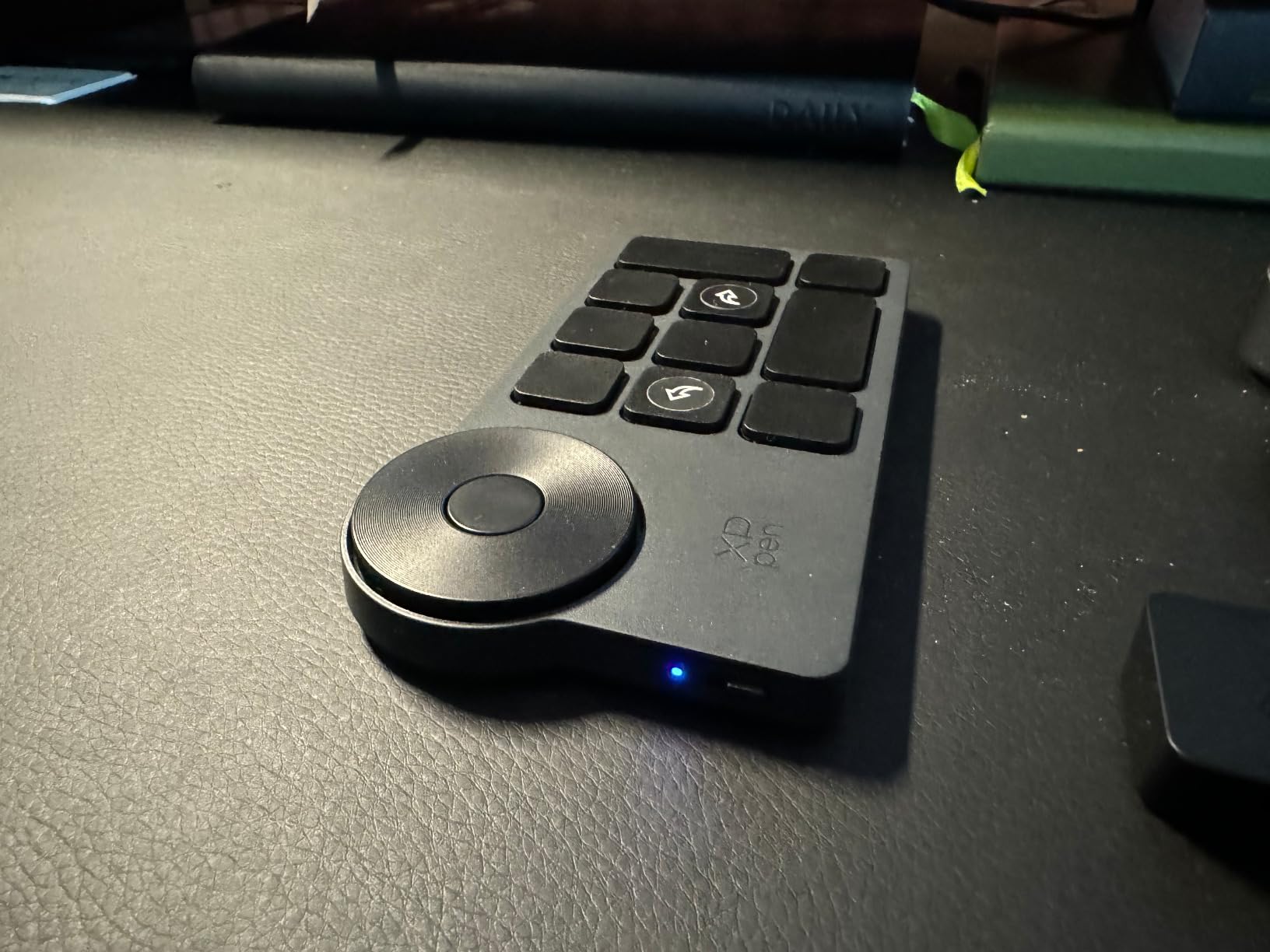
The XPPen ACK05 surprised our team. It is the lightest shortcut remote in this roundup at just 75 grams, and the 2023 Good Design Award is well-earned — the chassis fits one-handed use without feeling cramped. For a budget pick, it punches well above its weight.
Battery life is the headline stat: a 1000 mAh cell delivers roughly 300 hours of continuous use on a single charge, which means most artists will go a month between top-ups. Three connection modes (Bluetooth 5.0, USB dongle, USB-C wired) mean you can keep working even if Bluetooth misbehaves. Anti-ghosting across all 10 keys is another rarity in this tier.
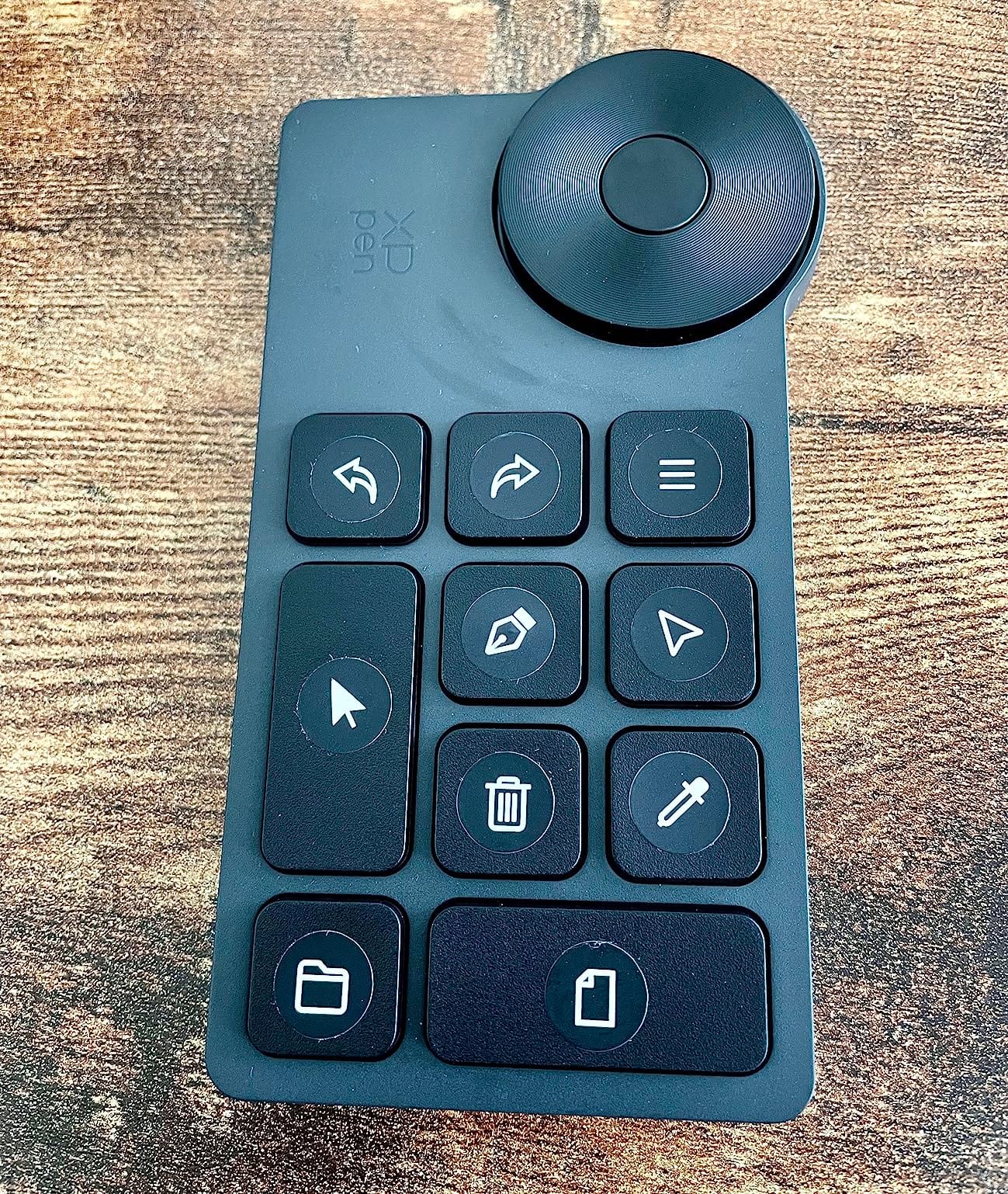
In our Photoshop and Clip Studio Paint sessions, the ACK05 mapped cleanly to brush size, undo, eyedropper, and canvas rotation via the central dial. The XPPen software lets you rotate the on-screen layout between vertical and horizontal placement, which is a thoughtful touch for portrait vs. landscape pen displays.
Where the ACK05 stumbles is firmware maturity. A handful of reviewers on r/drawingtablet report a double-tap input glitch that creeps in after many hours of Bluetooth use, and the bundled documentation for advanced programming is thin. The dial also lacks an LED indicator, so you must guess which of the four mappings is active.
For whom it’s good
The ACK05 is a strong fit for hobbyists, students, and budget-conscious artists who want a real shortcut remote without breaking the bank. It is also one of the rare picks that supports Linux out of the box. Streamers who use OBS for art streams will appreciate the lightweight wireless design and the dongle fallback.
For whom it’s bad
Skip the ACK05 if you demand premium build or long-term Bluetooth reliability. The dial feedback is less crisp than the Xencelabs or TourBox equivalents, and users who like to tinker with chained macros will find the software limiting. iPad artists need to look elsewhere — XPPen does not currently support iPadOS for this remote.
4. Wacom ExpressKey Remote – Wireless Remote for Cintiq and Intuos Pro
Wacom ExpressKey Remote for Cintiq & Intuos Pro
17 customizable buttons
Touch Ring
Up to 5 remotes pairable
10 m wireless range
Pros
- Designed for Cintiq/Intuos Pro
- 17 customizable buttons
- Connect up to 5 remotes
- Rechargeable Li-ion
Cons
- Touch Ring less precise than a dial
- No iPad/standalone support
- Only works with Wacom tablets
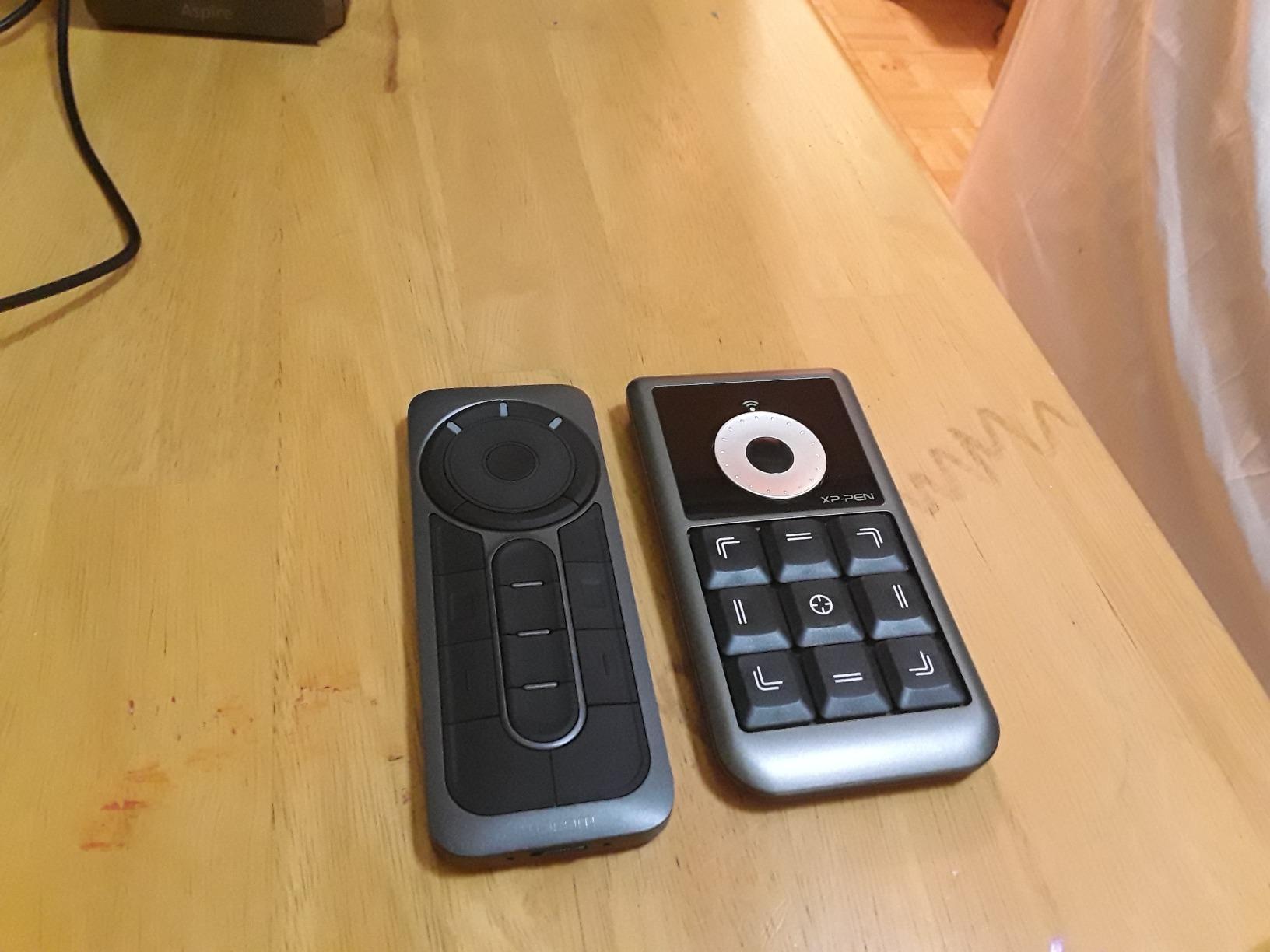
If you own a Wacom Cintiq or Intuos Pro, the ExpressKey Remote is the most frictionless shortcut remote on the market — it is purpose-built for that ecosystem and pairs in seconds through Wacom’s tablet driver. Seventeen customizable buttons plus the signature Touch Ring give you 18 inputs in a compact, weighted body.
The unique selling point is multi-remote pairing: you can connect up to five ExpressKey Remotes at once and assign each one to a different application. I tested this by running Photoshop on one remote and Clip Studio Paint on another, switching between them simply by clicking into the target app. For studio workflows where you jump between illustration, retouching, and animation, this is hard to beat.
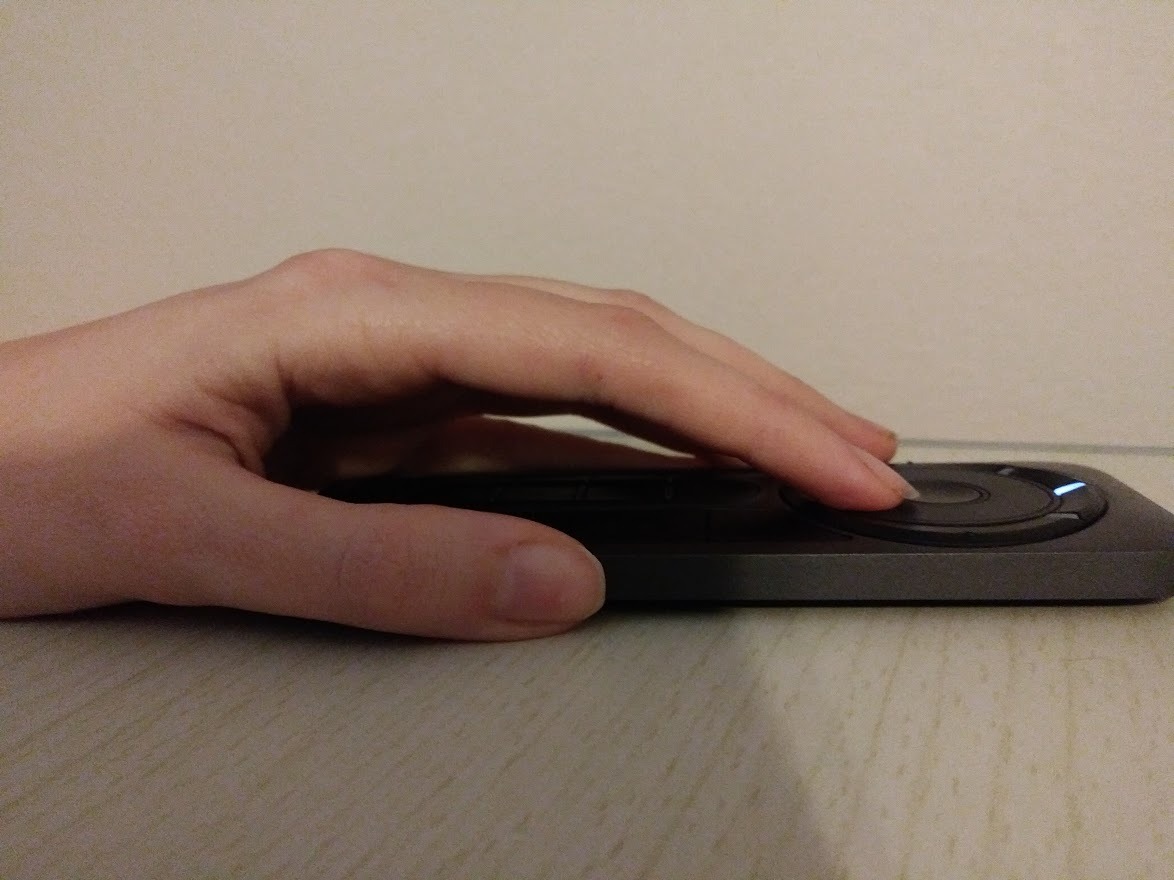
Wireless range is a generous 10 meters via infrared, and the rechargeable lithium-ion battery lasts a full work week on a charge. The Wacom desktop app also makes it easy to export and share button mappings across machines, which is great for studio environments with multiple Cintiqs.
The main drawback — and the reason this is not our editor’s choice — is the Touch Ring. Reviewers on r/wacom and our own testing consistently describe it as less precise than a physical dial: small adjustments tend to overshoot, and canvas rotation feels jumpy. It also works only with Wacom tablets, so the moment you switch to a Huion or XPPen pen display, the remote becomes a paperweight.
For whom it’s good
The ExpressKey Remote is a no-compromise pick for committed Wacom Cintiq and Intuos Pro owners who want a remote that just works. Studios that run multiple artists on matching Cintiqs will love the multi-remote pairing and the easy preset sharing. Rechargeable battery and clean driver integration make it a low-friction daily driver.
For whom it’s bad
Do not buy this remote if your drawing tablet is from Huion, XPPen, Xencelabs, or any non-Wacom brand — it simply will not pair. iPad and Android users have no support path either. Artists who do precise brush-size or zoom work will find the Touch Ring frustrating compared to a tactile dial, and budget shoppers will struggle to justify the cost over a multi-brand Bluetooth keypad.
5. Huion Keydial Mini K20 – 18-Key Bluetooth Programmable Keypad
HUION Keydial Mini Bluetooth Programmable Keypad with Dial 18 Shortcut Keys
18 programmable keys
Bluetooth 5.0
Programmable dial
70 hr battery
Pros
- 18 fully programmable keys
- Setting Preview popup display
- 70-hour battery life
- Broad app compatibility
Cons
- Scroll wheel can become jittery
- Multi-key combos limited in software
- No carrying case included
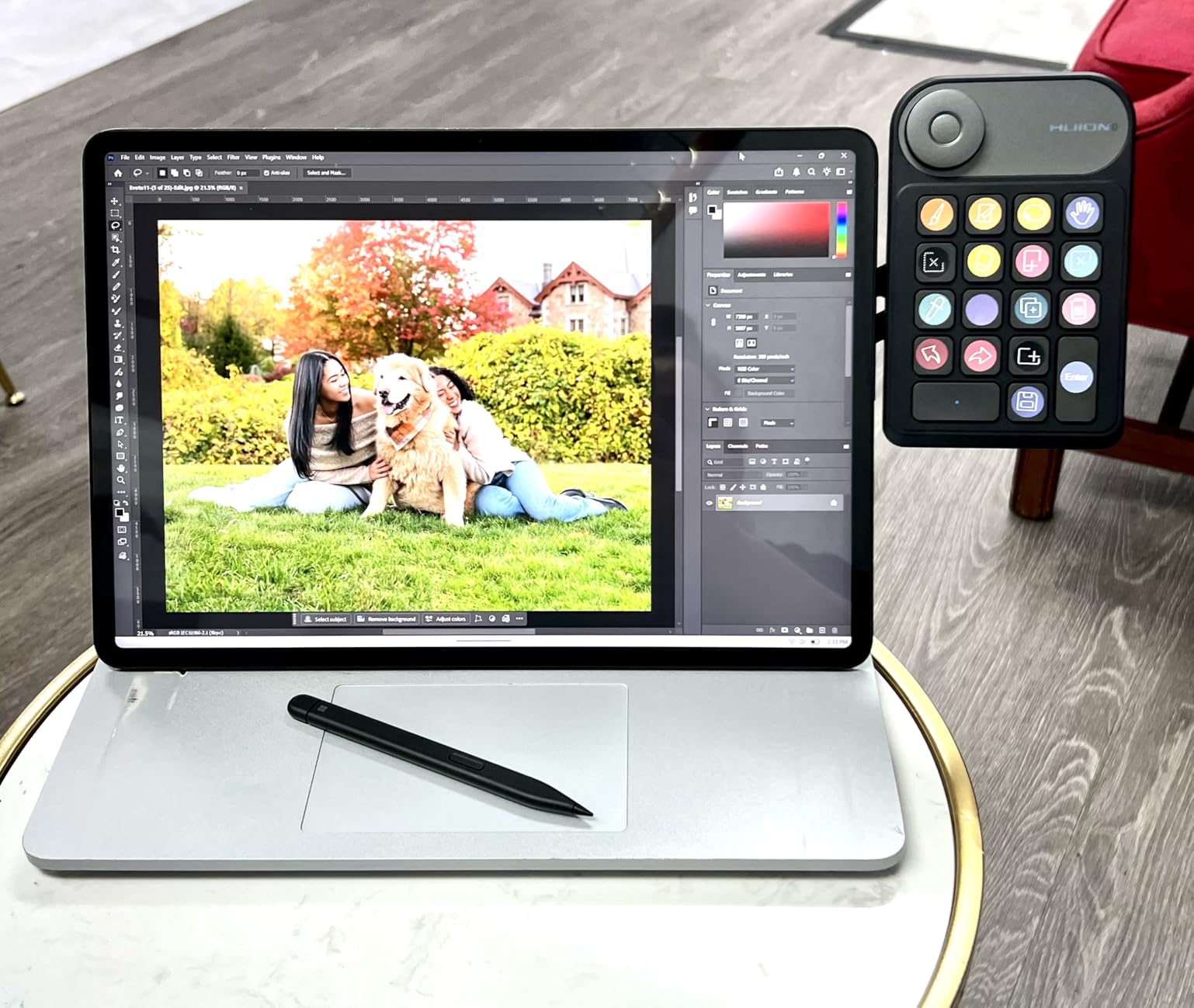
The Huion Keydial Mini K20 is the button-count champion in this roundup: 18 fully programmable keys plus a single dial give you 19 inputs in a thin, 4-ounce slab. If you hate cycling through shortcut sets to find the right tool, having everything on dedicated buttons is a real workflow upgrade.
I tested the K20 with Clip Studio Paint, Photoshop, and Lightroom, and the Huion driver mapped cleanly to brush presets, layers, undo, eyedropper, and the full Lightroom develop panel. The Setting Preview popup shows the current mapping when you hover, which solves the “what does this button do again?” problem without an OLED screen.
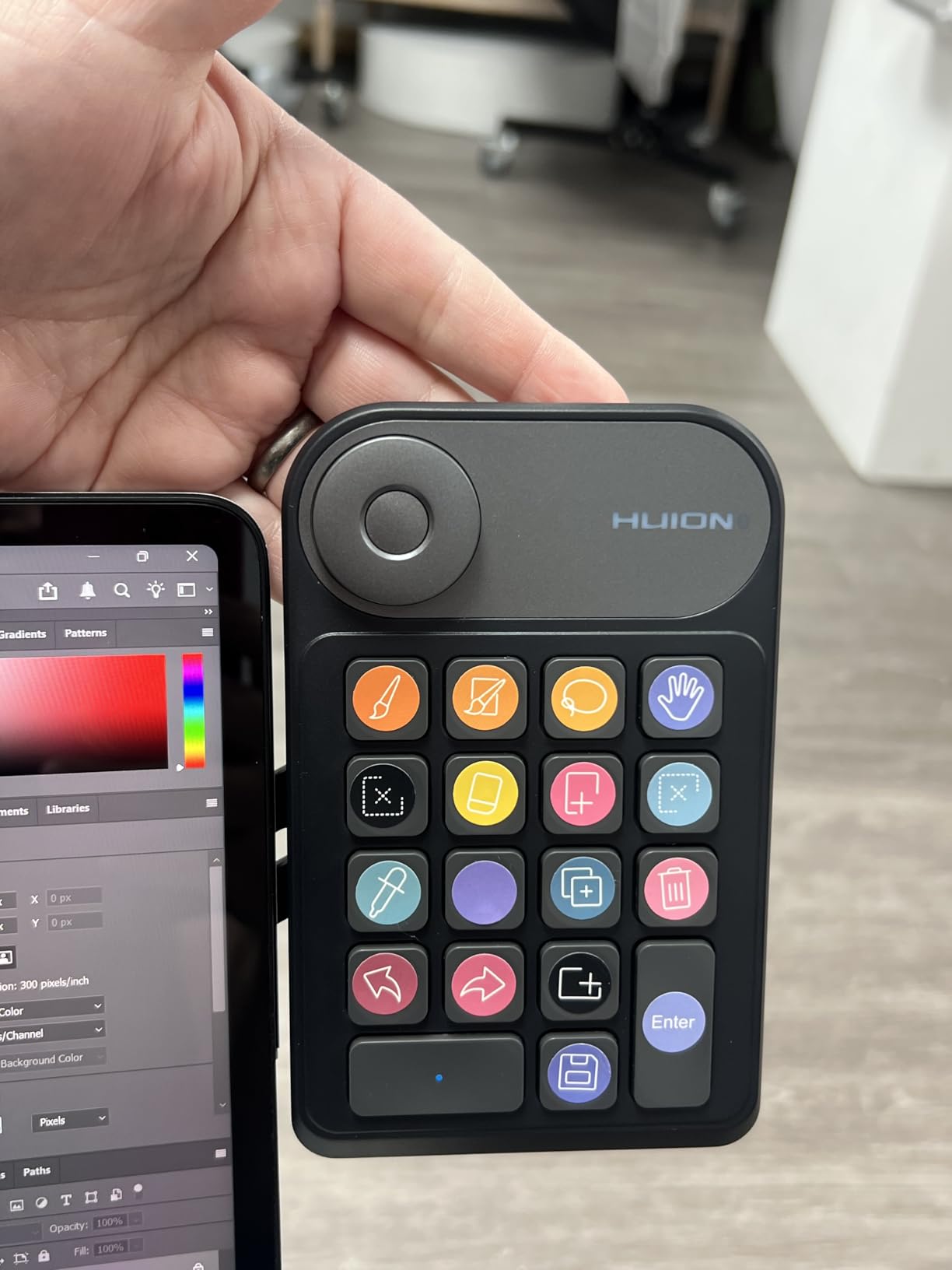
Battery life is a strong 70 hours on Bluetooth 5.0, and the anti-ghosting on five simultaneous keys means you can chord shortcuts without dropped inputs. Compatibility spans Mac and Windows, plus surface devices, and works with Photoshop, Lightroom, Illustrator, Final Cut Pro X, Premiere Pro, DaVinci Resolve, Capture One, Clip Studio Paint, and Paint Tool SAI.
The two recurring complaints from verified Amazon reviews are dial jitter after months of heavy use and limited multi-keystroke support in the driver — you can map a single shortcut to a button but not always a Cmd+Shift+Alt chord. There is also no carrying case despite the portable design.
For whom it’s good
The K20 is built for artists who want maximum buttons per dollar and prefer dedicated keys over cycling sets. Photo editors juggling dozens of Lightroom adjustments will appreciate having a separate button for each common slider. Mobile illustrators who work across a desktop and a laptop will also like the slim 4-ounce form factor.
For whom it’s bad
Avoid the K20 if you rely heavily on multi-key shortcuts like Cmd+Shift+Alt+S — the driver often refuses to record those chords. Long-term heavy dial users should expect some jitter after a year or so. iPad and Android artists are out of luck, since Huion’s mobile drivers do not currently support the K20.
6. TourBox Elite Plus – iPad-Compatible Creative Controller
TOUR BOX Elite Plus Editing Controller, Complete Control, Ice Translucent
Dual-channel Bluetooth 5.0
14 buttons/knobs
iPadOS + Mac + Windows
Ambidextrous
Pros
- First TourBox with iPad support
- Macro chaining and plugins
- Ambidextrous layout
- Preloaded presets
Cons
- Premium price tier
- USB-C cable not included
- AA batteries required for wireless
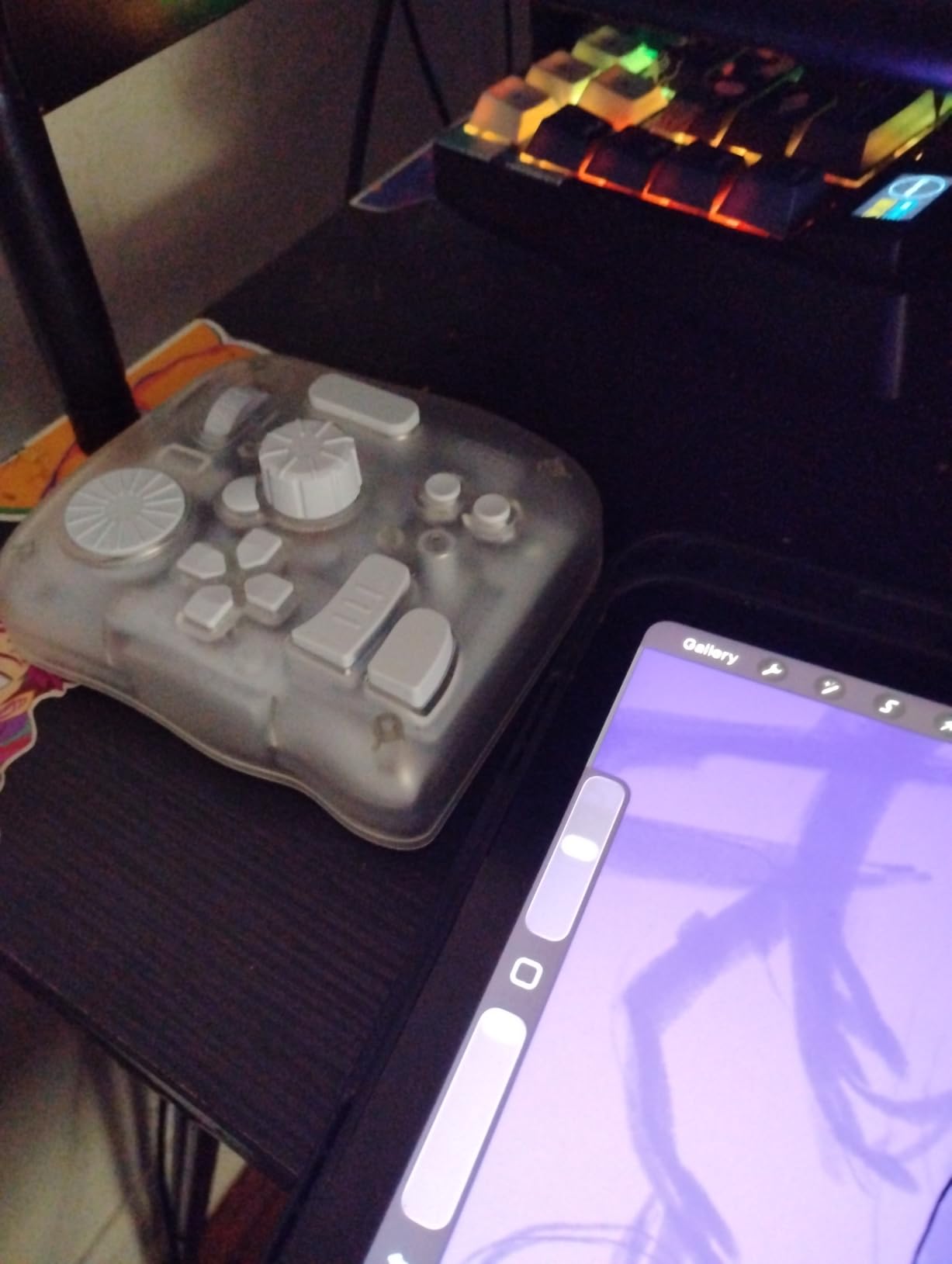
The TourBox Elite Plus is the first TourBox controller built to work with iPads, and that alone makes it the headline option for mobile illustrators. Dual-channel Bluetooth 5.0 lets you pair it with an iPad, a Mac, or a Windows PC, and the same physical layout works across all three.
The 14 programmable buttons, dials, and knobs ship with preloaded official presets for Photoshop, Lightroom, Premiere Pro, Procreate, LumaFusion, Final Cut Pro, and DaVinci Resolve. I tested the Procreate preset on an iPad Pro and the workflow improvement was immediate — undo, brush size, opacity, layer toggles, and color picker all became one-handed operations.
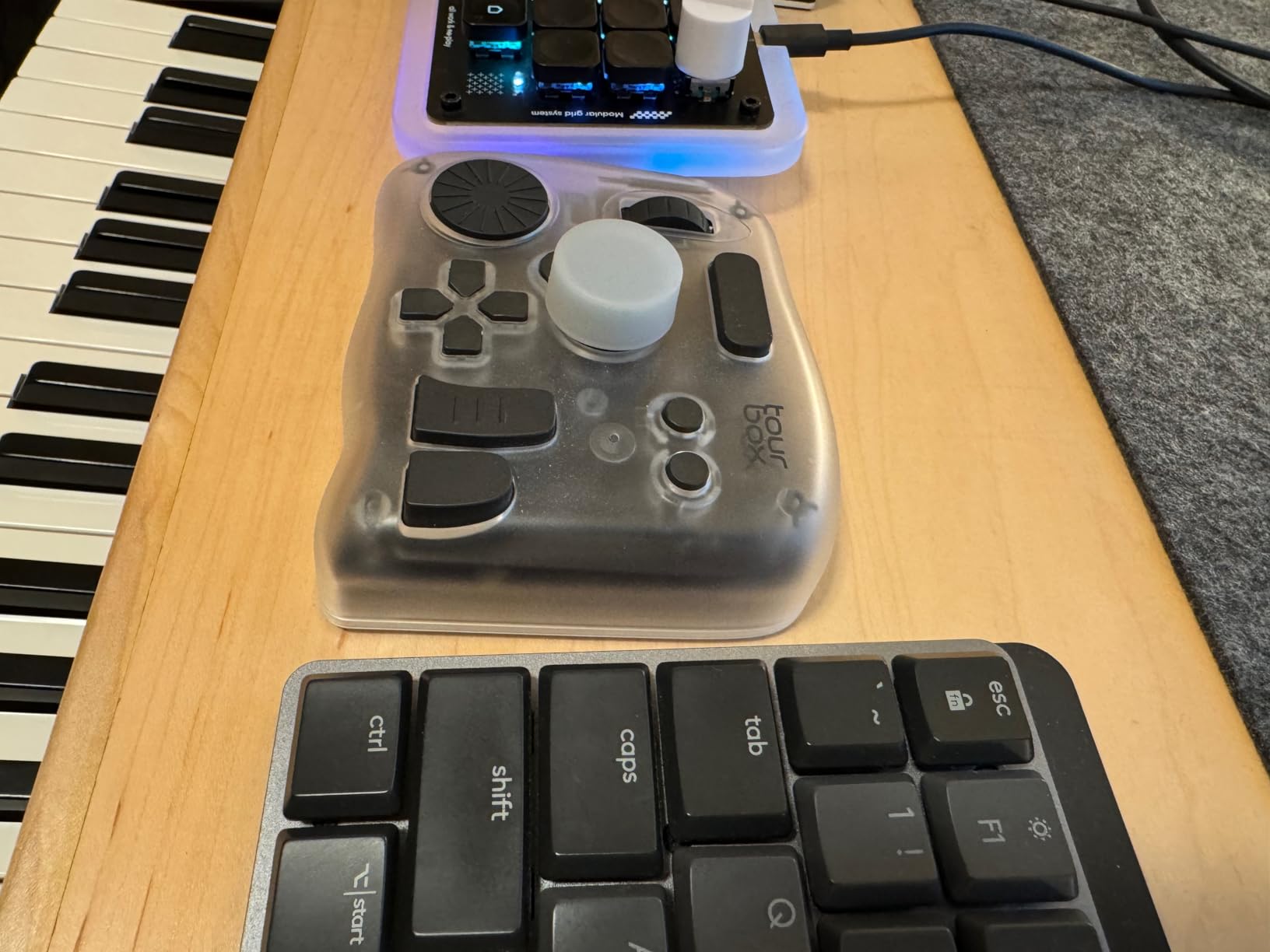
The macro feature chains complex commands into a single press, and the screen interaction plugin simulates mouse drags for actions that traditionally needed a cursor. The ambidextrous layout is genuinely usable by left-handed artists, which is rare in this category. Build quality matches the price — a 376 g weighted body with an anti-fingerprint translucent finish.
The premium tier comes with premium caveats. The list price is the highest in this roundup, no USB-C cable is included for wired use, and you rely on AA batteries when running wirelessly with an iPad. Default presets for niche apps like Affinity Photo are limited, and some LumaFusion shortcuts behave inconsistently on iPadOS.
For whom it’s good
The Elite Plus is built for serious creators who split time between an iPad and a desktop and want one controller for both. Procreate artists, DaVinci Resolve editors, and left-handed users finally get a tour-grade option that adapts to their setup. Studios that standardize on TourBox presets will appreciate the deep Photoshop and Premiere integration.
For whom it’s bad
Skip the Elite Plus if you do not need iPad support — the wired TourBox NEO delivers the same dial precision for significantly less. Hobbyists and students will struggle to justify the premium. And anyone working primarily in Affinity Photo, Krita, or other niche apps should expect to invest time in custom preset creation.
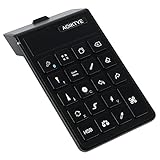
7. AOIKTYE Wireless Keyboard for Procreate – iPad Shortcut Keypad
AOIKTYE Keyboard for Procreate, 22 Shortcut Keys Wireless Keyboard for iPad Digital Drawing, 84H Battery Life Such as Painter/AI/SAI/CSP/PS, etc(Black)
22 Procreate shortcuts
84 hr battery
iPad Bluetooth
USB-C charging
Pros
- Designed for Procreate shortcuts
- 84-hour battery life
- Fast iPad Bluetooth pairing
- Low entry price
Cons
- Keys cannot be remapped
- Micro USB port prone to failure
- Brush size steps are inconsistent
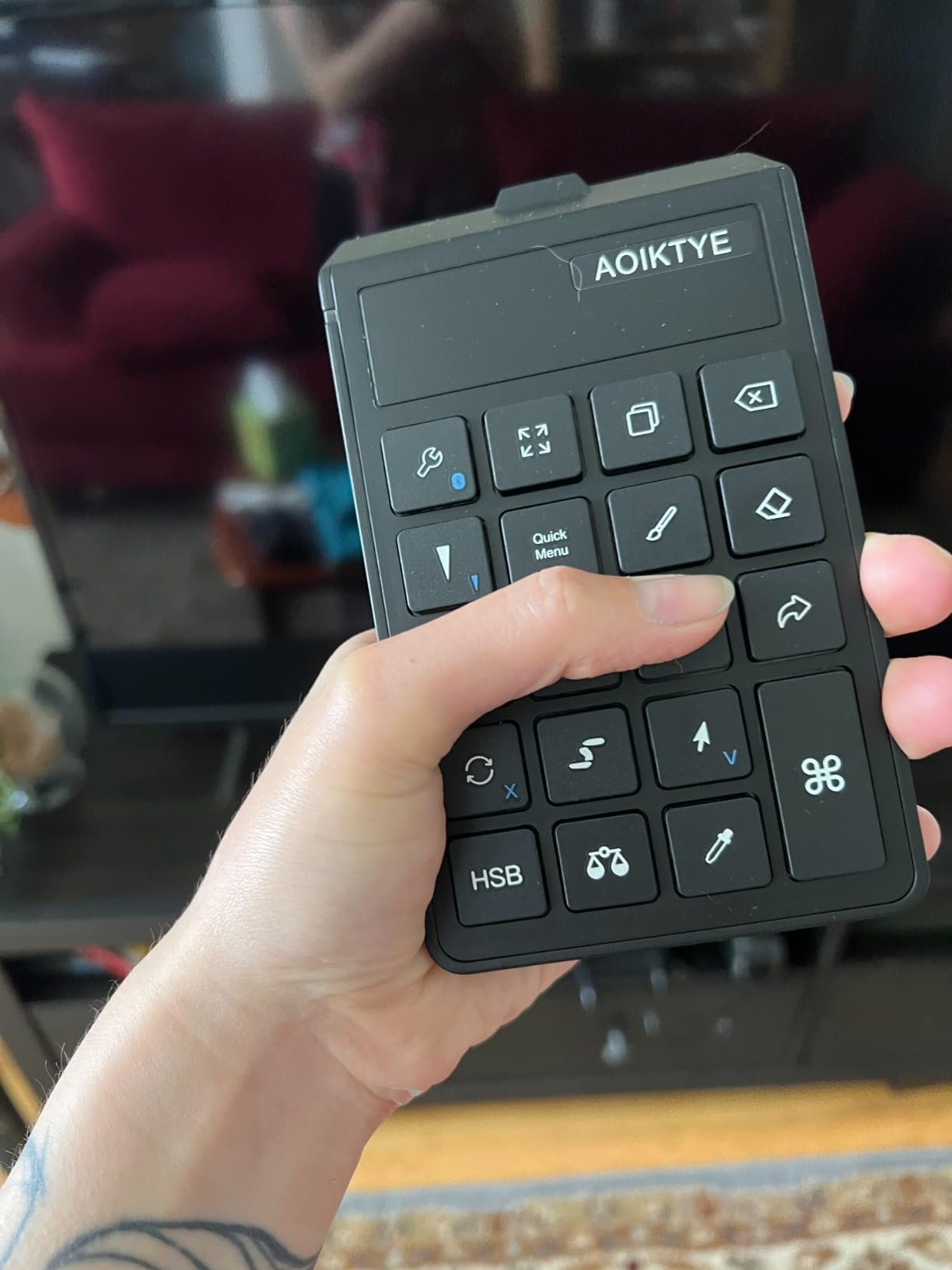
If you draw in Procreate on an iPad and want a purpose-built shortcut keypad without spending a lot, the AOIKTYE wireless keyboard is the most direct answer. Twenty-two keys ship pre-mapped to Procreate shortcuts: color picker, HSB adjust, cut/copy/paste, undo, brush size, layer toggle, and more.
Battery life is a standout at 84 hours of continuous use with six months of standby, which is genuinely impressive for an iPad accessory. Pairing with an iPad Pro was instant in my testing — open Bluetooth, tap the keyboard, and you are drawing with shortcuts within a minute. The keys also double as Painter, Illustrator, SAI, Clip Studio Paint, and Photoshop shortcuts.
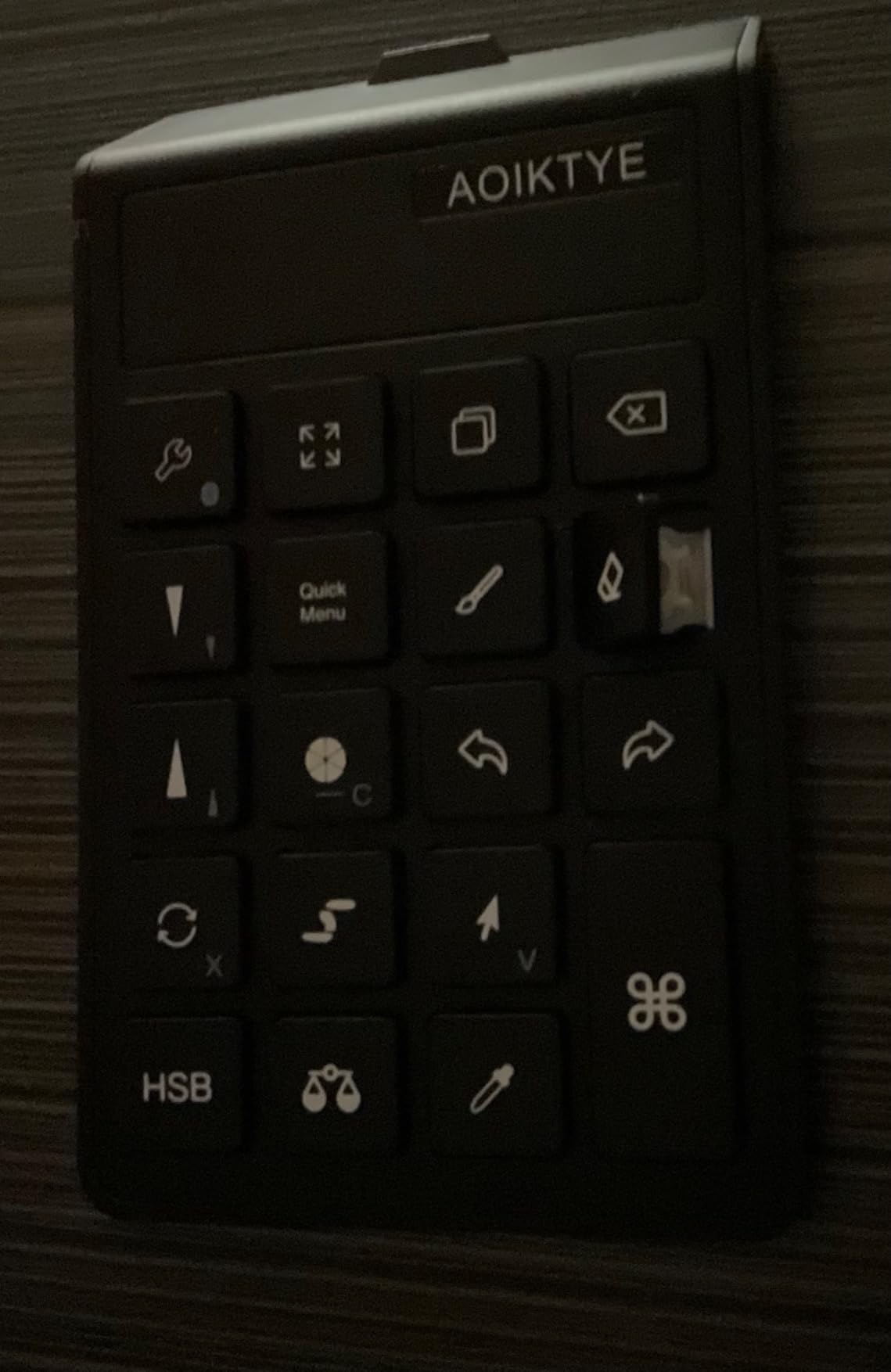
The minimalist 120 g chassis slides into a backpack sleeve alongside an iPad, making it a good companion for sketching at cafes or studios. OTA firmware updates promise some future customization, which is rare at this price.
The downsides are real: the keys cannot be remapped for non-Procreate functions, which locks you into the Procreate layout. The charging port is micro USB, not USB-C, and reviewers on Amazon report that the port can fail after a year of regular use. Brush size steps also feel inconsistent at very small or very large values.
For whom it’s good
The AOIKTYE keyboard is a perfect fit for Procreate-first iPad illustrators who want shortcuts without the cost of a TourBox Elite Plus. Students and hobbyists get a low-risk way to try a shortcut workflow. Anyone who sketches away from a desk will appreciate the compact size and long battery.
For whom it’s bad
This is the wrong keyboard if you need remappable keys for multiple creative apps — the layout is fixed to Procreate defaults. Desktop artists using Clip Studio Paint or Photoshop on a computer should choose a more flexible remote. And anyone frustrated by micro USB charging ports in 2026 should look at the newer USB-C alternatives.
8. ActionRing Stream Controller Deck – LCD Macro Keypad
ActionRing Stream Controller Deck,Macro Keypad,Gaming Shortcut Keyboard
6 LCD keys + 3 dials
USB wired
OBS/Photoshop plugins
Win/Mac
Pros
- LCD keys support custom icons and GIFs
- 3 dials for scrubbing and volume
- Drag-and-drop macro setup
- 2-year warranty
Cons
- Setup learning curve for macro beginners
- Software can be resource-heavy
- Lacks drawing-specific presets
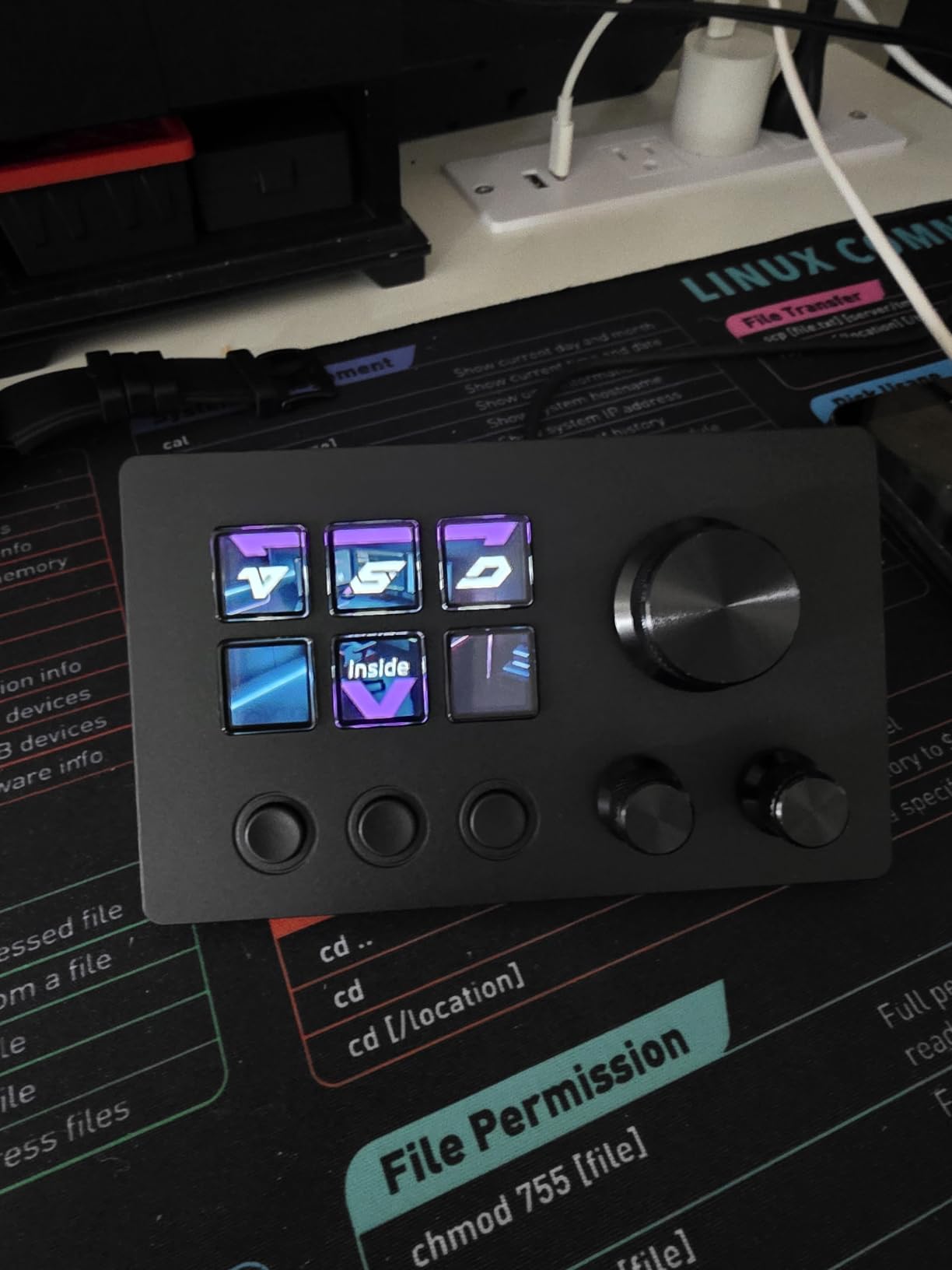
The ActionRing Stream Controller Deck is the wildcard in this roundup: a macro keypad with six fully customizable LCD keys that can show icons or animated GIFs, plus three tactile dials for volume, scrubbing, and timeline control. It is designed primarily for streamers and content creators, but it doubles as a Photoshop and Premiere Pro shortcut deck.
I tested it with OBS scene switching, Photoshop brush shortcuts, and Premiere Pro timeline scrubbing, and the drag-and-drop action mapping is the easiest macro setup I have used. The Action Flow feature lets you chain multi-step actions into a single button press, which is powerful for repetitive editing pipelines.
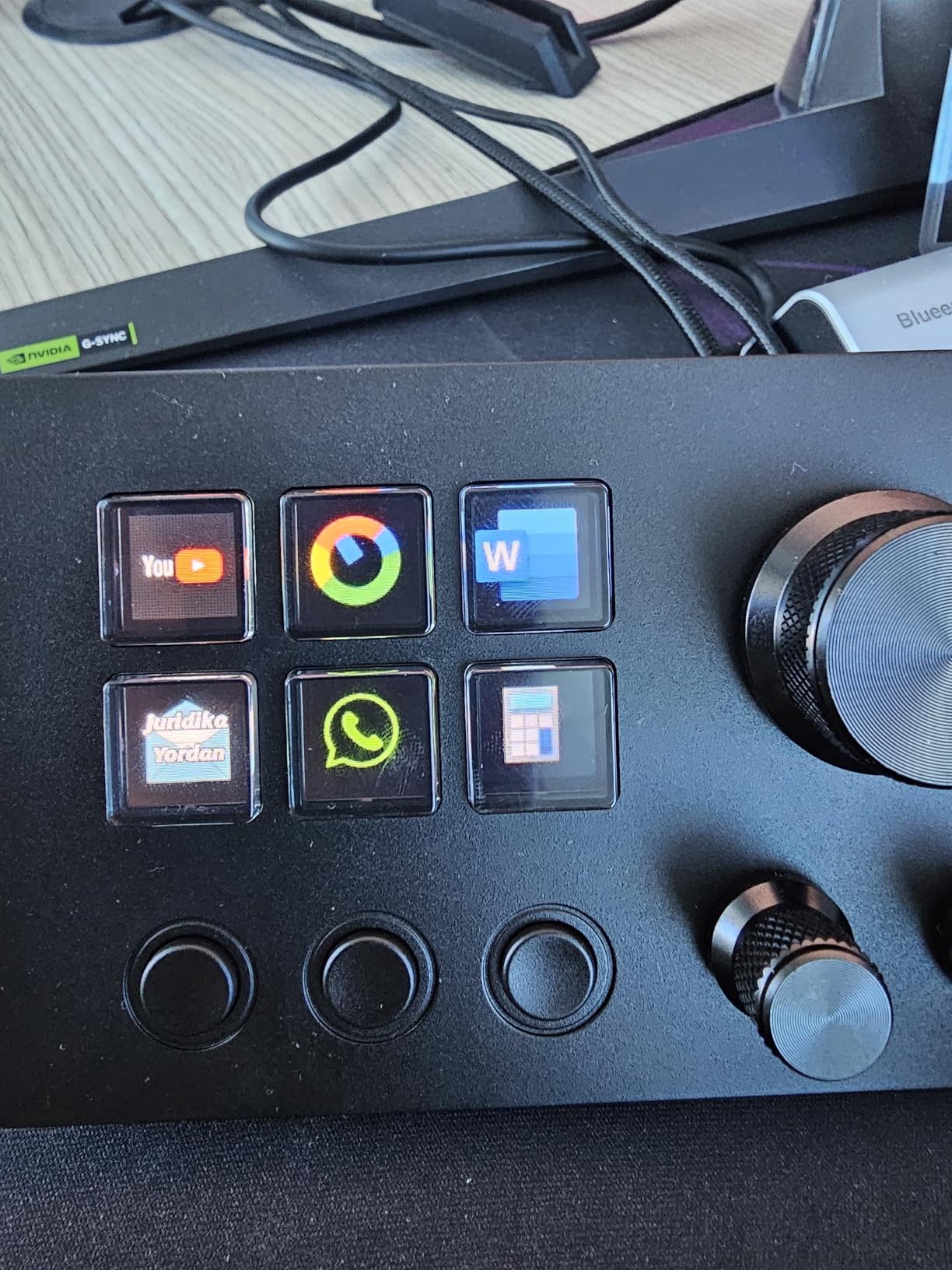
Hardware feels solid: a weighted body that stays planted during heavy use, quiet buttons suitable for late-night sessions, and a 2-year manufacturer warranty that beats most competitors. Plugin support includes OBS, PowerPoint, YouTube, Twitter, Discord, Excel, Word, Photoshop, and Premiere Pro.
Where the ActionRing falls short for traditional digital artists is drawing-specific presets. The included icons lean toward streaming and productivity, so illustrators will need to create custom icons from scratch. Software resource usage is also higher than some competitors, which can matter on older machines.
For whom it’s good
The ActionRing is a strong fit for art streamers, content creators, and editors who want LCD visual feedback and chained macros. Anyone running a YouTube channel with live painting, OBS tutorials, or video editing will love the LCD icons and the three dials. The 2-year warranty is a quiet but meaningful trust signal.
For whom it’s bad
Pure illustrators who only need brush and zoom shortcuts will find the ActionRing overkill and lack the deep app profiles of a Xencelabs or TourBox. iPad users have no support path. Beginners should budget a few hours of setup time before the deck feels natural — the macro UI is friendly but not instant.
Buying Guide: How to Choose a Shortcut Remote?
Choosing the best keyboard shortcut remote for digital artists comes down to four questions: where do you draw, what software do you use, do you need iPad support, and how much physical dial precision do you want. Most artists underestimate how much time a poorly chosen remote costs them — the right one pays for itself in saved hours.
Wired vs Wireless
Wired remotes like the TourBox NEO deliver zero-latency response and never run out of battery mid-session, which matters for color grading and animation. Wireless Bluetooth remotes give you desk flexibility and let you move the remote to your non-drawing hand, which is why most mobile-focused picks are wireless. For desktop studios with stable desks, wired is the safe choice. For iPad and laptop artists, Bluetooth 5.0 with a USB dongle fallback is the most resilient setup.
Software Compatibility Matrix
Photoshop and Clip Studio Paint are supported by every remote in this roundup, which is the bare minimum. Lightroom, Premiere Pro, and DaVinci Resolve support varies — Xencelabs, Huion, and the TourBox family all ship presets for the Adobe video suite, while the AOIKTYE keyboard is locked to Procreate. Krita users should verify driver support before buying, since Krita shortcut remapping is less standardized. Procreate on iPad is best served by either the AOIKTYE keyboard (budget) or the TourBox Elite Plus (premium).
Touch Ring vs Dial
A touch ring (like the Wacom ExpressKey Remote) gives you sweeping gestures for zoom, brush size, and canvas rotation, but it tends to overshoot on small adjustments. A physical dial or knob (TourBox, Xencelabs, Huion, XPPen) feels more like turning a volume knob — precise, repeatable, and easy to use without looking. For brush-size work and photo retouching, a dial is almost always the better choice. For quick zoom and rotate, the touch ring still has merit.
Left-Handed Usability
Most remotes in this category are ambidextrous by layout, but several (TourBox NEO, Wacom ExpressKey Remote) skew toward right-handed mouse users. The TourBox Elite Plus and the Huion Keydial Mini K20 are the safest left-handed picks. If you draw with your left hand on a Cintiq, plan to remap buttons before committing.
Battery Life and Charging
Bluetooth remotes range from 70 hours (Huion K20) to 300 hours (XPPen ACK05). If you forget to charge devices, the ACK05’s 1000 mAh cell is the most forgiving. The AOIKTYE keyboard uses a micro USB port, which is a real downside in 2026 — plan to replace the cable eventually or carry a spare.
Who This Is For by Skill Level
Hobbyists drawing a few hours per week can start with the XPPen ACK05 or AOIKTYE keyboard and get most of the workflow benefit without the cost. Intermediate illustrators and photo editors will feel the biggest jump from the Xencelabs Quick Keys or Huion Keydial Mini. Professionals and daily editors should look at the TourBox NEO for desktop or the TourBox Elite Plus if iPad support is required.
Frequently Asked Questions
What is the best gadget for digital art?
A quality pen display or drawing tablet is the core gadget, but a shortcut remote is the next biggest workflow upgrade. The best keyboard shortcut remotes for digital artists place brush size, undo, zoom, and tool switching on physical buttons, saving hours every month. Our top pick is the TourBox NEO for desktop work and the TourBox Elite Plus for iPad.
What are some keyboard shortcuts I can use in graphic design?
Common graphic design shortcuts include Ctrl/Cmd+Z for undo, Ctrl/Cmd+T for free transform, B for brush, E for eraser, V for move, M for marquee, L for lasso, [/] for brush size, and Space for temporary hand tool. A shortcut remote lets you assign these to physical buttons so you never break your drawing flow to hunt for a key.
What are the best digital tools for digital art?
The must-have digital tools for digital artists are a pressure-sensitive pen tablet or pen display, a quality creative app like Photoshop or Clip Studio Paint, a shortcut remote or programmable keypad, a drawing glove to reduce friction, and a calibrated monitor. Pairing a tablet with a shortcut remote is the single biggest productivity upgrade.
What are the must-haves for digital artists?
Every digital artist needs a pen tablet with pressure sensitivity, a creative app that fits their style, color-managed display, cloud or local backup, and a shortcut remote for faster brush and tool switching. A drawing glove and an ergonomic stand for the tablet round out a productive setup.
What is the best device for digital artists?
The best single device for digital artists depends on workflow: Wacom Cintiq for studio illustrators, iPad Pro with Procreate for mobile artists, Huion Kamvas for budget pen displays, and a TourBox NEO paired with any tablet for shortcut control. Combine a strong pen display with a quality shortcut remote for the fastest workflow.
Which XPPen drawing tablet is the best?
XPPen’s best drawing tablets in 2026 include the Artist Pro 16 (Gen2) for color-accurate pen display work, the Deco Pro for budget-friendly wireless drawing, and the ACK05 shortcut remote for pairing. The ACK05 is the most relevant XPPen pick if you already own an XPPen tablet and want app-specific presets.
What software do most artists use to draw?
Most digital artists draw in Clip Studio Paint for illustration and manga, Photoshop for general painting and photo work, Procreate on iPad for sketching and finished art, and Krita as a free open-source alternative. Blender is standard for 3D and animation. The best keyboard shortcut remotes for digital artists ship presets for the first three apps.
Final Verdict
After testing eight remotes across Photoshop, Clip Studio Paint, Procreate, and DaVinci Resolve, the TourBox NEO earns our editor’s choice as the best keyboard shortcut remote for digital artists who work on a desktop. Its 14 uniquely shaped buttons and zero-latency wired connection deliver the most consistent workflow gains, and the preset library covers every major creative app. For iPad-first artists, the TourBox Elite Plus is the clear premium pick. Budget shoppers get the best value from the XPPen ACK05, and Wacom Cintiq owners should not look past the ExpressKey Remote.
Pick the remote that matches your primary device first, your software second, and your budget third. Any of the eight picks in this roundup will save you hours every month — the only bad choice is staying stuck reaching for your keyboard. Browse the full comparison table above and use the FAQ to answer the last questions, then invest in the remote that fits the way you actually draw in 2026.