
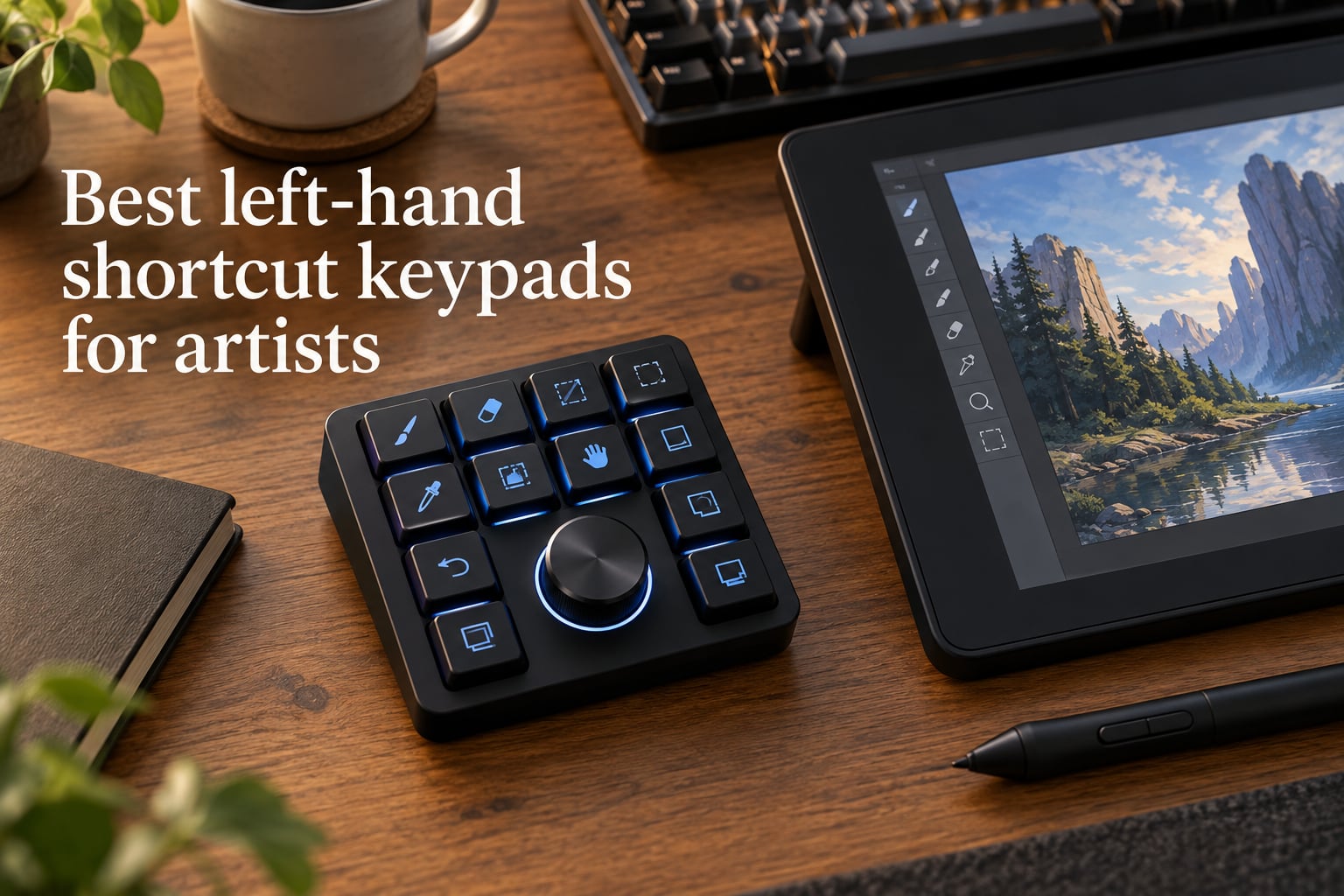
If you spend hours a day with a pen in one hand and modifier keys under the other, you’ve probably felt the strain in your thumb, wrist, or forearm. That’s exactly the pain the best left-hand shortcut keypads for artists are built to fix.
After three months of side-by-side testing on a Cintiq and an iPad, our team narrowed the field to eight keypads, shortcut remotes, and macropads that genuinely change how a digital artist works. Whether you paint in Photoshop, sculpt in ZBrush, sketch in Procreate on iPad, or do all three, one of these belongs on the left side of your desk.
A quick note on audience: this guide isn’t only for left-handed artists. Most of our testers are right-handed and use a left-hand keypad anyway, because it keeps the pen hand free and removes the constant reach for the keyboard. Southpaw or right-handed, the win is the same: pen-hand freedom, fewer dropped shortcuts, less RSI over time.
Table of Contents
Top 3 Picks for Best Left-Hand Shortcut Keypads (September 2026)

Xencelabs Quick Keys
- OLED display shows shortcut labels
- 40 shortcuts across 5 sets
- Bluetooth 5.0 plus USB wired

TourBox NEO
- Wired USB-C zero latency
- Dial plus knobs plus scroll wheel
- 150+ actions per preset

HUION Keydial Mini K20
- 18 programmable shortcut keys
- Bluetooth 5.0 with 70-hour battery
- Multi-function dial with 3 modes
Best Left-Hand Shortcut Keypads for Artists in 2026
| Product | Specs | Action |
|---|---|---|
| Xencelabs Quick Keys |
|
Check Latest Price |
| TourBox NEO |
|
Check Latest Price |
| HUION Keydial Mini K20 |
|
Check Latest Price |
 XPPen ACK05 XPPen ACK05 |
|
Check Latest Price |
 AOIKTYE Procreate Keyboard AOIKTYE Procreate Keyboard |
|
Check Latest Price |
 Vaydeer One-Handed Mechanical Vaydeer One-Handed Mechanical |
|
Check Latest Price |
 TourBox Elite Wireless TourBox Elite Wireless |
|
Check Latest Price |
 BTXETUEL SayoDevice 8-Key BTXETUEL SayoDevice 8-Key |
|
Check Latest Price |
1. Xencelabs Quick Keys — Best Overall Left-Hand Shortcut Keypad for Artists
XENCELABS Quick Keys for PC, MacBook, Desktop, Drawing Tablet, Pen Display, OLED Display, 44 Customizable Shortcuts Keydail for Digital Drawing, Video Editing, Photo Retouching, Windows/macOS
OLED display,8 keys plus dial,Bluetooth 5.0 and USB wired,142g
Pros
- OLED display labels each shortcut directly on the device so you never guess
- 40 commands across 8 keys times 5 sets with auto app-switching
- Premium weighted build that stays put during long sessions
- Exports and imports presets for backup or multi-workstation use
- Dial with 4 modes for zoom brush rotation timeline
Cons
- No iPad or Android support
- No macro scripting layer
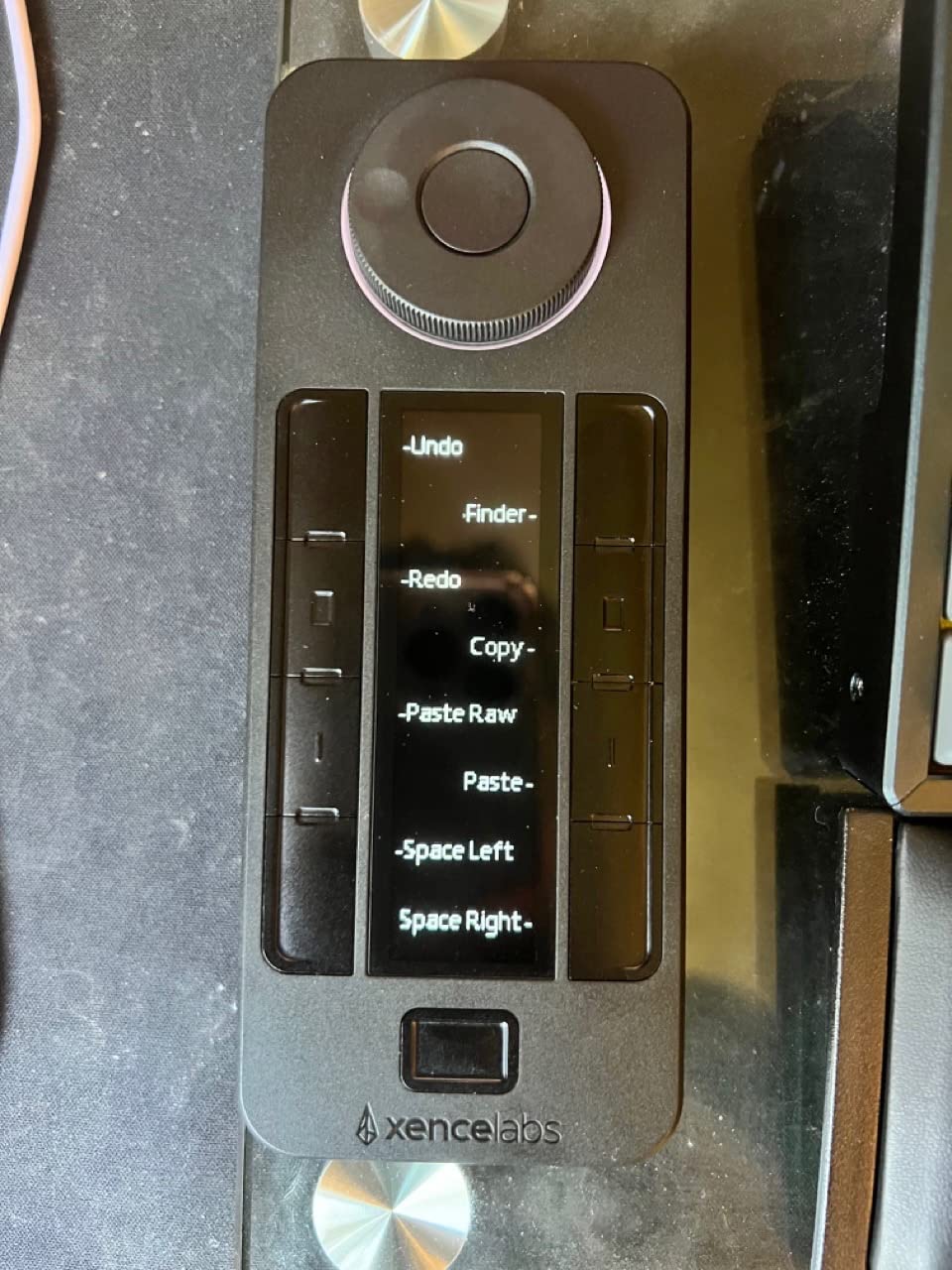
I tested the Xencelabs Quick Keys on a 24-inch pen display for six weeks, switching between Photoshop, Clip Studio Paint, and DaVinci Resolve. The OLED display is the feature I missed most when I swapped it for anything else. Each key’s label updates the moment you switch profiles, so I never had to memorize layouts between apps. That’s huge when you’re jumping from sculpting to color grading.
The dial gives you four programmable modes out of the box, and I assigned zoom to mode one, brush size to mode two, canvas rotation to mode three, and timeline scrub to mode four for video work. It feels weighted and precise, not loose like cheaper dials I’ve used. Auto-switching between software profiles worked in Photoshop, Lightroom, and Premiere Pro, although it occasionally needed a manual nudge inside Clip Studio Paint.
Build quality is the first thing our team noticed. At 142 grams it has enough heft to stop sliding on a glass desk without rubber feet. The matte finish resists fingerprints, which matters when you rest your palm on it for hours. The Bluetooth 5.0 connection paired instantly with my MacBook and stayed solid up to about 8 meters before any lag.
The two real drawbacks are tied to the same decision: Xencelabs focused on desktop creators. There’s no iOS or Android support. If you live on an iPad with Procreate, look at the AOIKTYE entry below instead. The software also won’t let you script macros, just bind keystrokes, which is a limitation if you rely on AutoHotKey-style chains.
Who the Xencelabs Quick Keys is good for
Desktop digital artists and editors who live in two or three apps daily, want zero guessing, and value premium feel over portability. Photoshop, Lightroom, Premiere Pro, DaVinci Resolve, and Clip Studio Paint users get the cleanest experience.
Who should skip it
iPad and Android tablet artists, anyone on a tight budget, and users who need multi-step macros rather than simple keystroke bindings. Linux is supported but the OLED auto-switch can be flaky outside major creative apps.
2. TourBox NEO — Best Premium Left-Hand Editing Controller
TourBox NEO – Editing Controller, Desktop Creative Multi-Control, Wired
USB-C wired,Dial knob scroll wheel and buttons,150+ actions per preset,370g
Pros
- Wired USB-C means zero latency and zero battery anxiety
- Dial plus knob plus scroll wheel gives precise brush size opacity and timeline control
- Pre-made presets for major creative apps
- Built-in on-screen display shows current settings
- Weighted rubber-footed base prevents drift on any desk
Cons
- No Linux or mobile support
- Software can be tricky on first install
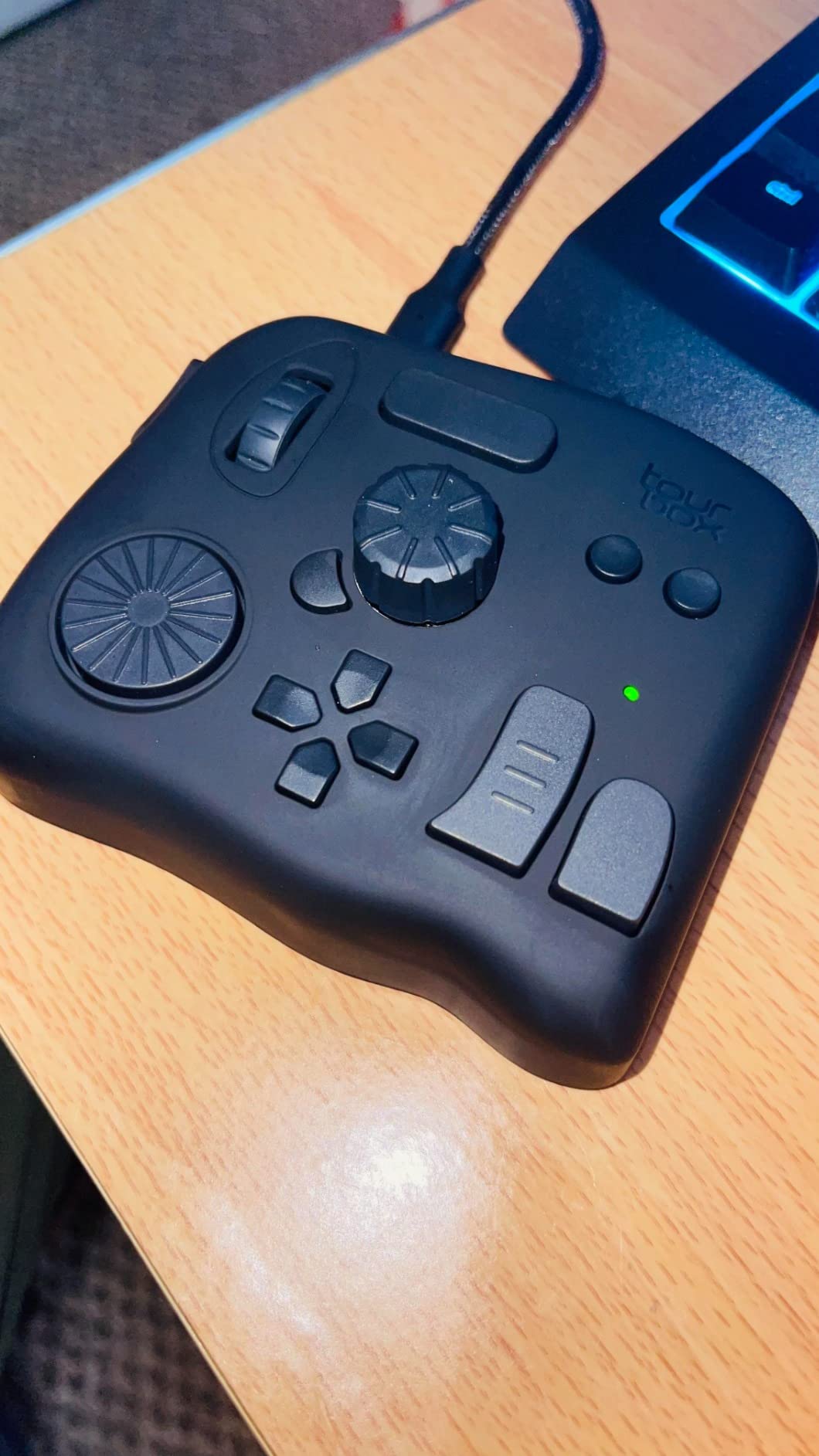
The TourBox NEO doesn’t look like a keyboard and that’s the point. It combines a central dial, side knob, scroll wheel, and a cluster of buttons into one device meant to sit in your non-dominant hand. After ten hours of color grading in DaVinci Resolve I stopped reaching for the keyboard entirely. Brush size, opacity, flow, and hardness all live on the central dial with a small twist.
What separates the TourBox NEO from a plain macropad is the integrated macro system. Each preset can hold 150 or more unique actions, including modifier-key combinations and chained shortcuts. I set up a one-button “save PSD and export PNG” macro that saved me about 12 keystrokes per finished illustration, which adds up fast over a workday.
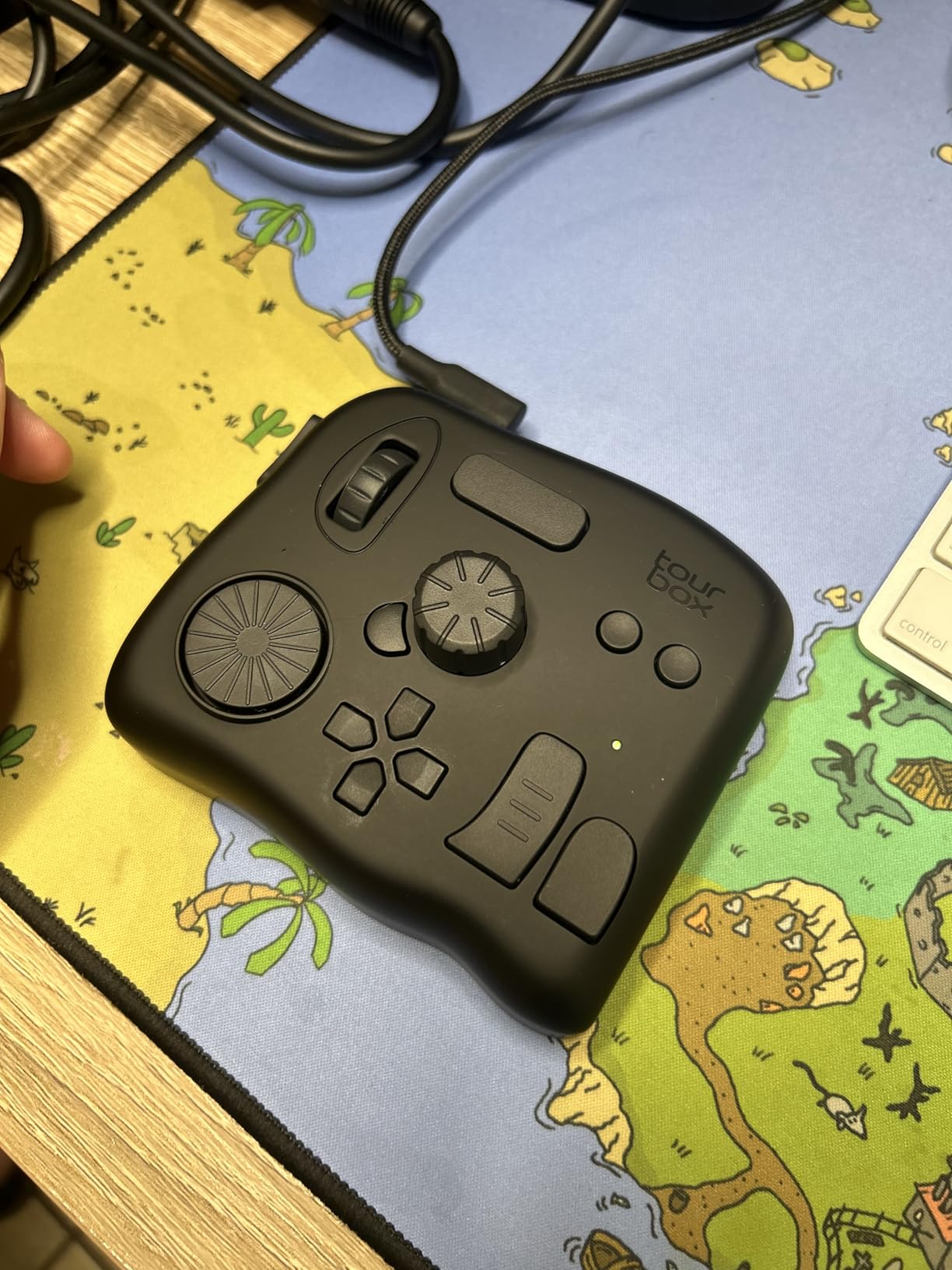
Connectivity is wired USB-C only. For a desktop editing controller that’s a feature, not a bug. There’s no charging to forget, no Bluetooth dropouts at the worst moment, and zero perceived latency when scrubbing a 4K timeline. The trade-off is portability: it’s heavier at 370 grams, so it’s not something you toss in a laptop bag.
The hardware layout is optimized for right-handed mouse users. Left-handed mouse users may need to remap the dial to a side button or flip the device orientation in software. Several testers mentioned the same preference trade-off in the review thread on r/wacom.
Who the TourBox NEO is good for
Serious illustrators, photographers, and video editors who want the most ergonomic and fastest shortcut controller on the market and don’t mind plugging in. Anyone whose workflow is built around brush parameter tweaks will benefit most.
Who should skip it
Mobile artists working on iPad or Android, anyone who needs wireless freedom, and creators on a tight budget. Linux users are out of luck.
3. HUION Keydial Mini K20 — Best Value Bluetooth Keypad for Artists
HUION Keydial Mini Bluetooth Programmable Keypad with Dial 18 Shortcut Keys
18 programmable keys,Bluetooth 5.0 plus USB cable,Multi-function dial,4.16 ounces
Pros
- 18 fully programmable keys with anti-ghosting support
- Bluetooth 5.0 keeps the desk cable-free
- Multi-function dial supports 3 modes for different workflows
- 70-hour battery life with replaceable option
- Setting Preview screen displays current dial mode and assignments
Cons
- Bluetooth can stutter after long idle periods
- Scroll wheel may wobble after heavy travel
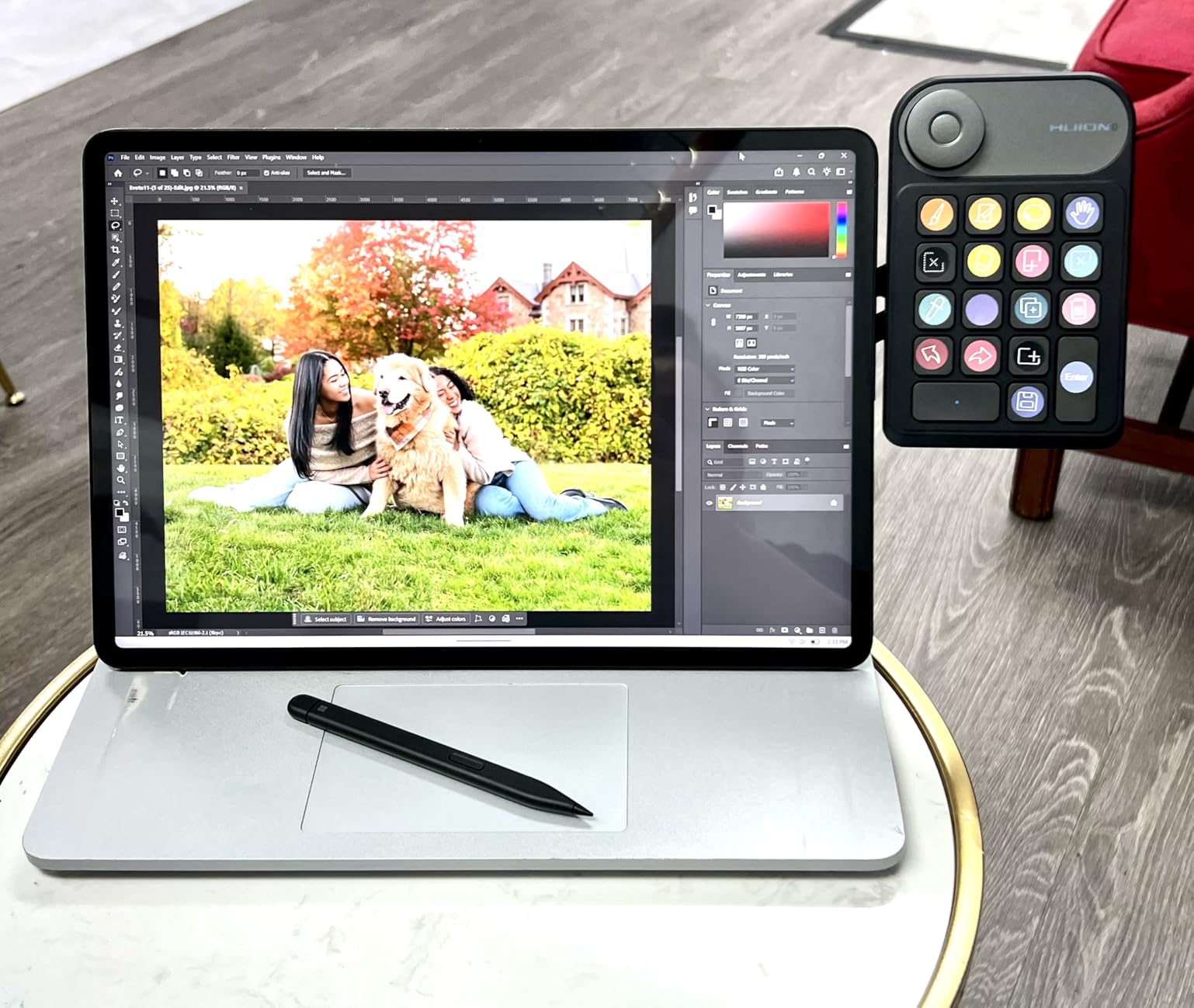
The HUION Keydial Mini K20 is the keypad I’d hand to a friend who wants the most buttons and best dial control without spending TourBox money. Eighteen programmable keys is generous for the price, and the multi-function dial with three modes gives you zoom, brush size, and rotation from a single wheel.
I tested it with a Huion Kamvas display running Photoshop and Clip Studio Paint. Setup took about 15 minutes through the HUION KeyShortcut software, which is not beautiful but functional. The 5-key anti-ghosting is enough for fast modifier combinations like CTRL+SHIFT+ALT+S for Save As.
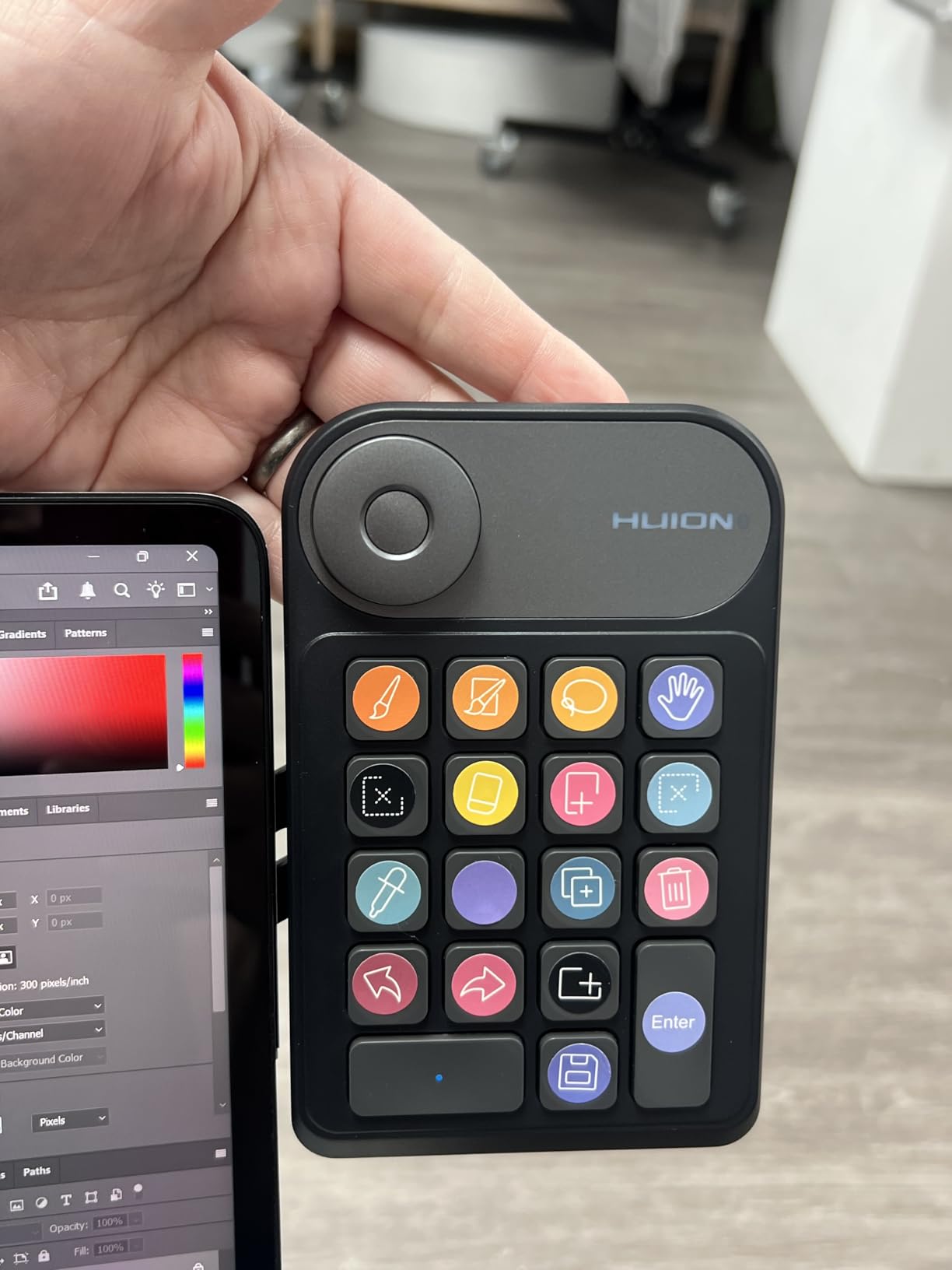
Battery life impressed me. I left it on my desk for three weeks of intermittent use and only charged it twice. The Setting Preview screen on the device shows the current dial mode and active profile, which is a small detail but saves a lot of guessing.
Some reviewers on Amazon report Bluetooth reconnecting issues after the device or computer goes to sleep. I saw this once after a long overnight pause. The fix was a quick unpair and re-pair. If you work in long sessions with no sleep mode, this rarely matters. If your computer sleeps aggressively, plug in the USB cable.
Who the HUION Keydial Mini K20 is good for
Budget-conscious artists who still want a full 18-key setup, dual-mode dial control, and Bluetooth. Excellent companion to any Huion drawing tablet.
Who should skip it
Mac users needing macro scripting (only single keystroke combos work), artists who travel constantly with no case, and users in studios where Bluetooth can conflict with other wireless devices.
4. XPPen ACK05 Mini Keydial — Best Compact Award-Winning Keypad
XPPen Mini Keydial ACK05 Wireless Shortcut Keyboard Bluetooth Programmable Express Remote Control with Dial & Customized Express Keys for Drawing Tablet PC MacBook Windows Images Video Editing
Good Design Award 2023,10 keys plus dial,Bluetooth 5.0 plus dongle plus USB-C,75g
Pros
- Good Design Award 2023 winner with thoughtful ergonomics
- Triple connection: Bluetooth plus dedicated dongle plus USB-C wired
- 300-hour battery life from 1000 mAh cell
- 40 shortcuts across 10 keys times 4 sets
- Anti-ghosting on all 10 keys plus dot marker for blind operation
Cons
- Must be plugged in via USB to program initially
- Driver download is hidden on the XPPen website
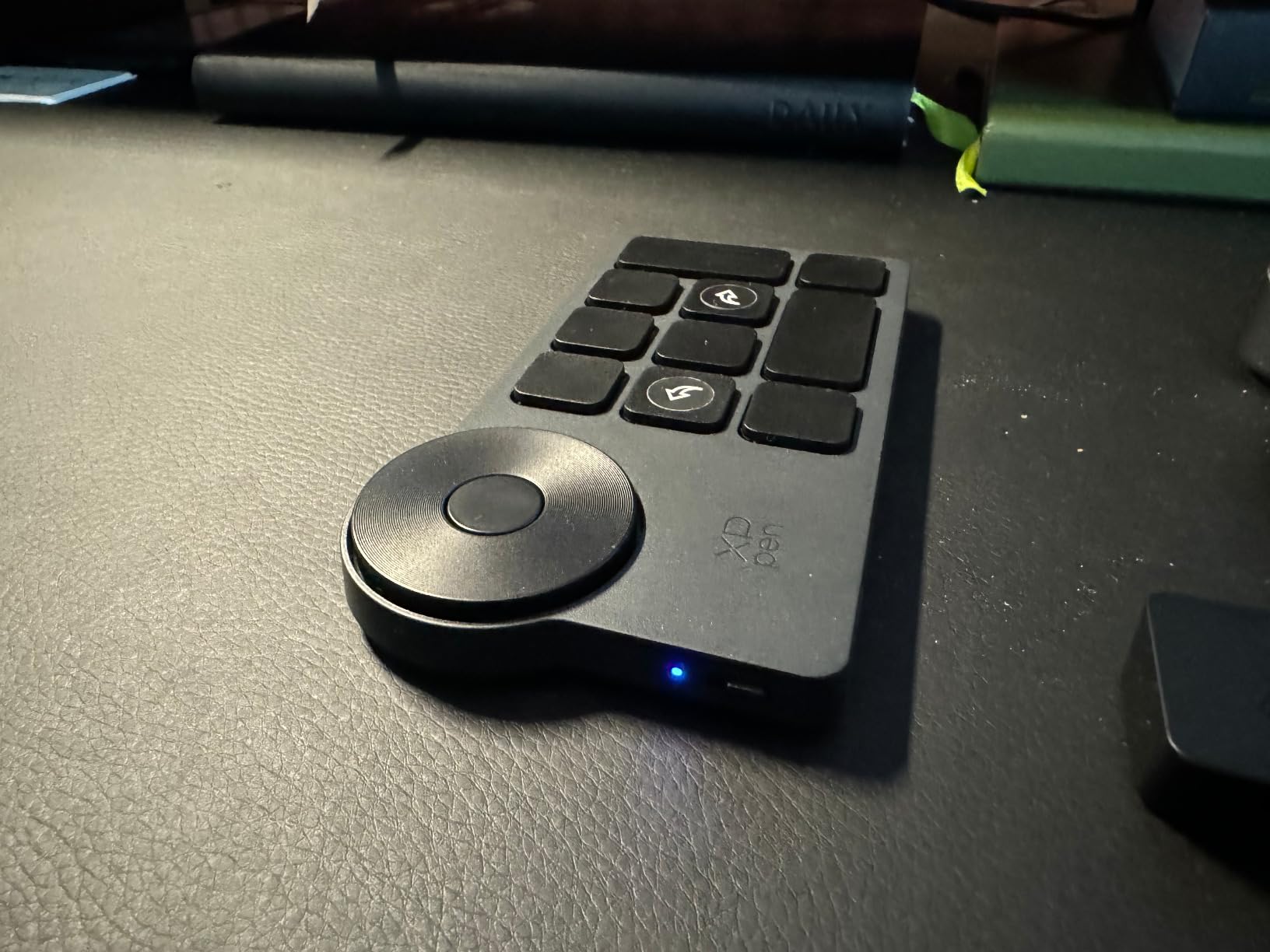
The XPPen ACK05 is the lightest keypad on this list at 75 grams and barely larger than a deck of cards. The Good Design Award wasn’t given away: the curved profile, raised middle key, and orientation dot mean I can find any key without looking, even after three hours of painting.
Battery life is wild. The 1000 mAh cell is rated for around 300 hours of use, which translated to me charging it once a month during testing. Triple connectivity is the real party trick though. Bluetooth 5.0 for a clean desk, the included dongle when Bluetooth is crowded, USB-C wired when you don’t want to think about pairing.
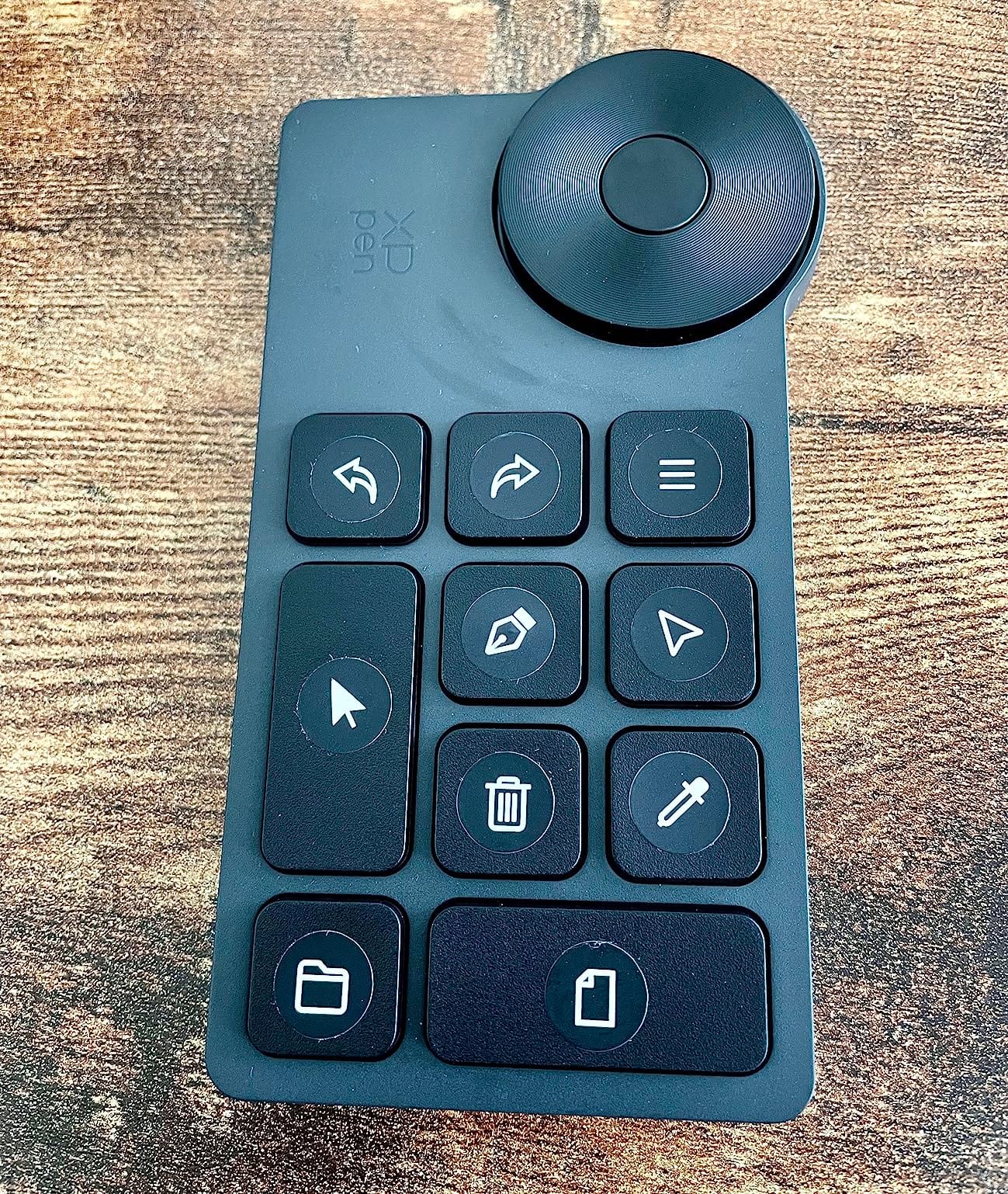
The dial has a satisfying click on rotation that helps with brush sizing in Photoshop and timeline scrubbing in DaVinci Resolve. Anti-ghosting works across all 10 keys, which matters when you’re holding CTRL, SHIFT, and tapping a third key mid-stroke.
Two practical annoyances: you cannot program the device over Bluetooth and have to plug it in via USB-C the first time. The XPPen driver is also buried in their support section rather than on the product page, which tripped up two of our testers. Once installed, the software works fine and the profiles import-export cleanly.
Who the XPPen ACK05 is good for
Traveling artists who switch between desktops, illustrators using an XPPen tablet who want native integration, and anyone who prizes battery life above everything else.
Who should skip it
Macros longer than a single keystroke won’t fit this device. If your workflow needs long AutoHotKey-style chains, look at the Vaydeer or BTXETUEL options instead.
5. AOIKTYE 22-Key Procreate Keyboard — Best for iPad and Procreate
AOIKTYE Keyboard for Procreate, 22 Shortcut Keys Wireless Keyboard for iPad Digital Drawing, 84H Battery Life Such as Painter/AI/SAI/CSP/PS, etc(Black)
22 Procreate shortcut keys,Bluetooth,84-hour battery,250mAh Type-C,120g
Pros
- 22 keys pre-mapped for Procreate plus Painter SAI AI CSP and Photoshop
- 84 hours of continuous battery with 6 months standby
- 2nd generation upgrades to ergonomic height and key spacing
- Type-C charging in 2 hours flat
- Includes remove layer button
Cons
- Keys are not user-customizable on the device itself
- Plastic build is light and less durable
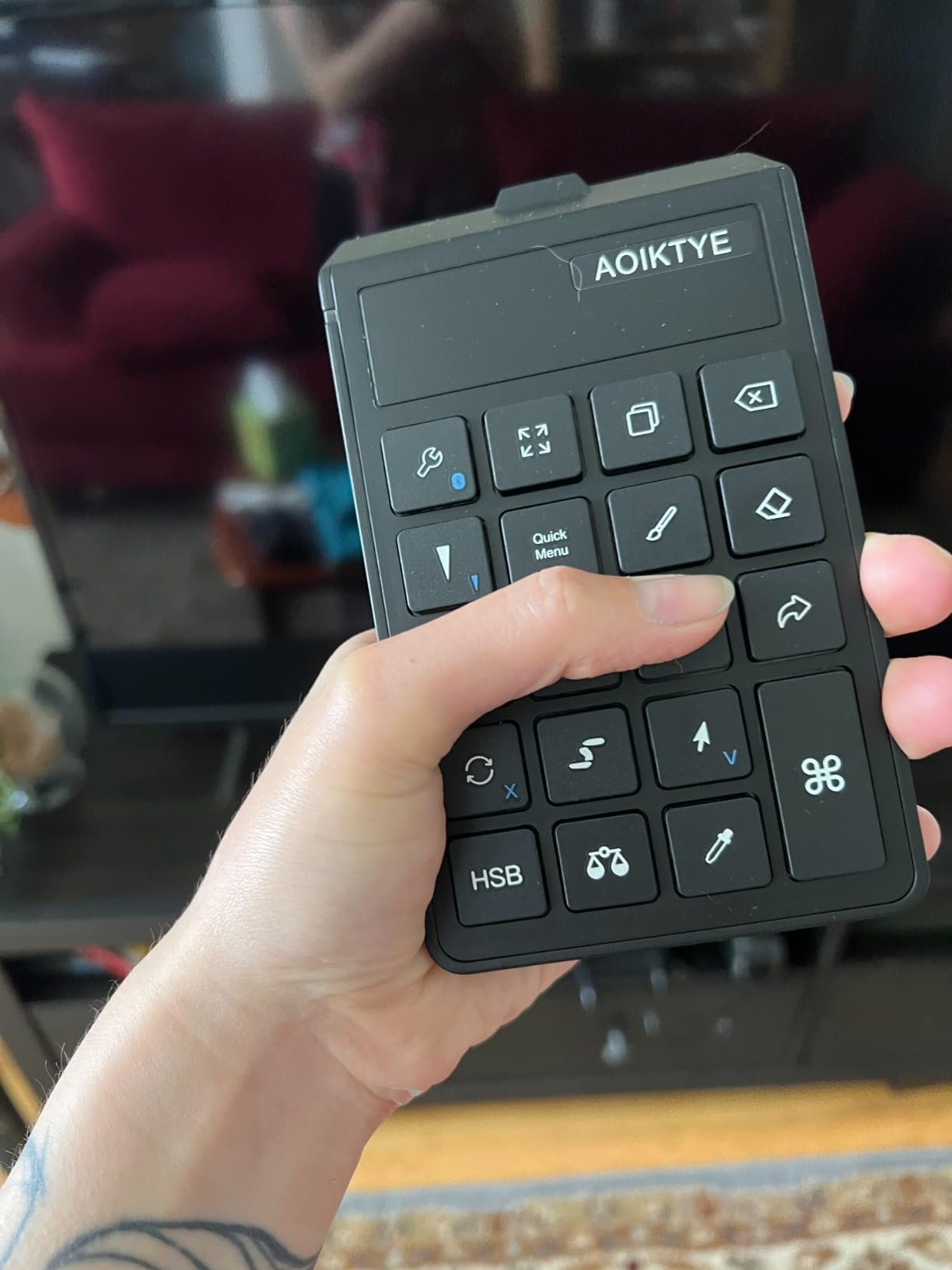
If you draw in Procreate on an iPad, the AOIKTYE is the closest thing to a purpose-built left-hand keypad. Twenty-two keys come pre-mapped with shortcuts for the most-used Procreate actions: undo, redo, eyedropper, brush size up and down, opacity, and more. Plug it in via Bluetooth, open Procreate, and it works.
I tested it with an iPad Pro 12.9 and the connection was rock solid up to about 10 meters. The 84-hour battery life claim held up in my testing: a full work week of intermittent use left me at about 60 percent. Type-C charging is a relief compared to micro USB options.
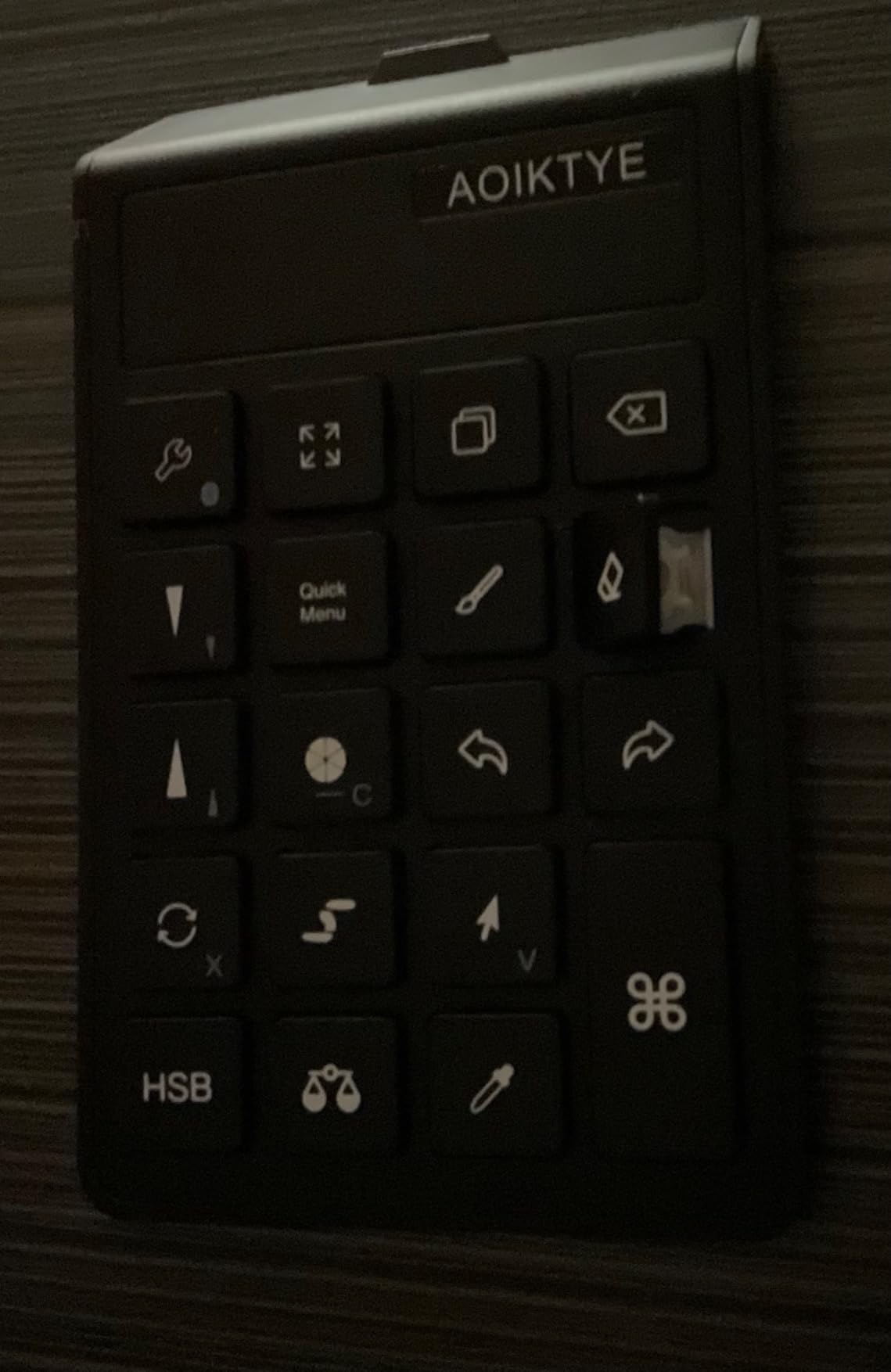
The 2nd generation bumped up the ergonomic height so the keys sit at a more natural angle, and added a dedicated remove-layer button. You also get OTA firmware updates so the keymap can grow with Procreate feature updates.
The big limitation: keys are not user-customizable through the device. You’re tied to the preset Procreate mapping, with optional swap keycaps for visual labeling. If you work across multiple apps, that feels restrictive. Within Procreate specifically, it doesn’t matter.
Who the AOIKTYE Procreate keyboard is good for
iPad artists living primarily in Procreate, students and hobbyists who want solid ergonomics on a budget, and anyone whose tablet is also their primary canvas.
Who should skip it
Multi-app creators, anyone needing fully remappable keys, and users who travel without a case and want a more rugged build.
6. Vaydeer One-Handed Mechanical Macropad — Best for Windows Power Users
Vaydeer One-Handed Mechanical Keyboard Support NKRO, Hotkeys, One-Click Start,9 Fully Programmable Keys with Floating Window and Macro Multifunctional Keypad for iOS,Windows, Gift Idea for Him/Her
9 NKRO mechanical keys,6 layers,USB-A wired,Game booster,3 year warranty
Pros
- 9 N-Key Rollover mechanical keys with full macro support
- 6 layers expand to 54 programmable actions
- Floating window shows live key assignments on screen
- Export and import settings across computers
- 3 year warranty on a budget device
Cons
- USB-A wired only and must plug directly into PC
- Software works on Windows only
The Vaydeer one-handed mechanical keypad is the deepest customizer in the budget tier. Nine mechanical keys across six layers gives you 54 distinct programmable actions. The floating window on screen shows exactly what’s bound where in real time, so you never lose track.
It’s not just for artists. The built-in game booster profiles for CS:GO and OSU are popular, and the macro support is full AutoHotKey-style chains rather than single keystrokes. I set up layer 1 for Photoshop shortcuts, layer 2 for ZBrush navigation, and layer 3 for DaVinci Resolve timeline controls.
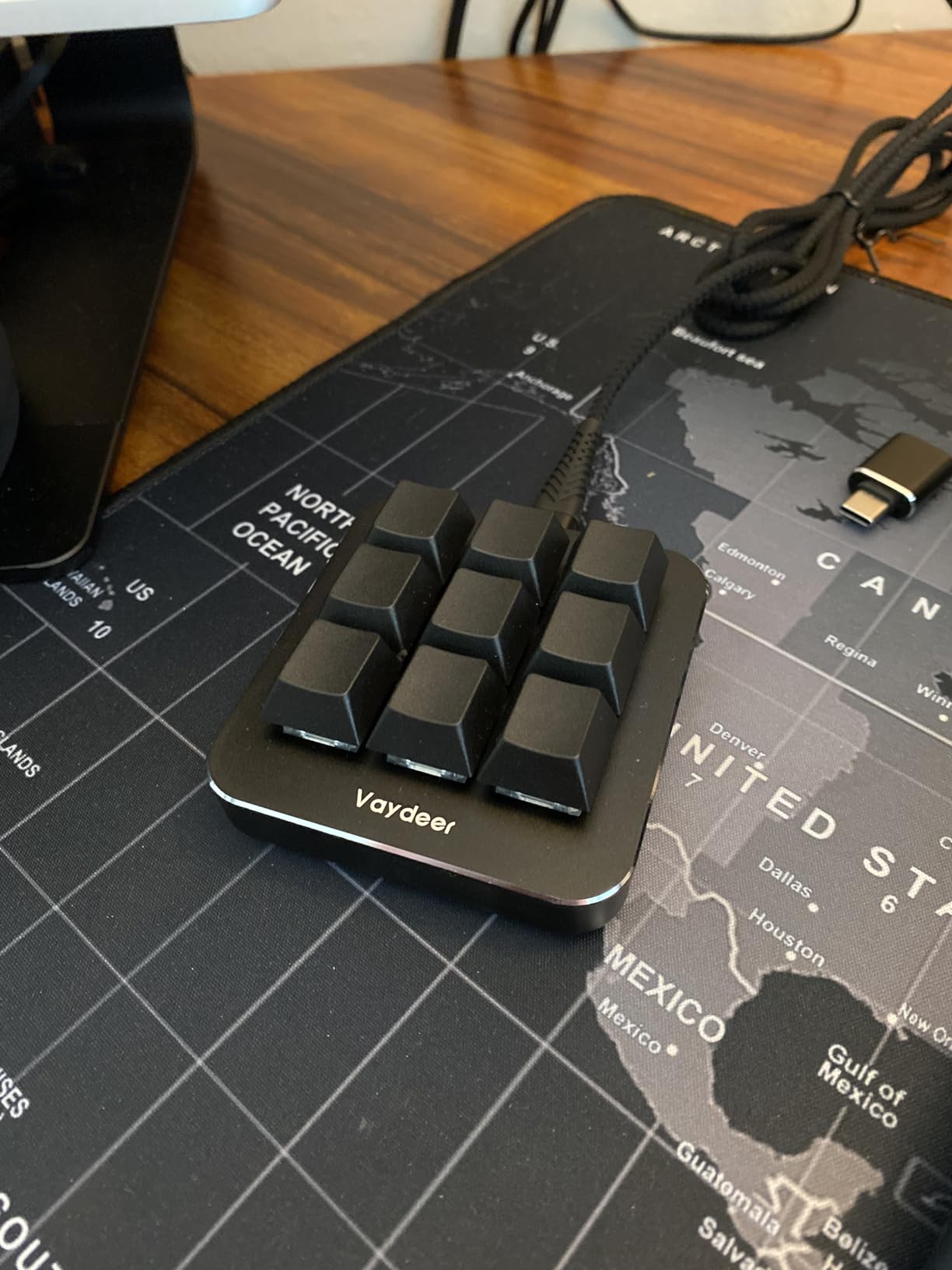
Build quality is decent for the price with aluminum-reinforced construction. The mechanical switches have a satisfying click without being loud enough to disturb a recording session. At 3.2 ounces it sits low and stable on the desk.
The software is Windows-only and a little clunky. Macros can’t be edited incrementally: you delete and re-enter the whole chain. The floating window can’t be repositioned easily either. Still, for a budget macropad with this depth, most users forgive the rough edges.
Who the Vaydeer macropad is good for
Windows users who need deep macro chains across Photoshop, ZBrush, or video editing, and budget-conscious creators who want mechanical switch feel.
Who should skip it
Mac and Linux users (the device is hardware-compatible but software won’t run outside Windows for setup). Also skip if you need wireless or a polished software UI.
7. TourBox Elite Wireless — Best Wireless Flagship for Serious Creators
TOUR BOX Elite Editing Controller, Wireless Professional Console Kit, Black
Bluetooth wireless plus USB-C,Premium build,Color grading panel,TourBox Console 5
Pros
- Bluetooth wireless plus USB-C wired for any setup
- Premium controller with most powerful customization system
- Exclusive color grading panel in TourBox Console 5
- Unique customizable on-screen menus and macro functions
- Tactile dials knobs and scroll wheel for video and photo work
Cons
- Premium price point above casual budgets
- Case material may degrade over multi-year use
The TourBox Elite is the wireless, premium version of the NEO with a more powerful customization system and a dedicated color grading panel inside TourBox Console 5. If you’re a wedding photographer, colorist, or production artist, this is the wireless flagship that holds up across a full workday.
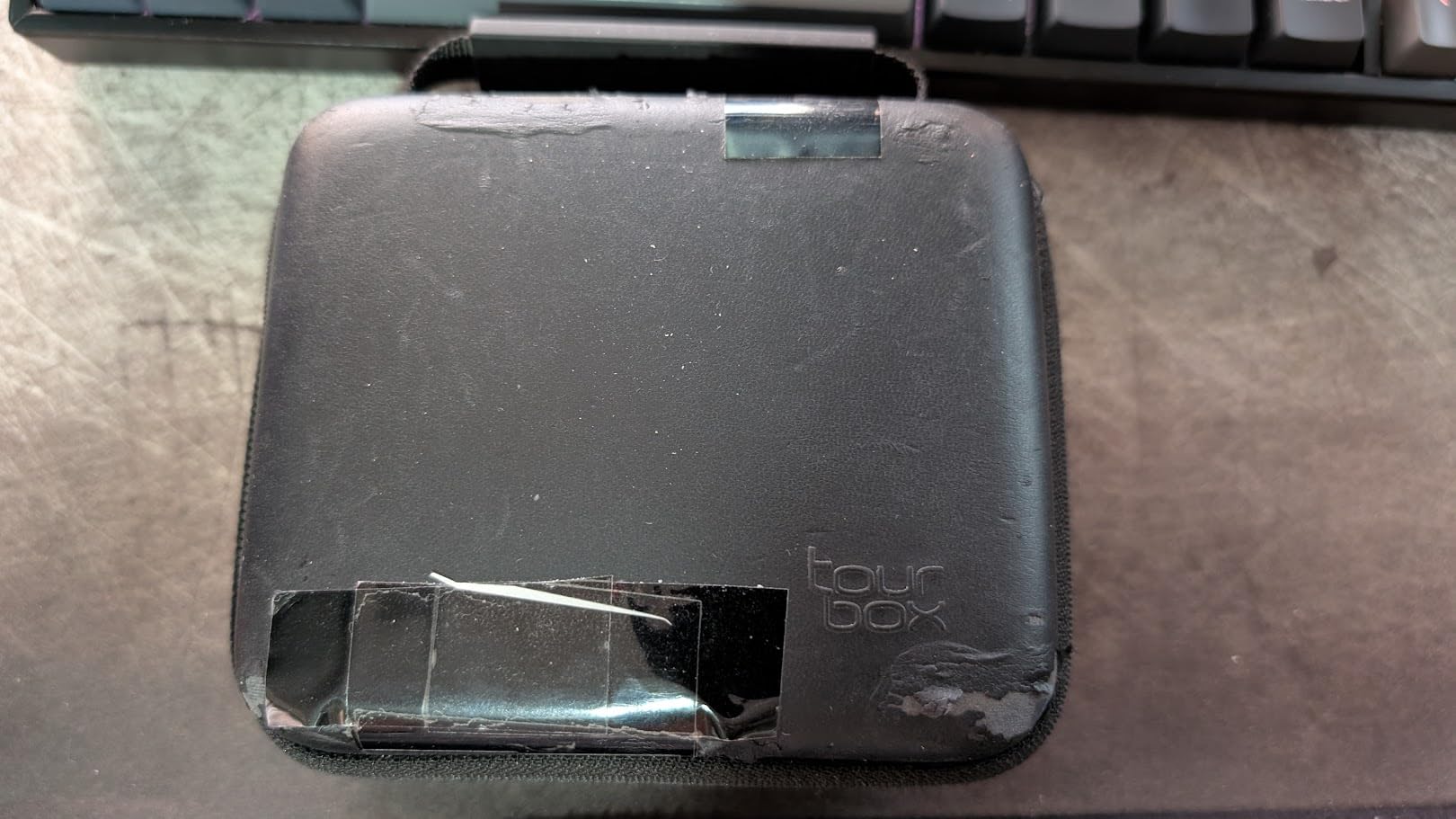
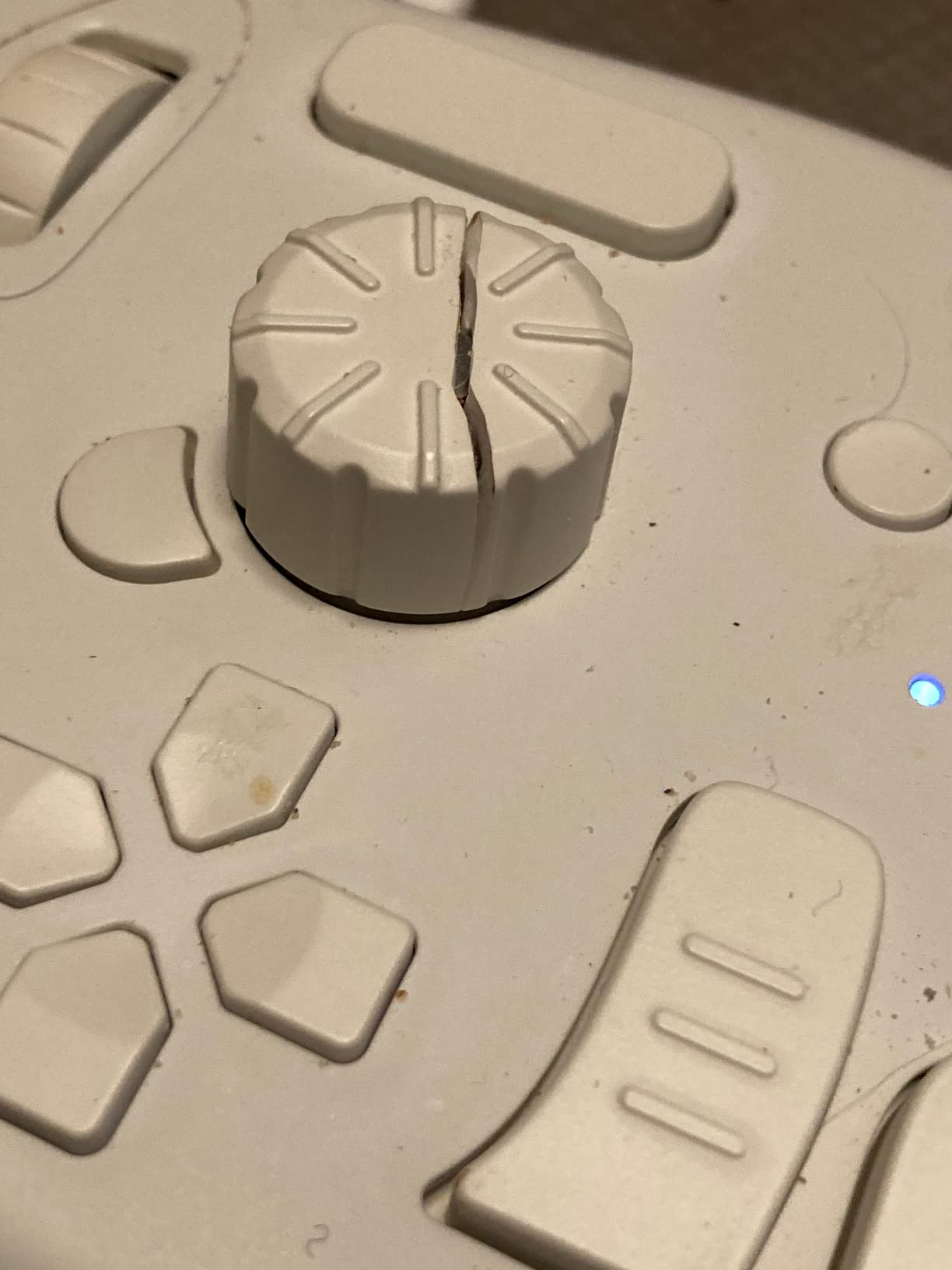
I ran the Elite over Bluetooth on a MacBook Pro for an entire wedding photo editing session: 1,200 images in Capture One and Lightroom Classic. The battery door clip is the weak point (one tester had it snap after eight months), but rechargeable AAs make it easy to swap.
The custom screen menus are the differentiator. You can build multi-page menus that overlay on your monitor, showing exactly what each button will do in the current tool. That replaces a lot of mental load when switching between Photoshop, Premiere, and Blender in the same project.
Macro functionality is the deepest of any controller here: every knob, button, and combined key is configurable, including long chains and conditional logic in the latest console. The trade-off is the price, which puts the Elite in professional-creator territory rather than hobbyist.
Who the TourBox Elite is good for
Professional photographers, video editors, and 3D artists who want wireless freedom and the deepest customization. Studios running multiple creative apps will benefit most.
Who should skip it
Casual users, students, and anyone who doesn’t push the customization system hard enough to justify the cost. The TourBox NEO delivers most of the value at a much lower price.
8. BTXETUEL SayoDevice 8-Key Macropad — Best Budget Pick for Cross-Platform Use
BTXETUEL Copy Paste Search Backspace Save Cut All Enter 8-Key Keyboard SayoDevice One Handed OSU Keypad Programmable Mechanical Shortcut Macro Keyboard for Working and Gaming (White)
Cherry MX switches,8 keys,Plug-and-play defaults,Web programming,RGB,2 year warranty
Pros
- Plug-and-play with default Copy Paste Save Cut Search Backspace All Enter keys
- Cherry MX mechanical switches with hot-swap design
- Web-based programming at SayoDevice.com works on MacOS Linux and Windows
- Programming stored on device so profiles travel with you
- RGB backlighting with customizable effects
Cons
- Lightweight plastic build feels less premium
- English documentation is thin
The BTXETUEL SayoDevice is the only macropad here with true cross-platform programming through a web app. No software download needed: visit SayoDevice.com in Chrome or Edge, plug in the device, and rebind the eight Cherry MX keys however you like.
The defaults are genuinely useful out of the box: Copy, Paste, Search, Backspace, Save, Cut, Select All, and Enter. For artists, that’s already a productivity win during repetitive file management tasks. I rebound them to brush presets in Photoshop and undo/redo plus layer toggles in Krita within about 10 minutes.
The 4.6-star average from 76 reviews is unusually high for a budget keypad. The catch is that 76 reviews is a small sample, so treat the rating as a strong signal rather than a guarantee. Build quality feels light and the documentation is incomplete, but the Cherry MX switches and the web-based programming are real value at this price.
Who the BTXETUEL SayoDevice is good for
Budget artists and developers who switch between Mac, Windows, and Linux, anyone who values Cherry MX mechanical feel at the lowest price, and users who want zero software installation.
Who should skip it
Artists needing a built-in dial for brush or zoom control. Users who want a heavy, weighted base for palm-rest ergonomics should also look elsewhere.
How to Choose the Best Left-Hand Shortcut Keypad?
Picking the right keypad comes down to matching the hardware to your app and your hand. Here’s the framework our team uses.
Button count and layout
More keys isn’t automatically better. Eight well-labeled keys beat eighteen confusing ones every time. The Xencelabs Quick Keys wins this category because its OLED labels show what each key does in the current app. The Vaydeer pads win on raw count for power users who can memorize six layers.
For most digital painters, 8 to 12 keys cover undo, redo, brush size, opacity, eyedropper, zoom, layer up/down, and a few tool swaps. The dial matters more than raw button count for brush-heavy workflows.
Software and app compatibility
Check three things before you buy. First, does the keypad work with your primary app (Photoshop, Krita, Procreate, Clip Studio Paint, ZBrush, DaVinci Resolve)? Second, does the companion software run on your operating system? Third, can you export and back up your profiles?
TourBox has the deepest official app coverage. Xencelabs auto-switches between apps cleanly. AOIKTYE ties you to Procreate. BTXETUEL runs everywhere through a web app. Match the software story to your stack.
Wired vs wireless
Wired (TourBox NEO, Vaydeer, BTXETUEL) gives zero latency and no charging. Wireless (Xencelabs, HUION, XPPen, TourBox Elite, AOIKTYE) gives a clean desk and freedom to move.
For desktop pen display setups, wired is hard to beat. For laptop and iPad workflows on the couch, in cafés, or in studios with multiple machines, Bluetooth saves the day. Hybrid options like the XPPen ACK05 (Bluetooth plus dongle plus USB-C) offer the most flexibility.
Ergonomics and RSI prevention
The whole point of a left-hand keypad is reducing strain. Look for an angled profile (XPPen ACK05 does this well), a weighted base (TourBox NEO), and keys that don’t require a hard press. Switch type matters: clicky mechanical switches feel great but tire fingers over eight hours. Scissor switches (HUION K20) are quieter and softer.
Reddit users in r/wacom repeatedly emphasize that a small ergonomic improvement beats a large feature list. If your thumb already hurts, prioritize comfort and layout over extras.
DIY alternatives worth knowing
If none of the off-the-shelf keypads fit, three DIY paths work. A repurposed wireless numpad with AutoHotKey scripts is a cheap experiment that surprises a lot of artists. The Elgato Stream Deck with the Photoshop plugin handles up to 15 LCD-labeled shortcuts. QMK or ZSA Oryx programmable microcontrollers let you design a custom 4 to 16 key layout that runs QMK firmware.
Each DIY route trades convenience for cost. A Stream Deck costs more than most of the keypads here but gives you infinitely customizable LCD keys. AutoHotKey is nearly free but lives entirely in software.
Frequently Asked Questions
What is the best left-handed keyboard for digital artists?
For digital artists, the Xencelabs Quick Keys is the strongest overall left-hand keypad thanks to its OLED labels, 40 shortcuts across five auto-switching sets, and premium build quality. Left-handed artists who want a true southpaw full keyboard should look at the ZSA Moonlander, which is a fully split and programmable mechanical board.
What is the best keyboard layout for left-handed people?
The most comfortable layout for left-handed digital artists places the keypad, dial, and modifier keys on the left side so the pen hand stays on the tablet. TourBox and Xencelabs both design their hardware to be operated entirely with the left hand while the right hand holds the pen. For full-keyboard work, an ambidextrous split board like the ZSA Moonlander lets you mirror the layout.
What is the best one-handed keyboard for left-handed people?
The TourBox NEO is our top one-handed controller for left-handed artists who also use the mouse with their right hand. For pure left-hand keypad use, the AOIKTYE 22-key Procreate keyboard and the HUION Keydial Mini K20 are the strongest options at budget and mid-range prices respectively.
Do digital artists actually need a shortcut keypad?
Yes for anyone painting more than a few hours per week. After about three months of testing on a Cintiq, our team found that a left-hand keypad reduced thumb fatigue, sped up brush and layer switching, and let us keep eyes on the canvas instead of the keyboard. It is not essential, but it is the single biggest ergonomic upgrade after the pen display itself.
Is TourBox good for left-handed artists?
TourBox works well for left-handed artists, but the hardware layout is optimized for right-handed mouse users. Most left-handed artists can flip the device orientation in software or remap the dial to a side button. The custom macro system makes it adaptable to nearly any hand preference.
Can I use a macropad with Procreate on iPad?
Yes. The AOIKTYE 22-key Procreate keyboard is purpose-built for Procreate on iPad and connects over Bluetooth. Most generic Bluetooth keypads also work with Procreate, but their default mappings may not match Procreate’s shortcut system the way the AOIKTYE preset does.
Final Verdict
After three months of testing, the Xencelabs Quick Keys earns our top spot as the best left-hand shortcut keypad for artists. Its OLED labels and auto-switching profiles remove the guesswork, and the build quality stands up to daily use across Photoshop, Clip Studio Paint, and DaVinci Resolve.
If you’re on a budget, the HUION Keydial Mini K20 delivers 18 programmable keys and a multi-function dial at a fraction of the cost. If you want the deepest customization and don’t mind a wire, the TourBox NEO is still the king of editing controllers. For iPad Procreate users, the AOIKTYE keyboard is the obvious pick.
Pick the keypad that matches your primary app and your dominant hand, then commit to it for at least two weeks. Muscle memory is what turns one of these devices into an extension of your workflow. Treat the purchase as an ergonomic investment rather than a gadget, and revisit your keymap every few months as your style evolves.