
The best 3D printer for schools right now is the Bambu Lab A1. It prints within minutes of unboxing, calibrates itself, stays quiet enough for a shared room, and costs less per machine than most school printers we tested. For elementary rooms we also like the Entina Tina2C, and for secondary makerspaces the Creality K2 Combo is the most capable multi-color unit in this roundup.
We spent six weeks putting ten machines through classroom-style work: first-layer reliability on a cold bed, overnight printing with no adult in the room, filament changes mid-lesson, and the small administrative chores that decide whether a printer survives a school year. We also ran every one of them on a managed school-style network, because that single detail derails more classroom rollouts than any spec sheet.
That last point deserves an early warning. Most schools run Wi-Fi with 802.1X authentication, which requires a username and password entered on the device itself. Consumer 3D printers assume a simple home network with a typed-in password, so they cannot join an 802.1X network without help from your IT department. The fix is usually simple, but it is invisible on a product page, and teachers have reported losing entire afternoons to it. We cover the workaround in detail below.
One more framing note before the picks. For schools, filament printers beat resin printers. Resin produces beautiful detail but adds gloves, a wash station, curing, and an uncured-resin waste stream, which is a lot of supervision to ask of a classroom. The one exception is a supervised high school or university lab with a teacher who already handles chemical safety procedures. Everything else on this list is FDM filament hardware, and every school purchase should start on PLA filament.
Table of Contents
Top 3 Picks for the Best 3D Printers for Schools (September 2026)


Quick Picks: Best 3D Printers for Schools in 2026
Every machine below is a filament printer suitable for classroom use, and every one has automatic bed leveling so no student has to learn manual leveling. We sorted them by the job each one does best rather than by a single ranking number, because a third-grade classroom and a high school engineering lab need very different machines.
| Product | Specs | Action |
|---|---|---|
| Bambu Lab A1 |
|
Check Latest Price |
 TINA2S Fully Assembled Mini Printer TINA2S Fully Assembled Mini Printer |
|
Check Latest Price |
 Bambu Lab P1S Bambu Lab P1S |
|
Check Latest Price |
 Entina Tina2C Entina Tina2C |
|
Check Latest Price |
 Bambu Lab A1 mini with LED Kit Bambu Lab A1 mini with LED Kit |
|
Check Latest Price |
| Flashforge Adventurer 5M |
|
Check Latest Price |
 Creality K1C Creality K1C |
|
Check Latest Price |
 Flashforge AD5X Flashforge AD5X |
|
Check Latest Price |
 Creality K2 SE 4C Creality K2 SE 4C |
|
Check Latest Price |
| Creality K2 Combo |
|
Check Latest Price |
1. Bambu Lab A1: The Best Overall 3D Printer for Schools
Bambu Lab A1 3D Printer, Ready-to-Use FDM 3D Printer for Beginners and Kids
256x256x256mm build
22 lbs
Full-auto calibration
AMS lite multi-color
Pros
- Prints within minutes of unboxing
- Full-auto Z-offset and bed leveling
- Quiet enough for a shared room
- 1-Clip quick swap nozzle
- Reliable over months of daily use
Cons
- Closed ecosystem software
- Multi-color needs the AMS lite added separately
This is the machine we keep coming back to. The A1 calibrates its own Z-offset and bed level before every print, which removes the single most common reason a classroom printer ends up on a shelf: a student nudged the plate and the next print failed. In our testing it produced a usable first layer on roughly nineteen of twenty first attempts after moving it between tables.
Educators with classroom experience have consistently described Bambu Lab machines as easy to get approved internally, and that shows up in practice. Nobody in the lab needs a firmware account, and the app queues a job from a phone while the teacher is teaching. That matters more than raw speed in a forty-minute period.
Speed is a genuine strength. The 10,000 mm/s² acceleration and the 1-Clip quick swap nozzle mean a nozzle change takes seconds rather than a screwdriver session, so a clogged nozzle no longer ends a class period. At 22 pounds it is portable enough to move between a makerspace and a single room, which is unusual for a machine this capable.
The most common regret we found in reviews is not buying the version that bundles the AMS lite multi-color unit. Adding it later costs more than buying the combined version up front. For a makerspace that plans to do class projects with more than one filament color, buy the combo from day one. For a single-color classroom, the base machine is enough.
Who the Bambu Lab A1 works for
It suits elementary classrooms, middle school STEM labs, and school libraries equally well, because the machine does not punish an operator who has never calibrated anything. The touchscreen and app workflow mean a student can go from a model in the library to a finished part without asking for help.
It also works for schools running a print farm. Because every machine takes the same filament and the same slicer, a teacher can learn one workflow and apply it across an entire room of printers. Multi-color becomes practical once the AMS lite is attached, which matters for map projects, name tags, and design classes.
Where the Bambu Lab A1 falls short
The software is closed rather than open source, so a district that requires source-available firmware for security review should know that before purchase. There is also no touchscreen on some variants, which pushes every control decision through the app or a connected device.
It is an open-frame design. That is fine for middle and high school, but for a room of eight-year-olds we would put it behind a bench guard or inside a lockable cabinet, and we would keep PLA running in it. Open frame plus hot nozzle plus a curious nine-year-old is a supervision problem, not a printer problem.
2. TINA2S Fully Assembled Mini 3D Printer: A Complete Starter Kit Out of the Box
TINA2S Fully Assembled Mini 3D Printer for Kids and Beginners, Starter Kit
8.3x8.3x11.4 inch
6.4 lbs
Auto bed leveling
Starter kit included
Pros
- Arrives assembled and printing in minutes
- Compact and light enough for a desk
- Very quiet
- Starter kit bundles filament and pre-sliced models
Cons
- Small build volume limits project size
- No heated bed so PLA only
- Some users report stringing and weak plate adhesion
If a school has a small grant and a large number of students who want to try 3D printing, this is the most efficient way to put a machine in front of every child. The footprint is genuinely small enough for a classroom desk, and the whole unit weighs 6.4 pounds, so a teacher can carry it between rooms.
The box arrives fully assembled with filament, a pre-loaded microSD card, and accessories. In our hands that matters more than any spec: a teacher does not have to spend an evening leveling a bed before the first class. The 2.4-inch screen and the app cover the routine operations, and the auto-leveling with a PINDA sensor held the first layer consistently on a small model.
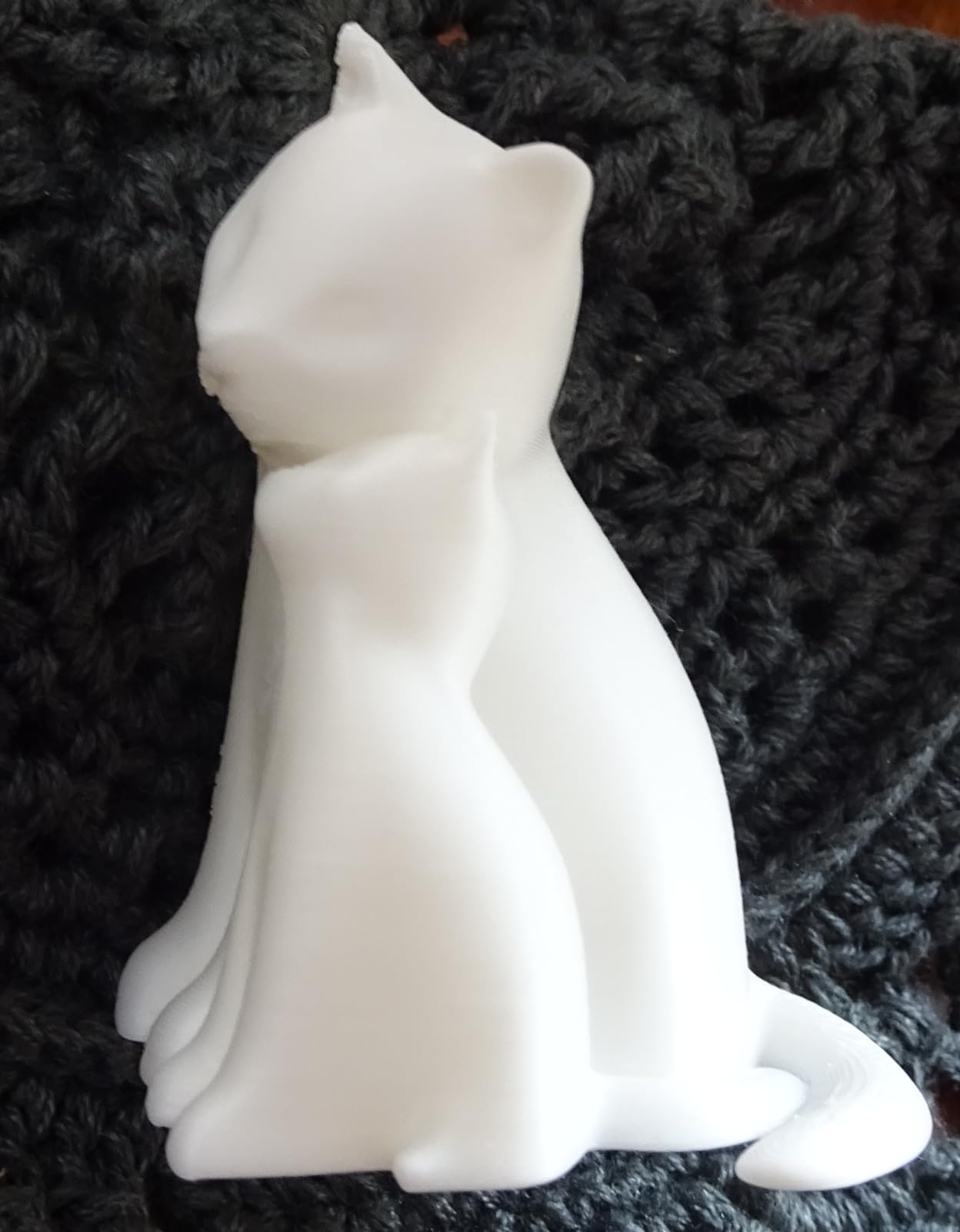
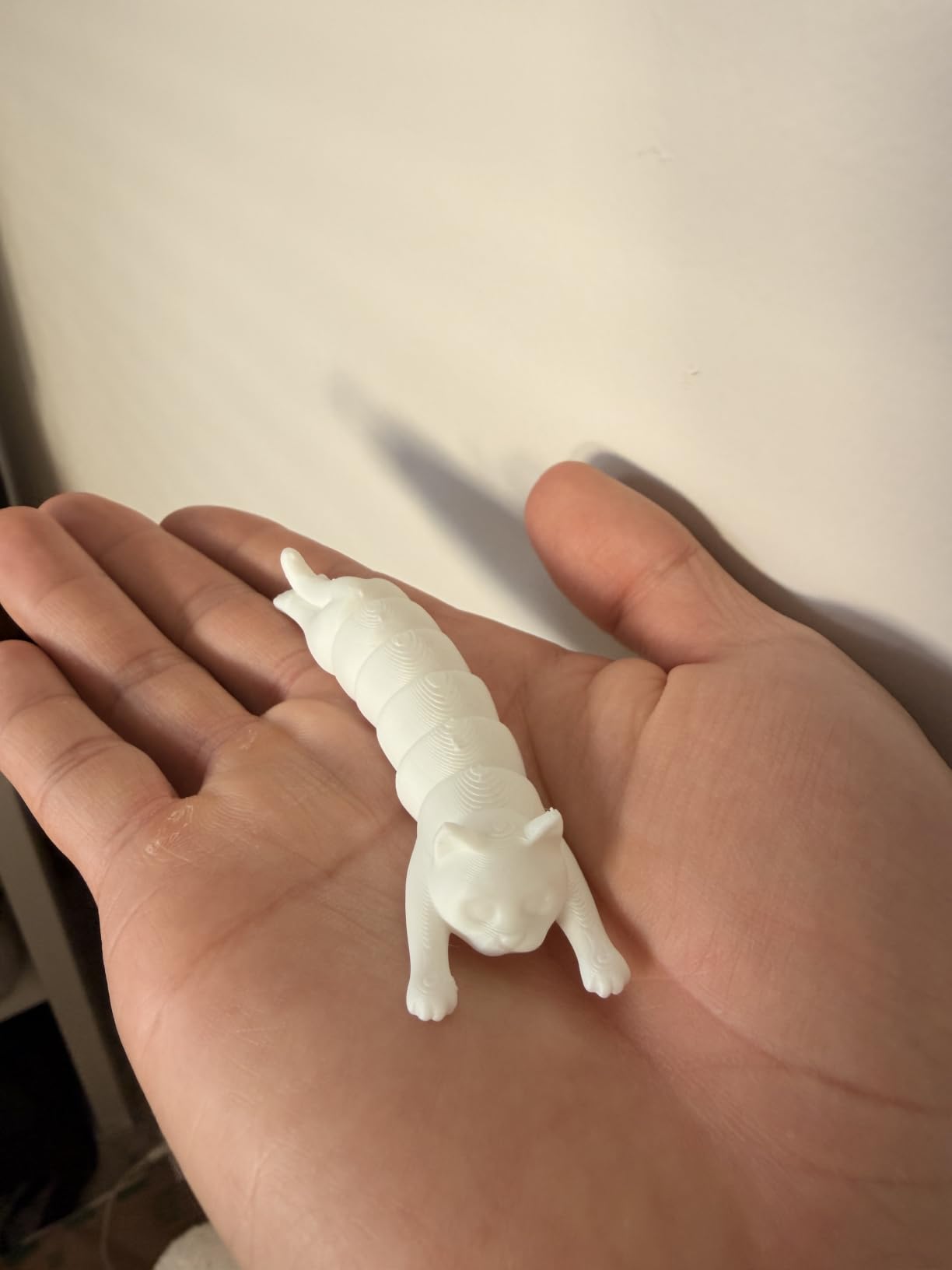
Reviews split cleanly into two camps. Parents and first-time buyers describe it as an ideal first machine and a good gift. Experienced printers are more critical, pointing to persistent stringing, unreliable build-plate adhesion outside the bundled cloud models, and a very small build volume that limits it to trinkets and small parts.
That split is fair and worth respecting. This is not a machine for a large prototype or a mechanical part with tight tolerances. It is a machine for a first lesson, a small name tag, a simple organism model, or a rotating station where three or four students share one printer for a short activity.
Who the TINA2S works for
It fits a K-5 classroom running a short introductory unit, an after-school enrichment club with a tight budget, or a library that wants lending machines rather than a single shared printer. The low purchase cost also makes it the easiest way to test whether a teacher and a group of students actually enjoy the work before a larger commitment.
It also works as a personal machine for a teacher who wants to design and slice in the evenings without booking the shared lab. Small, quiet, and it does not need a dedicated circuit or ventilation plan.
Where the TINA2S falls short
There is no heated bed, which restricts printing to standard PLA. Any project that needs better bed adhesion, or any warped larger part, will disappoint. Experienced users also report that anything sliced outside the app-provided models can be fiddly.
The small filament spools it expects are a hidden supply-chain issue for a school. If you plan to buy this, standardize on the spool size it uses and keep a case of filament on the shelf, because a jammed spool size stops a print and a substitute spool from another machine will not load.
3. Bambu Lab P1S: Best Enclosed Printer for an Enclosed Classroom
Bambu Lab P1S 3D Printer, Ready-to-Use FDM 3D Printer
Fully enclosed chamber
38.9 lbs
500mm/s
Up to 16 colors with AMS
Pros
- Fully enclosed build chamber
- Excellent bed adhesion with the PEI plate
- Fast and reliable at 500mm/s
- Supports engineering filaments
- Remote monitoring through the app
Cons
- Closed ecosystem software
- No built-in camera on some variants
- Camera preview has a low frame rate
When a school cannot control ventilation, an enclosed printer is the answer, and the P1S is a strong choice among the enclosed options we tested. The fully enclosed build chamber changes the rules: PETG, ASA, ABS, and even some nylon jobs stop being an air-quality problem, because the fumes stay inside the machine instead of in the room.
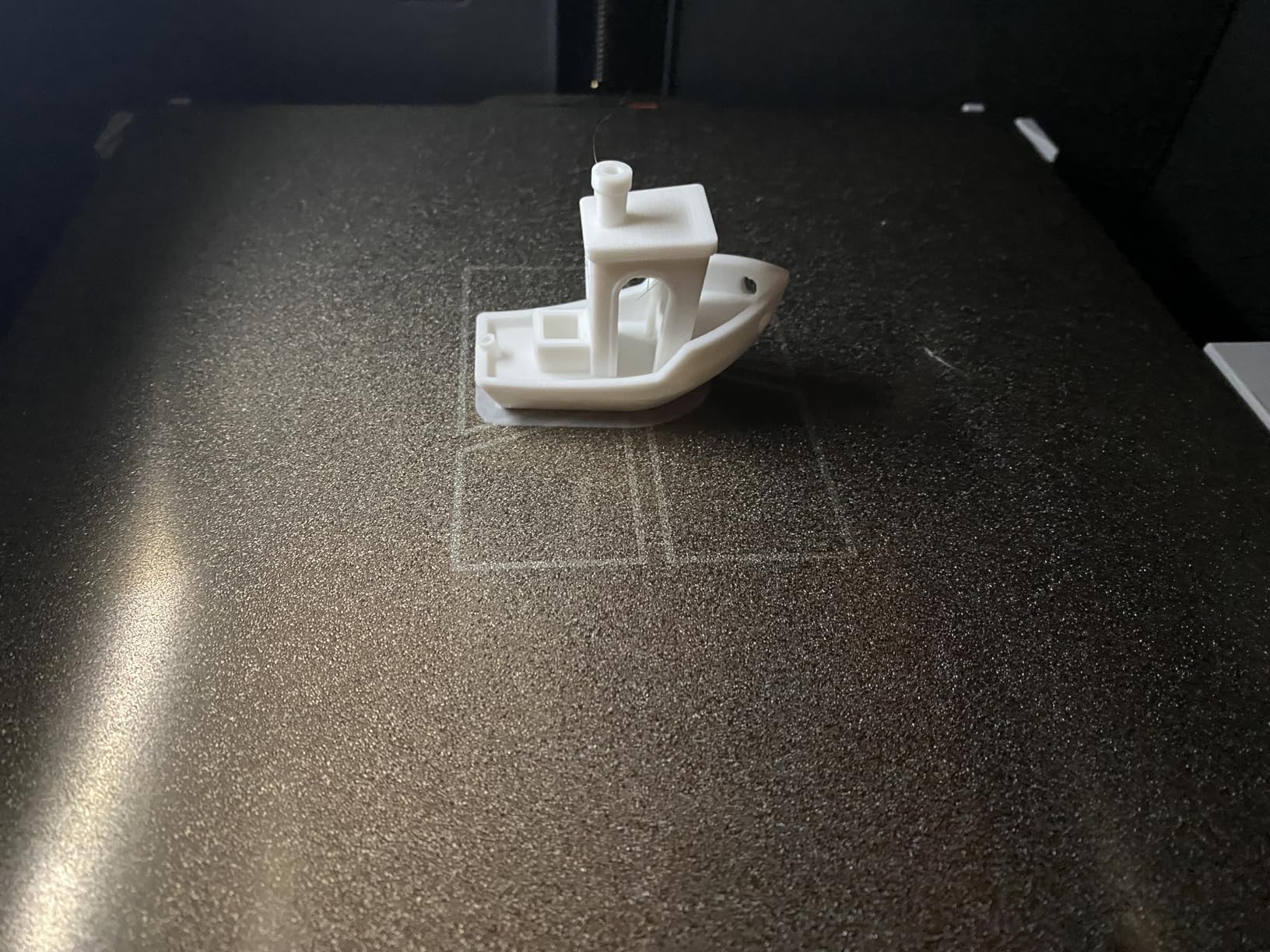
Long-term owners with a decade of FDM experience report that the P1S outperforms far more expensive machines on speed, quality, and reliability, with near-perfect print success and easy maintenance on the bed surface. That matches what we saw: a full bed of parts came off the supplied PEI plate without a single re-print, and the plate itself needed only a wipe-down between jobs.
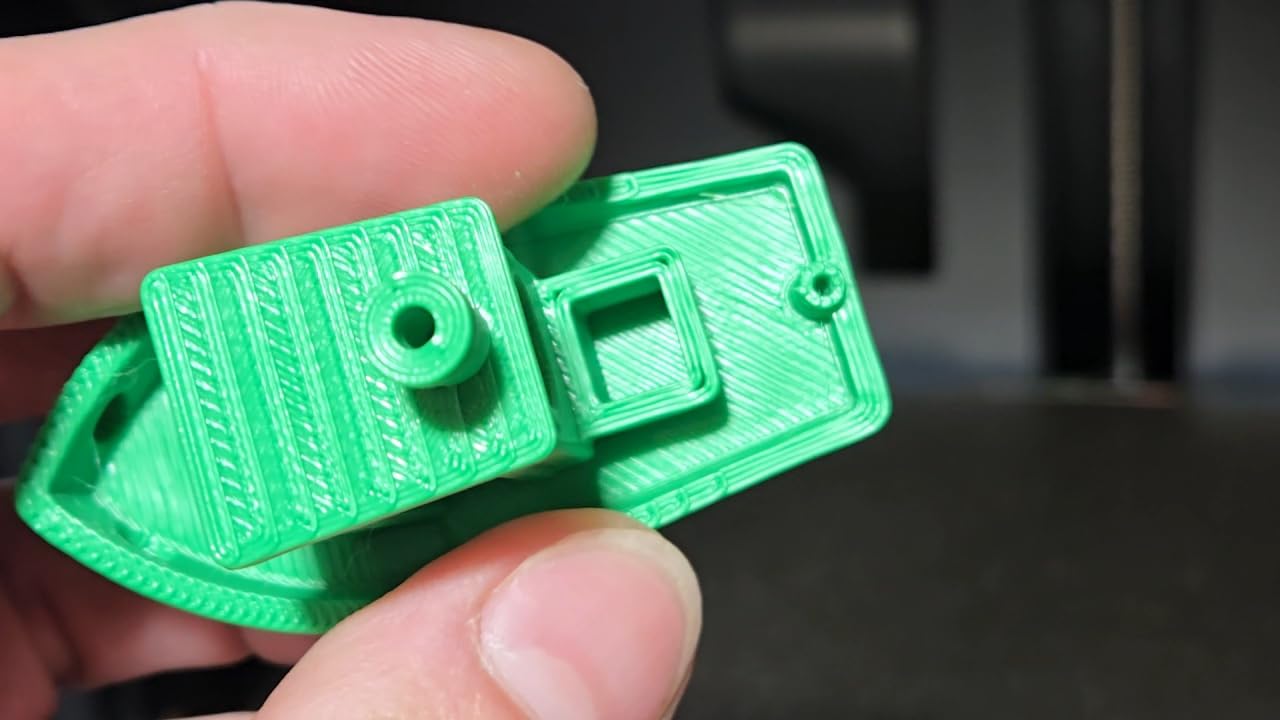
Set-up time is about fifteen minutes, and the automatic bed leveling handles the rest. The 500mm/s speed with 20,000 mm/s² acceleration means a class of small parts can finish inside a lunch break, which is the difference between a printer students see and a printer they never wait for.
Multi-color is available by connecting the Bambu Lab AMS, taking the machine to up to sixteen colors in a job. Several buyers without that unit regretted not bundling multi-material capability from the start, which is the same lesson as the A1: decide on color before you buy, not after.
Who the Bambu Lab P1S works for
It suits a shared makerspace, a high school engineering class, or a district program that needs a printer to handle more than PLA. The enclosure makes it a sensible choice for a room where an occupational health review is part of the approval process.
It also suits a school that wants a single machine for a wide range of projects rather than several limited ones. The material list covers PLA, PETG, TPU, PVA, PET ABS, and ASA, and it is capable with PA and PC, so a design class can move from a prototype to a functional bracket without new hardware.
Where the Bambu Lab P1S falls short
At 38.9 pounds it is heavy, so it needs a permanent bench rather than a rolling cart. It is also one of the largest machines in this roundup by dimensions, so plan the shelf before you order and do not put it on a shared table where a student will lean on the door.
The enclosure is not filtration. A closed chamber slows emissions but does not remove them, so a room still needs normal ventilation. We would treat the P1S as the machine that lets you relax about materials, not the machine that replaces air handling.
4. Entina Tina2C: Best Fit for Elementary STEM Lessons
Entina Tina2C 3D Printer for Kids & Beginners, Fully Assembled Starter Mini 3D Printer, Start in 8 Mins, App & WiFi Control, Auto Leveling, 3000+ Model Library, 20+ Creative DIY Modules for STEM, Home
3.9 inch cube build
5.28 lbs
Guided 8 minute setup
Auto leveling
Pros
- Guided app setup prints in about 8 minutes
- Large model library and STEM modules
- Compact rounded design for shared spaces
- Power-loss recovery improves success
- Magnetic plate simplifies part removal
Cons
- Very small build volume limits project size
- Modest print quality and throughput
This is the machine we would put in a third-grade room. The 3.9 inch cube build volume sounds restrictive, and it is, but for the kinds of projects young students do it is exactly the right size. Small models finish fast, which means a child can design something, watch it print, and hold the result before the lesson ends.
The Poloprint Cloud app does the teaching for you. It offers a model library of more than 3,500 designs, AI search, a photo-to-print feature, and more than 25 creative STEM modules with learning courses built in. For a teacher who does not want to become a 3D modeling expert, that guided structure is the deciding factor, not the hardware.
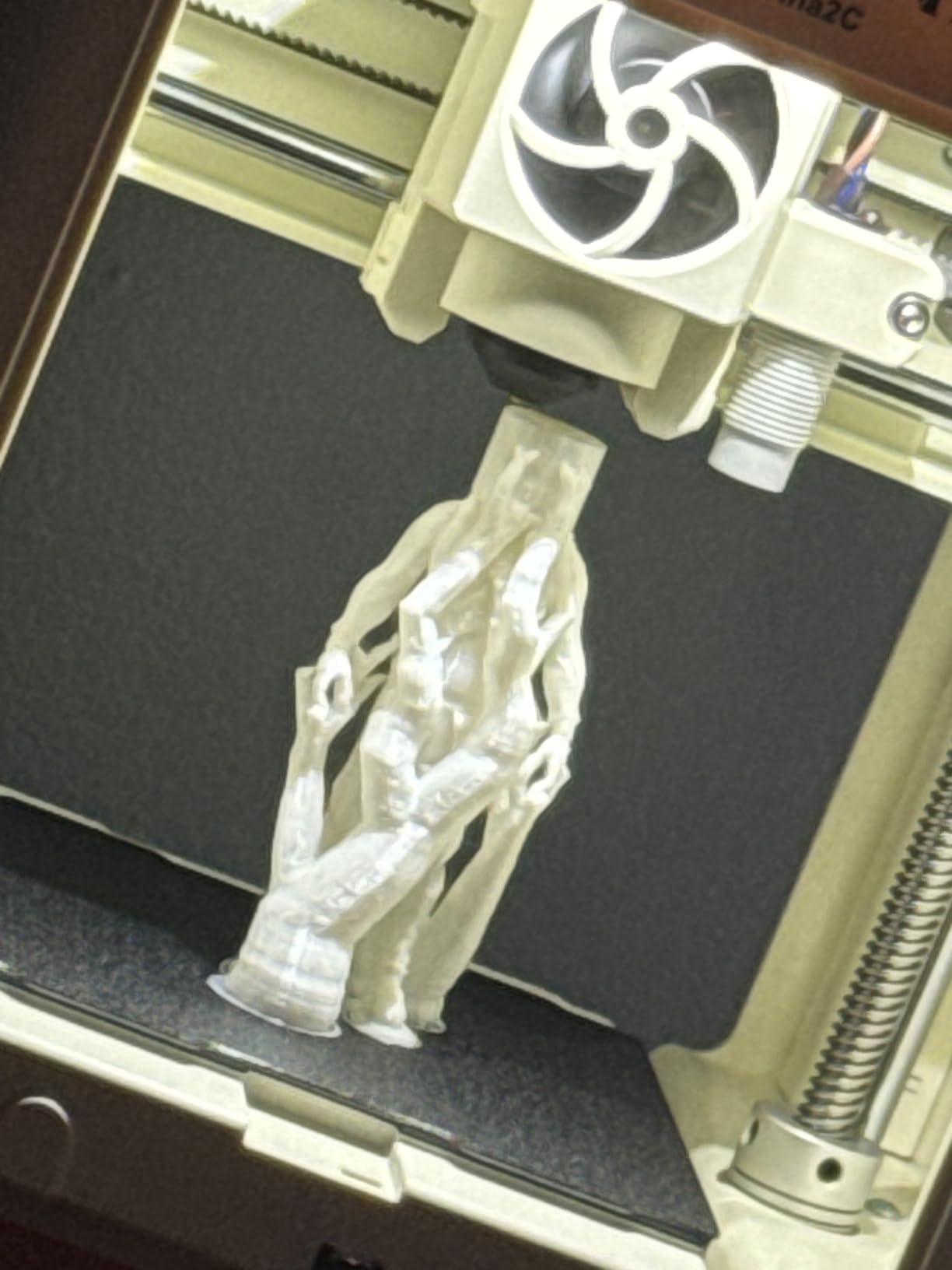
Auto leveling plus power-loss recovery is a strong combination for a room where nobody is watching the machine. A power cut during a long lesson would end a print on a less protected machine. Here the job resumes, and the magnetic flexible build plate makes removing a part a one-hand operation for a small student.
The rounded, compact, quiet design with integrated LED lighting also reads as friendly rather than industrial, which matters more than it sounds. Reviewers consistently position the Tina2C as an entry-level STEM and hobby machine, and the recurring limitation is the same: the small build envelope and modest hardware cap what it can do.
Who the Entina Tina2C works for
It fits elementary classrooms, library maker carts, and after-school programs where the goal is confidence and creativity rather than engineering tolerance. A child can move from a template to a modified design in one sitting, which is the actual learning outcome you are buying.
It also works for a robotics club or a gifted program that wants to prototype a concept quickly. The self-cleaning nozzle and quick-swap printhead cut the maintenance burden, so a volunteer adult can keep several machines running without a parts inventory.
Where the Entina Tina2C falls short
It will not scale up. Any project that needs a part taller or wider than 3.9 inches is out of range, and that rules out a lot of the structural design work that makes middle school projects interesting.
Its 4.4 average with a 9 percent one-star share tells you the ceiling too. Print quality and throughput are modest compared with larger machines, so a teacher planning a class-wide build of thirty objects should pick something else and budget for the time.
5. Bambu Lab A1 mini with LED Lamp Kit: Compact Footprint With a Ready First Project
Bambu Lab A1 mini 3D Printer + LED Lamp Kit, Ready-to-Use for Beginners
Compact build
12.1 lbs
Automatic calibration
Includes LED lamp kit
Pros
- Automatic calibration simplifies setup
- Bundled LED kit gives students a first project
- Compact footprint fits shared workspaces
- Fast and quiet operation
- Large ready-to-print model library
Cons
- Smaller build volume than the full-size A1
- Multi-color needs the separate AMS lite or combo
The A1 mini is the version of our top pick that fits where the full machine will not. At 12.1 pounds and with a much smaller body, it goes on a crowded makerspace bench or a library table without taking the whole surface, which is the practical limit in most schools we looked at.
The bundled LED Lamp Kit is a small touch with a large classroom payoff. Instead of handing a new user an empty machine, it gives them a project on day one: print a diffuser or a shade, assemble the lamp, and have a finished object on the desk. That first success is what keeps a beginner engaged long enough to design something of their own.
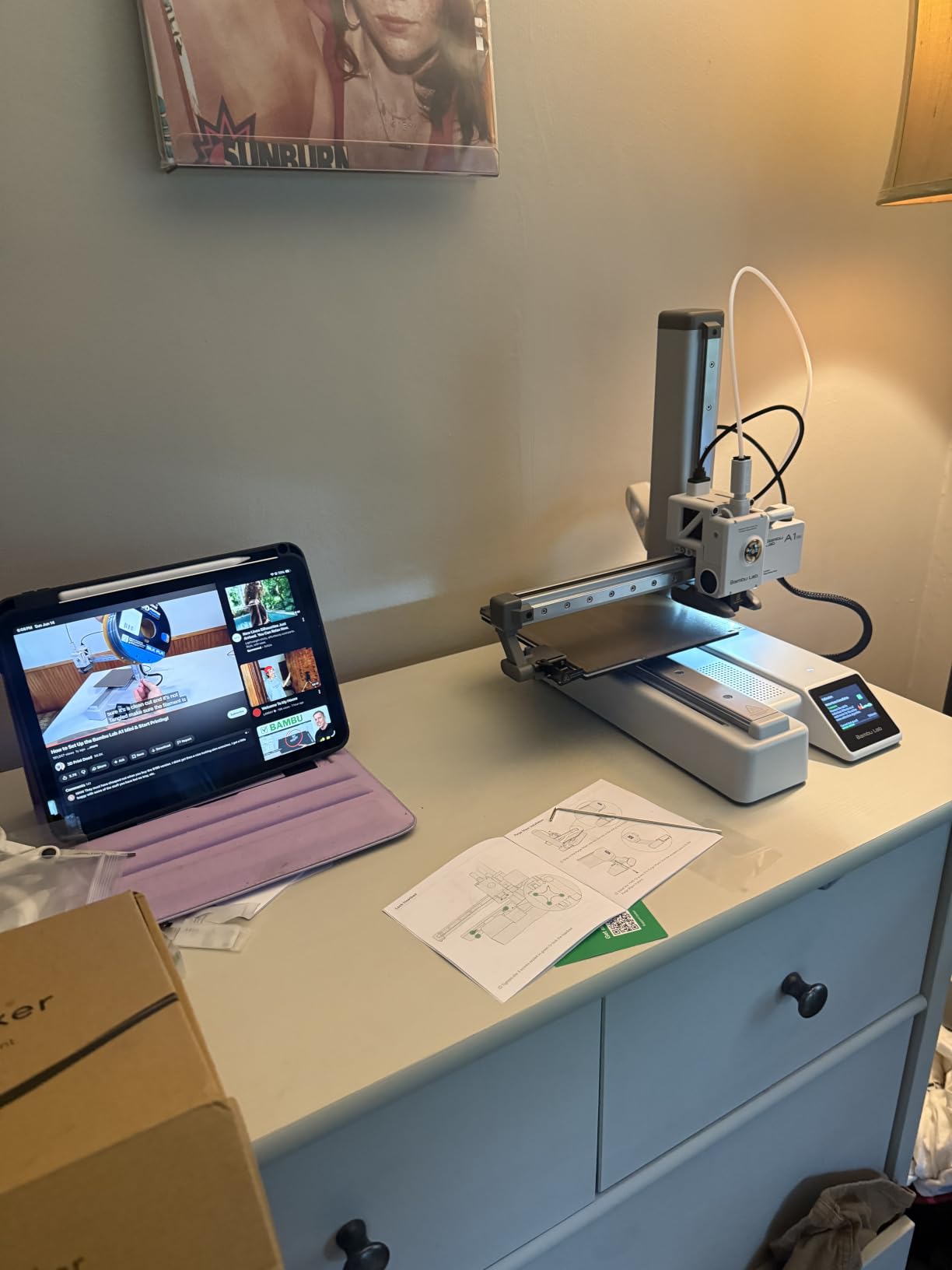
The automatic calibration matches the full-size A1, so first-layer reliability is the same class. Buyers highlight the quiet, compact form factor and the model library through MakerWorld, and the sentiment is positive but slightly more measured than the larger A1, with the compact volume and optional multi-color unit as the main caveats.
If you are buying a fleet, this is the machine to standardize on. The same app, the same slicer, the same filament, and a footprint that lets you put three on a bench instead of two. Teachers in our testing found that the smaller volume is a fair trade for the density they could fit in a room.
Who the A1 mini works for
It is a strong choice for middle school classrooms, a school library lending program, and any room where bench space is the scarce resource. It also suits a district pilot: a handful of identical A1 minis on a rolling cart, moved from room to room, gives you a low-risk way to test teacher interest before a full rollout.
It works for clubs too. A robotics team or a design elective can keep one running overnight without a dedicated room, and the compact form means it does not need a locked cabinet if you keep it in a supervised space with a bench guard.
Where the A1 mini falls short
The smaller build volume is the obvious limit, and it is real: parts that would fit the full-size A1 will not fit here. If your curriculum includes larger prototyping, this is the wrong tool no matter how good the calibration is.
Multi-color still requires the separate AMS lite or the combo variant. As with the A1, that decision is cheaper to make now than to reverse later, because adding the multi-spool unit afterward costs more than buying the combined version.
6. Flashforge Adventurer 5M: Best Value for a Full-Size Classroom
FLASHFORGE Adventurer 5M 3D Printer, 600mm/s High-Speed, 1 Click Fully Auto Leveling, Upgraded Direct extruder Quick Detachable 280°C Nozzle, Dual-Sided PEI Coating Plate, Print Size 220x220x220mm
220x220x220mm build
23.8 lbs
600mm/s CoreXY
One-click auto leveling
Pros
- Very fast CoreXY motion with minimal ghosting
- Ready in about 10 minutes with no assembly
- Good first-layer adhesion on the PEI plate
- Sturdy all-metal frame and repeatable motion
- Fast support response on hardware issues
Cons
- Single color only
- Firmware and app connectivity can be unreliable
- Open frame with no enclosure included
- Filament sensor cannot detect tangled spools
The Adventurer 5M is the printer we recommend when a school wants a full 220 mm cube build volume and a metal frame without moving up a tier. The CoreXY motion system reaches 600mm/s with 20,000 mm/s² acceleration, and in practical use it printed a full plate of small parts faster than anything else here at that size.
Setup is close to instant. One-click full-auto bed leveling, vibration compensation through input shaping, and a dual-sided flexible PEI spring steel plate that grips PLA and PETG without glue in most cases. A minority of owners report early hardware failures, bed bowing, and inconsistent extrusion, but multiple reviewers note that Flashforge support shipped replacement parts quickly and restored the machine.
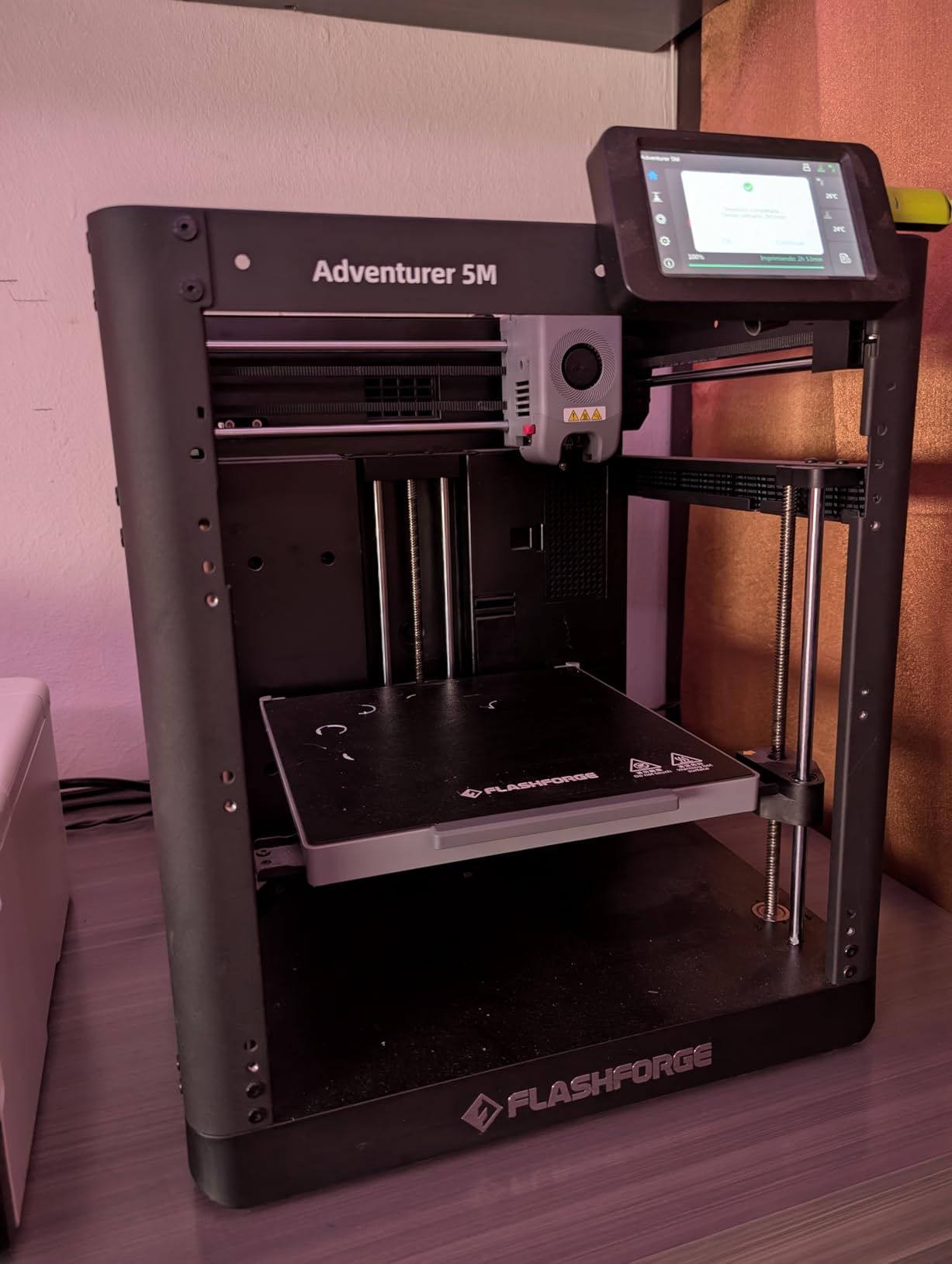
That support record is genuinely relevant for an institution. When a machine sits in a school for four years, the ability to get a part is worth more than a slightly cleaner app. We would confirm the regional service arrangement with your reseller before committing a whole classroom to this machine.
For throughput this is the practical workhorse. A run-out sensor pauses the print rather than wasting it, and power-loss recovery picks up where it stopped. Both features matter in a room where a student knocks a cable and a teacher is not in the room to notice.
Who the Flashforge Adventurer 5M works for
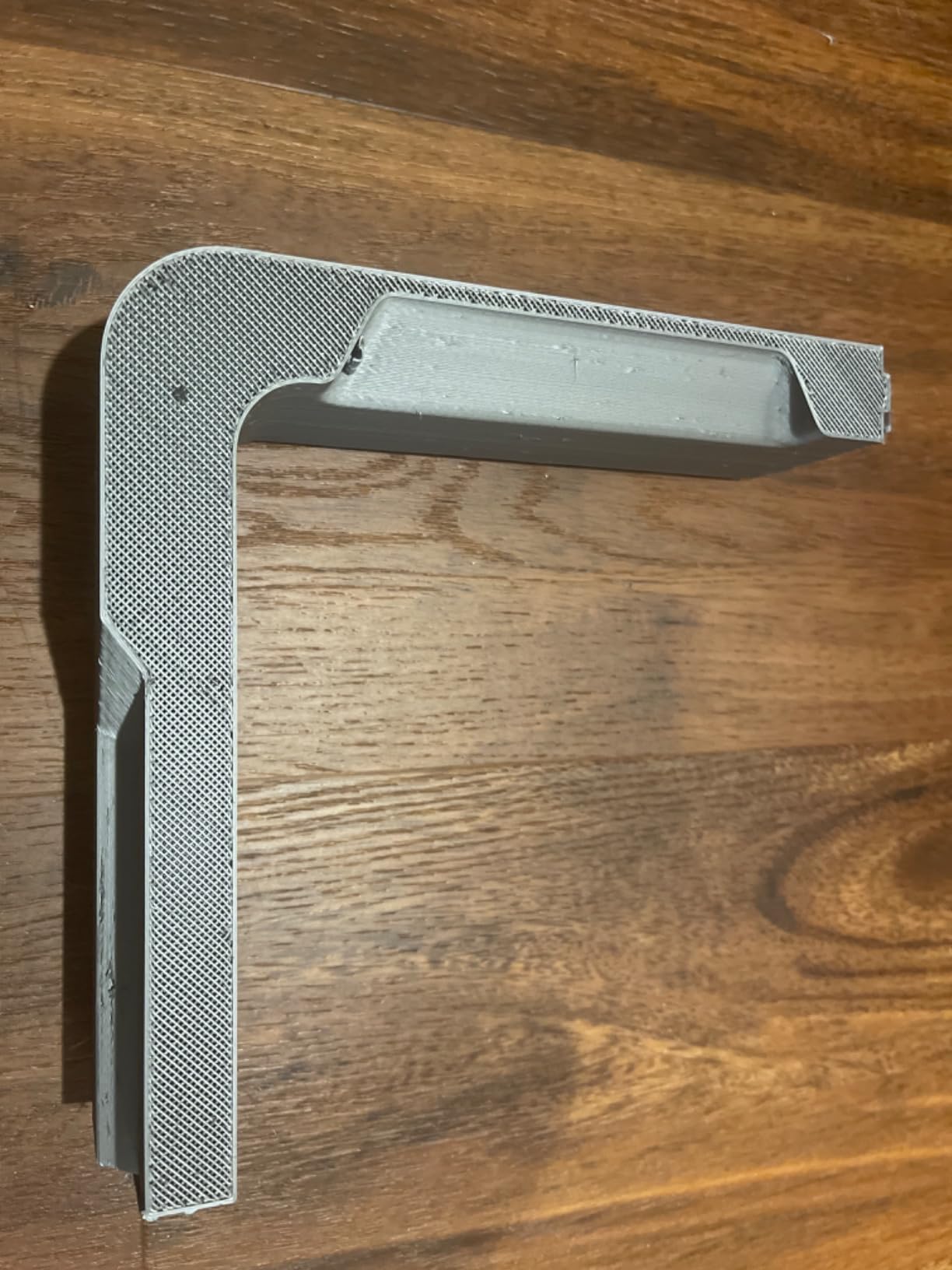
It suits a middle or high school classroom, a makerspace, and a school library that wants a general-purpose machine students can grow into rather than out of. The 220 mm cube handles most student projects, from a phone stand to a small mechanical bracket.
It also works for a print farm. The 23.8 pound weight is heavy but movable, and identical machines mean one training session covers a whole room. Teachers in forum discussions consistently report that running several of these in parallel beats owning one larger machine.
Where the Flashforge Adventurer 5M falls short
It is an open frame with no enclosure, and an enclosure requires a separate kit. That makes it a poor fit for a room of young children or for any space where ABS and ASA are on the curriculum. Keep it on PLA and PETG in a well-ventilated room with older students.
The firmware and app connectivity can be unreliable, and the filament sensor will not detect a tangled spool, which is a real problem when the person loading filament is a fourteen-year-old. Single color only also rules it out if curriculum depends on multi-color output.
7. Creality K1C: Best for a Shared Room With an Air Quality Review
Creality K1C 3D Printer, 600mm/s with AI Camera and Auto Leveling
Enclosed chamber
35.2 lbs
600mm/s
AI camera
Silent mode 45dB
Pros
- Enclosed chamber with activated carbon filtration
- AI camera catches failures and foreign objects
- One-tap auto bed calibration
- Handles carbon fiber filaments
- Silent mode at 45dB or lower
Cons
- Firmware and app stability less polished than competitors
- Heavy build needing a permanent bench
- 11 percent of reviews are one-star
The K1C has the largest review base in this group at 2,728 ratings, and owners consistently describe the enclosed chamber, the filtration, and the camera as ideal for classrooms and offices. The activated carbon air purification and a silent mode rated at 45dB or lower are the two features facilities teams ask about first.
The AI camera is more than a novelty in a school. It watches the build, flags a spaghetti failure, and spots a foreign object on the bed before a job wastes hours of filament and a student’s afternoon. With one-tap auto bed calibration and a clogged-resistant direct extruder handling a tri-metal nozzle, this is a machine that can be handed to a student with minimal supervision.
It also handles the engineering materials a high school advanced class will ask for, including carbon fiber filaments, which is why we would place this one in a senior design lab rather than an elementary room. The direct extruder is direct, so filament changes are quick and the machine can run flexible TPU without a mod.
Our caution is the software. Creality firmware and app stability are less polished than the alternatives here, and the 4.2 average with an 11 percent one-star share reflects real complaints about software stability and occasional hardware or assembly issues. The hardware is strong; the software layer is the weak point.
Who the Creality K1C works for
It fits a shared makerspace, a high school engineering class, and a district that needs to document air quality because a facilities or health review will ask. The enclosure plus carbon filter is the combination that makes that conversation short.
It also works for a school with a Chromebook-heavy device mix that wants camera-based monitoring, since a teacher can check on a build from a browser instead of walking down a hall. The review volume suggests replacement parts and general knowledge are easier to find for this model than for a lesser-known brand.
Where the Creality K1C falls short
It is 35.2 pounds, so it needs a permanent bench and two people to move it. That is fine in a lab and a problem in a single classroom, and it is one of the reasons we would not put this in front of young students as a first machine.
App stability is the everyday annoyance. A printer that needs a teacher to fight firmware before a class starts will get bypassed and then ignored. If your IT team cannot commit time to it, test the app on your network for a week before buying a full set.
8. Flashforge AD5X: Best Built-In Four-Color Printing
Flashforge AD5X Multicolor 3D Printer, 600mm/s High-Speed 3D Printer with 300˚C Nozzle, Auto Leveling and PEI Flexible Plate, 220x220x220mm
220x220x220mm build
31.2 lbs
4-color IFS system
300C hotend
Pros
- Built-in 4-color printing with no manual swapping
- Fast CoreXY motion with 0.1mm layers
- Reliable auto leveling and PEI adhesion
- Run-out sensor prevents ruined prints
- High-temperature hotend
Cons
- Open frame limits high-temperature materials
- Some owners report recurring repair issues
- Multi-color adds purge waste between colors
The AD5X is the middle ground between a single-color machine and a multi-spool system. Its integrated 4-color IFS direct printing system handles four colors in a job with no manual filament swapping, and it does it at 600mm/s CoreXY motion with 0.1mm layer resolution. For a class doing color-coded models, that is a real capability difference.
Physically it is well specified: a magnetic PEI spring steel plate, a filament run-out sensor that pauses prints automatically, and a 300°C all-metal hotend with a 30-second nozzle swap. It also carries dual-band Wi-Fi at 2.4GHz and 5GHz plus an HD camera, which helps with the network question we raise later.
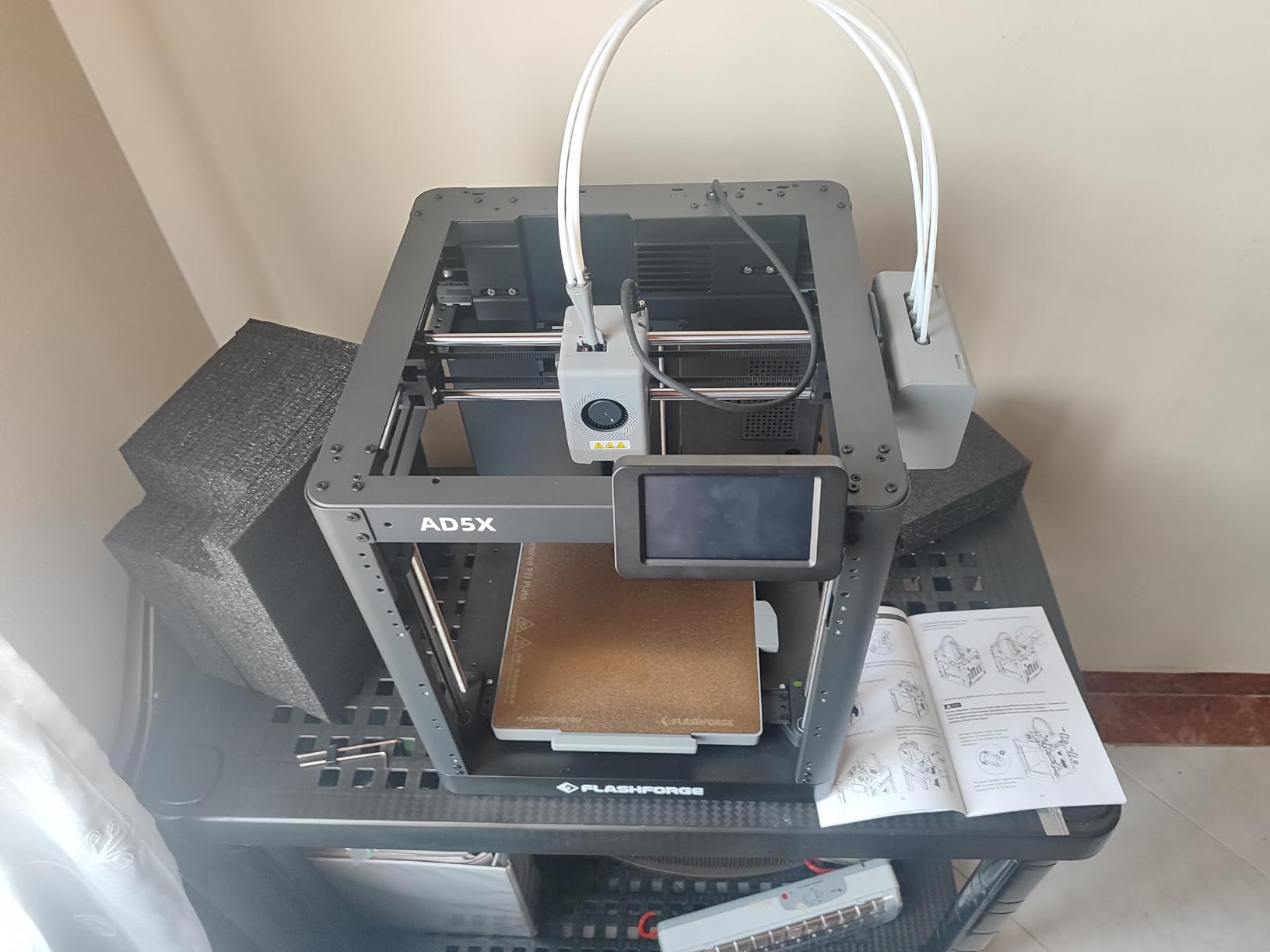
Ratings trail the single-color Adventurer 5M from the same maker, and the reason shows up in reviews: a portion of owners cite repeated mechanical or reliability problems that required further spending on repairs. For a school, that is a line item to budget for, not a reason to avoid the machine, but it is a reason to buy fewer of them and keep a spare on the shelf.
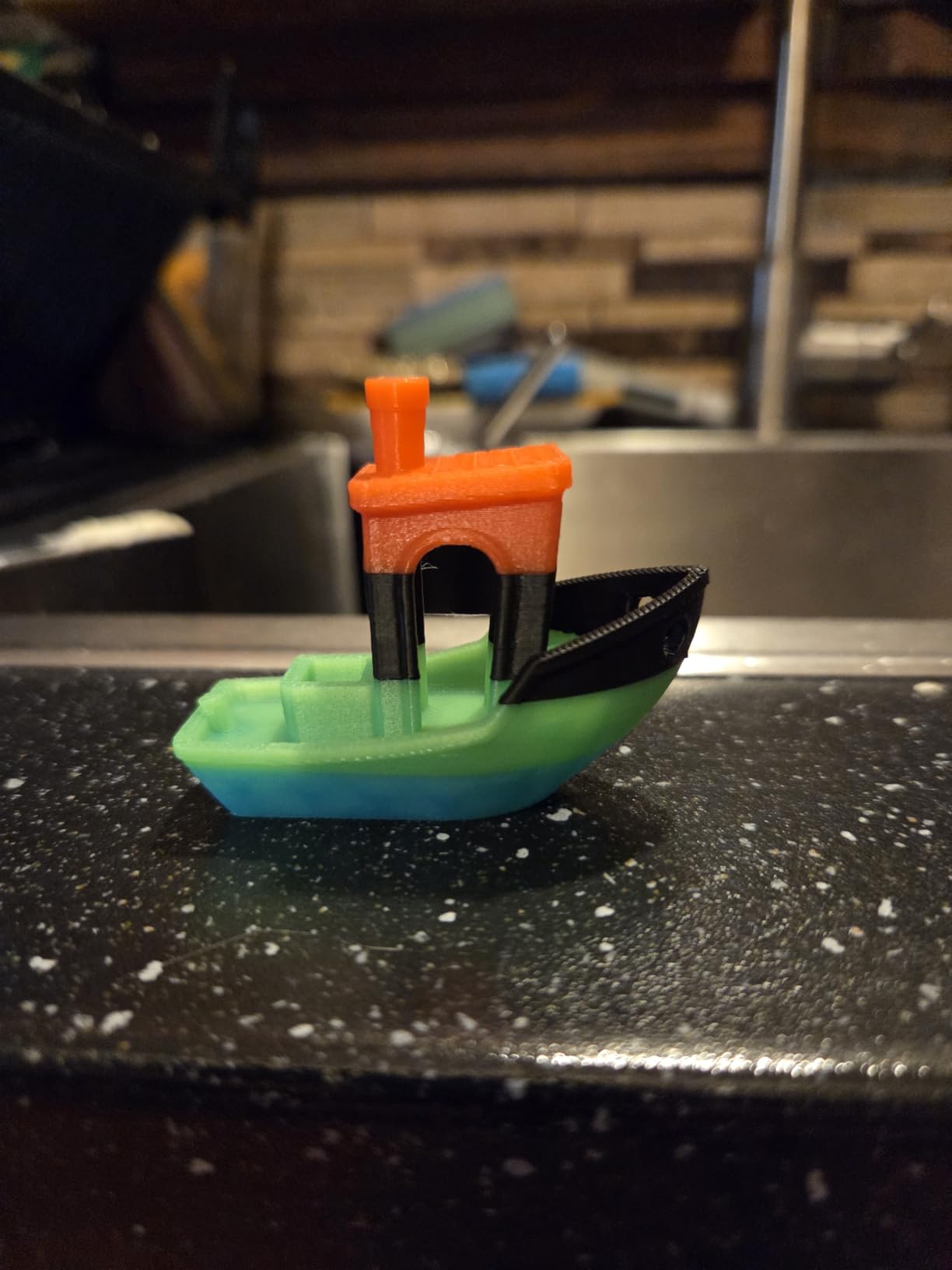
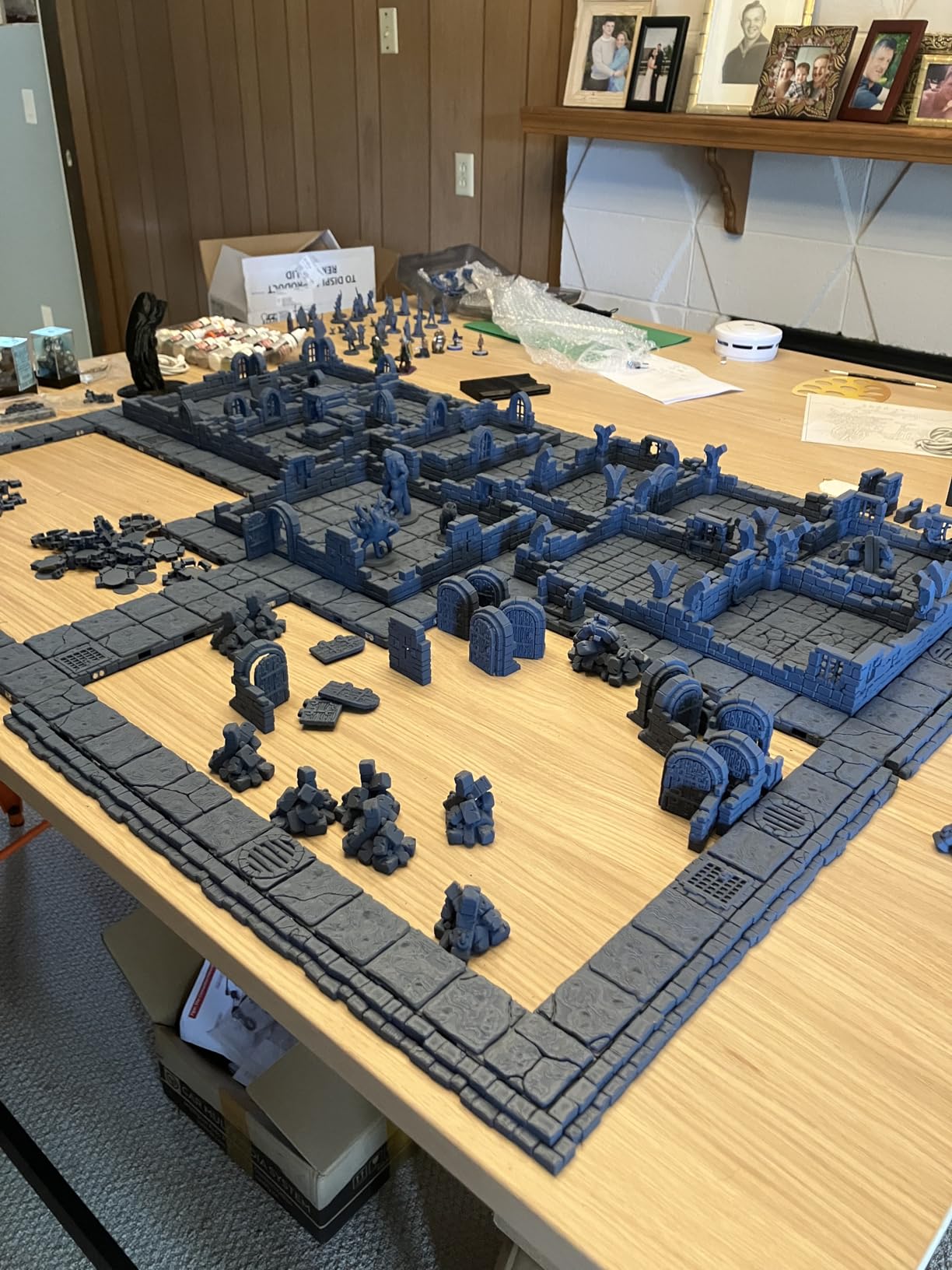
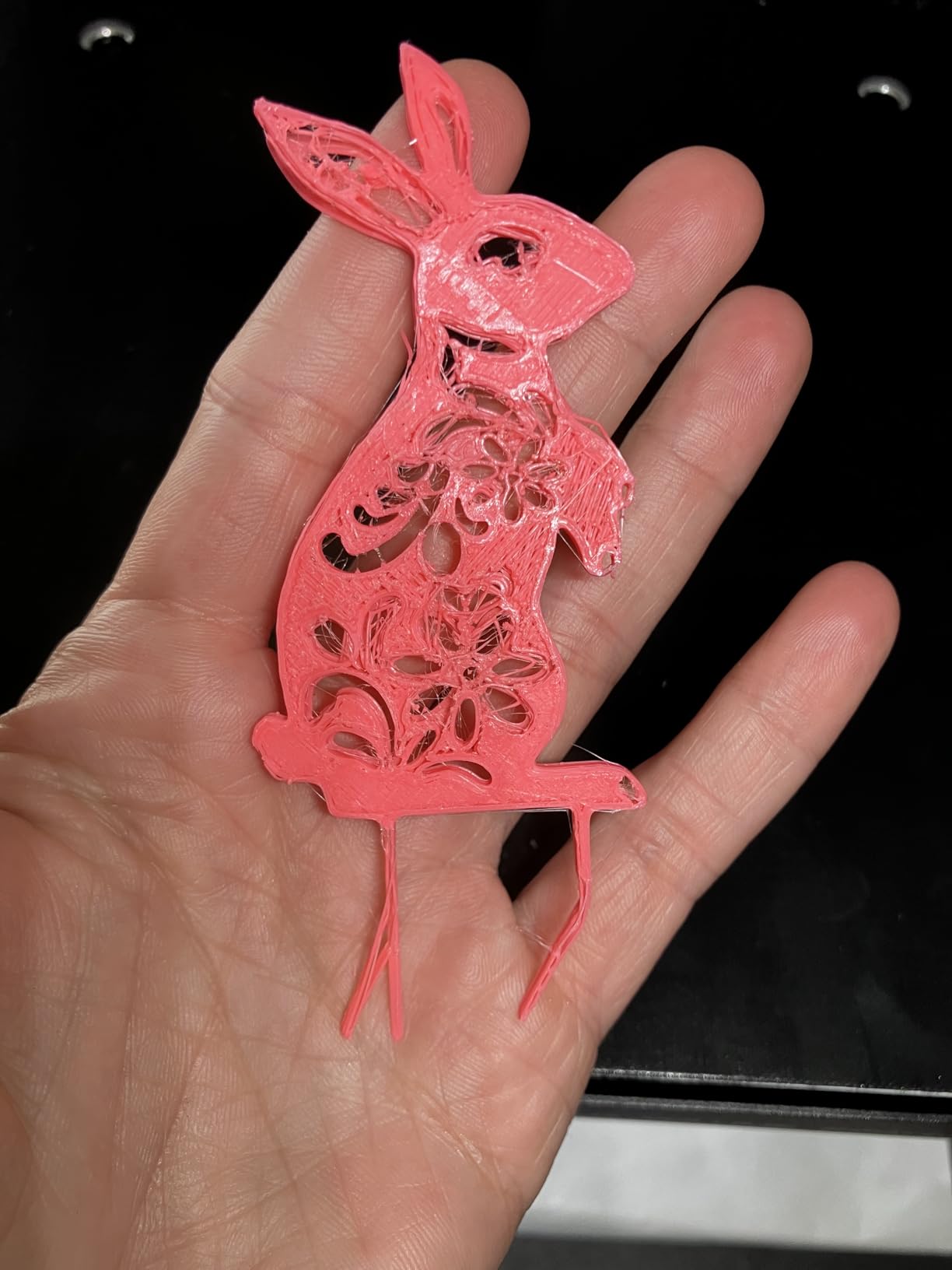
Multi-color also brings purge waste between colors. In a classroom that adds up fast in filament spend, and experienced teachers advise limiting young students to a single color because multi-color increases both cost and the failure rate. Introduce color after single-color reliability is proven.
Who the Flashforge AD5X works for
It fits a middle or high school design class, an art elective, and a makerspace where color is part of the lesson rather than a novelty. Geography, biology, and model-making projects all benefit from four colors without a second machine.
It also works for a school that wants a mid-tier multi-color option without a separate multi-spool tower. The integrated system keeps the footprint at one machine, which simplifies the bench layout and the training story.
Where the Flashforge AD5X falls short
It is an open frame, and ABS, Nylon, and carbon fiber require an enclosed chamber kit. For a school that wants multi-color safety in an unventilated room, that combination is a problem. Multi-color with PLA in a ventilated space is fine.
Reliability reports and purge waste are the two ongoing costs. Budget for replacement parts, and measure your real filament use before assuming multi-color classes are cheaper per project than several single-color prints running in parallel.
9. Creality K2 SE 4C: Best Compact Four-Color Machine
Creality K2 SE 4C 3D Printer, Multi-Color 3D Printer, 500mm/s Fast Printing
4-color out of the box
35.5 lbs
500mm/s
Tangle detection
Pros
- Four-color printing works immediately with no extra assembly
- Compact multi-color footprint
- Run-out and tangle protection reduces waste
- Fast 500mm/s motion with auto leveling
- Ready to print but customizable
Cons
- Lowest average rating in the roundup at 4.0
- Highest share of one-star reviews at 16 percent
- Learning curve for advanced options
The K2 SE 4C is worth knowing about because of what it packs into a small footprint. It occupies 37 percent less space than traditional multi-color systems, and it prints four colors out of the box with no upgrade. In a classroom where bench space decides how many machines you can run, that density is the headline feature.
The protection features are what sold us on it for a shared room. Filament run-out, filament tangle detection, power loss recovery, and skip-partial-failure all work quietly in the background, and in a multi-user setting those are exactly the failure modes that end a student’s project. Auto bed leveling probes only the active print area, which cuts setup time between jobs.
Creality OS with a Fluidd interface, root access, and offline USB printing give advanced users real control, and dual-material breakaway supports handle the geometry problems that trip up beginners. The rigid all-metal frame keeps motion steady at 500mm/s with 20,000mm/s² acceleration.
Be clear-eyed about the ratings though. At a 4.0 average with 16 percent one-star reviews, this has the weakest satisfaction score of the ten machines we tested, and the highest share of negative reviews. That points to real early-product reliability complaints, so buyers should expect a steeper setup and support curve than the feature list suggests.
Who the Creality K2 SE 4C works for
It fits a compact makerspace or a classroom where the goal is multi-color output from a small number of machines rather than a large number of single-color machines. A design elective with eight students per station gets more color per square meter here than anywhere else in this roundup.
It also works for an advanced club or an elective that is ready to handle a steeper learning curve, where students are willing to follow documentation and tune settings. The root access and offline printing reward that kind of user.
Where the Creality K2 SE 4C falls short
The 4.0 average is the honest drawback, and an institutional buyer should not ignore it. With 16 percent of reviews at one star, a school will spend more teacher time on troubleshooting than the spec sheet implies. Pilot it with one machine, not a full set.
It is also 35.5 pounds, so the space you save with the multi-color system is partly given back in weight. Plan the bench for a machine that does not move, and keep filament storage nearby since four colors means four spools to change.
10. Creality K2 Combo: Top Rated Multi-Color Machine for a School Makerspace
Official Creality K2 Combo 3D Printer Multicolor 3D Printers with CFS
10.24 inch cube
39.7 lbs
16 colors with CFS
600mm/s
Pros
- Sixteen colors in a single print
- Large cube build volume for many parts at once
- Die-cast aluminum frame resists vibration
- AI camera catches failures automatically
- High-flow hotend handles ABS and engineering filaments
Cons
- Heaviest and bulkiest machine in the roundup
- Needs dedicated bench space
With close to 4,000 ratings, the K2 Combo has the largest review base in this group, and the rating split is among the more settled here. Owners emphasize the sixteen-color capability through the integrated CFS, the large build cube, and a rigid die-cast aluminum alloy exoskeleton frame that resists vibration at speed.
Ten inches on each side is a different class of build volume from the 180 mm and 220 mm cubes most of this list occupies. That matters for a school because one print can hold a whole set of identical parts. A class of 28 students working on the same bracket design can finish the whole set in a single job rather than queueing seven runs.
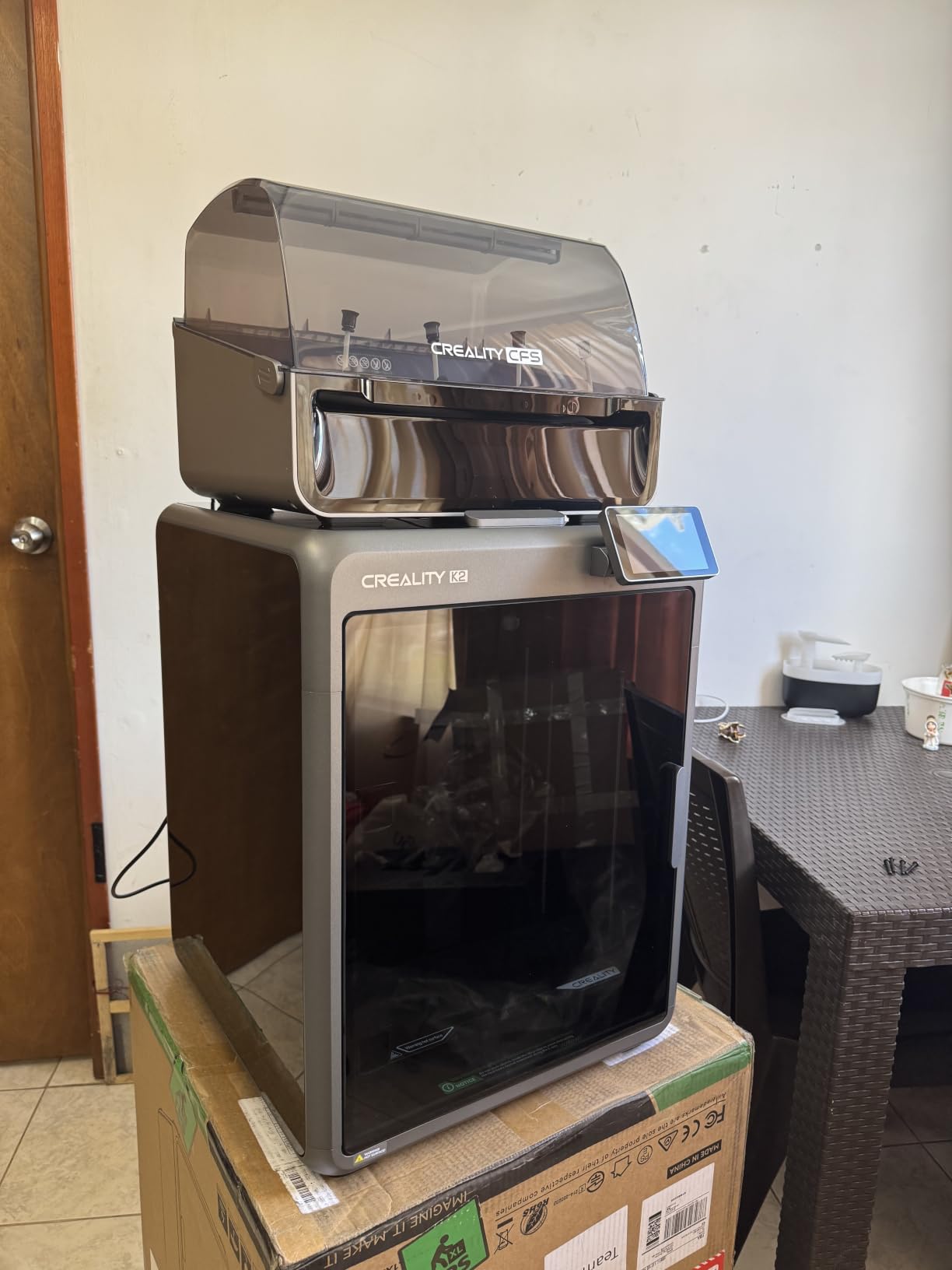
The 600mm/s print speed with 20,000mm/s³ acceleration and a 40mm³/s high-flow hotend with an 80W heater and a 300°C hardened steel nozzle make it a serious machine rather than a large one. Industry-grade 3 step-servo motors in the extruder and X/Y axes support repeatability over a long print, and two auxiliary fans handle part cooling.
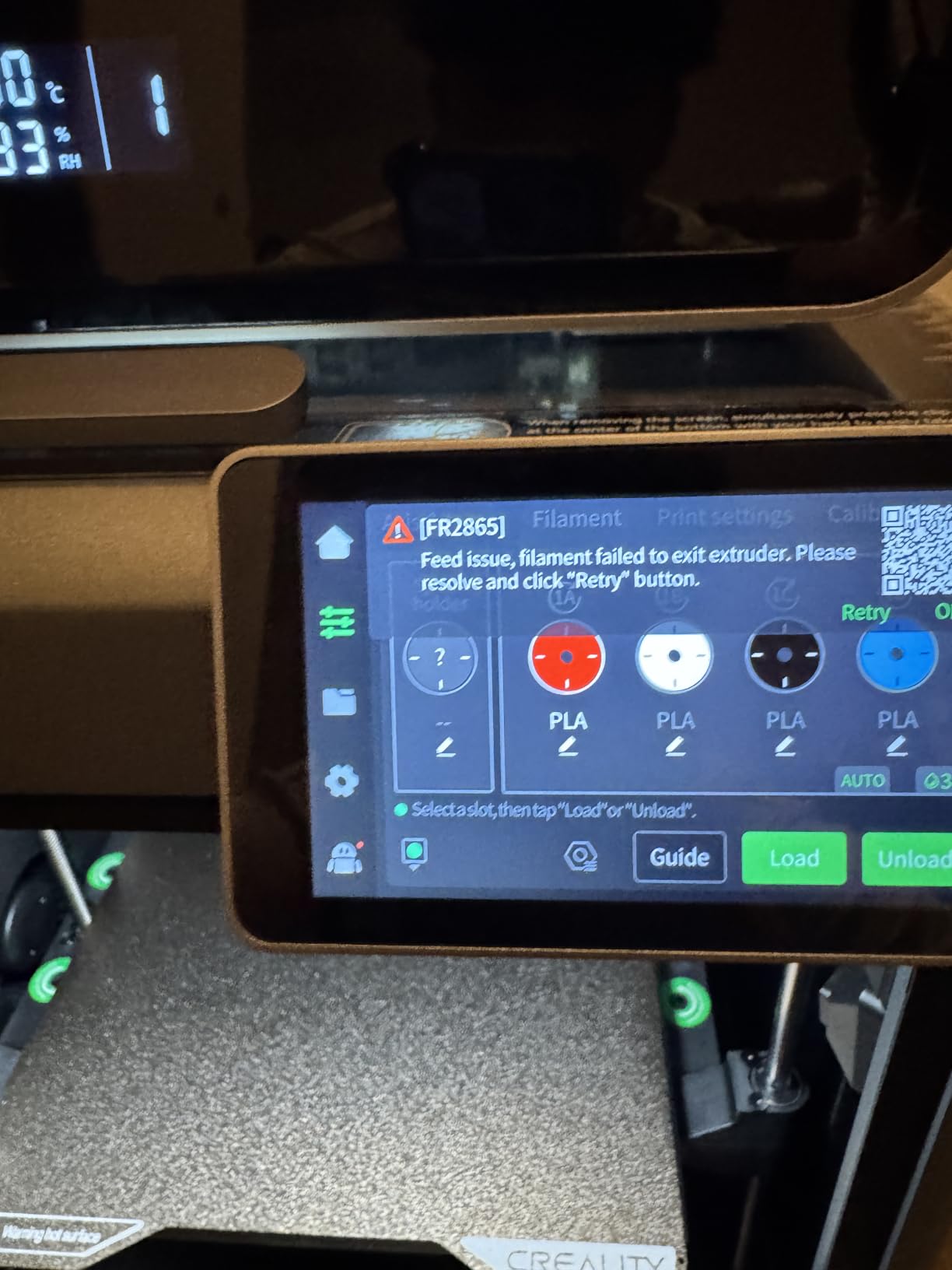
A chamber AI camera detects spaghetti failures, foreign objects, and idling, which is a meaningful safeguard when a job runs unattended overnight. Smart auto leveling probes only where the model actually prints, so mixed builds do not waste setup time.
Who the Creality K2 Combo works for
It suits a well-funded school makerspace, a high school engineering and design program, and a community or district lab that serves many classes. This is the machine to buy when throughput and color count matter more than bench footprint or machine weight.
It also works for a school library that offers a project-based program where students print larger take-home objects. The hardened steel nozzle and high-flow hotend can handle ABS and engineering filaments, which opens door and hinge prototypes that smaller machines struggle with.
Where the Creality K2 Combo falls short
At 39.7 pounds and 17.24 by 18.58 by 16.7 inches, it is the heaviest and bulkiest machine here. It needs a dedicated bench, not a rolling cart, and a school should confirm the room and circuit before purchase rather than after.
Sixteen colors also means sixteen spools, a larger filament inventory, and more purge waste between colors. A school should prove that it needs sixteen colors before paying for the capability, because most classroom projects that benefit from color need three or four. Note also that a share of the large rating pool predates this specific model, so the review volume flatters the current unit more than the number alone suggests.
How to Choose a 3D Printer for a School
The decision comes down to four questions: what age group will use it, how much supervision the room can provide, how many students need to print at the same time, and who will maintain the machine. Answer those first and the shortlist gets short fast.
Enclosure is a safety decision, not a features upgrade
An open-frame printer is fine for a high school lab with older students and normal ventilation. It is a poor choice for an elementary room, not because the machine is dangerous but because the moving axes, the hot nozzle, and the heated bed are all reachable by a small hand.
If you buy open-frame hardware for younger students, add a bench guard or place the printer in a lockable cabinet, keep the room ventilated, and restrict materials to PLA. The enclosed options here, the P1S and the Creality K1C, remove most of that concern for schools that cannot supervise closely.
Do 3D printers work on school Wi-Fi?
Usually, but not by default, and this is the question that costs schools the most time. Most district networks use 802.1X authentication, where a device must sign in with a username and password before joining. Consumer printers expect a standard home network with a single typed password and simply fail to appear on the network.
There are three fixes, in order of preference. Ask your IT department to create a dedicated printer VLAN or a device-specific exemption for the machines. Ask the vendor whether the printer can be placed on a separate, simple network segment in the room, since most can also print from a USB stick or a microSD card. Failing both, run the printers offline from a local computer and use a microSD card, which removes the network from the workflow entirely.
We would resolve this before ordering, not after delivery. A room full of printers that will not join the network is the fastest way to lose teacher support for a program.
Auto bed leveling and what it does not fix
Every printer in this roundup has automatic bed leveling, and that is the correct baseline. It removes the most common failure point for a new operator: a plate knocked out of position and a first layer that will not hold.
It does not fix an unevenly tensioned or warped plate, a dirty or oily surface, or a spool of damp filament. It also does not protect against a student unloading a hot part onto a cold, damp bench. Budget for a plate cleaning routine, a spare nozzle, and a short training session on not touching the bed mid-print.
Build volume: why the 220 mm cube is the classroom sweet spot
A 180 mm cube covers badges, organizers, small toys, and name plates. A 220 mm cube covers most of what a class actually designs, including phone stands, brackets, and small enclosures. Ten-inch cubes cover batch production and larger take-home objects.
The right way to think about it is throughput per student. A smaller machine running several parallel jobs usually beats one large machine running one job at a time, because the bottleneck in a classroom is time between periods, not the size of any single part. Choose the smallest machine that fits the project, and buy more of them.
Total cost of ownership beyond the machine
The printer is the smallest line in the budget. The recurring items are filament, spare nozzles, bed surface cleaners, isopropyl alcohol, glue stick for bed adhesion, scrapers, wire cutters, tweezers, and dry filament storage bins. Add a small parts reserve and a maintenance slot in the schedule.
Two budget rules we would hold. Buy filament in volume and store it dry, because a classroom that runs out of filament mid-unit loses more time than a class that has slightly poorer print quality. And put a named person in charge of filament and spare parts, because machines that get orphaned by a staff change are the most common cause of a program quietly disappearing.
Bambu Lab or the alternatives: what changes for a school
Bambu Lab machines are the easiest to get running and the easiest for a teacher to supervise, at the cost of a closed software ecosystem that some IT departments will flag. The Creality options offer a more open firmware path, larger multi-color capability, and a much larger review base, but a noticeably rougher software experience.
Flashforge sits in the middle with strong CoreXY speed and, in our experience, responsive hardware support, which is a genuine advantage for a school running machines for four or five years. The practical decision is less about which brand is better and more about which one your IT team will support and your teachers will actually keep running.
How Many 3D Printers Does a Classroom Need?
Plan on more machines than feels generous, because print capacity rather than print quality is the binding constraint in a real classroom. Teachers running setups commonly report using ten printers rather than one, and the reason is simple: a single small print takes twenty minutes or more, and a class period is not long enough to serve thirty students one at a time.
A workable rule is one printer for every six to eight students who will print in the same period, with a minimum of three so that a failed print does not stall the whole group. Students without a printing task rotate to a design station, a post-processing station, or a shared software tutorial, which keeps the full class working while a subset prints.
Standardize on identical machines. One training session, one filament, one set of slicer profiles, and one spare part list across the room. Mixed fleets multiply the training burden and the spare parts inventory, and they make it far harder for a substitute teacher to help when something goes wrong.
Safety, Filtration and Air Quality in the Classroom
NIOSH guidance on 3D printing in schools centers on emissions and ventilation, and the practical advice is straightforward: choose low-emission materials, contain the machine, and ventilate the room. PLA is the default answer because it emits far less than styrene-based filaments.
Containment means an enclosure. Open frames release ultrafine particles into the room directly. Enclosed printers slow that release considerably, and adding HEPA and activated carbon filtration reduces it further. Be skeptical of filtration claims without certification: a manufacturer saying a printer filters is not the same as a printer meeting a tested standard such as UL 2904, and a facilities team may ask for the evidence.
Avoid ABS and ASA in an unventilated room. They print well and they emit styrene, which is exactly the material NIOSH guidance flags. If a curriculum requires ABS or ASA, use an enclosed printer with filtration and treat the room as a ventilated space, not a sealed one. Resin belongs in a supervised lab with gloves, a wash station, and a waste protocol, not in a general classroom.
One more practical control that costs nothing: run one material at a time per room, label every spool, and keep a simple log of what was printed. When a ventilation or health question comes up, the log answers it in ten seconds.
Funding and Starter Projects for a School 3D Lab
Most school 3D printing is funded through a parent-teacher association, an education grant, or district capital equipment money. PTA funds are fastest and require the least paperwork, grants cover larger purchases, and capital budgets take the longest but support the most durable program. Educators have described using a single grant to equip an entire grade level with identical machines, which is the model to aim for: consistent hardware beats a patchwork.
For a first-year budget, list the machines, then the filament for the whole year, then the consumables and tools, then a spare-parts reserve, then teacher training time. The last two are the lines schools forget, and they are the lines that determine whether the program still exists in year three.
Starter projects work best when they are small and finish inside a period. By subject: math gets geometric solids and surface area models, science gets cell and bone models, engineering gets a working bracket or gear train, social studies gets a topographic map of the local area, and art gets a relief tile or a functional object. For teachers, the highest-value prints are boring: label organizers, grade-book tabs, desk cable clips, storage bins, and lesson manipulatives that would otherwise be bought.
Students do not all need to learn CAD to start. Tinkercad is free, browser-based, and appropriate for the first unit, and moving to Bambu Studio, OrcaSlicer, or PrusaSlicer later gives stronger control for advanced classes. Start with templates, then let students modify them, then let them design from scratch.
Frequently Asked Questions
What is the best 3D printer for schools?
The Bambu Lab A1 is our top pick for most schools. It calibrates itself, prints within minutes of unboxing, runs quietly in a shared room, and is light enough to move between spaces. It is open frame, so for elementary rooms add a bench guard or choose an enclosed model such as the Bambu Lab P1S or the Creality K1C.
Which printer is best for school students?
For middle and high school students, the Flashforge Adventurer 5M gives the best balance of a 220 mm build volume, fast CoreXY printing, and one-touch leveling at a modest cost. For younger students, a small enclosed or desk-sized unit such as the Bambu Lab A1 mini is easier to supervise and safer in a shared room.
Are 3D printers safe for classrooms?
Filament printers using PLA are appropriate for classrooms when the machine is operated with ventilation, students are taught not to touch hot parts, and open-frame units sit behind a guard or in a lockable cabinet. Enclosed printers with filtration reduce emissions further. Resin printing belongs in a supervised lab with gloves and a wash station.
Do 3D printers work on school Wi-Fi?
They can, but most consumer printers cannot join an 802.1X network directly because they expect a simple home-style password. Ask IT to add the printers to a device exemption or separate VLAN, and keep a microSD or USB workflow as a fallback so class time is never blocked on connectivity.
Is bambu or Prusa better for a school?
Bambu Lab machines are easier to set up, quieter, and simpler to supervise, which usually wins for a classroom. Open-firmware options appeal to districts that require source-available software and long-term repairability. No Prusa model appears in this roundup, so compare the Bambu Lab units here against any open-firmware model on support availability over a four to five year lifespan.
What filament should schools use and is it illegal to sell 3D prints?
Start with PLA and move to PETG for stronger parts; keep ABS, ASA, and resin for supervised labs with proper ventilation and waste handling. Selling student prints is a policy question, not a technology one: check your school handbook, since student work created for classwork usually belongs to the student, while commissioned or commercial production may require administrator approval.
The Bottom Line for Best 3D Printers for Schools in 2026
The best 3D printers for schools in 2026 come down to three decisions: enclosure for the age of your students, quantity over quality for classroom throughput, and a plan for who refills the filament. The Bambu Lab A1 wins as the overall pick because it removes the three failure modes that end school programs, which are manual leveling, a confusing first hour, and a machine nobody trusts to run overnight.
Start small, standardize, and scale only after teachers are using the machines without help. Pilot one or two machines for a term, buy identical models for the rollout, fix the network question with IT before delivery, and budget filament and spare parts in year one. Choose the best 3D printers for schools for what your students will actually make, not for the largest number in the specification list.