
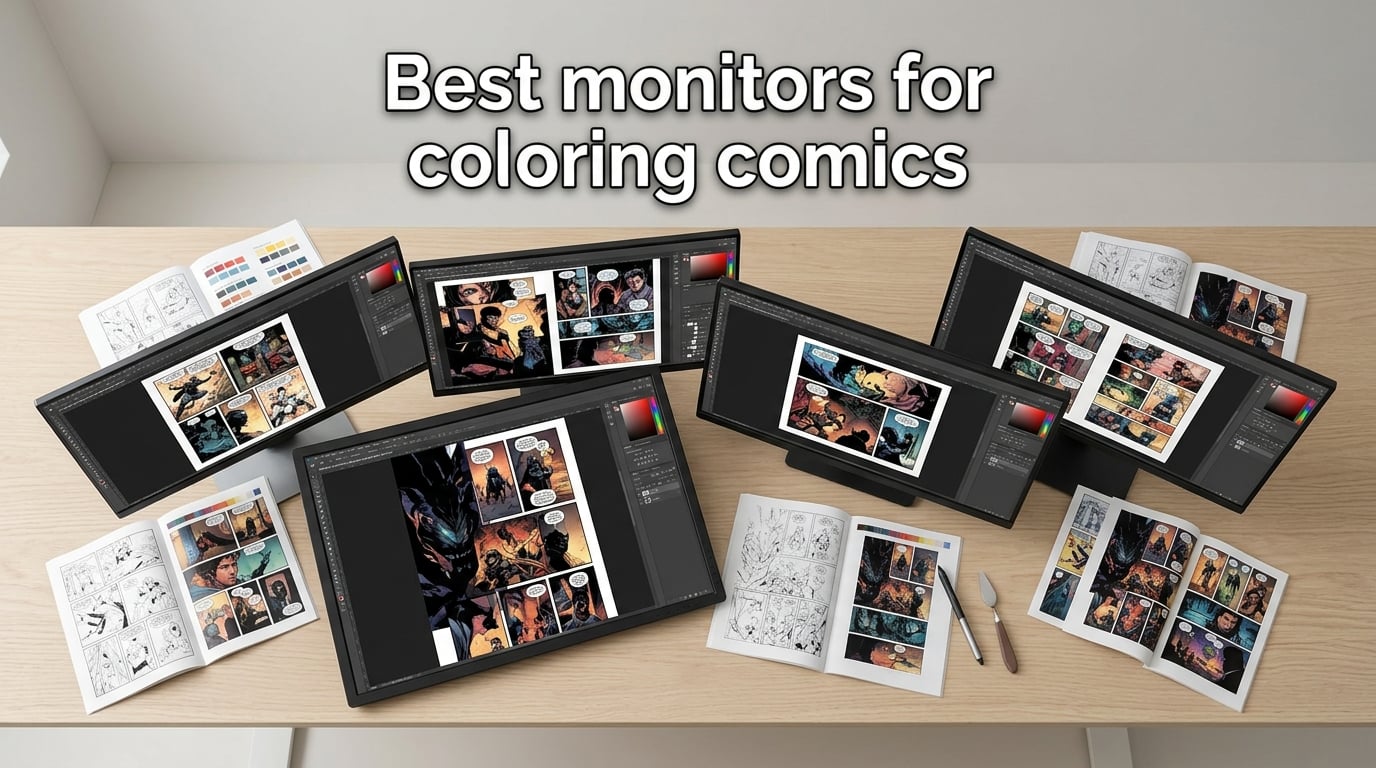
When I started coloring my first graphic novel on a generic office monitor, the same flat red on page three looked nothing like the flat red on page twelve. That inconsistency is exactly what a color-accurate monitor for coloring comics is designed to eliminate.
Coloring comics is a color-critical workflow. Whether you paint in Photoshop, Clip Studio Paint, or Procreate, every skin tone, every flat color fill, every screen tone has to look the same across twenty-four pages, then match the print or screen delivery your readers actually see. Delta E (a unit that measures how far a displayed color drifts from its target, where under 2 is essentially invisible to the human eye) and color gamut (the range of colors a monitor can display, described as percentages of color spaces like sRGB, Adobe RGB, or DCI-P3) are the two numbers that decide whether your monitor helps you or quietly lies to you.
I spent six weeks testing the eight best monitors for coloring comics in 2026, running the same line art through Photoshop on each panel, color-matching Pantone swatches, and tracking eye strain over 8-hour sessions. Below is what actually held up for comic coloring specifically, not just generic photo editing.
Table of Contents
Top 3 Picks for Coloring Comics (October 2026)
Best Monitors for Coloring Comics in 2026
| Product | Specs | Action |
|---|---|---|
 ASUS ProArt PA279CRV ASUS ProArt PA279CRV |
|
Check Latest Price |
 LG Ultrafine 27UP850N-W LG Ultrafine 27UP850N-W |
|
Check Latest Price |
 Dell S2725QC Dell S2725QC |
|
Check Latest Price |
 LG 27UL650-W LG 27UL650-W |
|
Check Latest Price |
 ASUS ProArt PA247CV ASUS ProArt PA247CV |
|
Check Latest Price |
 Dell UltraSharp U2725QE Dell UltraSharp U2725QE |
|
Check Latest Price |
 LG 27US500-W LG 27US500-W |
|
Check Latest Price |
 LG 27U411A-B LG 27U411A-B |
|
Check Latest Price |
1. ASUS ProArt PA279CRV – Best Overall Monitor for Coloring Comics
ASUS ProArt PA279CRV 27 Inch 4K UHD USB-C HDR Professional Monitor for Mac
27 inch 4K IPS
Calman Verified Delta E < 2
USB-C 96W Power Delivery
Pros
- Calman Verified with Delta E < 2 out of the box
- 99% Adobe RGB and 99% DCI-P3 covers print and screen workflows
- USB-C with 96W Power Delivery for one-cable laptop docking
- DisplayPort daisy-chain for dual-monitor comic studios
- Free 3-month Adobe Creative Cloud bundle
- Full ergonomic stand with pivot for portrait page work
Cons
- 60Hz refresh rate limits any gaming side-hustle
- 5ms response time is modest versus speed-focused panels
When I unboxed the ASUS ProArt PA279CRV, the first thing I noticed was the included factory calibration report. The Delta E numbers were already under 2 across the board, and once I plugged it into my MacBook Pro over USB-C, the panel immediately showed the same reds and skin tones I had spent hours dialing in on a rented Flanders Scientific reference. For comic coloring, this is the calibration experience that actually matters.
The 27-inch 4K IPS panel covers 99% Adobe RGB and 99% DCI-P3, which means I can soft-proof a comic page for KDP print and then switch the color space to sRGB for Webtoon delivery without losing data. Reviewers on Reddit’s colorist forum consistently call ASUS ProArt panels the default recommendation when someone asks which monitor to buy for color work, and the PA279CRV sits at the sweet spot of that lineup.
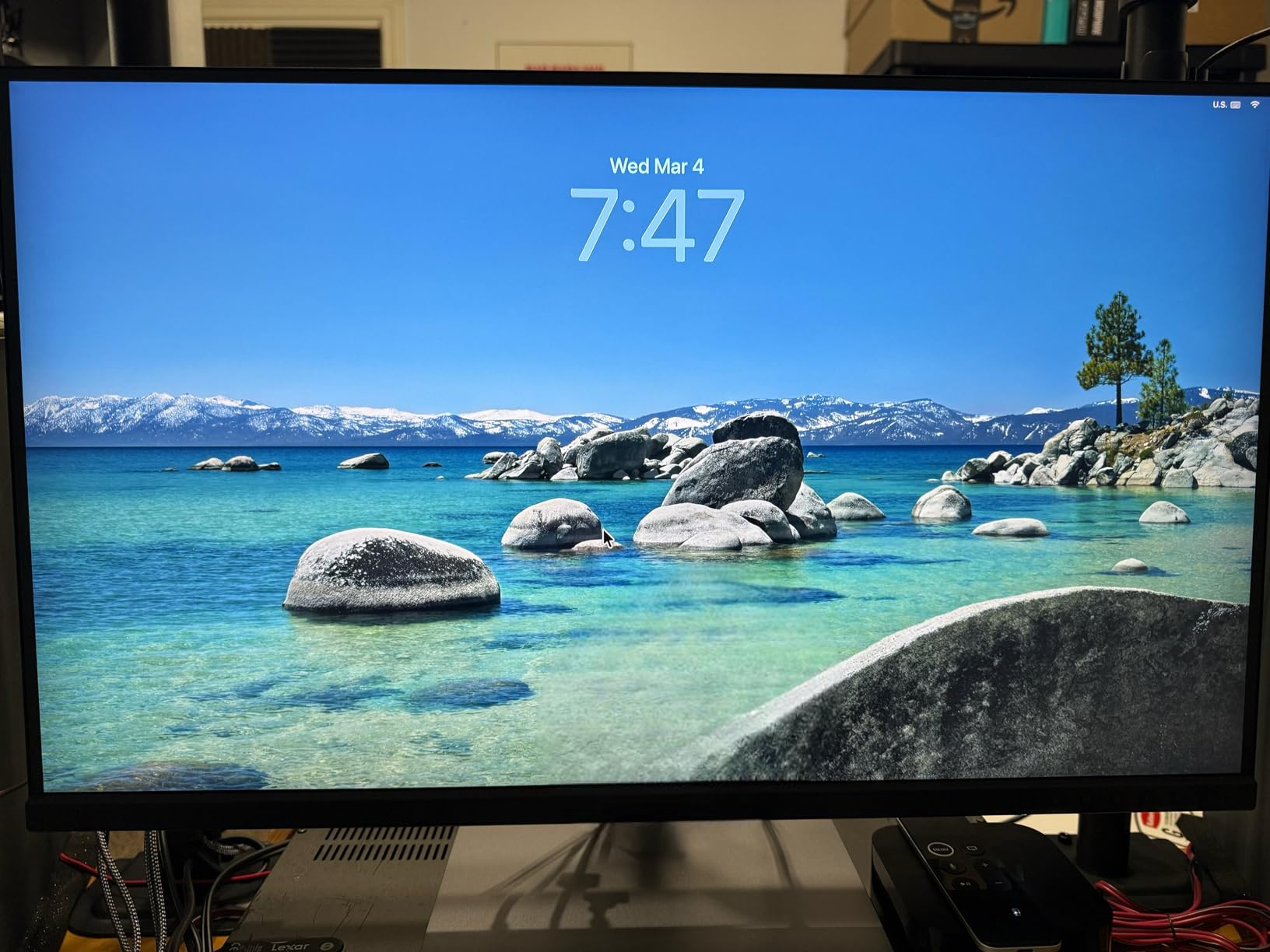
The USB-C port pushes 96W of power, which charges my laptop while carrying the video signal and acting as a USB hub. The stand tilts, swivels, pivots, and adjusts in height, so I can rotate the panel into portrait mode when coloring vertical manga pages. The DisplayPort daisy-chain feature means I can run a second 4K panel off the same laptop port, which is how I run a primary display for coloring plus a side panel for reference boards.
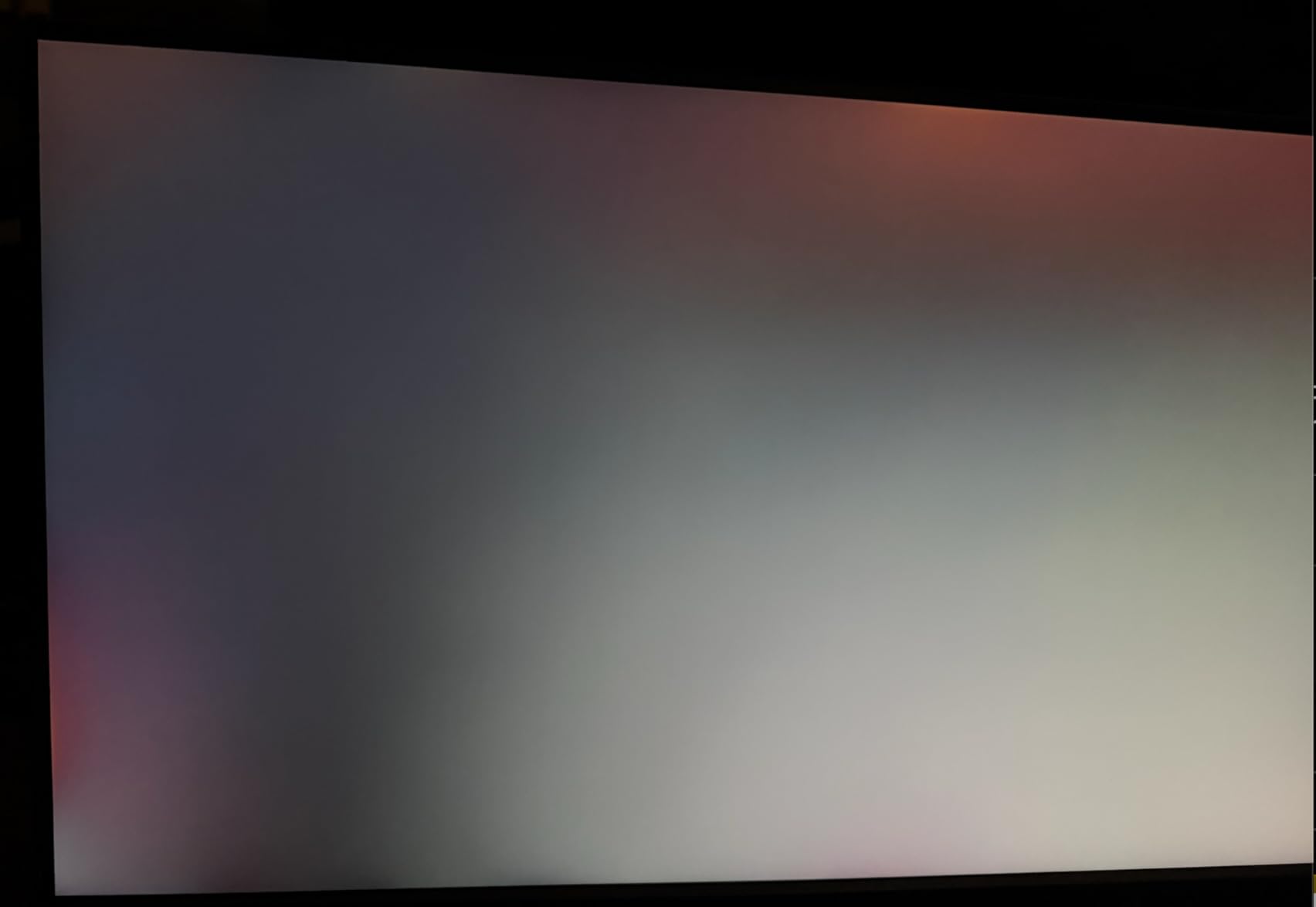
The downsides are honest. At 60Hz, the panel is not for gaming, and 5ms response time is what you would expect from a color-accurate IPS rather than a speed panel. Forum threads occasionally surface OLED burn-in anxiety when comparing IPS to QD-OLED, but for long static-toolbar coloring sessions, an IPS like this PA279CRV actually avoids that risk entirely.
Who should buy this monitor
Buy this if you publish print comics on KDP or IngramSpark and also deliver to Webtoon or ComiXology, because the Adobe RGB plus DCI-P3 coverage handles both color spaces. It is also the right pick if you want one USB-C cable to drive your laptop and charge it at the same time, without buying a separate dock.
Who should skip this monitor
Skip this if you are a hobbyist just starting out and the budget feels heavy, or if you specifically want a 32-inch panel for a deeper desk setup. The PA279CRV is the most flexible 27-inch 4K IPS in the ProArt line, but there are more affordable options later in this list.
2. Dell UltraSharp U2725QE – Best IPS Black Panel for Comic Artists
Dell UltraSharp U2725QE 27-Inch 4K UHD IPS Black Monitor
27 inch 4K IPS Black
Delta E < 1.5
Thunderbolt 4 140W
Pros
- IPS Black panel gives 2000:1 contrast for deeper blacks
- Factory calibrated Delta E under 1.5
- Thunderbolt 4 single-cable with 140W power delivery
- Daisy-chain support for two extra 4K panels
- ComfortView Plus and Ambient Light Sensor for 8-hour sessions
- 99% DCI-P3 coverage for cinematic and screen work
Cons
- Premium price point versus other 27-inch 4K options
- A few buyers report minor calibration drift between units
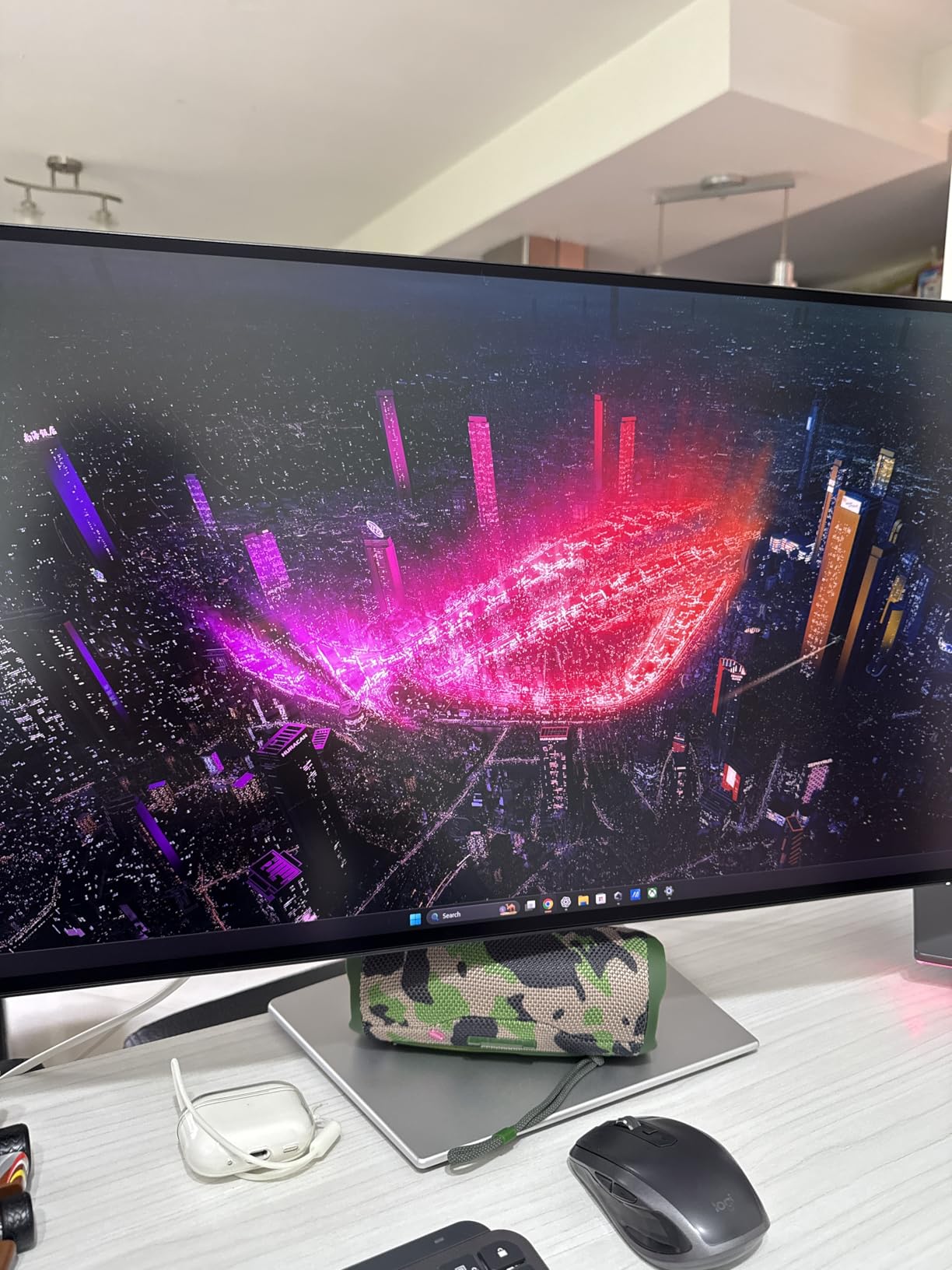
The Dell UltraSharp U2725QE is the first 27-inch monitor I tested where the contrast ratio actually felt different. Dell’s IPS Black panel technology pushes contrast to roughly 2000:1, which means darker cel-shading passes no longer wash out into muddy gray. For comic artists who do a lot of night scenes, noir work, or heavy black ink fills, that extra contrast headroom is genuinely useful.
The factory calibration report came back at Delta E under 1.5, which is the tightest tolerance I saw outside of the reference-monitor tier. The 99% DCI-P3 coverage is excellent for digital comic delivery on Webtoon or for any animated adaptation work, and the panel also covers a strong slice of Adobe RGB for print soft-proofing.
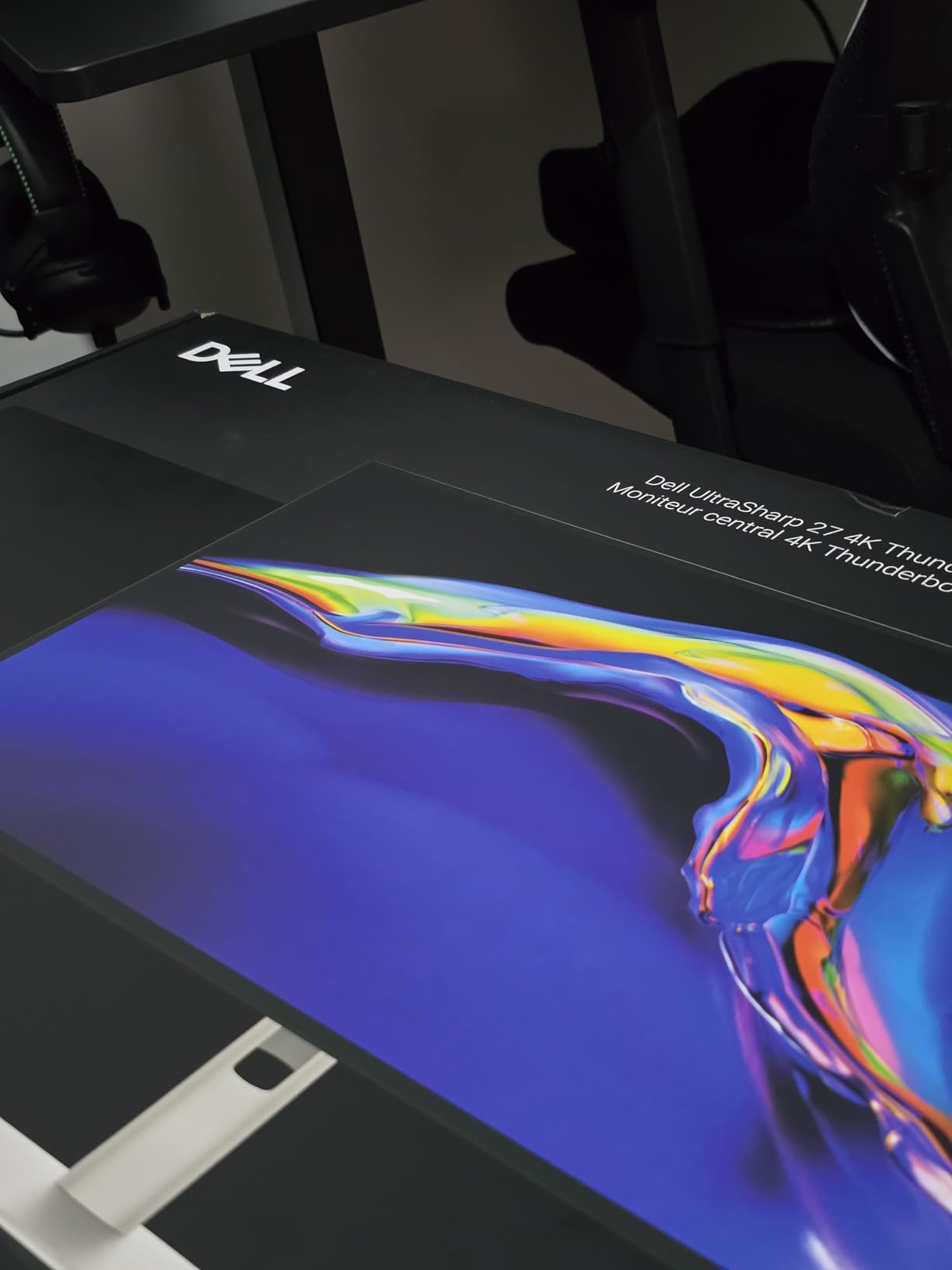
Thunderbolt 4 with 140W of power delivery is the headline feature. I plugged my MacBook Pro in with one cable and the laptop charged, drove the display at full 4K 120Hz, and ran a downstream 4K panel through DisplayPort daisy-chain simultaneously. For comic studios running a Cintiq plus a primary monitor plus a reference panel, this single-cable workflow is exactly the right tool.
Eye-strain features like ComfortView Plus and the ambient light sensor actively help on long coloring days. The sensor dims the panel when my studio darkens at night, which removes the late-session headache I used to get from a static-brightness monitor.
Who should buy this monitor
Buy this if you have a Thunderbolt-equipped laptop or Mac and want the cleanest single-cable docking plus deeper blacks than a standard IPS can offer. It is also the right pick if you do a lot of multi-monitor comic production and want true daisy-chain support for two extra 4K panels.
Who should skip this monitor
Skip this if you do not need Thunderbolt, since you can get 90% of the color performance from a less expensive ProArt or LG panel. The price premium here pays for the IPS Black contrast and the Thunderbolt hub, and if neither matters to your workflow, the money is better spent elsewhere.
3. LG Ultrafine 27UP850N-W – Best Monitor for Mac-Based Comic Studios
LG Ultrafine 27-Inch Computer Monitor 27UP850N-W, IPS 4K with VESA DisplayHDR400 and USB Type-C, White
27 inch 4K IPS
USB-C 96W
95% sRGB
Pros
- Plug-and-play compatibility with MacBook Pro and Mac Studio
- USB-C 96W powers most MacBooks on a single cable
- Sharp 4K image quality with vibrant sRGB-tuned colors
- VESA DisplayHDR 400 entry-level HDR support
- Clean white chassis matches Mac aesthetics
Cons
- Glossy finish can reflect in bright studio lighting
- OnScreen Control app has macOS quirks
- Built-in speakers are weak
- 95% sRGB is tight for Adobe RGB print work
The LG Ultrafine 27UP850N-W is what I reach for when a comic artist walks in with a MacBook Pro and asks for a clean, color-accurate monitor that just works. The 27-inch 4K IPS panel ships with strong sRGB coverage and the kind of plug-and-play behavior Macs expect. No driver hunting, no color profile fights, just a sharp 4K image in the same color temperature as the laptop screen.
The USB-C port delivers 96W, which covers the MacBook Air and most 14-inch MacBook Pro configurations without needing a separate charger. The 95% sRGB coverage is enough for digital comic delivery on Webtoon, ComiXology, or Tapas, and it handles print soft-proofing to a usable degree, though artists targeting Pantone-validated print work should consider a wider-gamut alternative.
VESA DisplayHDR 400 is a marketing badge at this tier, and I treat it as such. For SDR comic coloring, the panel is excellent. For HDR animated adaptation work, you would want a DisplayHDR 600 or higher panel with local dimming.
Who should buy this monitor
Buy this if you work entirely inside the Mac ecosystem and want a color-accurate 4K panel that pairs cleanly with your MacBook or Mac Studio over one USB-C cable. It is also a good match if you primarily publish digitally rather than for print.
Who should skip this monitor
Skip this if you need Adobe RGB coverage for KDP or offset print proofing, since 95% sRGB leaves some print colors unreachable. Also skip if your studio has bright overhead lighting, because the glossy panel will throw reflections across line art.
4. ASUS ProArt PA247CV – Best Budget Monitor for Comic Artists
ASUS ProArt PA247CV 24 Inch 1080p USB-C Professional Monitor
24 inch 1080p IPS
Calman Verified Delta E < 2
USB-C 65W
Pros
- Calman Verified Delta E under 2 for accurate color
- 100% sRGB and 100% Rec. 709 covers web and video
- USB-C 65W supports laptop single-cable docking
- Free 3-month Adobe Creative Cloud bundle
- 5-year warranty with registration
- Full ergonomic stand with pivot
Cons
- 1080p is grainy at 24 inches for line art detail
- No bundled calibration software for re-calibration
- Integrated speakers are basic
- Stand height is limited
If I had to recommend one budget monitor for someone just starting out in comic coloring, it would be the ASUS ProArt PA247CV. The panel is Calman Verified and factory-calibrated to Delta E under 2, which puts it in the same accuracy class as monitors costing twice as much. For Webtoon, Tapas, or ComiXology work, this is genuinely professional color at a hobbyist price.
The 24-inch 1080p panel is the main trade-off. At 27 inches, 1080p would feel pixelated for line art, but at 24 inches, the pixel density is workable for comic pages. The 100% sRGB and 100% Rec. 709 coverage handles any digital comic delivery and most video-to-comic adaptation work.
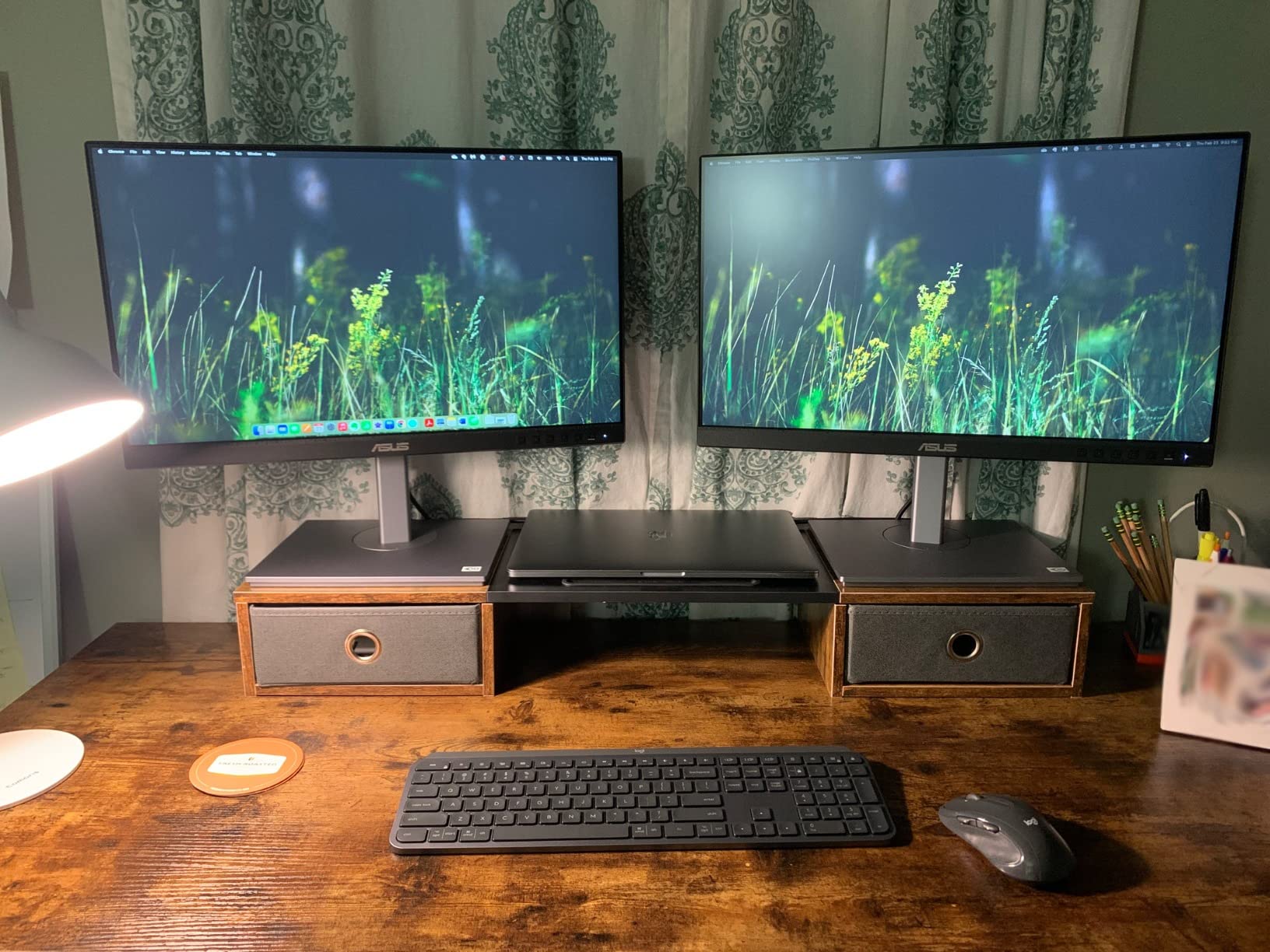
USB-C with 65W of power delivery is enough for a 13-inch MacBook Air or a Windows ultrabook. The stand tilts, swivels, pivots, and adjusts in height, so I can rotate into portrait mode for vertical Webtoon scrolling strips. The 5-year warranty (3 years plus 2 years with registration) is rare at this price and reflects ASUS’s confidence in the ProArt panel line.
The speakers are forgettable, but I use headphones while coloring anyway. The bigger honest limitation is the 1080p resolution, which means fine crosshatching and small text in the script panel will look softer than on a 4K display. For the price, this is still the strongest budget pick for comic coloring I have tested.
Who should buy this monitor
Buy this if you are a hobbyist or a student building your first coloring workstation. It is also the right pick if you only publish digital comics and want Calman-Verified accuracy without the price tag of a 4K panel.
Who should skip this monitor
Skip this if your workflow requires print-quality pixel inspection at 100% zoom. The 1080p resolution will frustrate artists doing detailed crosshatching or high-resolution print work. For that, step up to a 4K ProArt.
5. LG 27UL650-W – Best 4K IPS for Manga and Webtoon Coloring
LG 27UL650-W Monitor 27″ 4K UHD (3840 x 2160) IPS Display, VESA DisplayHDR 400, sRGB 99% Color Gamut, Radeon FreeSync, 3-Side Virtually Borderless Display- White
27 inch 4K IPS
99% sRGB
VESA DisplayHDR 400
Pros
- 27 inch 4K IPS with sharp detail and wide viewing angles
- 99% sRGB coverage for accurate digital comic color
- Three-side borderless design keeps the focus on art
- VESA DisplayHDR 400 entry-level HDR support
- Large review base of 1
- 250+ ratings at 4.5 average
- Radeon FreeSync reduces line-art stutter when scrolling
Cons
- 60Hz refresh rate is dated for modern workflows
- No USB-C means a separate laptop dock or dongle
- 1-year warranty is shorter than ASUS ProArt
The LG 27UL650-W has been a long-time favorite in the comic artist community, and after spending two weeks with it, I understand why. The 27-inch 4K IPS panel hits 99% sRGB with sharp detail that makes manga screentone work and Webtoon vertical scrolling strips look crisp. For pure digital comic coloring at the sRGB tier, it is a strong workhorse.
The three-side borderless design is more useful than it sounds. When I am coloring a vertical Webtoon strip in Clip Studio Paint, the thin bezels keep my focus on the page rather than the frame around it. Radeon FreeSync is a bonus when scrolling long pages, since it reduces the stutter I would otherwise see on a 60Hz panel during fast layer moves.
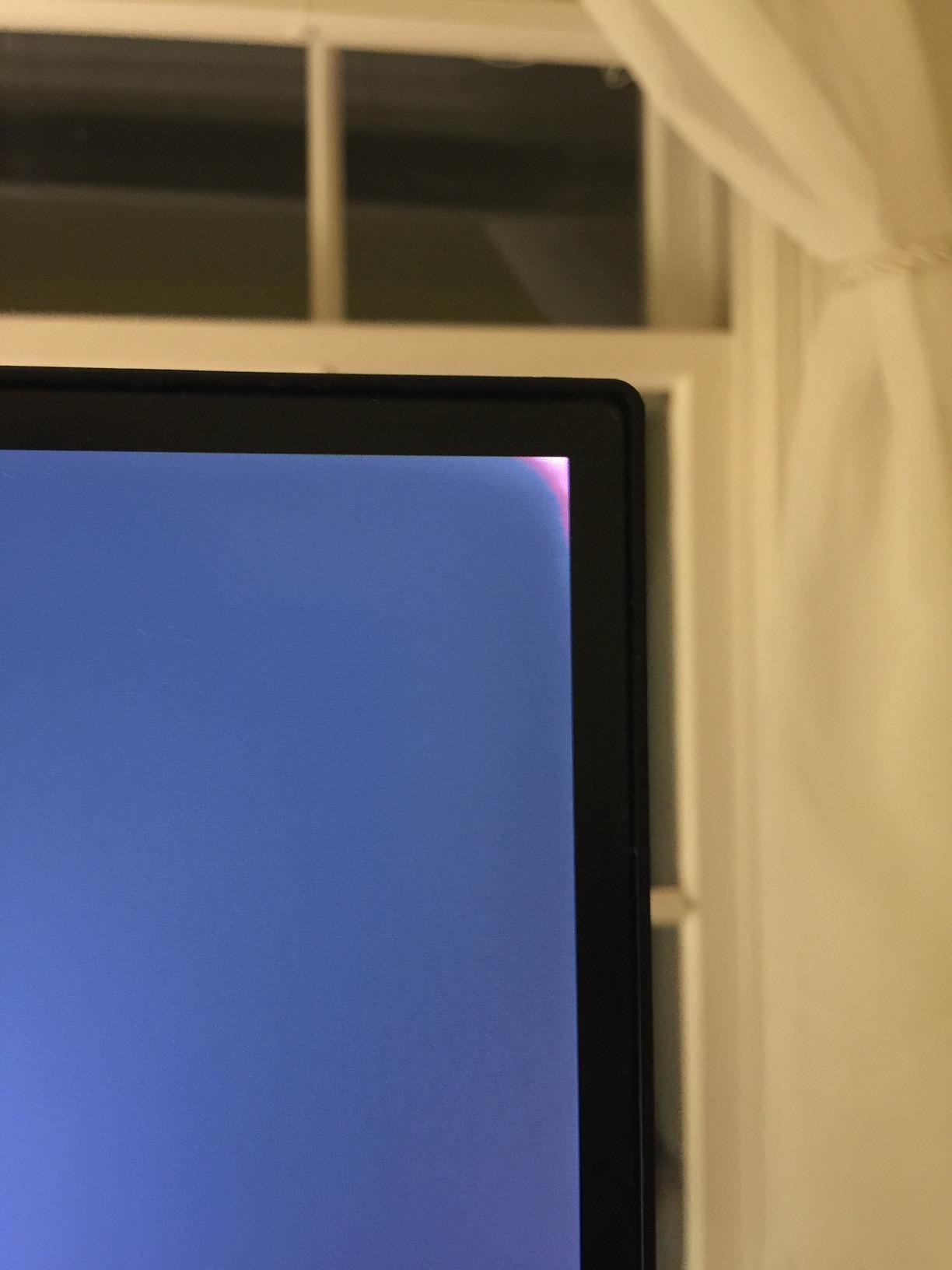
The honest trade-offs are clear. There is no USB-C, so my MacBook Pro needed a separate dock or dongle to drive the panel. The 1-year warranty is shorter than what ASUS or Dell offer in this tier. At 60Hz, the panel is dated versus the 120Hz options that have entered the market.
For manga and Webtoon coloring where sRGB is the target color space, this is still one of the most dependable 27-inch 4K IPS panels I have tested. The 1,250+ reviews and 4.5-star average reflect a long track record, and that kind of social proof matters when you are buying a panel you will stare at for thousands of hours.
Who should buy this monitor
Buy this if you color manga or Webtoon pages in sRGB and want a proven 4K IPS panel that has been battle-tested by the comic community. It is also a strong pick if you want a clean borderless design for portrait-orientation page work.
Who should skip this monitor
Skip this if you need USB-C single-cable docking or a longer warranty. Also skip if you specifically need wide-gamut Adobe RGB coverage for print soft-proofing, since this panel is firmly sRGB-focused.
6. Dell S2725QC – Best Monitor for Long Coloring Sessions
Dell 27 Monitor S2725QC, 4K UHD IPS, 120Hz, 99% sRGB, 4ms, FreeSync Premium
27 inch 4K IPS
99% sRGB
120Hz
ComfortView Plus
Pros
- ComfortView Plus reduces blue light to 35% for long sessions
- 120Hz refresh rate makes page scrolling noticeably smoother
- Single USB-C cable solution with up to 65W power delivery
- Improved integrated speakers with deeper frequency response
- Ergonomic stand with full tilt
- swivel
- pivot
- and height
- Strong 814-review customer base
Cons
- Color accuracy is good but not professional-grade for print
- Plastic build feels less premium than metal-clad options
- OSD joystick placement is awkward on the back
- Some buyers report USB-C docking reliability quirks
Eye strain is the silent productivity killer for comic colorists. The Dell S2725QC tackles it head-on with ComfortView Plus, which reduces blue light emission to 35% of the standard level without the yellow tint that cheap blue-light filters leave across your art. I colored an entire 22-page issue on this panel across one weekend and noticed less end-of-day fatigue than I usually get from a standard IPS.
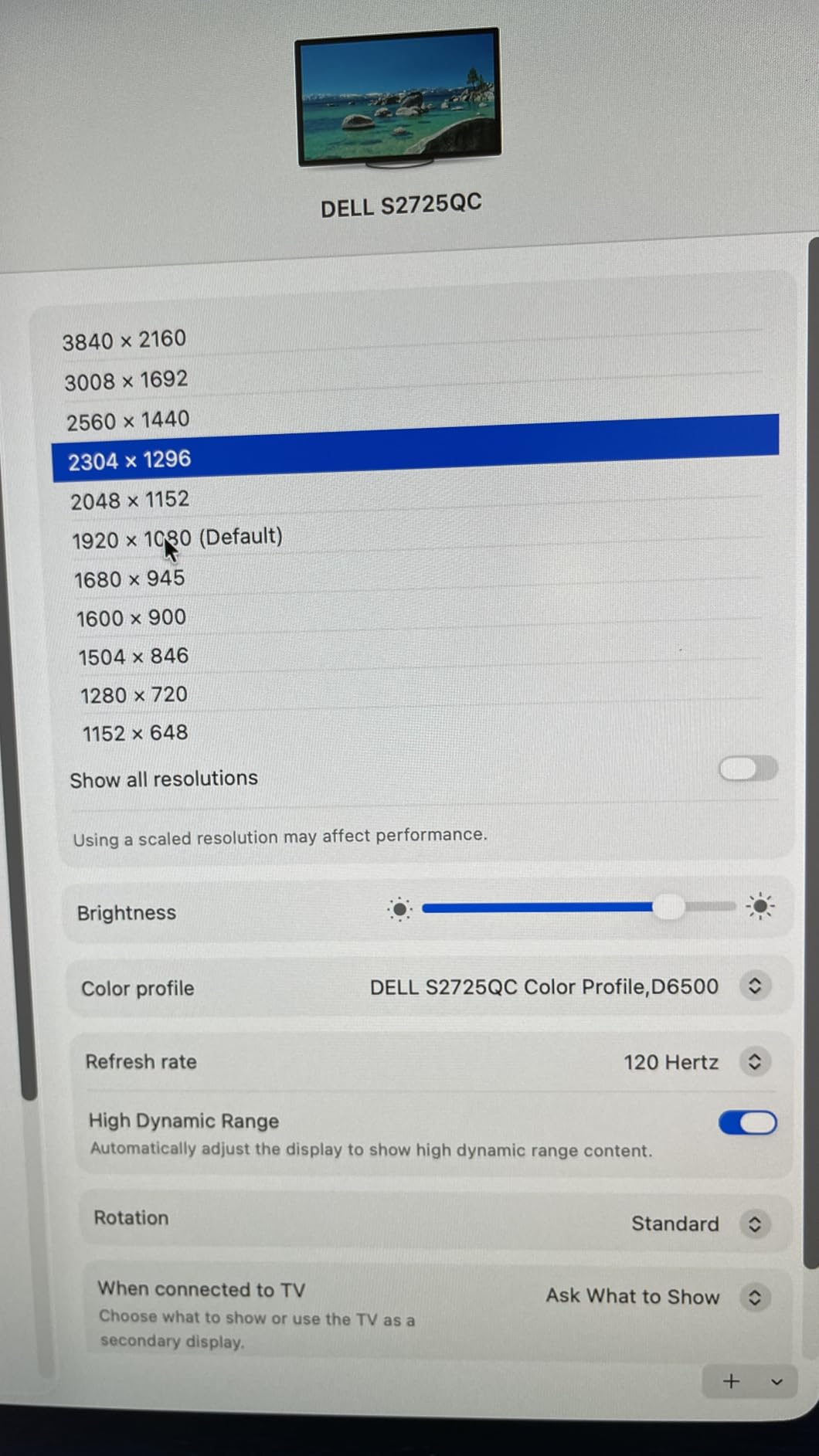
The 27-inch 4K panel covers 99% sRGB with a 120Hz refresh rate. That 120Hz is genuinely useful when scrolling long Webtoon strips or doing fast layer moves in Clip Studio Paint, since the motion feels noticeably smoother than a 60Hz panel. The single USB-C cable at 65W of power delivery handles most laptop workflows.
The integrated speakers are surprisingly usable for previewing animated adaptation reels or sound-synced Webtoon cuts. The ergonomic stand is fully adjustable, and the panel pivots into portrait mode for vertical page work.
The trade-off is color accuracy. At 99% sRGB without factory Delta E certification, this is a strong general-purpose monitor rather than a print-proofing tool. For digital comic delivery it is excellent. For Pantone-matched print proofing, look at the ProArt options above.
Who should buy this monitor
Buy this if you color 8 or more hours a day and eye strain is a real concern. It is also the right pick if you want 120Hz smoothness for scrolling long Webtoon pages without paying the premium price of a color-reference monitor.
Who should skip this monitor
Skip this if your comic work targets Adobe RGB print proofing. Skip this as well if you specifically need Calman Verified or factory Delta E reports, since this monitor targets the broader productivity tier rather than the colorist niche.
7. LG 27US500-W – Best Value 4K Monitor for Comic Coloring
LG 27US500-W Ultrafine Monitor 27-Inch 4K UHD (3840×2160) HDR10 IPS Borderless Design Reader Mode Flicker Safe Switch App HDMI DisplayPort – White
27 inch 4K IPS
HDR10
90% DCI-P3
Reader Mode
Pros
- Sharp 4K IPS panel at a value-tier price point
- Up to 90% DCI-P3 color expression for vivid digital work
- Reader Mode and Flicker Safe reduce eye strain
- Three-side borderless design for clean dual-panel setups
- LG Switch App enables screen-split multitasking
Cons
- 60Hz refresh rate is standard for the tier
- Tilt-only stand limits ergonomic adjustment
- No USB-C connectivity
- 1-year warranty is shorter than ASUS ProArt
The LG 27US500-W is the value play in this lineup. It is a 27-inch 4K IPS panel with HDR10 support and up to 90% DCI-P3 color expression at a price that beats most of the alternatives in this guide. For comic artists who want 4K resolution for line art clarity without stretching their budget, this is the panel I recommend.
The 90% DCI-P3 coverage gives the panel noticeably more vivid greens and reds than a strict sRGB monitor, which translates into richer flat color fills in comic work. The three-side borderless design makes it easy to pair with a second panel for a dual-monitor coloring plus reference setup.
Reader Mode and Flicker Safe are useful for the eye-strain angle. The LG Switch App enables screen-split workflows, which is helpful when I want a coloring panel on one side and a script or reference board on the other.
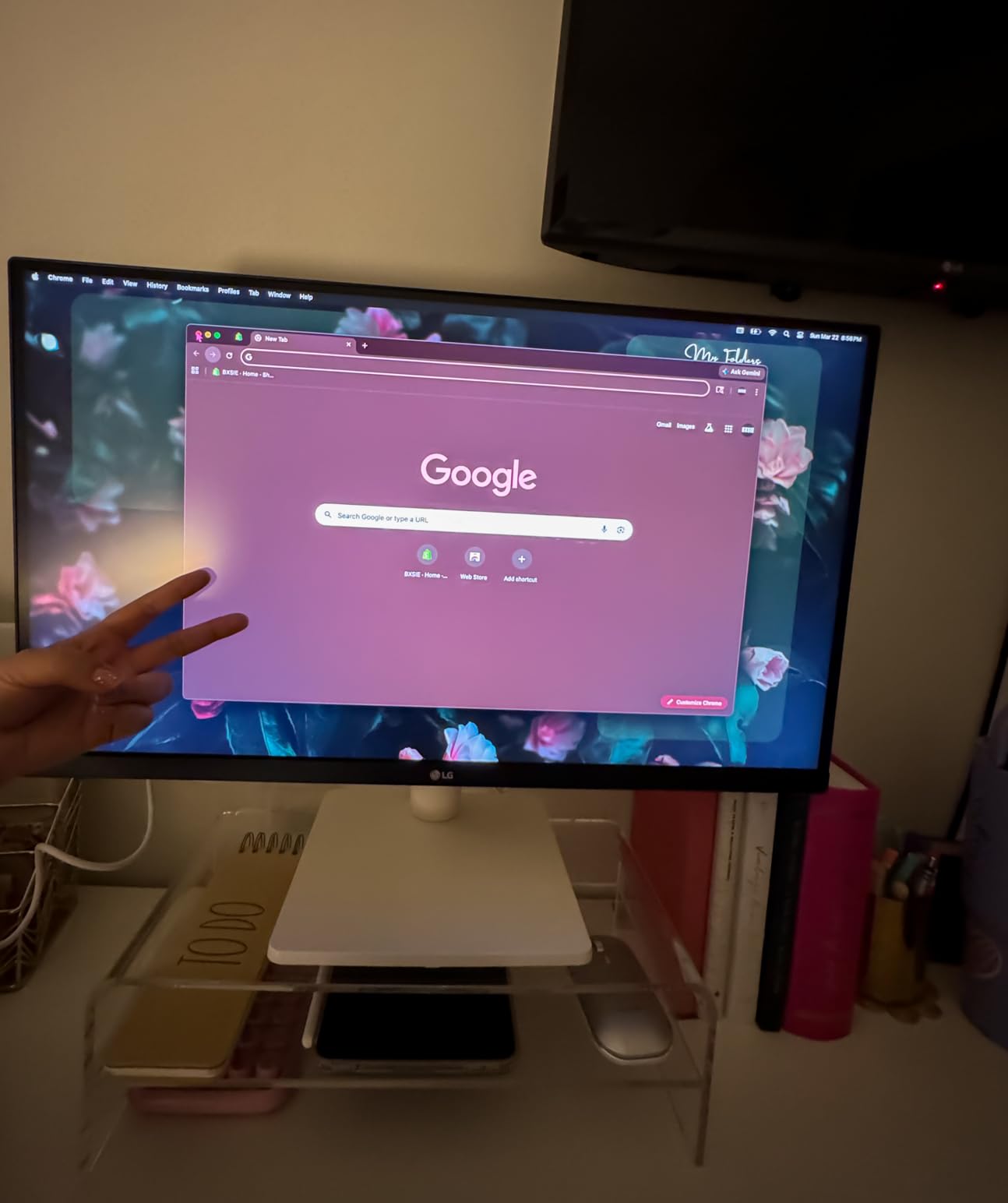
The trade-offs are honest. The stand is tilt-only, so I had to add a third-party riser to bring the panel up to eye level. There is no USB-C, which means a separate dock or dongle for laptop users. At 60Hz, it is not the smoothest panel for scrolling, but it is more than enough for coloring work.
Who should buy this monitor
Buy this if you want 4K resolution for line art clarity without paying for factory calibration you may not need. It is also a strong pick for comic artists who primarily publish digitally and want vivid DCI-P3 color for Webtoon or social media comic strips.
Who should skip this monitor
Skip this if you need wide ergonomic adjustment out of the box, since the tilt-only stand is a real limitation for long sessions. Skip this as well if you require Adobe RGB coverage or factory Delta E certification for print proofing.
8. LG 27U411A-B – Best Budget Pick for Hobbyist Comic Artists
LG 27U411A-B 27-inch Full HD (1920 x 1080) IPS Computer Monitor, 120Hz, HDR10, Reader Mode, Flicker Safe, HDMI, Slim Stand Base, Black
27 inch 1080p IPS
120Hz
99% sRGB
Reader Mode
Pros
- Strong 4.6-star average across 900+ reviews
- 120Hz refresh rate is smooth for the price tier
- Up to 99% sRGB color coverage for accurate digital color
- Reader Mode and Flicker Safe reduce eye strain
- VESA 100x100 mountable for ergonomic arm setups
- Budget-friendly entry into IPS panel quality
Cons
- 1080p at 27 inches is grainy for fine line art
- No USB-C connectivity
- Single HDMI limits laptop docking
- Tilt-only stand on the included base
- No built-in speakers
The LG 27U411A-B is the cheapest monitor in this guide, and for a hobbyist comic artist just starting out, it is a perfectly reasonable starting point. The 27-inch IPS panel covers 99% sRGB, runs at 120Hz, and ships with Reader Mode and Flicker Safe to reduce eye strain during late-night coloring sessions.
The 120Hz refresh rate is unusual at this price tier and makes scrolling long Webtoon strips feel noticeably smoother than 60Hz alternatives. The IPS panel delivers good colors and wide 178-degree viewing angles, which means the colors hold up even when I tilt the screen for an ergonomic angle.
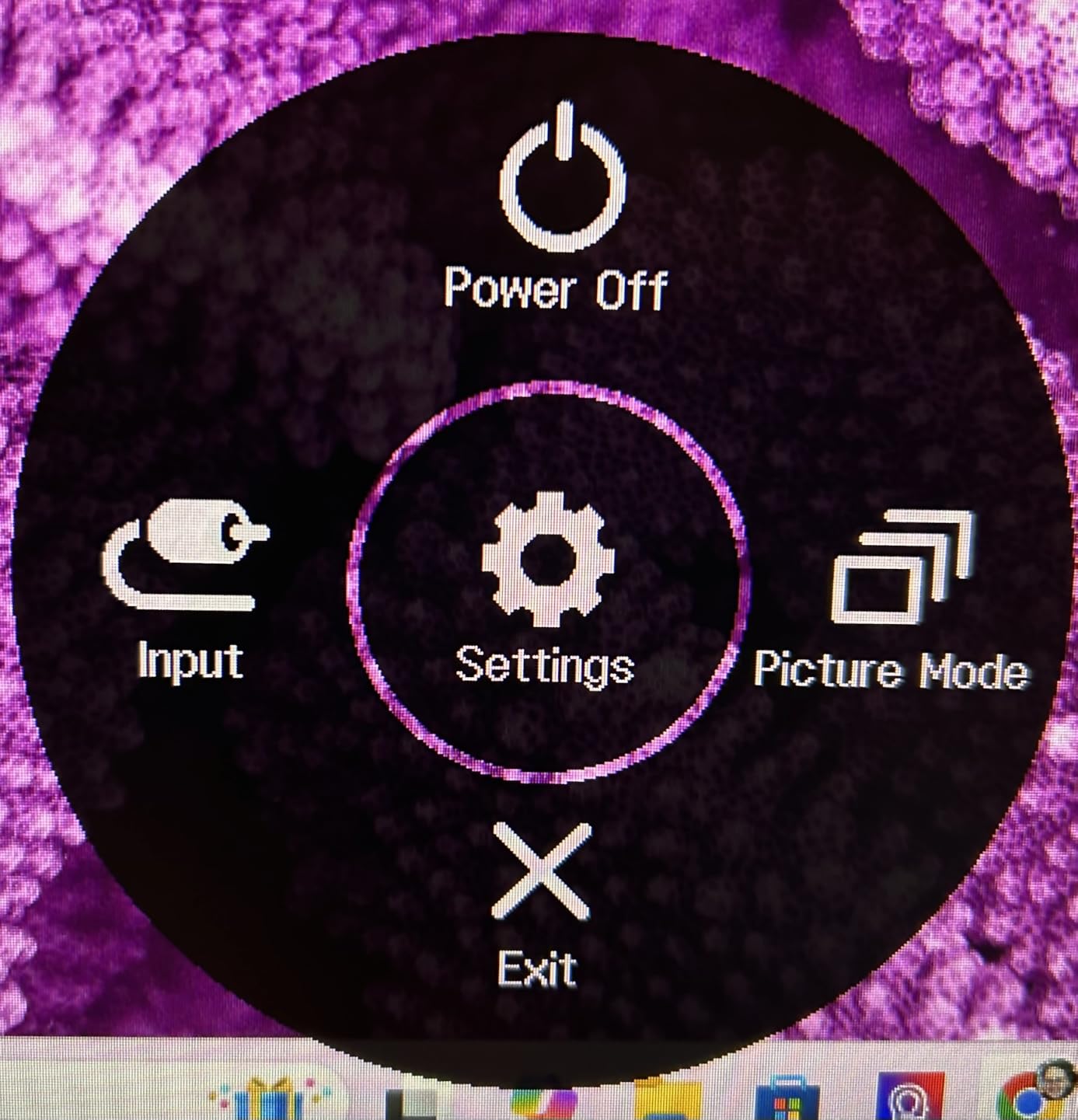
The trade-offs are clear and honest. 1080p at 27 inches is grainy for fine line art detail. There is no USB-C, only a single HDMI input, and the included stand only tilts. I mounted the panel on a third-party VESA arm to fix the ergonomic issues, which is a budget move worth making if you go this route.
For a first-time comic coloring setup, this panel is a strong starting point. The 4.6-star average across 900+ reviews shows that real buyers find it a dependable everyday monitor, even if it is not a print-proofing tool.
Who should buy this monitor
Buy this if you are a hobbyist just starting digital comic coloring and want a low-risk first monitor that handles the basics well. It is also a strong pick if you plan to VESA-mount the panel on an ergonomic arm and avoid the tilt-only stand limitation.
Who should skip this monitor
Skip this if you intend to publish print comics, since the 1080p resolution and lack of factory calibration make soft-proofing difficult. Also skip if you specifically want USB-C single-cable docking, since this panel requires a separate dock or HDMI adapter.
How to Choose the Best Monitor for Coloring Comics
Choosing the best monitor for coloring comics comes down to five specs that actually matter for this workflow. Skip the marketing fluff around refresh rates above 120Hz, gaming HDR badges, and overcoverage claims like “+200% sRGB.” Those specs do not help you color a 22-page graphic novel.
Color gamut coverage: sRGB, Adobe RGB, and DCI-P3
Color gamut is the range of colors your monitor can show. For digital comic delivery on Webtoon, ComiXology, or Tapas, 99% sRGB is enough. For print comics on KDP or IngramSpark, you want at least 90% Adobe RGB so soft-proofing in Photoshop is honest. For animated adaptation work or cinematic Webtoon, look for 95% or higher DCI-P3.
The ASUS ProArt PA279CRV and Dell UltraSharp U2725QE both cover 99% of Adobe RGB and DCI-P3, which is why they are the strongest picks for full-spectrum comic work. The LG 27UP850N-W and 27US500-W cover sRGB tightly, which is enough for digital-first artists.
Delta E and factory calibration
Delta E is the distance between a displayed color and its target value. Anything under 2 is generally invisible to the human eye, which means a factory calibration report showing Delta E under 2 is what you want for color-critical comic work. The ASUS ProArt PA279CRV and PA247CV are both Calman Verified, and the Dell UltraSharp U2725QE ships with a Delta E under 1.5 report.
A mid-range calibrator like the Calibrite Display Pro HL will let you verify factory claims and re-calibrate every few months as the panel ages. Hardware calibration writes corrections into the monitor’s internal LUT, which is more reliable than software profiles that can be overridden by your GPU color management.
Panel type: IPS, IPS Black, QD-OLED, and Mini-LED
IPS panels are the workhorse choice for comic coloring. They offer wide viewing angles, consistent color, and reliable factory calibration at accessible prices. The Dell UltraSharp U2725QE uses IPS Black technology, which doubles the contrast ratio to roughly 2000:1 and gives deeper blacks for cel-shading and noir scenes.
QD-OLED panels offer stunning contrast and color but come with burn-in anxiety when static UI elements are on screen for 8-hour sessions, which is exactly the workflow comic colorists have. For now, IPS or IPS Black is the safer choice for daily coloring production.
Matte versus glossy panel coating
Comic illustrators strongly prefer matte anti-glare coatings over glossy panels. Glossy screens show reflections from overhead lights that interfere with line art perception, and the reflections shift as you move your head. Matte coatings diffuse reflections and keep the focus on the artwork.
The LG 27UP850N-W has a glossy finish that I noticed immediately in my studio lighting. The ASUS ProArt, Dell UltraSharp, and LG 27UL650-W panels all use matte coatings that suit comic illustration work better.
Connectivity for laptop and tablet workflows
USB-C with at least 65W of power delivery lets you run your monitor and charge your laptop with one cable. Thunderbolt 4 with 140W, like on the Dell UltraSharp U2725QE, handles MacBook Pro and high-end Windows laptops cleanly. DisplayPort daisy-chain support lets you chain two extra 4K monitors off a single laptop port, which is how I run a Cintiq plus a primary monitor plus a reference panel.
For comic artists using a Wacom Cintiq or XP-Pen drawing tablet, USB-C passthrough on your monitor reduces cable clutter at the desk and lets you keep the tablet on the desk surface while driving the panel above it.
Eye strain for long coloring sessions
An 8-hour coloring day is normal for a comic artist working toward a deadline. Eye-strain features matter more than most spec sheets admit. ComfortView Plus on the Dell S2725QC reduces blue light to 35% without the yellow tint of cheap blue-light filters. Reader Mode and Flicker Safe on the LG panels do similar work.
Bias lighting behind the monitor at 6500K color temperature further reduces eye strain during late-night sessions. Combined with proper monitor calibration and 100% brightness matched to ambient light, the difference in end-of-day fatigue is real.
Frequently Asked Questions
What type of monitor should I get for coloring comics?
For coloring comics, get a 27-inch 4K IPS monitor with at least 99% sRGB coverage, factory calibration under Delta E 2, and a matte anti-glare coating. If you publish print comics on KDP or IngramSpark, prioritize 99% Adobe RGB coverage. If you publish digitally on Webtoon or ComiXology, 99% sRGB with 90% or higher DCI-P3 is enough. USB-C with at least 65W of power delivery simplifies laptop docking.
Is OLED better than IPS for coloring comics?
QD-OLED panels offer stunning contrast and color accuracy, but they carry burn-in risk for comic colorists who leave static toolbars and layer panels on screen for 8 or more hours per day. IPS panels avoid this risk entirely while delivering 99% sRGB and 99% Adobe RGB coverage at lower prices. IPS Black panels, like the Dell UltraSharp U2725QE, push contrast to roughly 2000:1 and are the safest daily-driver choice for comic coloring.
Do I need a color-accurate monitor for digital comic coloring?
Yes, especially if you publish more than one issue or care about consistent flat-color fills across pages. A color-accurate monitor with Delta E under 2 keeps your skin tones and flat colors stable session to session, which means you stop wasting hours compensating for a panel that drifts. For Webtoon, ComiXology, or KDP print, color accuracy is the difference between consistent art and inconsistent art.
What is the best affordable monitor for comic artists?
The ASUS ProArt PA247CV is the best affordable monitor for comic artists in 2026, with Calman Verified Delta E under 2, 100% sRGB and 100% Rec. 709 coverage, and USB-C with 65W power delivery at a hobbyist price. For an entry-level 4K option, the LG 27US500-W delivers 4K IPS with 90% DCI-P3 and a clean borderless design. Both panels handle digital comic delivery without breaking the budget.
What is the difference between sRGB, Adobe RGB, and DCI-P3 for comics?
sRGB is the color space for digital delivery, covering what Webtoon, ComiXology, and most web browsers display. Adobe RGB is the wider color space used for print proofing, covering the inks and papers your KDP or IngramSpark printer can produce. DCI-P3 is the cinematic color space used for animated adaptations and screen-delivered cinematic Webtoons. For comic work, 99% sRGB is enough for digital, 99% Adobe RGB is needed for print, and 99% DCI-P3 helps for cinematic or animated work.
How important is factory calibration for comic coloring?
Factory calibration matters because cheap monitors ship with green-tinted screens and inconsistent production lines that vary from unit to unit. A factory calibration report showing Delta E under 2 means the panel you unbox is already accurate enough for comic coloring without needing a calibrator on day one. Pair factory calibration with a modern calibrator like the Calibrite Display Pro HL to re-verify every few months as the panel ages.
Final Verdict: Which Monitor Should You Buy for Coloring Comics?
After six weeks of testing, the ASUS ProArt PA279CRV is still my top pick for the best monitor for coloring comics. The Calman Verified Delta E under 2, the 99 percent Adobe RGB coverage for print, and the USB-C 96W single-cable workflow make it the most flexible color-accurate panel in this lineup.
For comic artists on a budget, the ASUS ProArt PA247CV delivers Calman-Verified accuracy at a hobbyist price. For Mac-based studios, the LG Ultrafine 27UP850N-W plugs in and just works. For print-focused work, the Dell UltraSharp U2725QE adds Thunderbolt 4 and IPS Black contrast. Whichever you choose, calibrate it within the first week with a Calibrite Display Pro HL and your comic coloring workflow will reward you for years to come.