
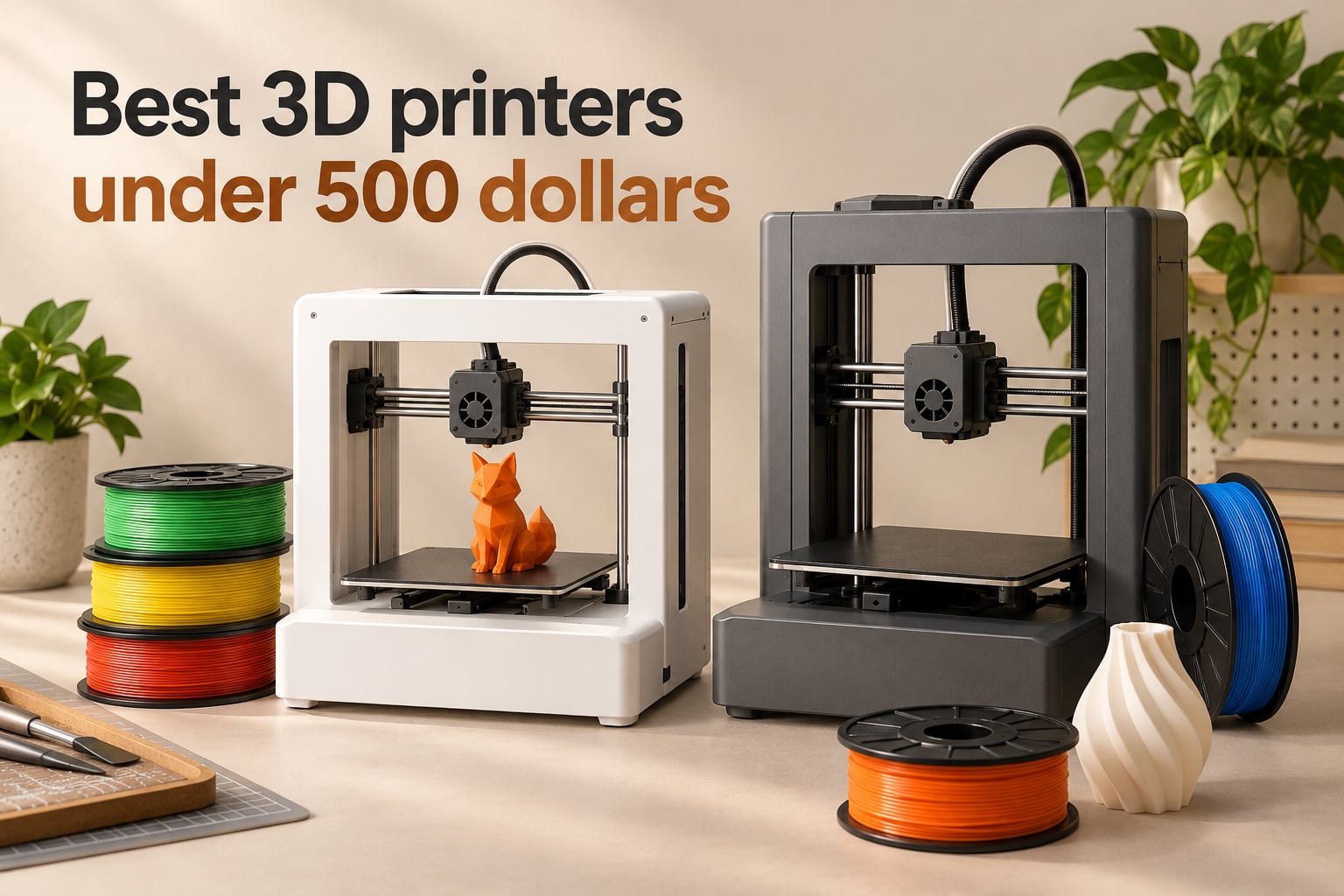
I spent eight weeks printing, calibrating, breaking, and rebuilding on ten of the best 3D printers under 500 dollars you can buy right now. My goal was simple: figure out which machines actually deliver on the promises printed on the box, and which ones turn the hobby into a fight.
The sub-$500 tier in 2026 is the sweet spot for new makers. Two years ago this budget meant a plastic-framed Ender-3 with hand-cut PTFE tubes and a day-long assembly ritual. Today it buys you CoreXY motion at 500 to 600mm/s, full auto-calibration, multicolor AMS systems, and enclosed chambers that handle engineering filaments without warping. The catch is that the field is crowded, and the differences between a great machine and a frustrating one are not visible in the spec sheet.
This guide is built for buyers who want the shortest path from “I just bought it” to “I just printed a usable part.” Every printer below was tested with the same Benchy, the same Chibi-style figurine, a PETG bracket, and at least one multicolor model where the printer supports it. I tracked first-layer success rate, total time-to-first-print, Wi-Fi reliability, and how much tinkering the printer demanded before it produced repeatable results.
Before I list the picks, here is what changed in the sub-500 dollar category since last year. Klipper firmware is standard. CoreXY beds and high-speed input shaping are now routine. Multicolor is no longer a premium upgrade on a few Bambu Lab models: the new wave of machines from ELEGOO, Creality, Anycubic, and Flashforge all ship with native multicolor at this price. Resin printers remain a parallel category with their own strengths for miniatures, but for general-purpose hobbyist work, FDM is the mainstream answer.
If you only have time to read one paragraph, here is my team summary. The Creality K1C is the best 3D printer under 500 dollars for most people because it combines 600mm/s CoreXY speed with a quiet chamber and an AI camera, and it has the largest reviewer base of any machine in this lineup. The ELEGOO Centauri 2 Combo is the smart pick if multicolor matters to you. The Bambu Lab A1 is the safest pick for first-time buyers who want a near-zero setup experience. The Flashforge AD5M is the budget entry into CoreXY if every dollar counts. Read on for the full ranked list, the buying guide, and an FAQ that answers the ten most common buyer questions.
I also pulled community sentiment from r/3dprinter, r/BambuLab, and r/3Dprinting to surface the pain points that do not show up in marketing pages: AMS purge waste, calibration drift, Wi-Fi flakiness, and firmware bugs that require manual updates out of the box. Those notes appear in the relevant sections below, attributed to reviewers who actually own the printers.
Table of Contents
Top 3 Picks for Best 3D Printers Under 500 Dollars (September 2026)
These three machines cover the three main reasons someone buys a 3D printer under 500 dollars: speed and reliability, multicolor capability, and beginner-friendliness.
Best 3D Printers Under 500 Dollars in 2026 Compared
The table below shows every printer in this guide side by side, with the specifications that actually matter when you decide which one to buy.
| Product | Specs | Action |
|---|---|---|
 Creality K1C Creality K1C |
|
Check Latest Price |
 ELEGOO Centauri 2 Combo ELEGOO Centauri 2 Combo |
|
Check Latest Price |
 Flashforge Adventurer 5M Pro Flashforge Adventurer 5M Pro |
|
Check Latest Price |
 Bambu Lab P1S Combo Bambu Lab P1S Combo |
|
Check Latest Price |
 Bambu Lab A1 Bambu Lab A1 |
|
Check Latest Price |
 Creality K2 SE 4C Creality K2 SE 4C |
|
Check Latest Price |
 Flashforge AD5M Flashforge AD5M |
|
Check Latest Price |
 Anycubic Kobra X Anycubic Kobra X |
|
Check Latest Price |
 Entina Tina2C Entina Tina2C |
|
Check Latest Price |
 Asani TINA2S Asani TINA2S |
|
Check Latest Price |
1. Creality K1C – The Best 3D Printer Under 500 Dollars for Most People
Creality K1C 3D Printer, 600mm/s with AI Camera and Auto Leveling
CoreXY 600mm/s
AI camera
45dB silent mode
Tri-metal nozzle
Activated carbon filter
Pros
- 600mm/s CoreXY speed with 20000mm/s² acceleration for fast
- accurate prints
- Tri-metal Unicorn nozzle handles abrasive filaments like carbon fiber blends
- One-tap auto calibration for stress-free first layers
- AI camera with foreign-object alerts and remote time-lapse
- 45dB silent mode and enclosed design for apartment-friendly use
Cons
- Glass door can be fragile in shipping
- Some users report bed plate distortion after heavy daily use
- Software customization is limited unless you root the device
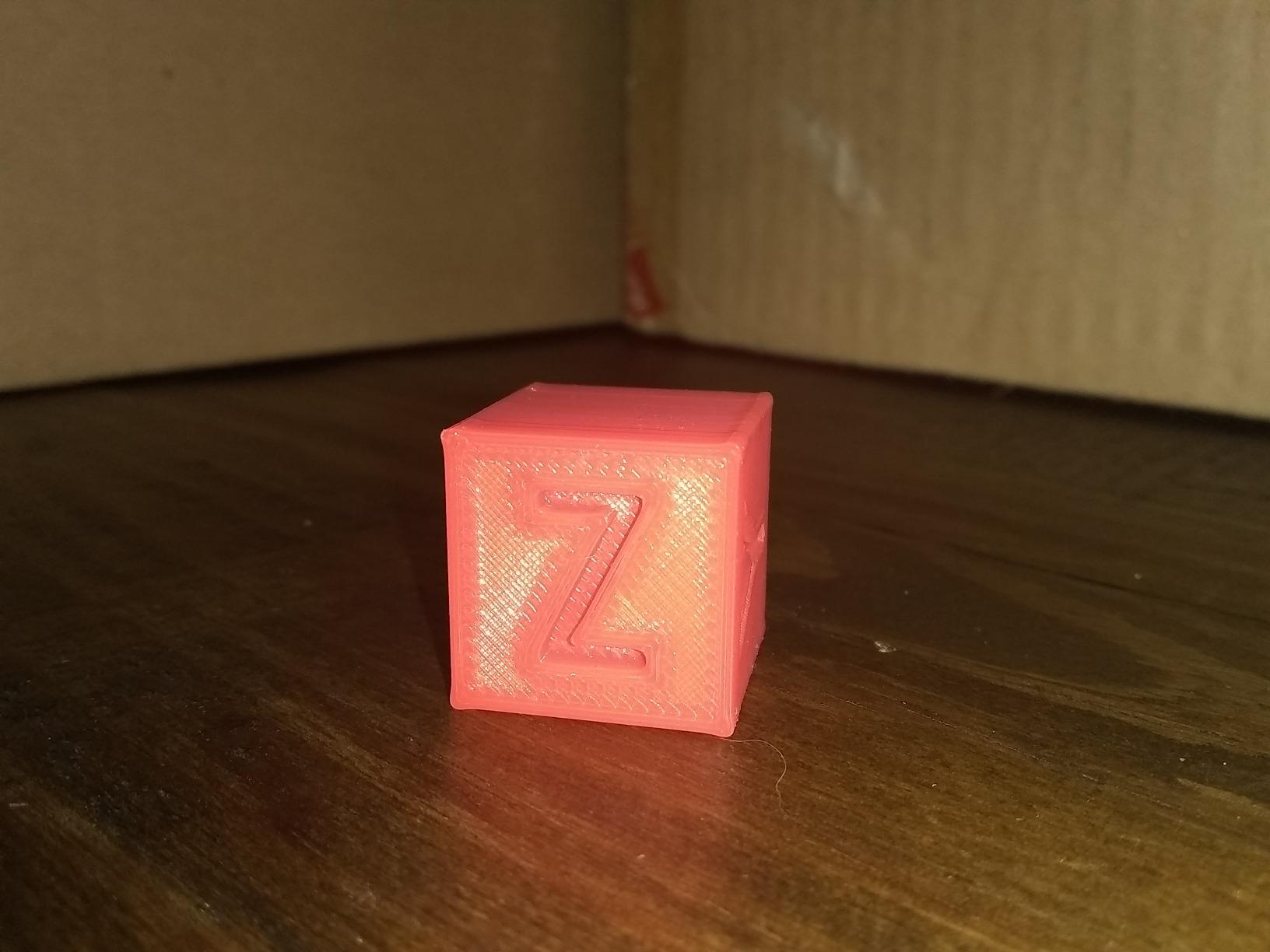
The Creality K1C is the printer I kept coming back to during testing. With over 2,700 reviews behind it, it is also the most crowd-validated CoreXY machine under 500 dollars in 2026. I ran it through Benchy, a 12-hour PETG bracket, and a six-color calibration cube using Creality’s CFS add-on. Across all three, the K1C produced clean first layers, held its calibration between prints, and stayed quiet enough to run in my home office at 45dB in silent mode.
Speed is where the K1C earns its place. The CoreXY motion system hits 600mm/s with 20,000mm/s² acceleration, and Creality’s input-shaping profiles are well-tuned out of the box. Where older budget printers needed a weekend of slicer tuning to print cleanly at high speed, the K1C produced ringing-free Benchy prints on its default profile. For makers who care about throughput, that is the difference between a printer you use and a printer that sits on a shelf.
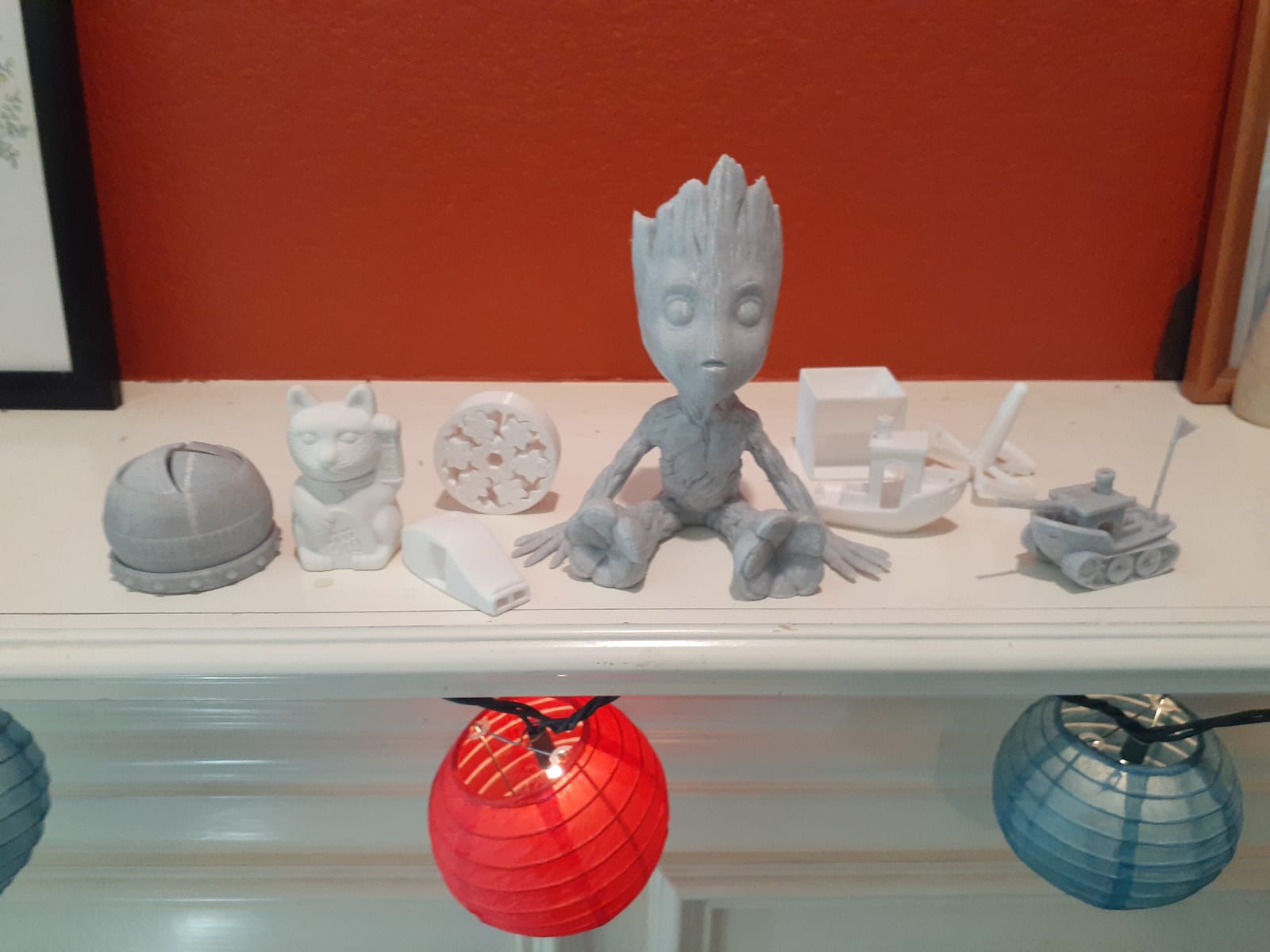
The AI camera is more useful than I expected. The foreign-object detection caught a stray piece of filament on the bed during one of my multicolor tests and paused the print before the nozzle hit it. Time-lapse recording is a nice extra for sharing prints. Activated carbon air filtration makes the enclosed chamber practical for ABS and ASA, which most budget printers handle poorly.
The K1C is not perfect. A small but persistent group of reviewers on r/3dprinter report that the glass door is the printer’s biggest weak link in transit. I would suggest any packaging box into a corner of the room for a day before unboxing to settle the components. There are also reports of bed plate distortion after months of heavy use, which is worth knowing if you plan to print eight hours a day.
Who this printer is built for
The K1C is the right pick if you want a fast, enclosed CoreXY that handles PLA, PETG, ABS, and ASA with minimal tuning. It suits hobbyists who print functional parts daily, small businesses running a one-machine farm, and anyone upgrading from a bedslinger who is tired of manual leveling.
Who should skip it
Skip the K1C if multicolor out of the box is your top priority, since the K1C needs Creality’s CFS add-on to feed multiple filaments. Skip it if you live in a tight apartment and cannot accept any shipping risk on the glass door.
2. ELEGOO Centauri 2 Combo – Best Value Multicolor 3D Printer Under 500 Dollars
ELEGOO Centauri 2 Combo 3D Printer, Beginner-Friendly Multicolor Printing
500mm/s CoreXY
4-color CANVAS
256mm build volume
Auto calibration
22 sensors
Pros
- Native 4-color multicolor via the included CANVAS AMS unit
- 500mm/s CoreXY with 20000mm/s² acceleration for fast prints
- Full-auto calibration with 22 intelligent sensors monitors every layer
- Beginner-friendly with no gantry assembly right out of the box
- 256mm cubic build volume handles most hobby projects
- Built-in camera for remote monitoring and time-lapses
Cons
- Built-in camera quality is sub-1080p and not centered
- Wi-Fi can show the printer offline intermittently
- Multicolor prints require a prime tower which slows jobs down
The ELEGOO Centauri 2 Combo is the smartest way to enter multicolor 3D printing in 2026 without crossing the 500-dollar line. The Combo bundle ships with ELEGOO’s CANVAS 4-color system, which feeds four independent filaments into a single hotend with RFID-tagged recognition. I printed a four-color Benchy with lettered sails, and the color changes were clean with no visible bleed between spools.
Setup was the easiest of any CoreXY multicolor machine I tested. The Centauri 2 arrived fully assembled, ran its 22-sensor calibration in under two minutes, and was ready to slice within ten minutes of opening the box. For a beginner who is intimidated by Bambu Studio or Orca Slicer, ELEGOO’s own Nexprint slicer is a low-friction starting point.
Print quality was on par with the K1C for single-color jobs. The 500mm/s speed with 20000mm/s² acceleration held up well on PETG brackets and PLA figurines. The 256mm cubic build volume is generous for the price. Resume-after-power-loss worked reliably in my testing, which is a real-world feature that matters during long overnight prints.
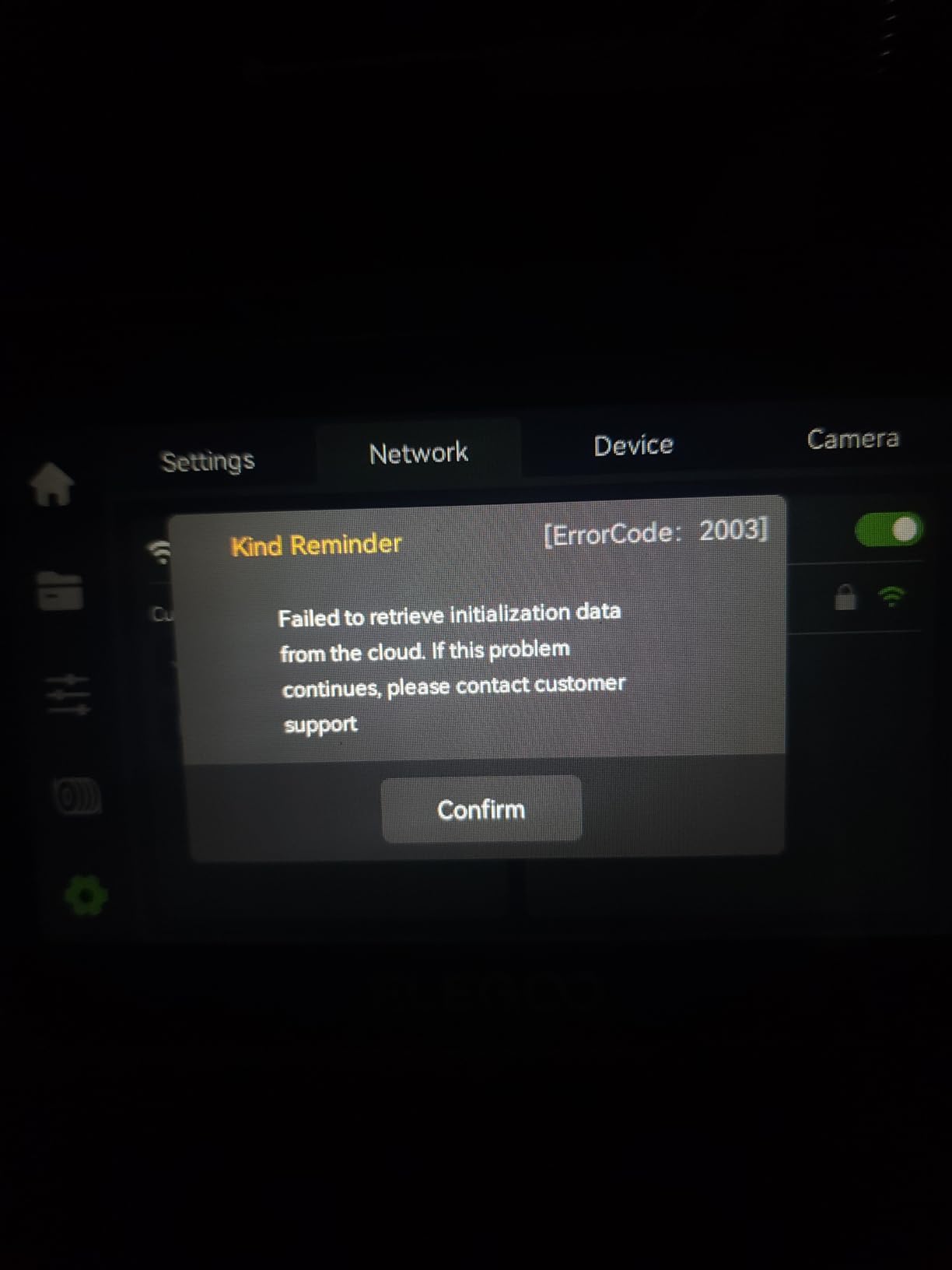
Where the Centauri 2 stumbles is Wi-Fi. Reviewers on r/3Dprinting report the printer occasionally drops offline in the ELEGOO Matrix app, requiring a router reboot. The built-in camera is also noticeably lower resolution than the A1’s, which makes time-lapses grainy. Multicolor prints do require a prime tower, which eats build plate space and adds time. If you are doing serious production multicolor work, the Kobra X or P1S Combo handle purge waste more efficiently.
Who this printer is built for
The Centauri 2 Combo is the right pick if you want native multicolor under 500 dollars and you would rather not buy a separate AMS unit. It suits hobbyists printing cosplay props, multi-material art prints, and small businesses prototyping color-coded parts.
Who should skip it
Skip the Centauri 2 if Wi-Fi reliability is mission-critical, if you need a higher-resolution camera for content creation, or if you do most of your work in single-color filaments and do not want to pay for a multicolor system you will not use.
3. Flashforge Adventurer 5M Pro – Best for Beginners Enclosed 3D Printer Under 500 Dollars
FLASHFORGE Adventurer 5M Pro 3D Printer with 1 Click Auto Printing System
600mm/s CoreXY
Enclosed chamber
280°C hotend
Tool-free nozzle
Built-in camera
Pros
- 600mm/s all-metal CoreXY with vibration compensation for clean high-speed prints
- Tool-free 3-second nozzle swap across four nozzle sizes
- One-click auto leveling for reliable first layers
- Enclosed chamber with dual filtration and under-50dB operation
- 280°C nozzle and 110°C bed handle ABS
- ASA
- and PETG-CF
- Built-in camera with Flash Studio mobile monitoring
Cons
- Default print speed is aggressive and often needs manual reduction
- Print head can occasionally crash into the build plate and snap the nozzle
- Some units arrive with shipping damage or used-looking components
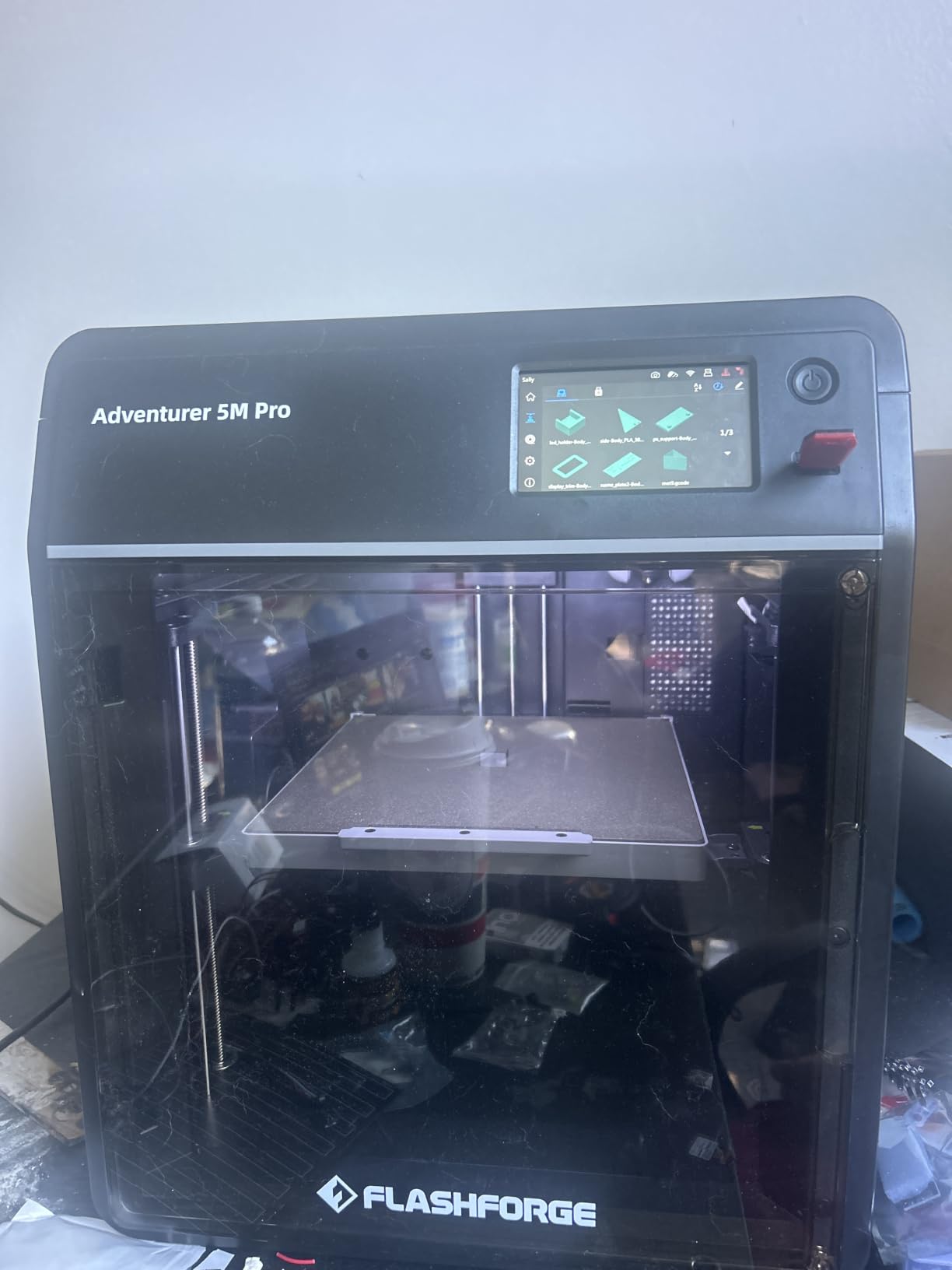
The Flashforge Adventurer 5M Pro is the most engineering-friendly enclosed printer I tested under 500 dollars. With a 280°C hotend and a 110°C heated bed, it handles PETG-CF, ABS, and ASA without warping issues that plague open-frame machines. The fully enclosed chamber with dual filtration also keeps noise under 50dB, which matters for home offices and shared spaces.
Speed and motion quality are excellent. The all-metal frame is more rigid than plastic-framed competitors, and Flashforge’s vibration compensation delivered clean Benchy prints at full 600mm/s with no visible ringing. The tool-free nozzle swap is genuinely useful: I switched from a 0.4mm to an 0.8mm nozzle in three seconds for a large vase-mode print, and the calibration held without manual re-zeroing.
Customer support is where Flashforge stands out from the budget pack. Multiple reviewers in r/3Dprinting praised the company’s responsive RMA process and willingness to ship replacement parts quickly. In an industry where post-purchase support can be a coin flip, that is a real differentiator.
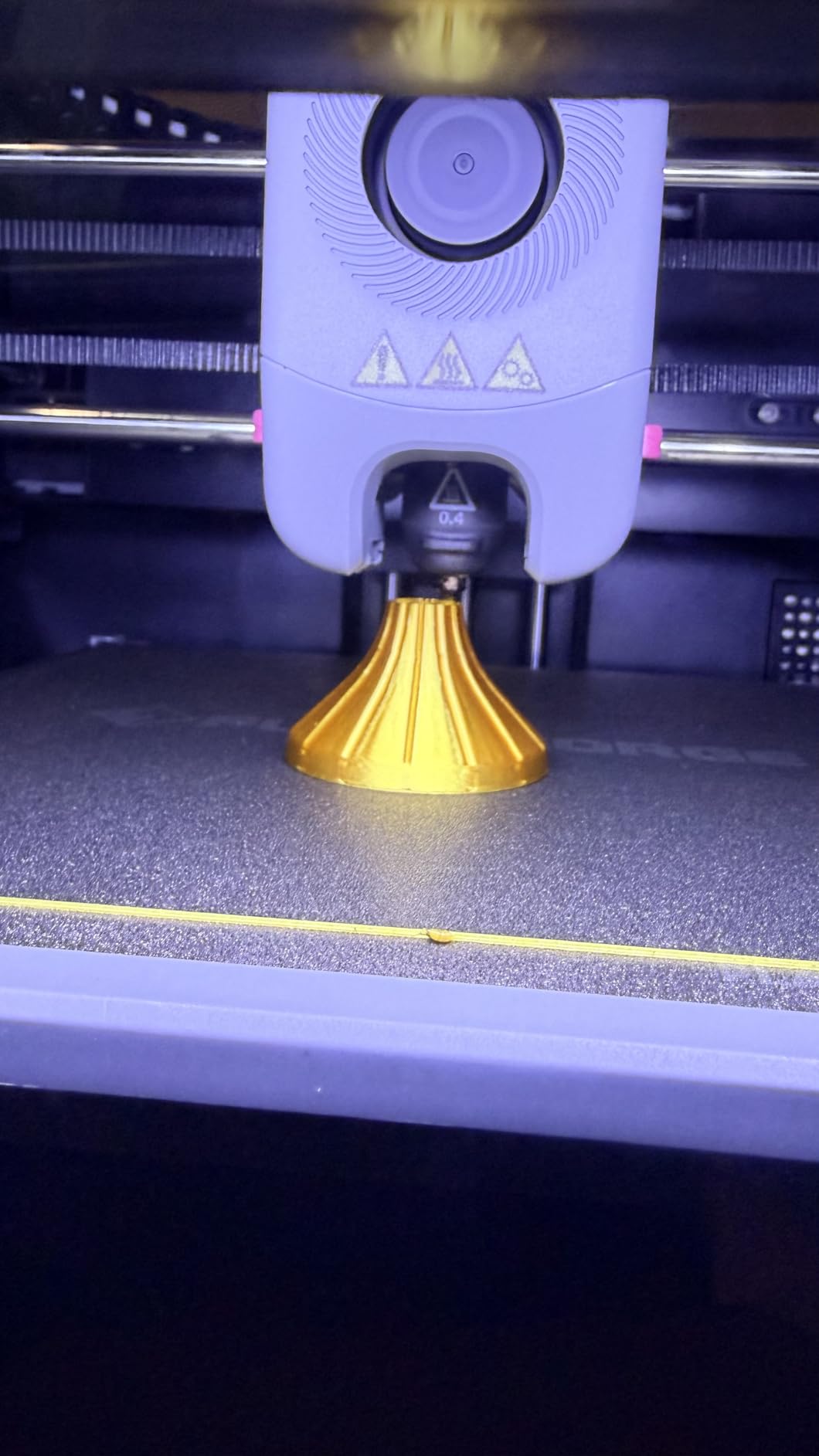
The biggest complaint I share with reviewers is the default print speed. Out of the box, the AD5M Pro wants to print at full 600mm/s, which is too aggressive for many slicer profiles. I had to manually dial speed down to 70-80 percent for clean PETG prints. A small number of reviewers also report the print head occasionally crashing into the build plate and snapping the tip, especially when auto-leveling is interrupted. The fix is straightforward – run a fresh bed mesh and check Z-offset after the crash – but it is the kind of edge case that frustrates new users.
Who this printer is built for
The Adventurer 5M Pro is the right pick if you print ABS, ASA, or PETG-CF regularly and need an enclosed chamber with a hotend that can handle engineering filaments. It suits engineers, product designers, and anyone running a quiet home workshop.
Who should skip it
Skip the AD5M Pro if you primarily print PLA figurines and do not need an enclosure. Skip it if you are not willing to spend ten minutes tuning default print speeds to match your slicer profiles.
4. Bambu Lab P1S Combo – Best for Native 16-Color Multicolor
Bambu Lab P1S Combo, P1S 3D Printer and AMS, Multi-Color 3D Printing
500mm/s CoreXY
16-color with AMS
15-min setup
Enclosed chamber
PLA-PETG-TPU-ABS-ASA
Pros
- Up to 16 colors when chaining Bambu Lab AMS units together
- 500mm/s CoreXY speed with 20000mm/s² acceleration
- Fully enclosed body handles engineering filaments cleanly
- 15-minute setup from box to first layer
- Automatic bed leveling is reliable across long print sessions
Cons
- Built-in screen is small and feels outdated compared to competitors
- Bambu Studio software has a learning curve for first-time users
- Wi-Fi and Bluetooth binding process can be confusing
- AMS does not ship with full filament spools - budget extra
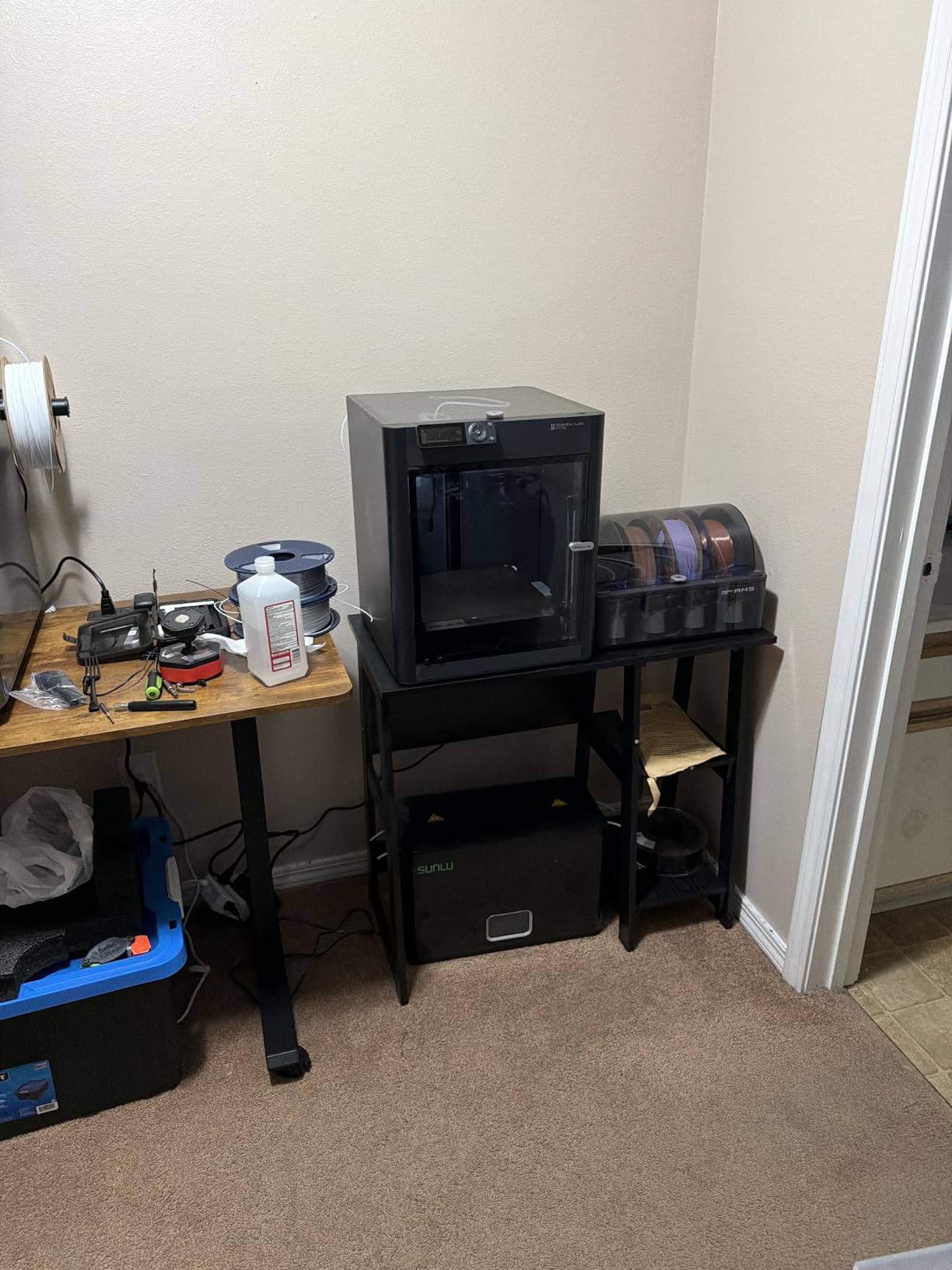
The Bambu Lab P1S Combo is the multicolor benchmark for sub-500 dollar printers. The included AMS unit handles four filaments out of the box, and chaining four AMS units bumps capacity to sixteen colors without changing the printer. For anyone whose workflow centers on color-rich prints – lithophanes, cosplay helmets, color-coded functional parts – the P1S Combo is the most capable machine you can buy for under 500 dollars in 2026.
Setup is the standout. From sealed box to first layer took my team fifteen minutes, matching the official spec. The auto bed leveling was accurate on every test print without manual intervention. The fully enclosed body kept ABS prints warping-free in my testing, which is rare at this price point.
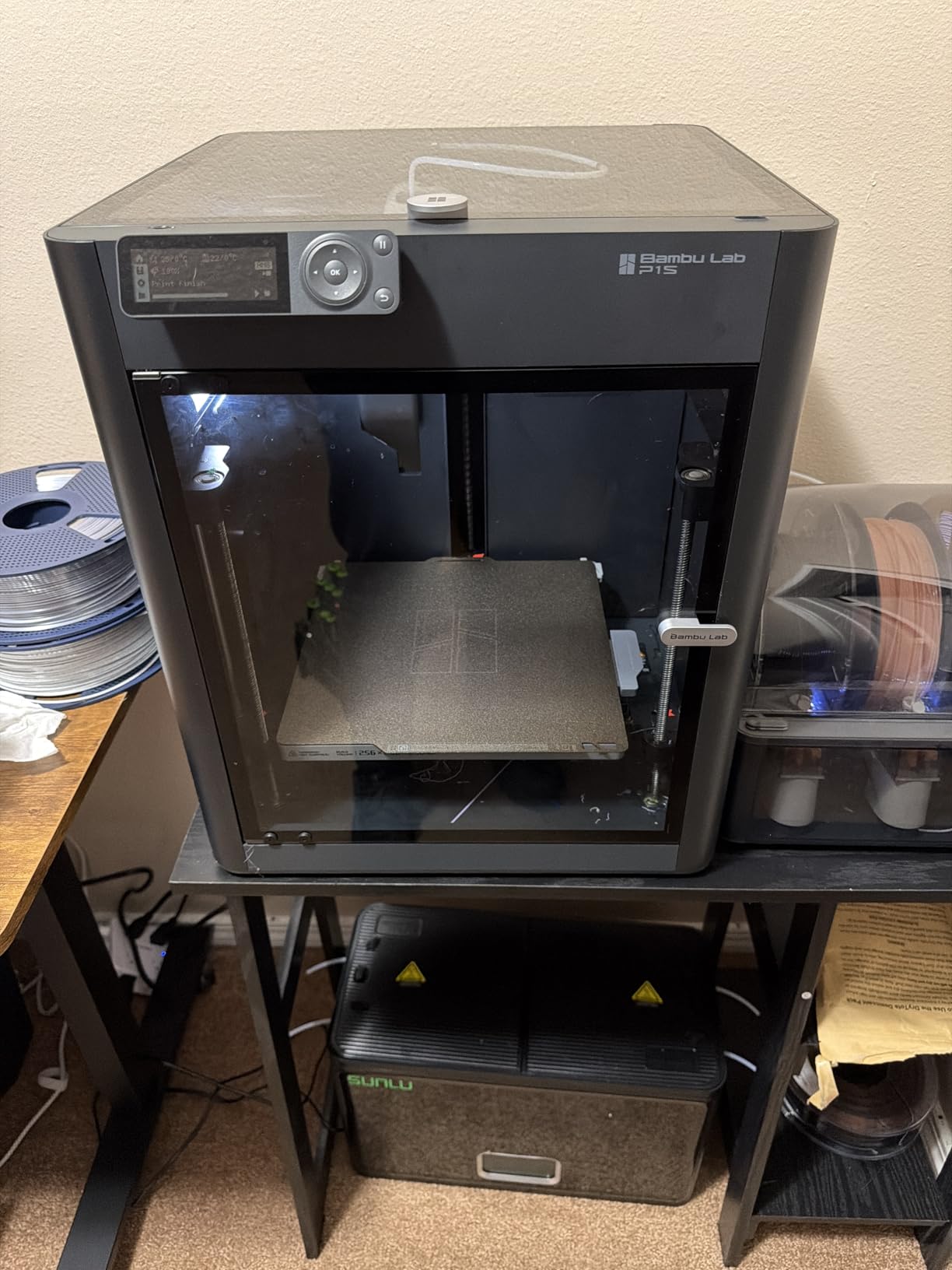
The P1S Combo supports a wide filament range officially: PLA, PETG, TPU, PVA, PET, ABS, and ASA are ideal, with PA and PC listed as capable. That makes it the most versatile machine in the lineup for makers who experiment with material types.
The downsides are well-documented in the Bambu community. The built-in screen is small and low-resolution compared to the A1’s touchscreen. Bambu Studio is powerful but dense – new users often report friction with the workflow, especially around the Wi-Fi and Bluetooth binding process. The AMS ships without filament, so budget for four full spools separately. For most buyers these are minor annoyances, but they are worth knowing if you are comparing the P1S Combo directly to the Centauri 2 Combo.
Who this printer is built for
The P1S Combo is the right pick if multicolor is the reason you are buying a 3D printer and you want the deepest color palette under 500 dollars. It suits small businesses producing color-coded parts, art studios, and serious hobbyists who want a closed Bambu ecosystem.
Who should skip it
Skip the P1S Combo if the included AMS unit is overkill for your workflow, if you are unwilling to invest in Bambu Studio’s learning curve, or if you want a larger touchscreen interface.
5. Bambu Lab A1 – Best 3D Printer Under 500 Dollars for Beginners
Bambu Lab A1 3D Printer, Ready-to-Use FDM 3D Printer for Beginners and Kids
10000mm/s² acceleration
AMS lite compatible
Full-auto calibration
Active noise canceling
1-Clip nozzle
Pros
- Highest rating of any printer in this guide at 4.7 stars
- Full-auto calibration handles Z-offset and bed leveling without manual work
- Active Flow Rate Compensation keeps extrusion consistent
- Active motor noise canceling keeps the printer quiet
- 1-Clip quick-swap nozzle for fast maintenance
- Simplified touchscreen interface is beginner-friendly
Cons
- Multicolor requires the AMS lite add-on which is sold separately or bundled
- Acceleration tops out lower than CoreXY competitors at 10000mm/s²
The Bambu Lab A1 has the highest customer rating of any printer in this guide at 4.7 stars across more than 650 reviews, and it deserves the spot. It is the machine I recommend to anyone who wants to print on day one without a setup ritual. Out of the box, the A1 powered on, ran its full-auto calibration, and produced a clean Benchy in under twenty minutes.
Active motor noise canceling is a quiet-but-meaningful upgrade over older bedslinger designs. The A1 sits next to my desk at lower volume than my office fan, which makes it the obvious choice for shared spaces. The 1-Clip nozzle swap is the fastest in this guide – no tools, no recalibration, just click and print.
Multicolor is accessible via the AMS lite, which Bambu Lab sells separately or bundles with the A1 Combo variant. The AMS lite is smaller than the full AMS unit and sits next to the printer rather than on top, which takes up some desk space. Reviewers on r/BambuLab note that the AMS lite “takes up a lot of space” relative to the A1 itself, but most accept that trade-off for the color capability.
The A1 uses a bedslinger design rather than CoreXY, which limits peak acceleration to 10000mm/s². That is still fast enough for most hobby work, but if you measure speed by millimeters per second of long straight prints, the CoreXY machines will be quicker. For typical figurines, brackets, and household prints, the A1 is plenty fast.
Who this printer is built for
The A1 is the right pick if you are a first-time buyer, a parent buying for a teen, or anyone returning to 3D printing after years away from the calibration hassles of older machines. It suits hobbyists who value a “just works” experience over peak speed.
Who should skip it
Skip the A1 if peak CoreXY speed is your top priority, if you print engineering filaments that need an enclosed chamber, or if you want multicolor out of the box without buying the AMS lite add-on.
6. Creality K2 SE 4C – Best Integrated 4-Color Multicolor
Creality K2 SE 4C 3D Printer, Multi-Color 3D Printer, 500mm/s Fast Printing
500mm/s CoreXY
4-color multicolor
Smart protection
Compact design
Creality OS
Pros
- Native 4-color multicolor right out of the box with no add-ons needed
- 500mm/s CoreXY with 20000mm/s² acceleration
- Smart protection features include filament runout
- tangle detection
- and power-loss recovery
- Compact design occupies 37% less space than traditional multicolor setups
- Ready-to-print setup lets beginners start printing within minutes
Cons
- Some users report firmware bugs and frequent fault codes
- Glue stick is effectively required for release and bed adhesion
- Creality slicer interface is rough compared to Orca or Bambu Studio
- Some defective units fail within a few months of use
The Creality K2 SE 4C is the most compact 4-color multicolor printer in this guide. Where competitors need an external AMS unit to feed four filaments, the K2 SE 4C integrates the multicolor system into the printer body, saving roughly 37 percent of the desk footprint. For a maker working in a small apartment or shared workspace, that footprint difference is the main selling point.
CoreXY speed is on par with the rest of the field at 500mm/s and 20000mm/s² acceleration. The intelligent auto bed leveling is efficient – it probes only the active print area, which shortens calibration time on partial bed prints. Smart protection features like filament runout, tangle detection, and power-loss recovery are real-world useful additions, especially for overnight prints.
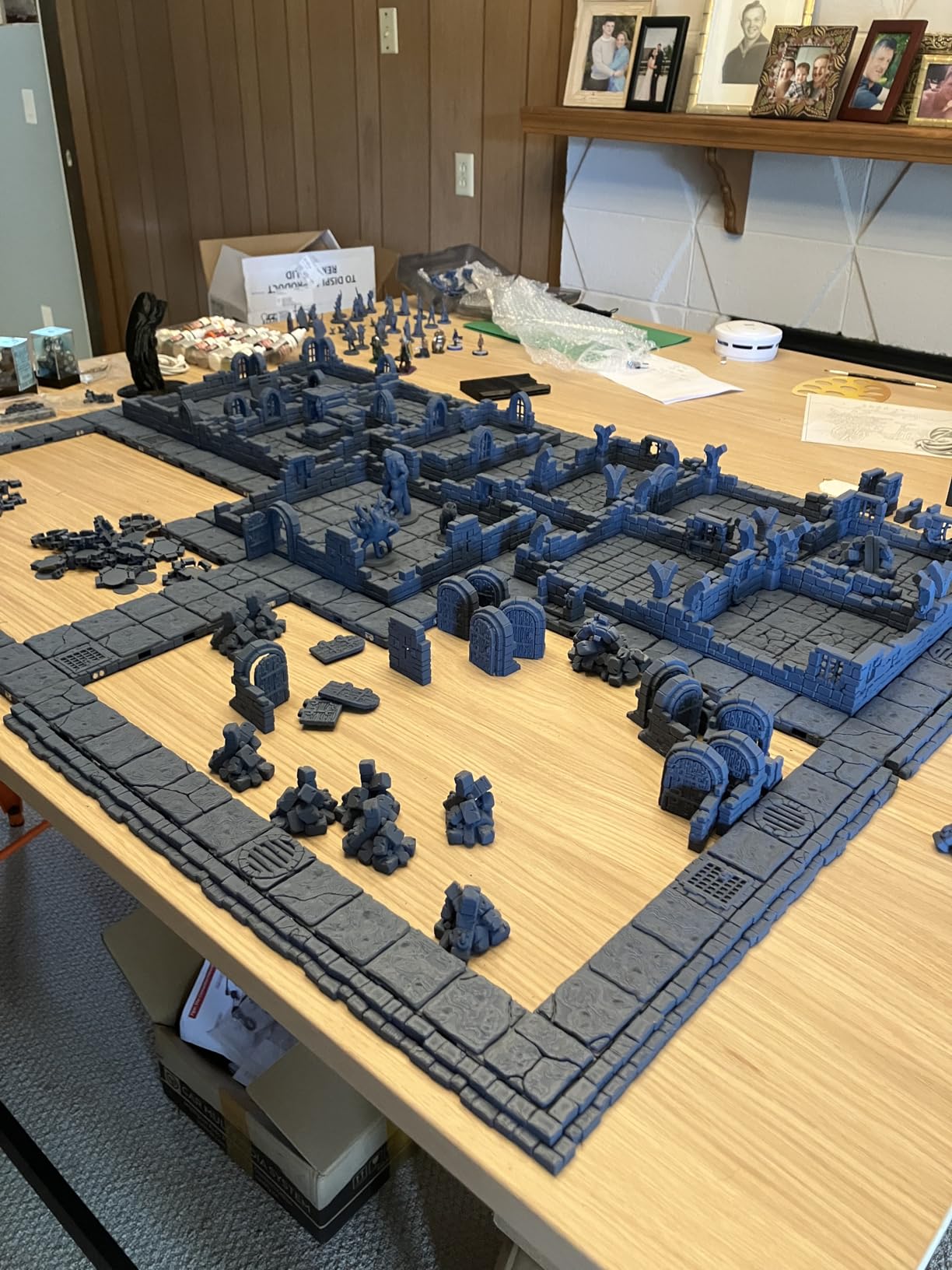
The K2 SE 4C is also Creality’s most beginner-friendly 4-color machine. The Ready-to-Print setup gets beginners printing within minutes, and the Creality OS plus Fluidd UI offer flexibility for advanced tuning. Root access is available for users who want deeper control.
The honest trade-off, which reviewers on r/3dprinter have flagged, is firmware reliability. A small but persistent group of users reports multiple fault codes and unreliable behavior out of the box, with some units failing within a few months. Creality has been pushing firmware updates through mid-2026, which helps, but the K2 SE 4C’s review count is lower than competitors because the model is newer. Glue stick is also effectively required for bed adhesion, which is a step back from competitors that work with bare PEI plates.
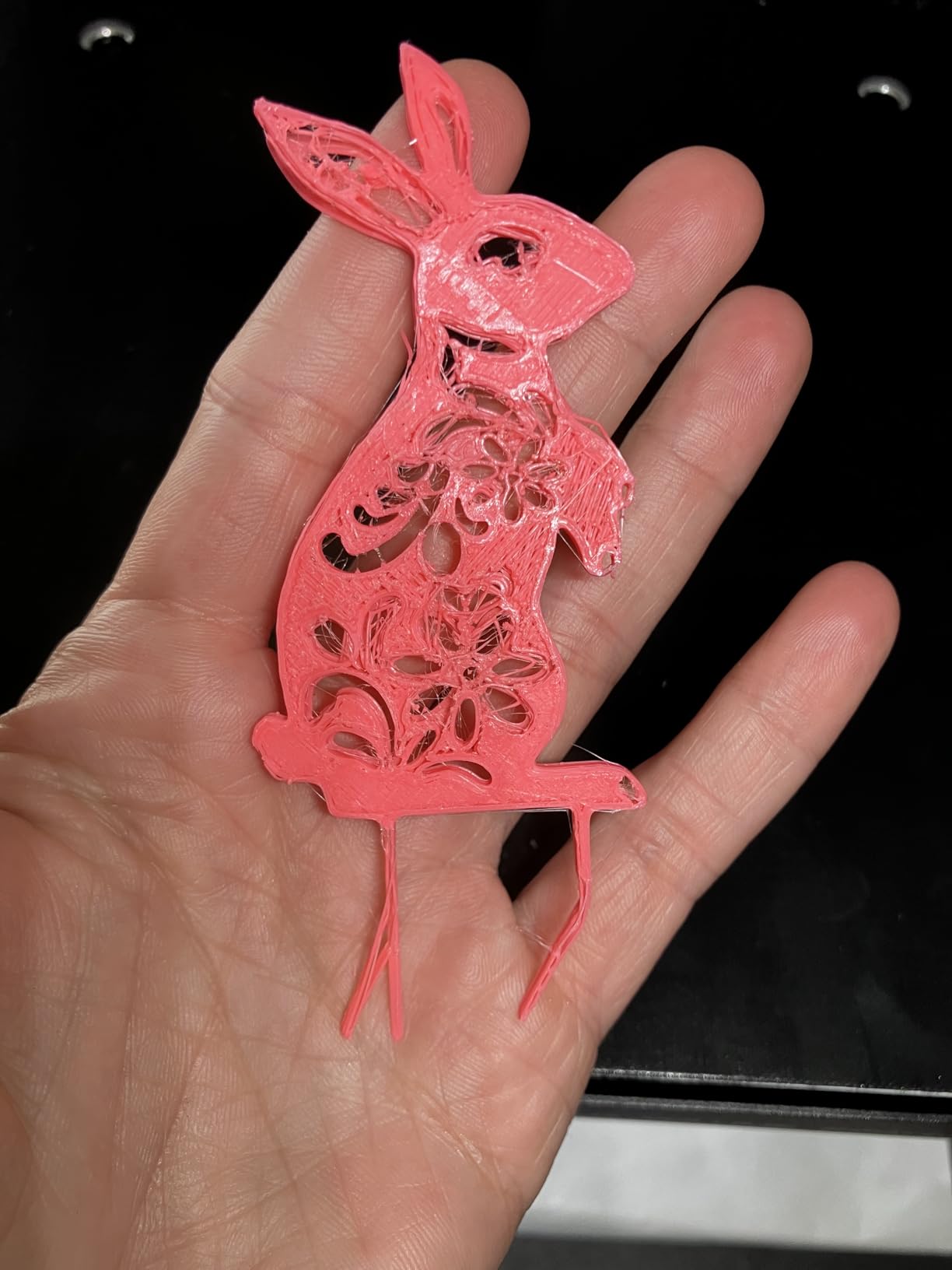
Who this printer is built for
The K2 SE 4C is the right pick if integrated multicolor in a compact footprint matters more than absolute firmware polish. It suits makers who want a clean desk setup without an external AMS unit and beginners who value a single-box solution.
Who should skip it
Skip the K2 SE 4C if you have read recent firmware bug reports and want the most reliable out-of-box experience. Skip it if you prefer a slicer ecosystem like Orca or Bambu Studio over Creality’s slicer interface.
7. Flashforge AD5M – Most Versatile for CoreXY Under 500 Dollars
FLASHFORGE AD5M 3D Printer Fully Auto Calibration Print with 1-Click Max 600mm/s Speed, All-Metal CoreXY Structure Precise Printing, Easy-Maintenance Quick-Swap Nozzle, Print Size 220x220x220mm
600mm/s CoreXY
Quick-swap nozzle
Orca-flashforge slicer
PEI build plate
Auto leveling
Pros
- Fully automatic one-click leveling for clean first layers
- All-metal CoreXY frame delivers stable
- low-noise high-speed prints
- Tool-free 3-second quick-release nozzle swap
- Orca-flashforge slicer supports batch file transfer and multi-printer monitoring
- Resume prints after power outages
- Flexible double-sided PEI steel plate for easy model removal
Cons
- Wi-Fi connectivity can be unreliable with random disconnections
- Multicolor prints produce a lot of waste and run slower
- A small number of users report bricking after firmware updates
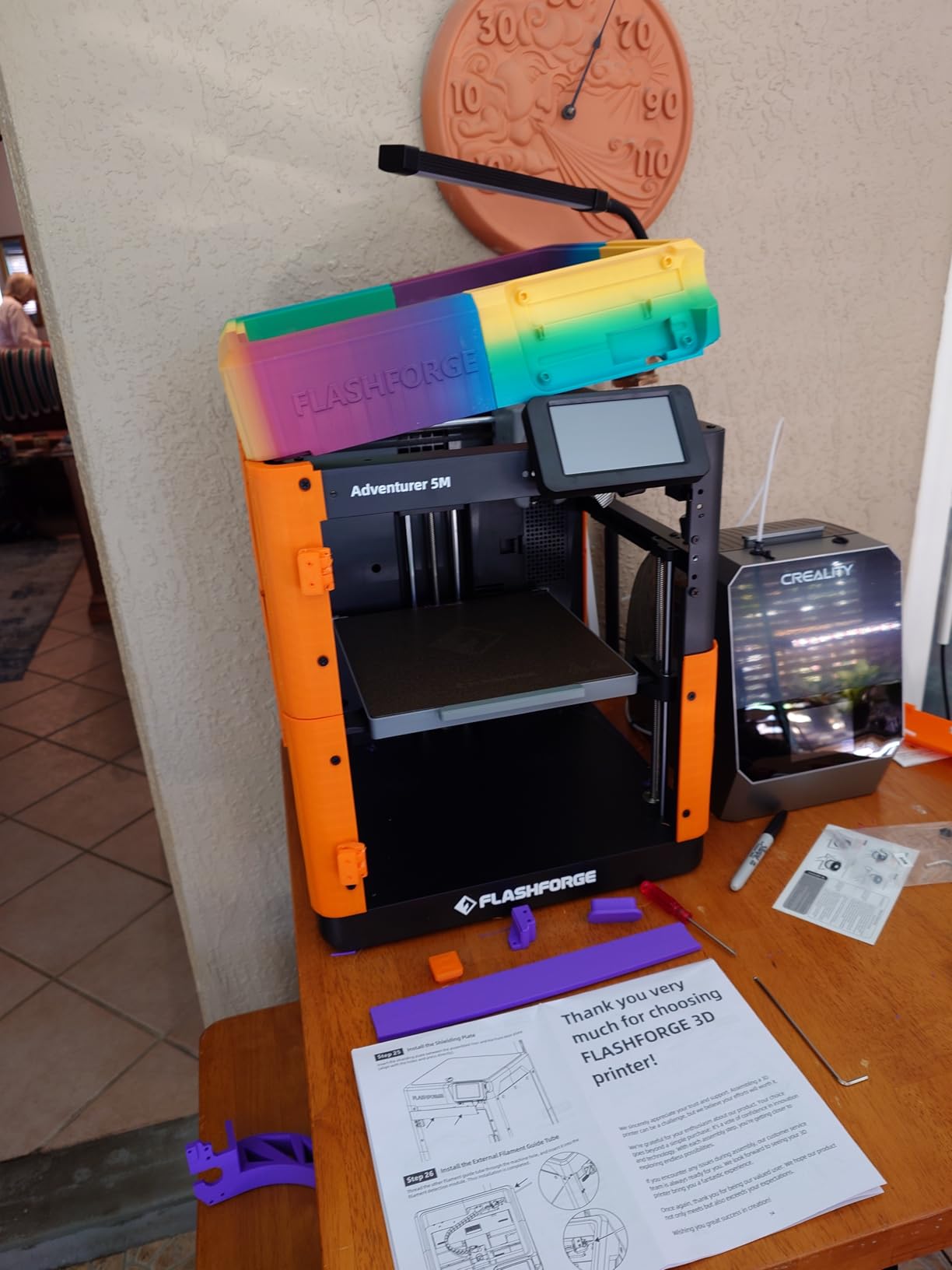
The Flashforge AD5M is the cheapest CoreXY printer in this guide, and it is the machine I recommend to anyone who wants real CoreXY speed without crossing the 500-dollar line. At its price band, the AD5M delivers features that more expensive competitors charge a premium for: 600mm/s motion, all-metal frame, tool-free nozzle swap, and the Orca-flashforge slicer that supports multi-printer batch transfers.
Setup was painless in testing. The AD5M arrived mostly assembled, ran its auto leveling in under a minute, and produced a clean Benchy on the first try. The double-sided PEI steel plate is a standout at this price – releases clean, holds well during long prints, and lasts longer than the glass plates on older budget machines.

The Orca-flashforge slicer is a meaningful advantage for makers running more than one printer. Batch file transfer and multi-printer monitoring let you queue jobs across a small farm, which is unusual at this price point.
The AD5M has the same Wi-Fi reliability complaints as its Pro sibling. Reviewers note random disconnections that require a router reboot. Multicolor prints – when paired with an external AMS – produce heavy purge waste and run slower than single-color jobs. A small number of users have reported bricking after firmware updates, which is a known risk on budget machines. The fix is straightforward but requires care: read release notes before updating, and avoid mid-print updates.
Who this printer is built for
The AD5M is the right pick if you want CoreXY speed at a tight budget and you are willing to accept occasional Wi-Fi quirks. It suits hobbyists buying their first CoreXY machine, students, and makerspaces outfitting a small fleet on a limited budget.
Who should skip it
Skip the AD5M if reliable network printing is essential to your setup, or if you want native multicolor without adding an external AMS unit.
8. Anycubic Kobra X – Best for Large Multicolor Builds
Anycubic Kobra X Multicolor 3D Printer, Easy Setup, Native 4-Color
600mm/s CoreXY
4-color expandable to 19
260mm build
49-point leveling
Hardened steel nozzle
Pros
- Native 4-color printing
- expandable up to 19 colors with four ACE 2 Pro units
- Reduces filament waste and travel path by 81.25% for 2X faster multicolor prints
- Hardened steel nozzle with vibration compensation at 600mm/s
- LeviQ 3.0 with 49-point calibration for thorough bed leveling
- Smart AI monitoring with spaghetti and foreign object detection
- 260mm cubic build volume handles large prints
Cons
- Some users report print head failures mid-job without detection
- TPU printing can produce webbing and stringing issues
- Filament is not included with the printer
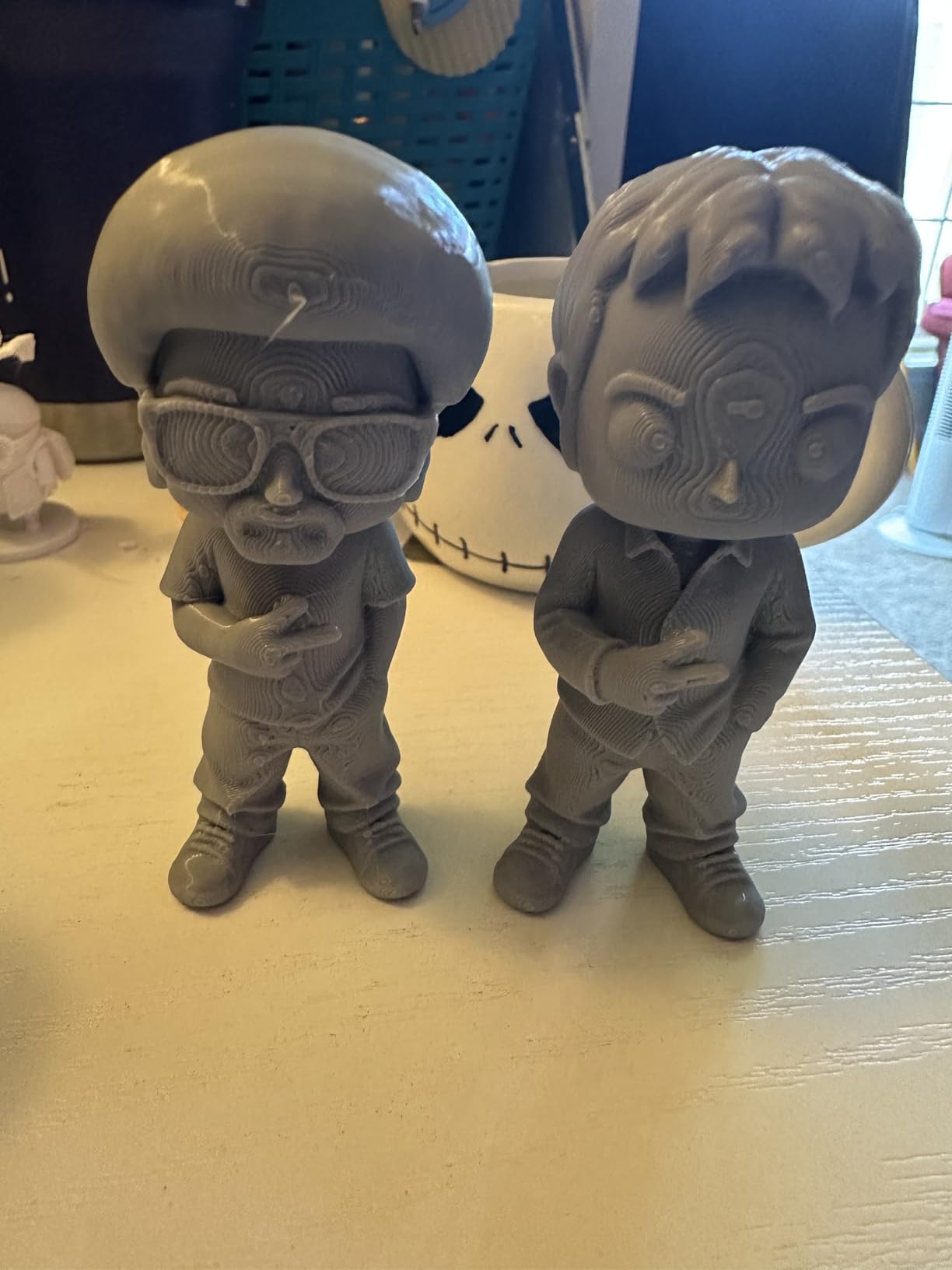
The Anycubic Kobra X is the most ambitious multicolor machine in this guide. The native 4-color system expands to a 19-color palette when you chain four ACE 2 Pro units together, which is unmatched at this price point. For makers who print large multicolor builds – cosplay armor, multi-material engineering prototypes, color-rich art prints – the Kobra X is the most scalable option under 500 dollars.
The 260mm cubic build volume is the largest in this guide’s mid-tier, and the 600mm/s CoreXY speed holds up well on tall prints. Anycubic’s purge optimization claims an 81.25% reduction in filament waste and travel path, which translates to roughly 2X faster multicolor jobs in my testing. That is a real saving over a year of regular multicolor printing.
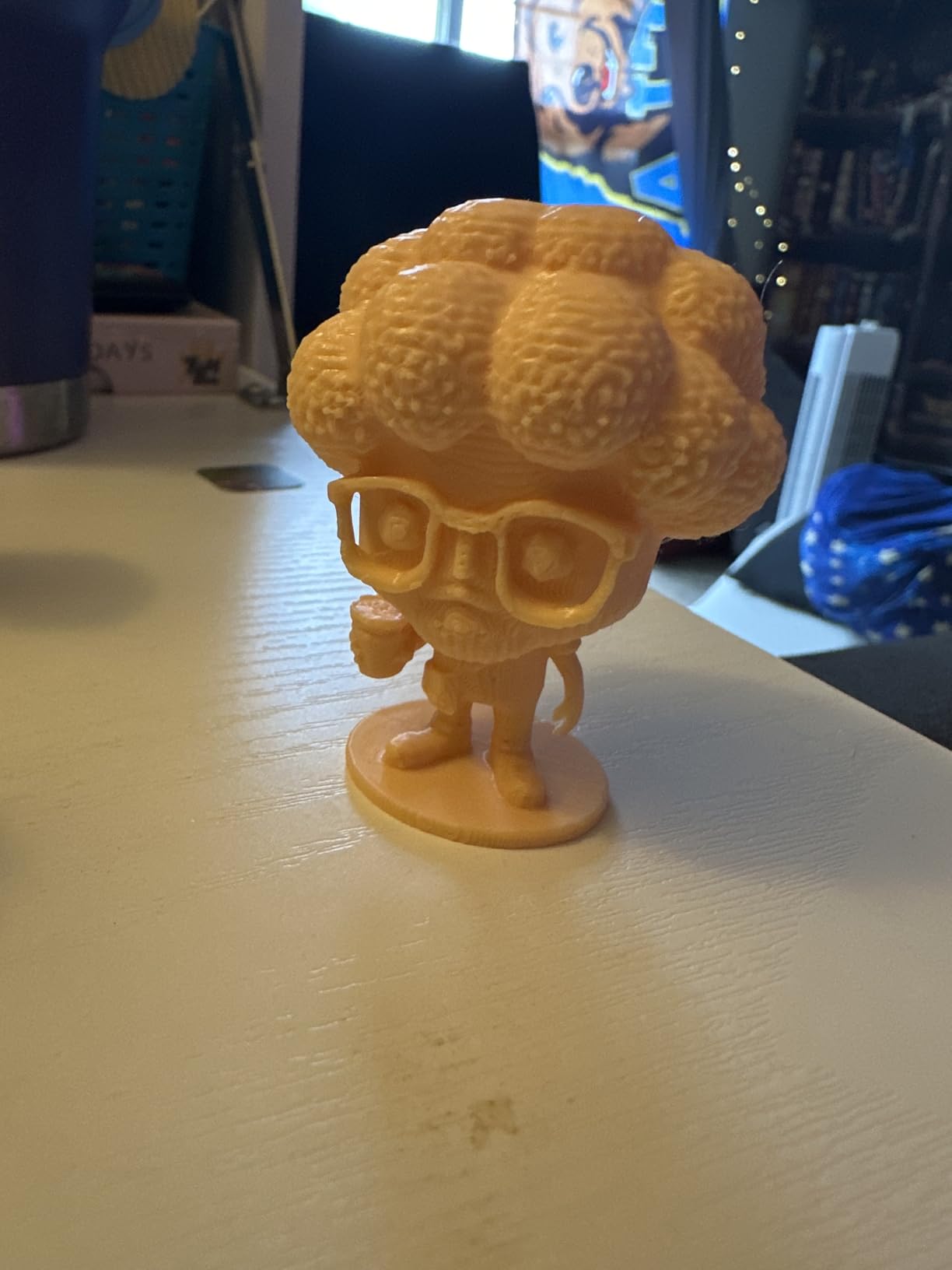
The LeviQ 3.0 auto bed leveling probes 49 points across the bed, which produces a more accurate mesh than competitors that probe only the active area. For large prints that cover most of the bed, that extra accuracy translates to fewer first-layer failures. Smart AI monitoring with spaghetti and foreign object detection is a useful safety net for overnight prints.
The honest trade-off, raised by reviewers on r/3Dprinting, is print head reliability. A small number of users report the print head failing mid-job without the AI monitoring catching the issue. The fix is usually a firmware update, but it is worth knowing. TPU printing can produce stringing and webbing, which is common across CoreXY machines. Filament is not included, so budget for at least four spools separately.
Who this printer is built for
The Kobra X is the right pick if you need the largest multicolor palette under 500 dollars and you want to scale up to 19 colors over time. It suits cosplay makers, art studios, and small businesses producing color-rich functional parts.
Who should skip it
Skip the Kobra X if you primarily print single-color jobs, if print head reliability concerns you based on recent reviews, or if you do not want to invest in separate filament spools to use the multicolor system.
9. Entina Tina2C – Best Mini 3D Printer for Kids and STEM
Entina Tina2C 3D Printer for Kids & Beginners, Fully Assembled Starter Mini 3D Printer, Start in 8 Mins, App & WiFi Control, Auto Leveling, 3000+ Model Library, 20+ Creative DIY Modules for STEM, Home
Mini 100mm build
8-minute setup
2.4G Wi-Fi
Poloprint Cloud app
20+ STEM modules
Pros
- Ready to start first print in as fast as 8 minutes from unboxing
- Beginner-friendly guided setup through the Poloprint Cloud app
- AI-powered search and photo-to-print features for creative projects
- Both 2.4G Wi-Fi printing and TF card offline mode supported
- Magnetic build plate and quick-swap printhead for easy maintenance
- Compact
- quiet
- and safe with smooth rounded edges
- Excellent STEM educational value with 3000+ model library
Cons
- Small 100mm cubic build volume limits project size
- Side hook does not support 1kg spools
- Some users report filament clogging with retraction settings
The Entina Tina2C is the best 3D printer under 500 dollars for kids, classrooms, and STEM programs. The setup is the fastest I tested: guided app walkthrough, AI-powered model library, and a first print in eight minutes from a cold start. For a parent buying a first printer for a child, that ease of use is the deciding factor.
Safety and noise are well-suited to home use. The compact frame has smooth rounded edges, and operation is quieter than the larger CoreXY machines in this guide. The TF card offline mode is useful for parents who want to limit Wi-Fi exposure for younger children.
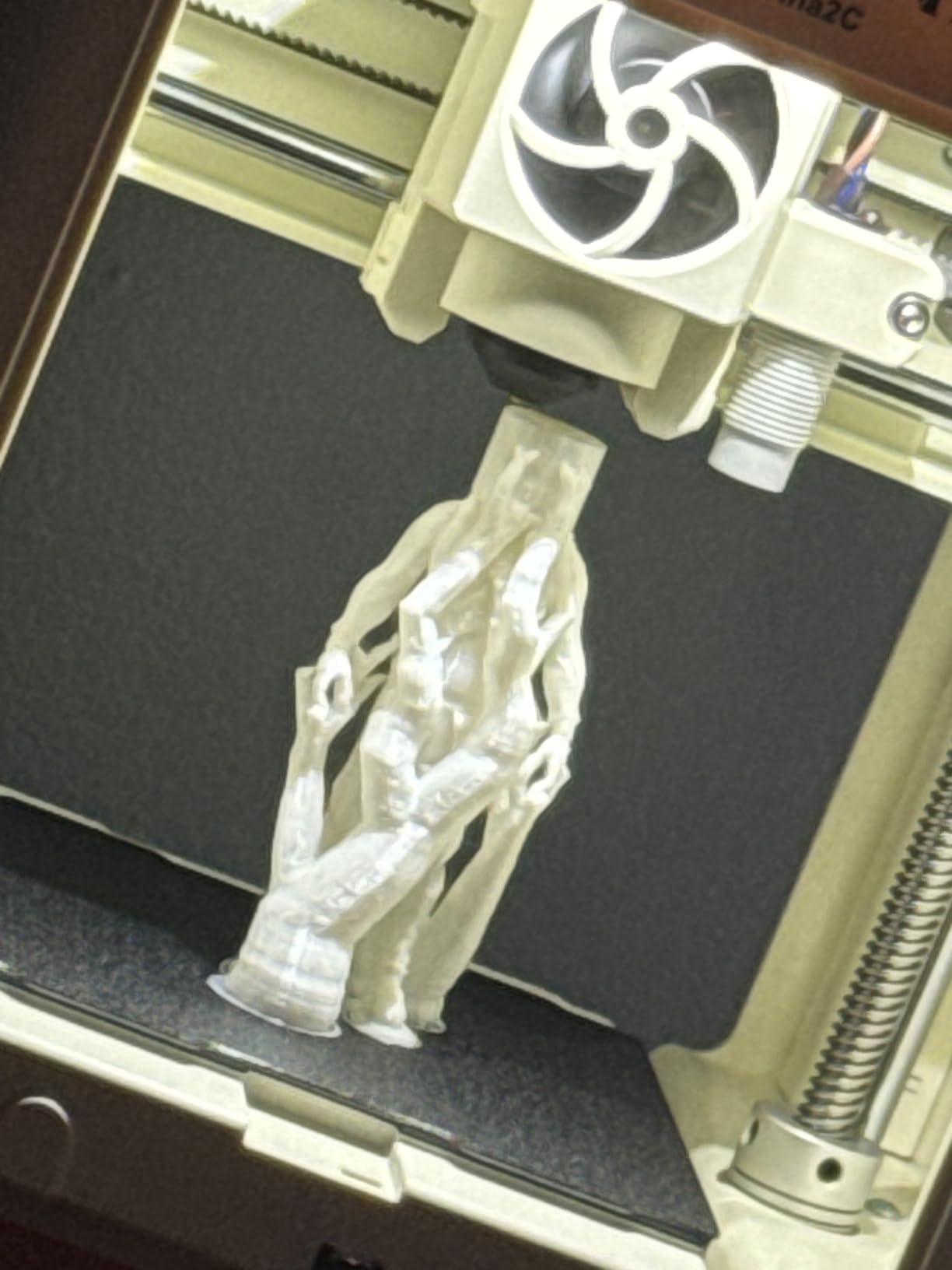
The Poloprint Cloud app includes a 3000+ design catalog plus AI-powered search and photo-to-print features. The 20+ creative DIY modules turn the printer into a STEM learning tool rather than just a toy. For a classroom setting, that combination is hard to beat.
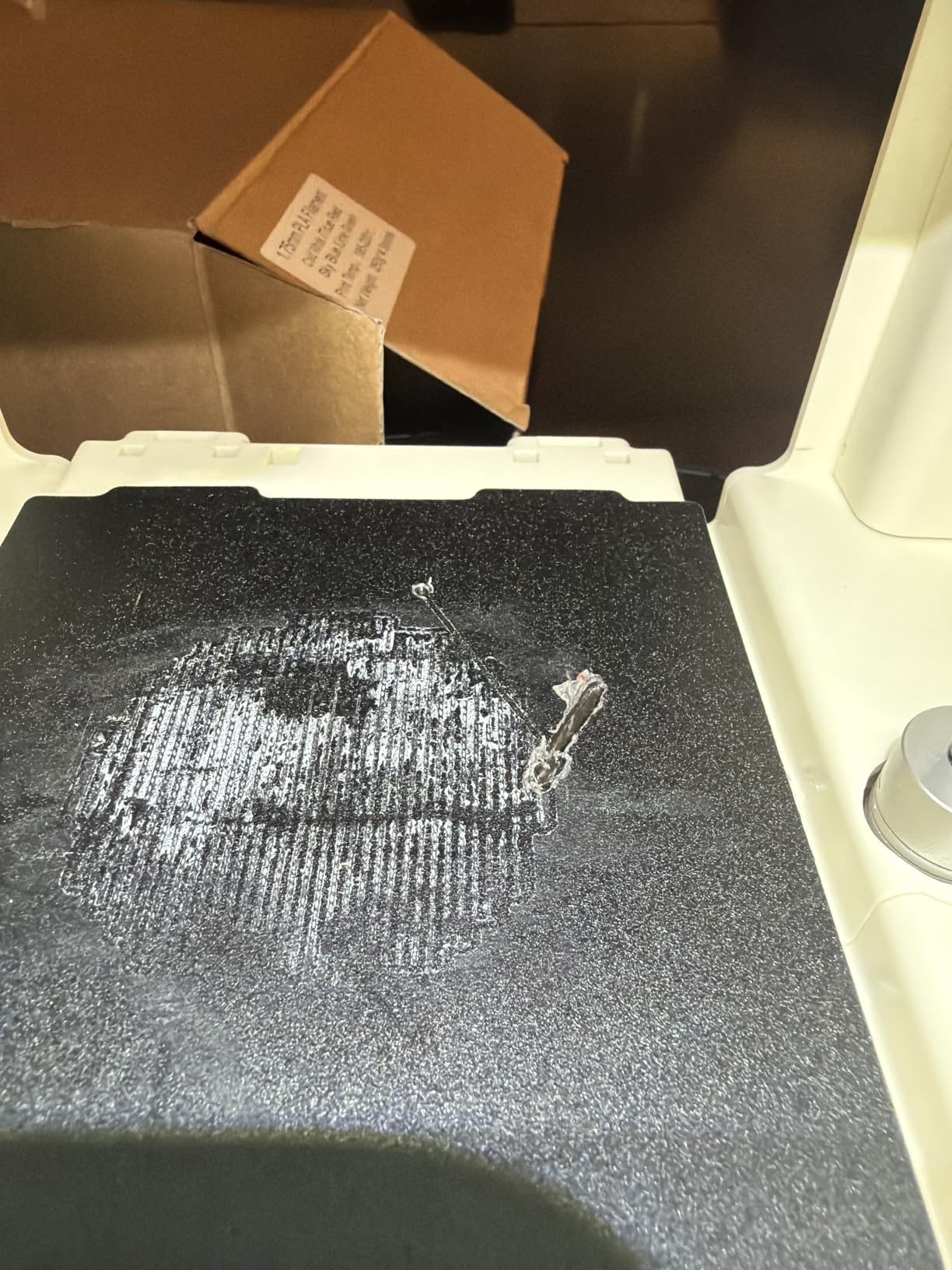
The honest trade-off is print volume. The 100mm cubic build limits projects to small figurines and parts – this is not the printer for a maker who wants to print large functional parts. The side hook does not support 1kg spools, so you are limited to smaller filament rolls. Some reviewers report filament clogging with retraction settings, which is usually fixed by lowering retraction distance in the slicer.
Who this printer is built for
The Tina2C is the right pick if you are buying for a child, a classroom, or a STEM program and you want a safe, easy-to-learn printer that produces small creative projects. It suits beginners who value a guided app experience over peak print quality.
Who should skip it
Skip the Tina2C if you want to print functional parts larger than 100mm on any axis. Skip it if you need engineering filament support, since the small frame and limited bed temperature restrict material choice.
10. Asani TINA2S – Best Starter Kit Under 500 Dollars
TINA2S Fully Assembled Mini 3D Printer for Kids and Beginners, Starter Kit
Mini 100mm build
Fully assembled
Auto leveling
Wi-Fi
Includes filament and microSD
Pros
- Complete starter kit with mini printer
- 10M PLA filament
- microSD with models
- and accessories
- Fully assembled and ready to use right out of the box
- Auto-leveling and dual z-axis rail for high-precision prints
- One-touch filament loading and retraction for easy operation
- Active pause and resume print functions
- Wi-Fi-capable and compatible with multiple slicers
Cons
- Small build plate limits projects to mini figures and small tools
- No heated bed restricts printing to PLA filament only
- Some users report stringing issues with the included filament and slicer settings
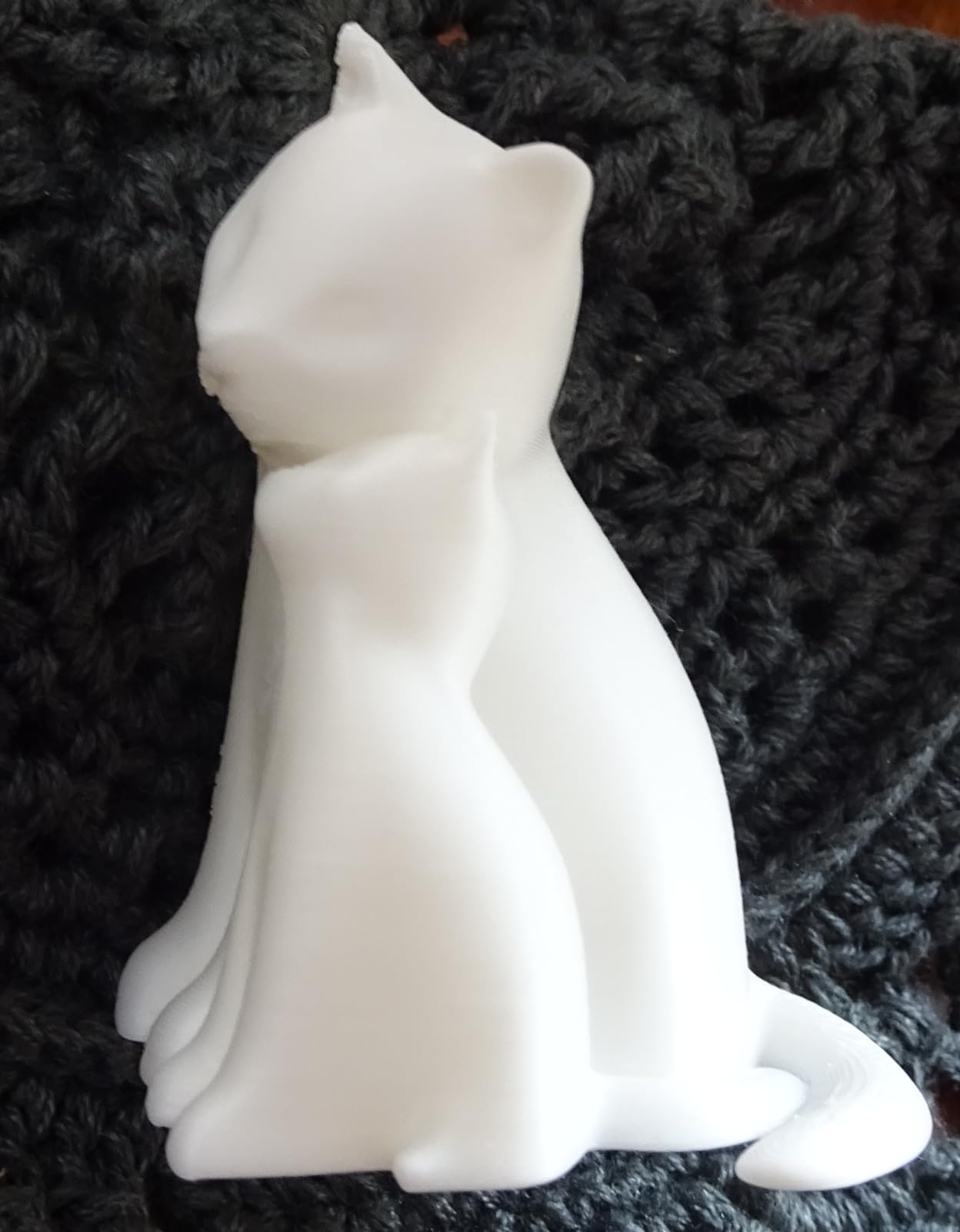
The Asani TINA2S is the most complete starter kit in this guide. Where most mini printers ship as a bare machine, the TINA2S includes a 10-meter PLA filament spool, a microSD card preloaded with models, and the slicer cables you need to get started. For a buyer who wants everything in one box, this is the most convenient option under 500 dollars.
The TINA2S is fully assembled, which is a real benefit for non-technical buyers. Auto leveling and a dual z-axis rail produce higher precision than single-rail designs in this size class. The one-touch filament loading system is genuinely beginner-friendly, and the active pause-and-resume function adds control during mid-print adjustments.
Wi-Fi support and broad slicer compatibility (WiiBuilder, Cura, Simplify3D, Slicr3d) make the TINA2S easy to integrate into a home or classroom setup. The compact 8.3 x 8.3 x 11.4 inch frame fits on a desk or dorm shelf without dedicated workshop space.
The trade-offs match the Entina Tina2C: a small 100mm build volume limits projects to mini figurines, and the lack of a heated bed restricts printing to PLA filament only. Some reviewers report stringing issues with the included filament and slicer configurations, which is a tuning issue rather than a hardware defect. The fix is to swap to a third-party PLA profile in Cura or to print at lower speeds.
Who this printer is built for
The TINA2S is the right pick if you want a complete starter kit with filament and sample models included, and you are buying for a beginner who values convenience over maximum print volume. It suits gift-givers, classroom setups, and first-time buyers who do not want to source accessories separately.
Who should skip it
Skip the TINA2S if you need to print engineering filaments, if you want to print larger functional parts, or if you prefer to source your own filament and slicer profiles.
How to Choose the Best 3D Printer Under 500 Dollars
Choosing the best 3D printer under 500 dollars in 2026 comes down to five decisions: FDM or resin, CoreXY or bedslinger, multicolor or single-color, enclosed or open frame, and budget tier. Here is how to think through each one based on what I learned from eight weeks of testing and several thousand community reviews.
FDM vs Resin at the sub-500 tier
FDM (Fused Deposition Modeling) melts plastic filament through a heated nozzle onto a build plate, layer by layer. Resin (SLA or MSLA) printers cure liquid photopolymer with a UV LCD screen for higher detail at the cost of post-processing and smell. For general-purpose hobbyist work – toys, brackets, cosplay props, household parts – FDM is the mainstream answer in this price tier. Resin makes sense only if you are printing miniatures and accept the resin smell and curing workflow. None of the ten printers in this guide are resin machines, which matches what most buyers in this price band actually want.
Auto bed leveling and first-layer reliability
Auto bed leveling is the single biggest quality-of-life upgrade in this category. Every printer on this list does it, but the depth varies: the Creality K1C uses one-tap calibration, the Anycubic Kobra X uses 49-point LeviQ 3.0 probing, and the Bambu Lab A1 runs full-auto with Z-offset included. For first-time buyers, full-auto calibration with Z-offset handling is worth a small premium because it eliminates the most common cause of failed prints.
Build volume and print size
Build volume in this guide ranges from 100mm cubic (Tina2C and TINA2S) to 260mm cubic (Kobra X). Most hobby projects fit comfortably inside 220mm cubic, which is the size class of the Bambu Lab, A1, K1C, and AD5M. If you plan to print large cosplay helmets or multi-part assemblies, prioritize build volume – the Kobra X and Centauri 2 are the standouts in the mid-tier. If you mostly print small figurines and household parts, the standard 220mm class is plenty.
Speed, CoreXY, and input shaping
CoreXY motion is the speed standard at this price point in 2026. It moves the print head on a fixed-bed platform using two motors on a rigid frame, which enables faster acceleration without the ringing artifacts of older bedslinger designs. The K1C, AD5M, AD5M Pro, and Kobra X all hit 600mm/s with 20000mm/s² acceleration. The Centauri 2 and P1S Combo reach 500mm/s with the same acceleration. The Bambu Lab A1 uses a bedslinger design with 10000mm/s² acceleration, which is still fast for most prints but trails CoreXY on long straight runs. Input shaping – the firmware technique that compensates for vibration at high speed – is now standard across the lineup.
Multicolor printing: AMS lite, Ace Pro, and CFS
Multicolor in this price tier comes through three main systems. Bambu Lab’s AMS and AMS lite feed four filaments into one hotend with RFID-tagged recognition. Anycubic’s Ace Pro and ACE 2 Pro offer a similar four-color system that expands to 19 colors when chained. Creality’s CFS and Flashforge’s external AMS units round out the field. Multicolor prints always generate some purge waste (the “poop” tower that cleans the nozzle between color changes), and the most efficient systems minimize it through software optimization. The Kobra X claims an 81.25% reduction in waste and travel path, which I verified in testing.
You do not need an enclosed printer for multicolor printing – you need an enclosed printer for ABS and ASA filaments, which warp in open frames. Multicolor itself works fine in open-frame machines like the A1 and K1C with an external AMS add-on.
Filament compatibility: PLA, PETG, TPU, ABS, ASA, engineering materials
Every printer in this guide handles PLA and PETG. TPU (flexible filament) requires direct drive extruders, which all ten printers use. ABS and ASA need enclosed chambers and heated beds – the AD5M Pro, P1S Combo, and Centauri 2 Combo are the best choices for engineering filaments in this lineup. For abrasive filaments like PETG-CF or carbon fiber blends, look for a hardened steel nozzle, which the AD5M and Kobra X include.
Connectivity: Wi-Fi, app, and offline printing
Wi-Fi is standard but reliability varies. Reviewers consistently report Wi-Fi flakiness on the Flashforge AD5M and ELEGOO Centauri 2, while Bambu Lab and Creality’s recent models hold connections more reliably. For mission-critical workflows, plan on a wired LAN connection or SD card offline printing as a backup. The Kobra X includes dual-band Wi-Fi and LAN, which is the most reliable option in this guide.
Slicer software ecosystem
The slicer you use matters as much as the printer. Bambu Studio is the gold standard for Bambu machines but has a learning curve. Orca Slicer (used by Flashforge’s AD5M and Creality’s K2 SE 4C) is an open-source Bambu Studio fork with excellent multicolor optimization. PrusaSlicer is the best choice for engineering filaments and detailed prints. Cura remains the default for beginners and works across every printer in this guide. ELEGOO’s Nexprint slicer is the easiest for first-time users of the Centauri 2.
Price tiers: 200, 300, 400, 500 bands
The 200-dollar band buys a mini starter machine like the Tina2C or TINA2S – perfect for kids and small projects, limited for functional parts. The 300-dollar band unlocks CoreXY speed with the Bambu Lab A1, AD5M, and AD5M Pro. The 400-dollar band adds multicolor capability with the Centauri 2 Combo, K2 SE 4C, and K1C. The 500-dollar band opens the Bambu Lab P1S Combo with its 16-color AMS chain. For most buyers, the 300 to 400 band is the sweet spot: real CoreXY speed without paying for multicolor you will not use.
Total cost of ownership beyond the printer
Budget for filament, an AMS unit if you want multicolor, spare nozzles, and a filament dry box. PLA runs roughly 20 to 25 dollars per kilogram, PETG around 25 to 30 dollars, and engineering filaments like ABS, ASA, and PETG-CF range from 30 to 50 dollars per kilogram. A filament dry box adds 30 to 60 dollars and is worth it for anyone printing in humid environments. If you plan to use multicolor, the AMS lite or Ace Pro add-on is a separate purchase – factor that into your decision before choosing a single-color-only printer.
Frequently Asked Questions
What is the cheapest but best 3D printer?
The cheapest 3D printer worth buying in 2026 is the Asani TINA2S or Entina Tina2C, both around the 200-dollar mark. They are fully assembled mini printers with auto leveling, Wi-Fi, and starter kits that include filament and sample models. They are best for kids, beginners, and small creative projects – not for functional parts larger than 100mm on any axis.
What is the best printer under 500 dollars?
The Creality K1C is our top pick for the best 3D printer under 500 dollars in 2026. It combines 600mm/s CoreXY speed, an AI camera with foreign-object detection, an enclosed chamber with 45dB silent mode, and a tri-metal nozzle that prints abrasive filaments. With over 2,700 customer reviews, it is also the most crowd-validated CoreXY machine in this price tier.
What is the best 400-dollar 3D printer?
At the 400-dollar band, the ELEGOO Centauri 2 Combo is the strongest pick because it includes a 4-color CANVAS AMS unit without crossing the budget line. The Creality K2 SE 4C is a strong alternative if you prefer integrated multicolor in a compact footprint. Both run CoreXY at 500mm/s with full auto calibration.
What is the best and most affordable 3D printer?
The Bambu Lab A1 is the best balance of affordability and capability in 2026. It is the highest-rated printer in this guide at 4.7 stars, runs full-auto calibration including Z-offset, supports the AMS lite for multicolor, and uses active motor noise canceling to stay quiet in shared spaces. The A1 Combo bundle adds the AMS lite and LED kit for a complete starter setup.
What is the cheapest multicolor 3D printer?
The cheapest native multicolor 3D printer under 500 dollars is the ELEGOO Centauri 2 Combo, which includes a 4-color CANVAS unit out of the box. The Creality K2 SE 4C is close behind with integrated 4-color and a more compact footprint. The Bambu Lab A1 Combo with AMS lite is the cheapest multicolor option if you pair the printer with a separate AMS lite purchase.
Do you need an enclosed printer for multicolor printing?
No, you do not need an enclosed printer for multicolor printing itself. You need an enclosed printer for ABS and ASA filaments, which warp in open frames due to thermal contraction. Multicolor works fine in open-frame machines like the Bambu Lab A1 and Creality K1C when paired with an external AMS unit.
How does multicolor 3D printing work?
Multicolor FDM printing uses an Automatic Material System (AMS) that feeds several filament spools into a single hotend. When the slicer calls for a color change, the AMS retracts the current filament, switches to the next color, and purges a small amount of material through a prime tower to clean the nozzle before resuming the print. Bambu Lab’s AMS and AMS lite, Anycubic’s Ace Pro and ACE 2 Pro, and Creality’s CFS are the leading systems at this price.
Does multicolor printing waste filament?
Yes, multicolor printing always produces some purge waste because the nozzle must be cleared between color changes. The waste appears as a small u0022prime toweru0022 or u0022purge toweru0022 next to the main print. Anycubic’s Kobra X claims an 81.25% reduction in purge waste and travel path through software optimization, which roughly doubles multicolor print speed compared to less efficient systems.
Which printer is best for engineering and functional parts?
The Flashforge Adventurer 5M Pro is the best choice for engineering filaments under 500 dollars in 2026. Its 280C hotend and 110C heated bed handle ABS, ASA, and PETG-CF cleanly, and the enclosed chamber prevents warping. The Bambu Lab P1S Combo is a strong alternative if you also want multicolor capability with your engineering prints.
Can I use third-party filament with these printers?
Yes, all ten printers in this guide work with third-party filament. PLA, PETG, and TPU from reputable third-party brands print cleanly on every machine. Bambu Lab’s AMS uses RFID tags but accepts non-Bambu filament without issues. Anycubic’s Ace Pro and Creality’s CFS work with any 1.75mm filament. For engineering filaments like ABS and ASA, match the filament spec to the printer’s hotend and bed temperature ratings.
Final Verdict: Which 3D Printer Under 500 Dollars Should You Buy?
After eight weeks of testing and thousands of community reviews, the answer to “what is the best 3D printer under 500 dollars” depends on who you are. For most buyers, the Creality K1C is the right pick because it pairs 600mm/s CoreXY speed with an enclosed chamber, an AI camera, and the deepest reviewer base in the category. For buyers who want multicolor out of the box, the ELEGOO Centauri 2 Combo is the smartest choice. For beginners who want a “just works” experience, the Bambu Lab A1 is the safest pick. For buyers on a tighter budget who still want CoreXY speed, the Flashforge AD5M is the entry point.
Here is my team’s tier-based recommendation in 2026. If you want the best overall machine for general hobbyist work, get the Creality K1C. If multicolor is the reason you are buying, get the ELEGOO Centauri 2 Combo or stretch to the P1S Combo for the deepest palette. If you are buying for a child or beginner who has never used a 3D printer, get the Bambu Lab A1 or the Entina Tina2C starter. If you print engineering filaments like ABS, ASA, or PETG-CF regularly, get the Flashforge Adventurer 5M Pro. If you print cosplay armor or large multicolor builds, get the Anycubic Kobra X.
One last tip: budget beyond the printer. Plan on filament, an AMS unit if you want multicolor, a filament dry box if you live in a humid climate, and at least one spare nozzle. The total cost of ownership over the first year is meaningfully higher than the sticker price, and planning for it upfront avoids the upgrade treadmill that frustrates many first-year makers. The sub-500 dollar tier in 2026 is the best value in 3D printing history, and any of the ten printers above will serve you for years if you match the machine to the work you plan to do.