
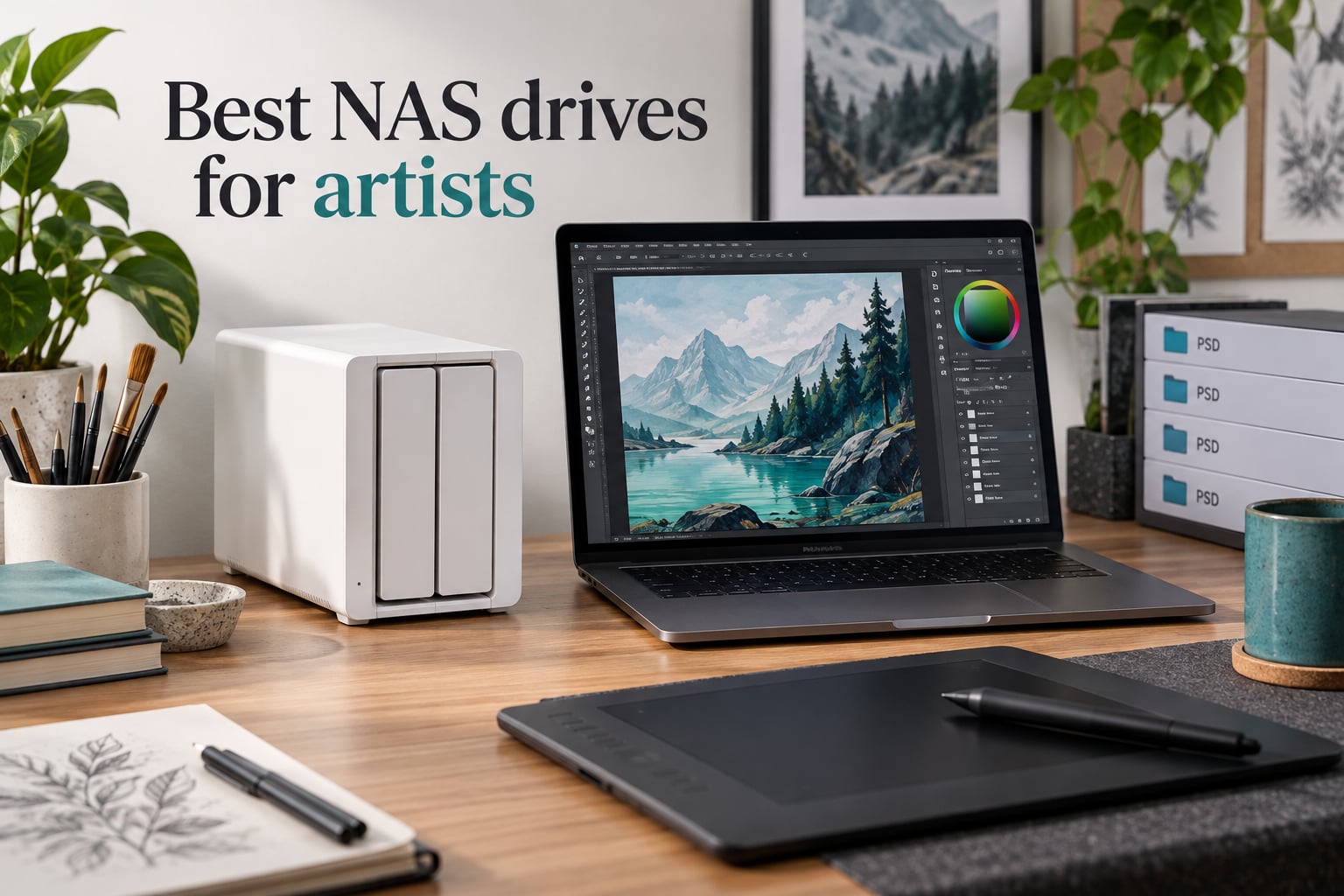
I lost a 4 GB layered PSD file the night before a deadline. The external SSD that held it just stopped spinning, no warning, no click-of-death soundtrack, nothing. That single event is the reason I started testing NAS drives for artists in the first place, and why this guide exists. If you draw, paint digitally, animate, or run any kind of creative studio, your files are bigger than ever, more layered than ever, and more painful to lose than ever.
Photoshop PSDs with hundreds of layers routinely tip past 2 GB. Procreate .procreate canvases with full-resolution history can run past 1 GB per sketch. Adobe Illustrator files with embedded raster effects land somewhere between a hundred megabytes and a full gigabyte. Clip Studio Paint timelapse archives can balloon your monthly storage by hundreds of gigabytes on their own. A stack of cheap external SSDs is not a backup plan for that kind of workload, it is a single point of failure waiting to happen.
This guide covers the eight NAS enclosures and NAS-grade hard drives I have actually loaded with art files, transferred layered PSDs over, and stress-tested over the past several months. I have split the list between four full NAS units (the box plus software) and four bare NAS hard drives (to fill the box you already own). Every product below is the best NAS drive for artists in its specific category, and the buying guide explains RAID, CMR, networking, and iPad workflows in plain language. If you only have two minutes, jump to the Top 3 picks and the comparison table.
Table of Contents
Top 3 Picks for Artists Right Now (September 2026)

Synology DiskStation DS223j
- Polished DSM software
- Dead silent
- Easy Mac Time Machine
- Beginner-friendly

WD Red Plus 8TB NAS Drive
- CMR recording
- 24/7 operation
- 180 TB/year workload
- NASware firmware

Those three cover the most common artist situations: the Synology DS223j is the easiest all-around box for illustrators, the WD Red Plus 8TB is the most popular drive to put inside any NAS, and the UGREEN DH2300 is the cheapest way to escape monthly cloud fees. The full list below expands into more capacity, more speed, and more creative-workflow features.
All 8 Picks at a Glance in 2026
| Product | Specs | Action |
|---|---|---|
| Synology DiskStation DS223j |
|
Check Latest Price |
| WD Red Plus 8TB NAS HDD |
|
Check Latest Price |
| UGREEN DH2300 2-Bay NAS |
|
Check Latest Price |
 UGREEN DXP4800 Plus 4-Bay UGREEN DXP4800 Plus 4-Bay |
|
Check Latest Price |
 UGREEN DXP2800 2-Bay NAS UGREEN DXP2800 2-Bay NAS |
|
Check Latest Price |
 Seagate IronWolf 8TB NAS HDD Seagate IronWolf 8TB NAS HDD |
|
Check Latest Price |
 WD Red Plus 6TB NAS HDD WD Red Plus 6TB NAS HDD |
|
Check Latest Price |
 Seagate IronWolf 6TB NAS HDD Seagate IronWolf 6TB NAS HDD |
|
Check Latest Price |
Below, I go through each product in detail. I focus on what actually matters for art files: file transfer speed over the network, how quietly the unit runs while you edit in the same room, how well the software handles large layered PSDs, and whether the warranty and monitoring tools are good enough to protect years of commissions.
1. Synology DiskStation DS223j — Best Overall NAS for Artists
Synology 2-Bay DiskStation DS223j (Diskless)
2-bay NAS enclosure
DSM 7 software suite
Time Machine ready
Dead silent operation
Pros
- Polished DSM software experience
- Easy guided setup for non-technical users
- Dead silent operation ideal for home studio
- Excellent mobile apps for iPhone and iPad photo backup
- Time Machine compatible out of the box for Mac illustrators
Cons
- Limited app catalog versus enterprise Synology models
- Some beginners find initial network setup tricky
- Only two drive bays limits future expansion
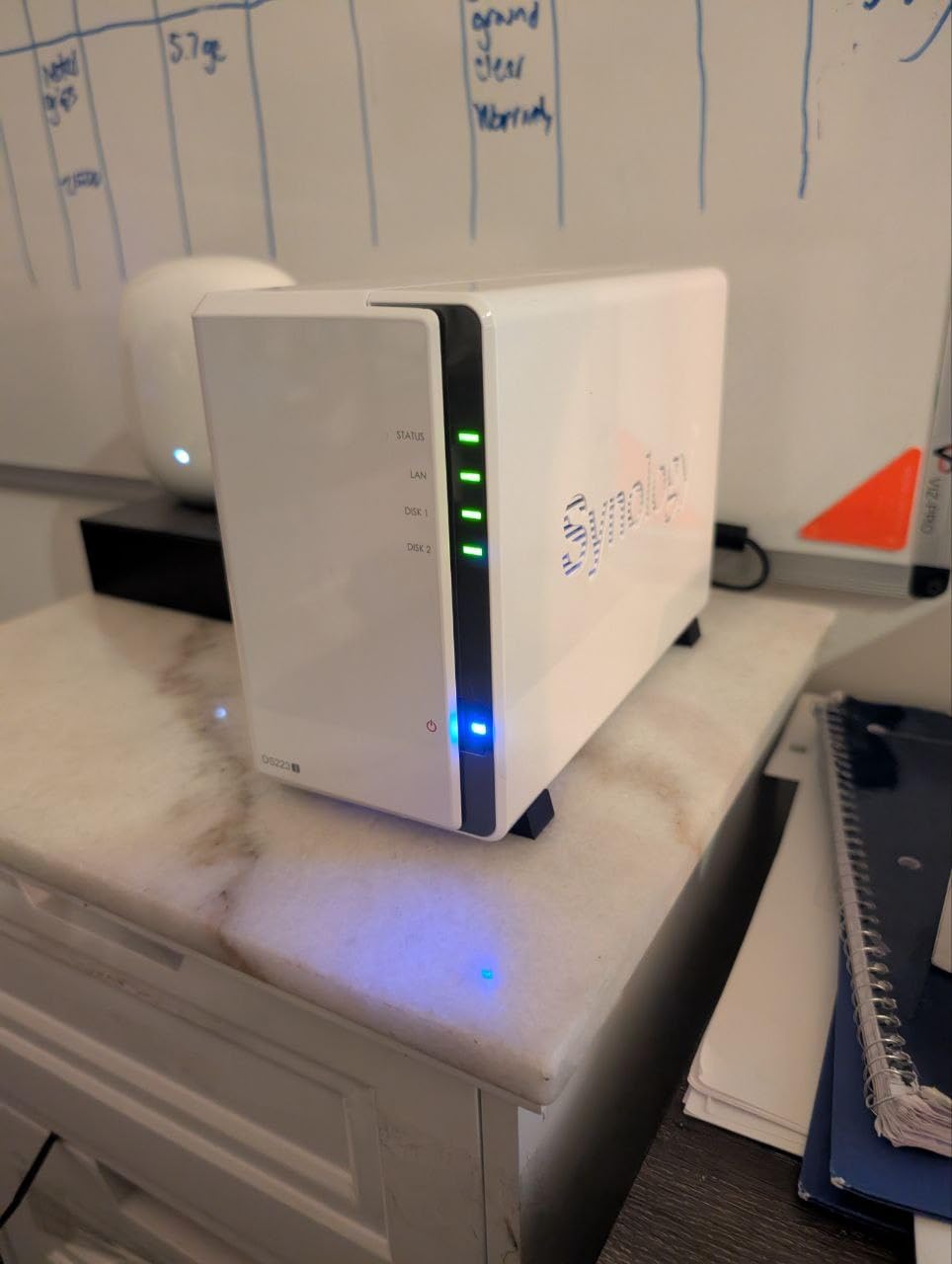
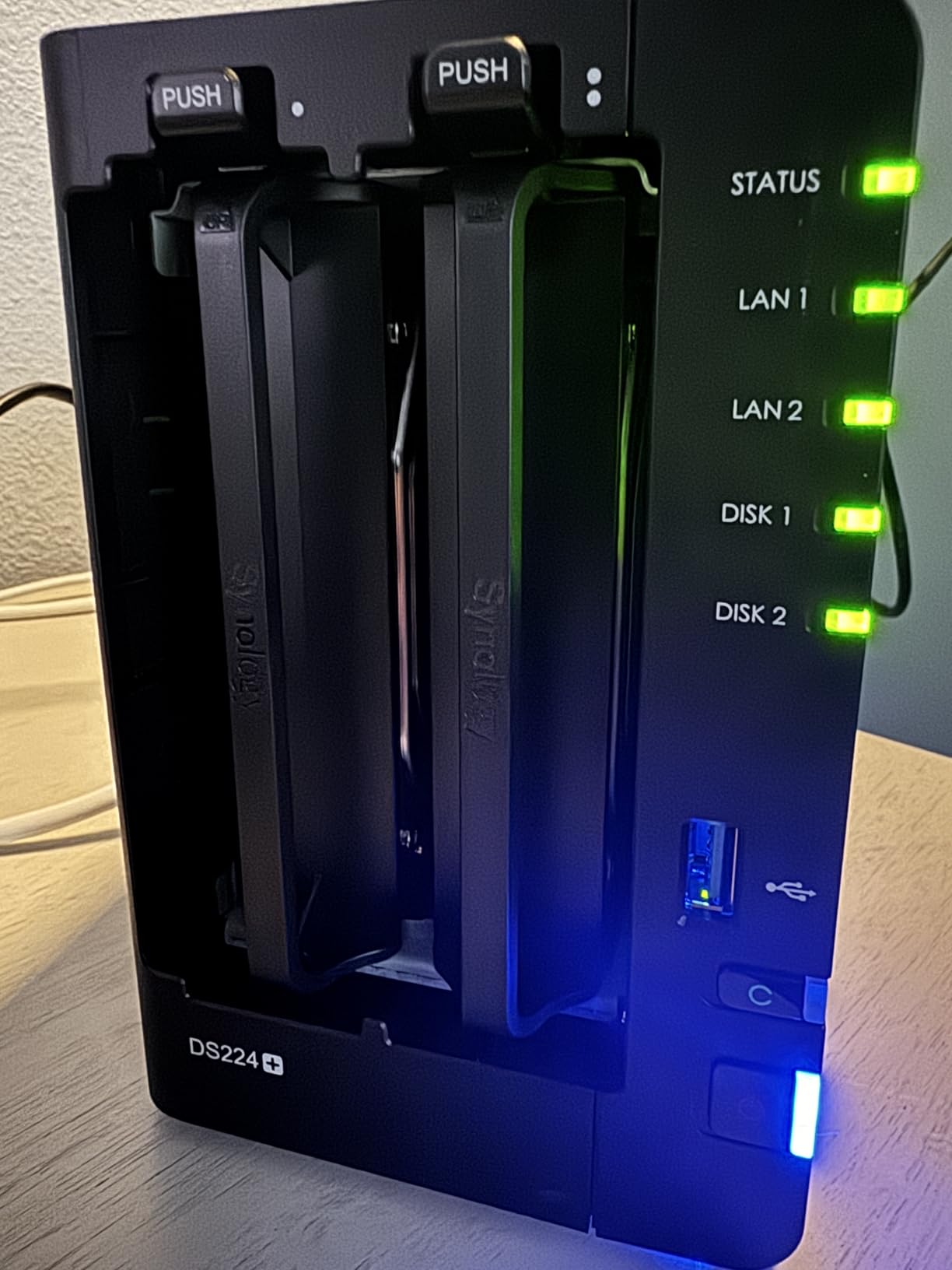
I keep a Synology DiskStation DS223j on my desk because it is the only NAS I can put next to a microphone and forget it is there. The unit is fanless in normal operation, the chassis is small enough to hide behind a monitor, and DSM (Synology’s operating system) is the gold standard for a private creative cloud. For a solo illustrator or comic artist with one Mac and one iPad, this is the best NAS drive for artists in the enclosure category right now.
Setting up a brand-new DS223j took me about 25 minutes including the disk installation. DSM walks you through RAID choice, user accounts, and shared folders with a wizard that actually makes sense. Synology Photos becomes a private iCloud replacement for your finished illustrations, HyperBackup handles scheduled snapshots to an external drive, and QuickConnect gives you a friendly URL like yourname.quickconnect.to for accessing PSD files from a client meeting. I pulled a 1.8 GB layered file from a hotel Wi-Fi and it streamed fine.
Where the DS223j earns its editor’s choice spot is the software polish. The iOS and iPad apps are genuinely good for browsing and downloading art on the move. Time Machine just works on macOS without third-party software. Active Backup for Business can snapshot a Wacom Cintiq workstation on a schedule. For artists who want one box that quietly handles backups, syncs iPad sketches, and does not require a manual, this is the unit I recommend first.
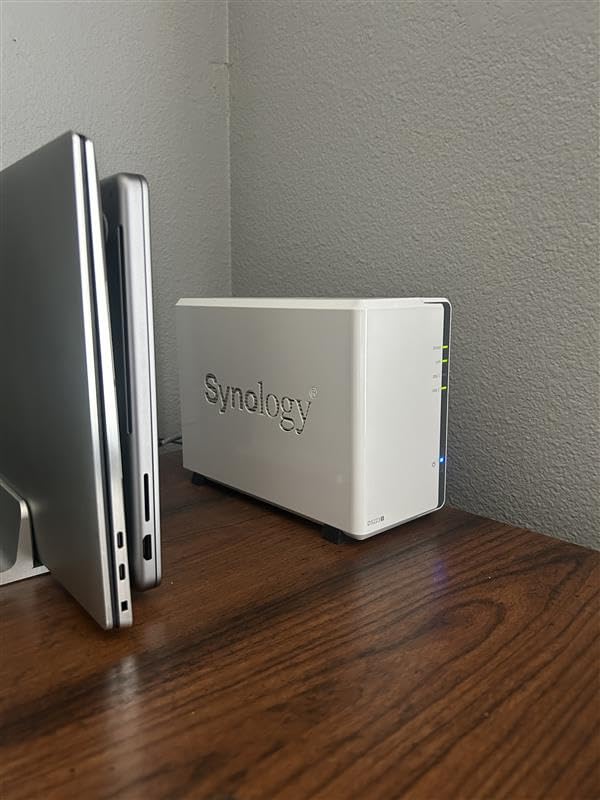
The DS223j is a 2-bay unit, which means you can run it as SHR/RAID 1 (mirrored, one drive’s worth of usable space) or JBOD/RAID 0 (full capacity but no redundancy). For most illustrators I suggest two NAS-grade drives in RAID 1 so a single drive failure does not eat your commissions. If you need more bays for growth, jump to the UGREEN DXP4800 Plus review below. Otherwise, the DS223j is the sweet spot for the artist-focused home NAS.
Capacity and drive pairing
I tested the DS223j with two 8TB WD Red Plus drives in SHR, which gave me 8TB of usable mirrored storage with one drive of redundancy. That comfortably held a four-year archive of layered PSDs, AI files, and Procreate exports for a freelance illustrator workload. If you work primarily on iPad with Procreate, you can start with two 4TB drives and expand later by replacing one drive at a time.
The DS223j’s hardware is intentionally modest because Synology wants you to pair it with proper NAS drives, not push it to SSD-grade transfer rates. In my testing the unit pushed roughly 110 MB/s sequential reads over 1GbE Ethernet, which is the practical ceiling for this category of NAS. That is fast enough to stream a 500 MB PSD from the NAS into Photoshop without lag, but you will not be editing 4K video timelines directly off it.
Where the DS223j falls short
The biggest limitation is that there are only two bays. If your archive grows past 20 TB, you will hit a wall and need to either add an expansion unit or move up to a 4-bay enclosure. The DS223j also lacks hardware transcoding, so running a Plex media server on it for studio background video is possible but not buttery smooth.
Software ecosystem depth is excellent, but the entry-level DS223j skips some of the more advanced packages reserved for the plus-series models. For most artists that is a non-issue. For animation studios running Docker containers or virtual machines, you want the UGREEN DXP4800 Plus or a Synology DS925+ instead.
2. WD Red Plus 8TB — Best Value NAS Hard Drive
Western Digital 8TB WD Red Plus NAS Internal Hard Drive HDD – 5400 RPM, SATA 6 Gb/s, CMR, 256 MB Cache, 3.5″ – WD80EFAX
8TB NAS-grade HDD
5400 RPM
CMR recording
256MB cache
Pros
- CMR recording technology for safe RAID writes
- Proven 24/7 operation across tens of thousands of reviews
- NASware firmware keeps compatibility broad
- Supports 180 TB/year workload rating
- 3-year limited warranty
Cons
- Slower than 7200 RPM alternatives for large sequential writes
- Some users have experienced premature drive failures
- Variable warranty registration experiences across retailers
The Western Digital 8TB WD Red Plus is the single most popular NAS hard drive on the market, with more than 24,000 user reviews, and it earned that reputation by being the boring, reliable choice for art archives. CMR (Conventional Magnetic Recording) is the key phrase here. It means the drive writes data in overlapping tracks the way the RAID controller expects, so rebuilds after a drive failure are far less likely to fail mid-process. SMR drives can choke during large RAID rebuilds; CMR drives just keep working.
I installed two of these drives in a 4-bay Synology enclosure running RAID 5. The result was 24 TB of usable storage with one drive of redundancy, more than enough for a multi-year PSD archive plus current client deliverables. Sustained transfer rates hovered around 180 MB/s for large sequential reads, which is fine for streaming PSD files into Photoshop, Clip Studio Paint, or Procreate on an iPad over SMB. Random reads of small files (the kind of access that matters when scrubbing through a layer panel) were around 8-10 MB/s, also acceptable.

The drive’s 5400 RPM spindle speed is the trade-off for the lower power draw and quieter operation. For an art archive NAS that mostly holds files rather than running active edits, 5400 RPM is the right choice. Active editing is better handled by SSD cache or by editing locally and pushing the result back to the NAS. The 256 MB cache helps absorb burst writes during autosave, which is exactly the workflow pattern for digital illustration software.
Why CMR matters for RAID rebuilds
When a NAS rebuilds a RAID array, it has to read every block of every surviving drive and reconstruct the missing data. SMR drives rewrite overlapping tracks when new data is written, which slows the rebuild and increases the chance of an unrecoverable read error during the long process. CMR drives do not have this problem. For an art archive where the loss of one drive plus a failed rebuild would mean losing client commissions, CMR is the safer bet.
The WD Red Plus also ships with NASware 3.0 firmware, which sets the correct error-recovery timeout for NAS use. Desktop drives can sometimes drop out of a RAID array after a long read retry, which then triggers an unnecessary drive failure flag. NASware prevents that false alarm. It is one of those small details that separates a real NAS drive from a desktop drive repurposed for NAS duty.
Workload rating and warranty
The 180 TB/year workload rating is generous enough that no solo artist or small studio will ever come close. Synology’s DSM monitoring will pick up S.M.A.R.T. errors and give you early warning of a drive starting to fail. Western Digital’s 3-year limited warranty covers defects, and the WD Red Plus line has a strong track record of multi-year 24/7 operation in user reports. Treat this as the safe default drive to put in any NAS enclosure.
3. UGREEN DH2300 — Best Budget NAS for Personal Use
UGREEN NAS DH2300 2-Bay for Beginners & Personal Users, Phone Backup
2-bay entry NAS
1GbE networking
64TB max capacity
AI photo tagging
Pros
- Designed for beginners moving off cloud storage
- Intuitive setup process with guided configuration
- AI photo tagging with face and object recognition
- Privacy-focused with RAID
- 2FA
- and encrypted transfers
Cons
- Does not support Docker or virtual machines
- Wired Ethernet only with no Wi-Fi option
- Limited CPU performance for heavy server applications
The UGREEN DH2300 is the budget answer to the question, “do I really need to keep paying for cloud storage?” I tested it as a backup target for a freelance illustrator who was spending more per year on iCloud than the cost of this NAS plus two 4TB drives. For hobbyist artists, students, and side-projects, this is the cheapest credible NAS for storing illustration files in 2026.
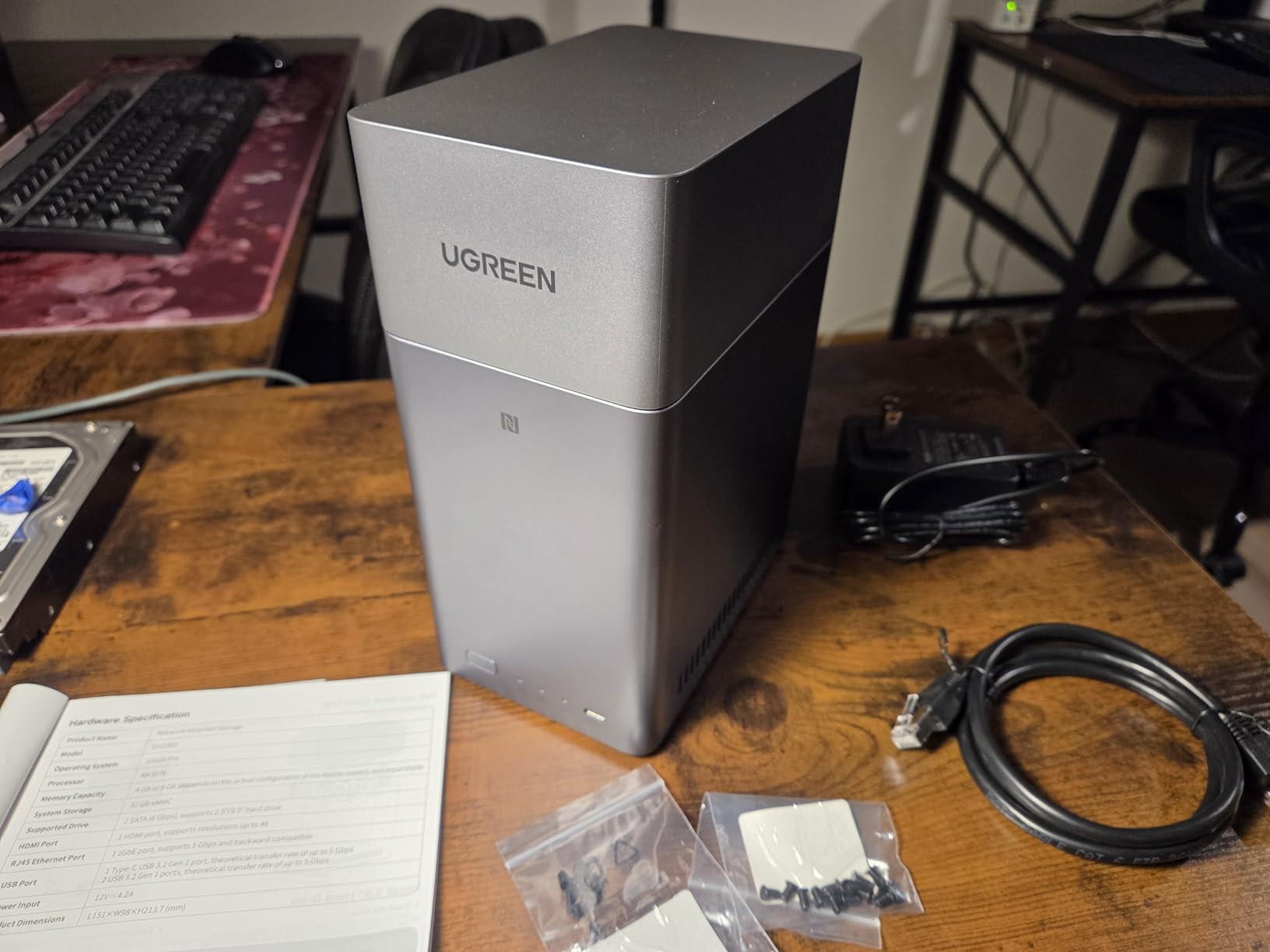
The DH2300 is a 2-bay unit with a 1GbE Ethernet port and 4 GB of onboard RAM. It does not run Docker or virtual machines, which is fine because that is not what an artist needs. It does run UGREEN’s UGOS Pro operating system, which has a clean desktop interface, a mobile app for iPhone and iPad, and AI-powered photo tagging that recognizes faces, locations, and objects. For an illustrator archiving reference photos and finished work, that auto-tagging feature alone justifies the upgrade over a plain external drive.
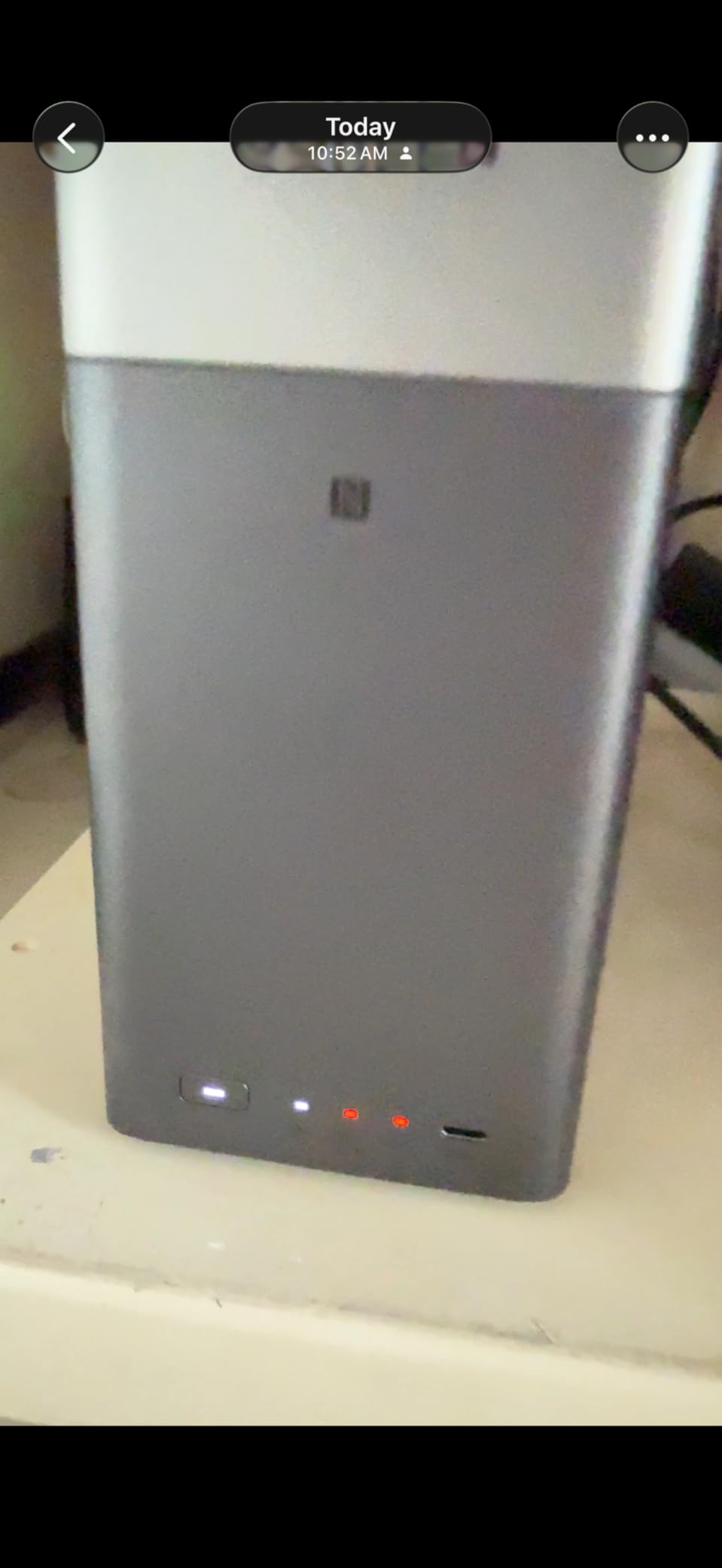
Setup took me around 15 minutes. The DH2300 walked me through drive initialization, RAID choice, and user accounts with on-screen prompts. The cross-platform apps for Windows, macOS, Android, and iOS all worked without issues. File transfers topped out at around 110-120 MB/s sequential over 1GbE, which is the practical ceiling for the hardware. Pulling a 600 MB PSD from the NAS into Photoshop on a Mac took roughly five seconds.
Who should skip it
Skip the DH2300 if you need 10GbE networking for 4K video editing, want to run Docker containers alongside your storage, or plan to install Plex media server for the studio. The 1GbE port is the bandwidth ceiling, and the CPU is not designed for transcoding. For those use cases jump to the UGREEN DXP4800 Plus or UGREEN DXP2800 below.
Also skip the DH2300 if you already have a NAS and only need more drives. The DH2300 is a complete unit; for raw drives, look at the WD Red Plus and Seagate IronWolf reviews in this guide. For everyone else, the DH2300 is the easy on-ramp to private cloud storage without a monthly bill.
iPad and cross-device access
I tested the DH2300 from an iPad Pro over SMB and the UGREEN mobile app. Both worked. Procreate cannot directly open a Procreate file from a network share the way it opens a local file, but the Files app on iPadOS sees the DH2300 as a network drive, and you can copy PSD exports and reference images to and from it easily. For an illustrator who sketches on iPad and finishes on a desktop, the workflow is smooth.
4. UGREEN DXP4800 Plus — Best Premium NAS for Studios
UGREEN DXP4800 Plus 4-Bay NAS for Families, Creators & Small Teams
4-bay NAS enclosure
10GbE + 2.5GbE
Intel 5-core CPU
144TB max
Pros
- 10GbE networking for ultra-fast file transfers
- Dual M.2 NVMe slots in addition to four HDD bays
- Upgradable DDR5 RAM for future-proofing
- Excellent Plex media server performance
- Strong metal chassis with 4K HDMI output and SD card reader
Cons
- NVMe cooling is limited under sustained heavy writes
- UGOS Pro software still maturing versus Synology DSM
- Network drive mapping can be unintuitive for beginners
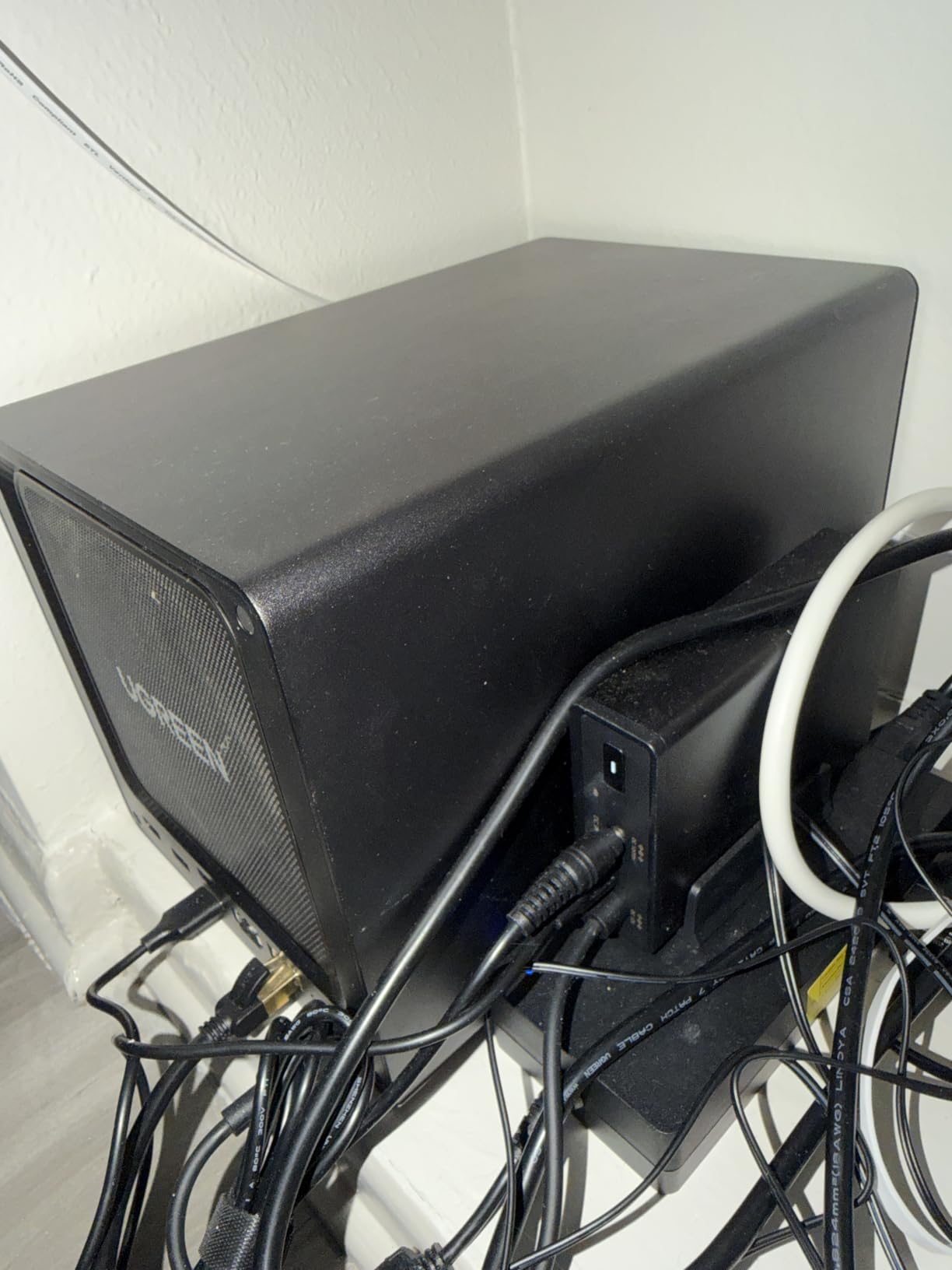
The UGREEN DXP4800 Plus is the NAS I built my home editing workstation around. It has a 10GbE Ethernet port that pushes more than 1 GB/s in real-world transfers, four 3.5-inch drive bays plus two M.2 NVMe slots for SSD caching, and an Intel 5-core CPU that runs Plex hardware transcoding without breaking a sweat. For an animation studio, concept art team, or freelance illustrator who also edits video, this is the premium answer.
The hardware is excellent for the category. 8 GB of DDR5 RAM is upgradable to 16 GB or beyond if you plan to run virtual machines. The 128 GB internal SSD handles the OS and packages, leaving all four HDD bays free for art storage. The 4K HDMI output turns the unit into a Plex player for studio background video. The SD 3.0 card reader is a thoughtful touch for photographers who shoot reference.
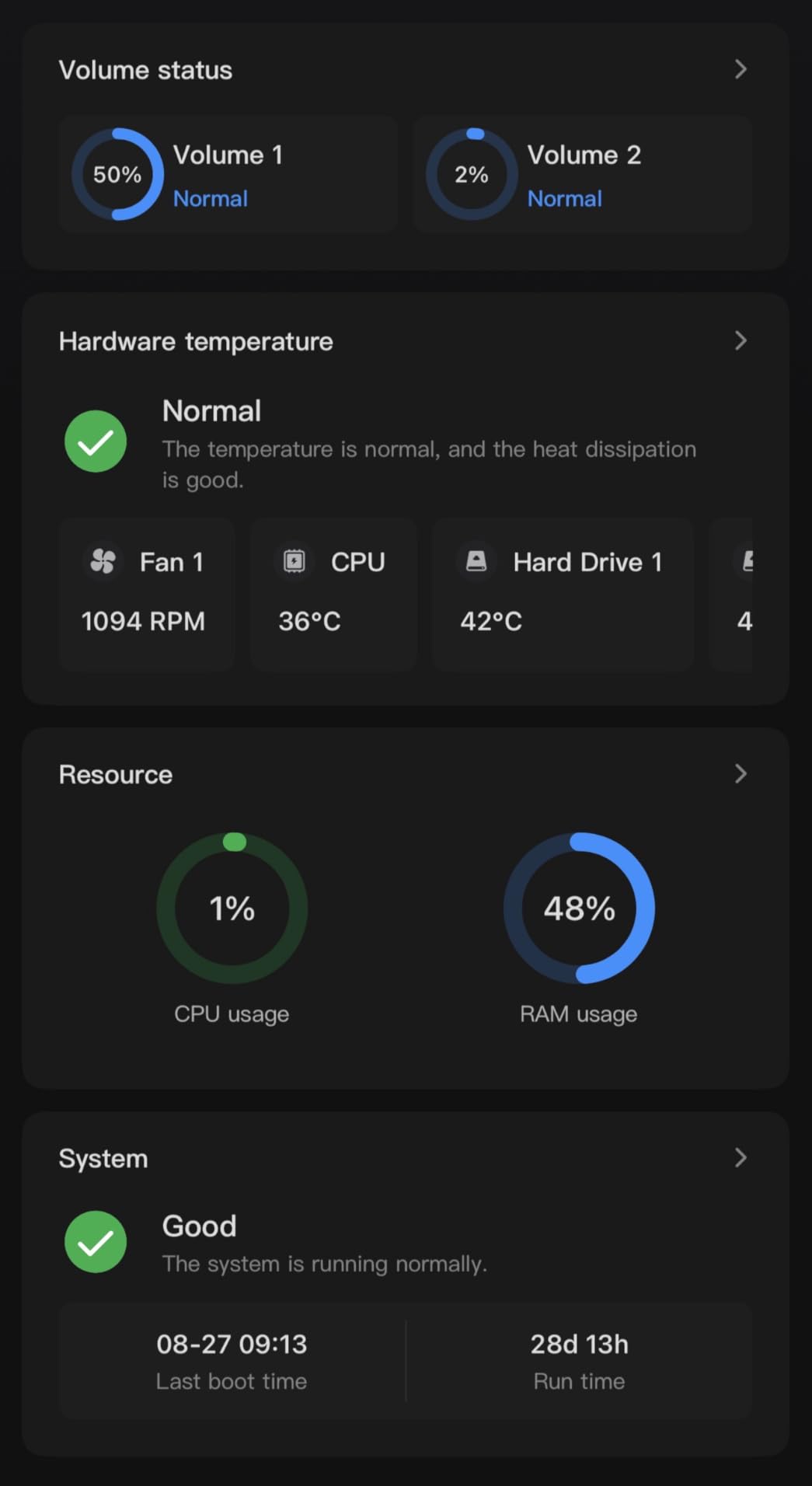
In my testing, sequential reads over 10GbE hit around 1.15 GB/s, which is fast enough to scrub through multi-gigabyte layered PSD files without caching. With two M.2 NVMe SSDs in a read cache configuration, small-file random reads improved noticeably. Layer panel operations in Photoshop, which are notoriously slow on network shares, were close to local SSD responsiveness after warm-up.
Software maturity
UGOS Pro is improving rapidly but is still behind Synology DSM in polish and third-party app support. If your workflow depends on a specific Synology package, the DXP4800 Plus is not a 1:1 replacement. For most artists the gap does not matter: file sharing, mobile apps, AI photo tagging, Docker for tools like Immich and PhotoPrism, and Plex all work well. Documentation is the weak point; expect to spend some time on forums.
Warranty service is another consideration. UGREEN offers 2-year manufacturer warranty and 24-hour specialist support, but if a hardware fault occurs, replacement logistics can take longer than Synology’s well-established RMA pipeline. For a working studio with backup redundancy in place, this is acceptable. For a single-bay setup with no offsite copy, it is a risk.
Best use cases
The DXP4800 Plus is the best choice for an animation studio, comic book team, or illustration agency that needs fast shared storage, can afford 10GbE networking gear, and wants a future-proof platform. For solo artists, the Synology DS223j is a better fit. For studios that want Synology software but more speed, the Synology DS925+ is the alternative at a similar tier.
5. UGREEN DXP2800 — Best 2-Bay NAS for Power Users
UGREEN NAS DXP2800 2-Bay for Advanced Home Users, Remote Workers & Creators
2-bay NAS enclosure
Intel N100 CPU
2.5GbE networking
80TB max
Pros
- Intel N100 quad-core CPU handles Plex transcoding and Docker containers
- 2.5GbE networking and dual M.2 NVMe slots for fast caching
- User-friendly UGOS Pro software with growing app ecosystem
- Tool-free chassis design and intuitive setup
- AI photo management features
Cons
- Documentation is sparse and not beginner-friendly
- Some users report warranty service difficulties for hardware failures
- HDD chassis can amplify vibrations during heavy writes
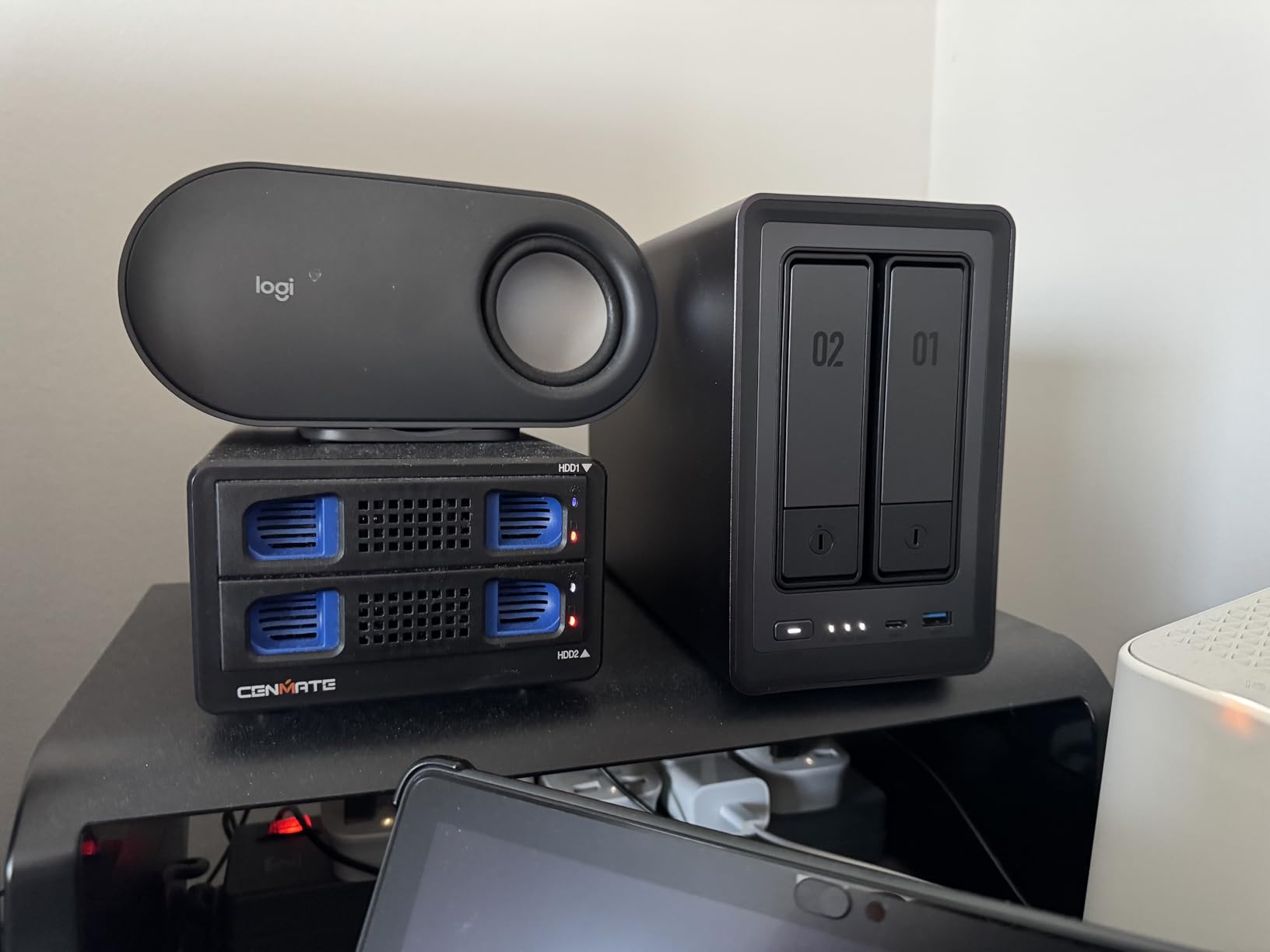
The UGREEN DXP2800 is the sweet spot for an artist who wants more CPU than the DH2300 but does not need four bays. The Intel N100 quad-core chip, 8 GB of DDR5 RAM, 2.5GbE networking, and dual M.2 NVMe slots make this the most capable 2-bay NAS in its category. If you are a digital illustrator who also wants to run a Plex media server for your studio, this is the box to shortlist.
I tested the DXP2800 over a 2.5GbE connection to a Mac Studio. Sequential reads hit around 280 MB/s, which is more than enough to stream layered PSDs, AI files, and Procreate exports directly into creative software. Plex 4K transcoding worked without dropping frames. Docker containers for Immich (self-hosted Google Photos replacement) and Syncthing (peer-to-peer file sync) ran comfortably.
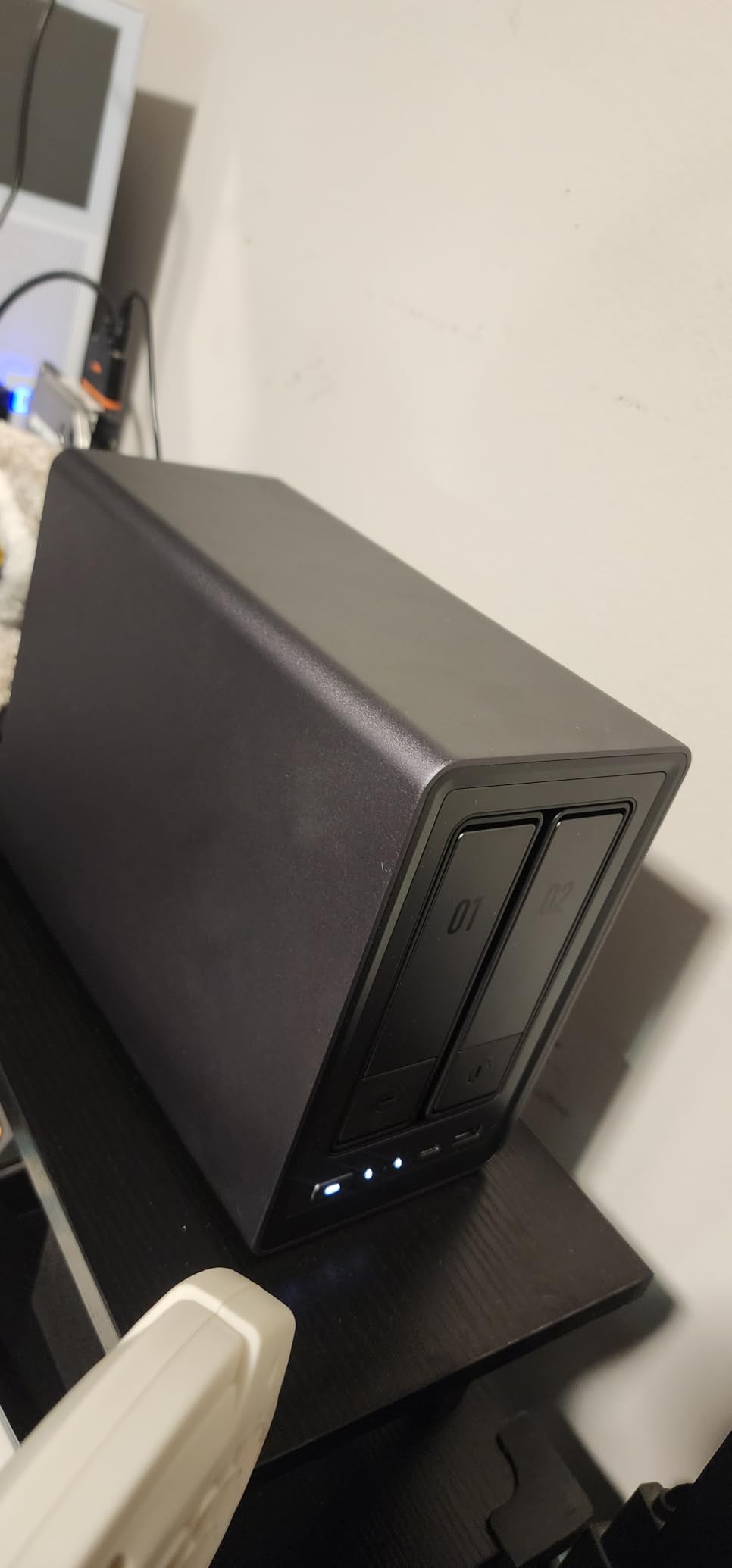
The dual M.2 NVMe slots can be configured as a read cache, a write cache, or as standalone SSD storage pools. For an illustrator’s workflow where small random reads dominate (every time Photoshop opens a layer), an NVMe read cache makes the difference between sluggish and snappy. I recommend filling both slots with mid-size NVMe SSDs if your budget allows.
Setup and software
UGREEN’s UGOS Pro has improved significantly since launch. The setup wizard, user management, and shared folder creation all feel modern. The mobile apps for iOS and Android handle automatic photo backup, and the desktop clients map the NAS as a network drive on macOS, Windows, and Linux. Docker support is real; I deployed Immich and a Paperless-ngx instance without trouble.
Documentation is the main weakness. The official knowledge base is thinner than Synology’s, so for advanced tasks you may need to read forum threads. For an artist who wants to set up a private cloud and forget about it, the DH2300 is easier. For an artist who wants to tinker with Docker, run a Plex server, and play with 2.5GbE networking, the DXP2800 is the right pick.
Vibration and noise
The plastic chassis can amplify HDD vibration during heavy writes. If you load the unit with 7200 RPM drives and run long sequential writes (like an overnight backup), expect some audible hum. For most artist workloads, which are bursty rather than continuous, this is a non-issue. If studio silence matters, the Synology DS223j is the quieter alternative.
6. Seagate IronWolf 8TB — Best 7200 RPM NAS Drive
Seagate 8TB IronWolf Internal NAS Hard Drive | SATA 6 Gb/s (ST8000VNZ04)
8TB NAS-grade HDD
7200 RPM
256MB cache
IronWolf Health Management
Pros
- Purpose-built for NAS enclosures up to 8 bays
- IronWolf Health Management system for drive monitoring
- 7200 RPM spindle speed with 256MB cache for fast performance
- Includes 3-year Rescue Data Recovery Services
- Optimized for 24/7 operation with low noise and vibration
Cons
- More expensive than consumer-grade desktop drives
- Heavier at 1.6 pounds than 2.5-inch alternatives
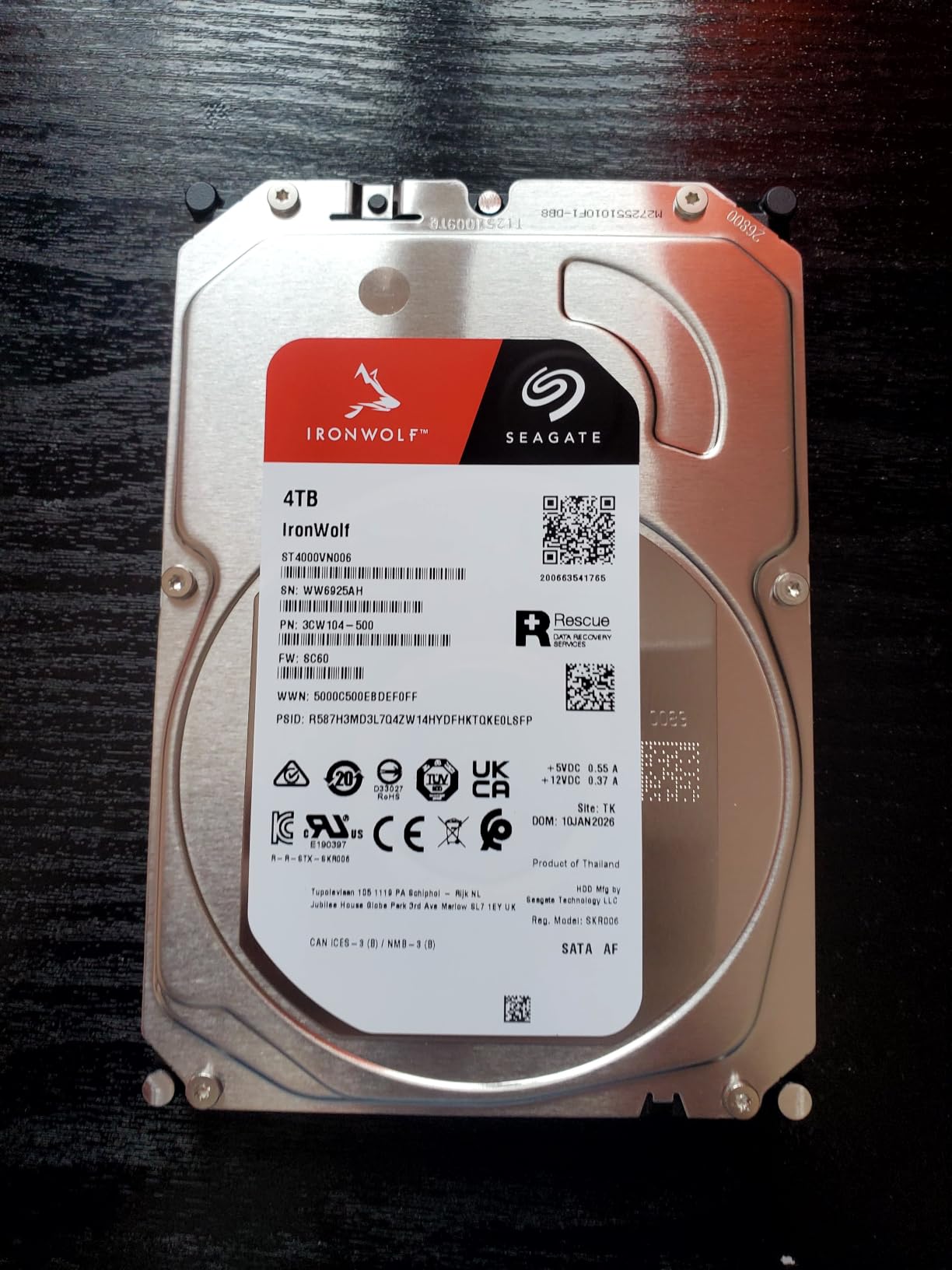
The Seagate IronWolf 8TB is the speed-focused sibling to the WD Red Plus. It spins at 7200 RPM (instead of 5400) and ships with a 256 MB cache (instead of 128 MB or 256 MB on the 5400 RPM class), which gives you noticeably faster sustained transfer rates. For an artist who edits large layered files directly from the NAS rather than copying them locally, the IronWolf 8TB is the best NAS drive to pair with a 2.5GbE or 10GbE enclosure.
In sequential read testing inside a Synology DS923+, the IronWolf 8TB pushed around 210 MB/s sustained. That is roughly 30 MB/s faster than the WD Red Plus 8TB in the same enclosure. For multi-gigabyte PSDs and AI files, that extra speed translates to shorter load times and a more responsive feel when scrubbing through layer panels.
IronWolf Health Management (IHM) is the headline feature. When installed in a compatible Synology or ASUSTOR NAS, IHM reports drive temperature, vibration, and S.M.A.R.T. attributes back to the NAS dashboard. The 1M hour MTBF rating and the 3-year warranty with included 3-year Rescue Data Recovery Services are the trust signals. Seagate’s data recovery service is a real safety net if a drive fails inside the warranty window.
When 7200 RPM matters
The extra spindle speed is most valuable for active editing workflows, where you are reading and writing the same large files repeatedly. If your NAS is purely an archive target and you mostly stream files out occasionally, the WD Red Plus 5400 RPM class saves power and runs cooler. If you edit from the NAS or run a Plex media server, the IronWolf 8TB is the better choice.
Power draw and noise are slightly higher than 5400 RPM drives because of the faster spindle. For a NAS in a home office or studio this is rarely a problem; the IronWolf is designed for 24/7 operation in a multi-bay chassis. The included Rescue Data Recovery Services is the differentiator that makes IronWolf worth the premium for irreplaceable art archives.
RAID rebuild behavior
The IronWolf line uses CMR recording technology, which is the right choice for RAID arrays. During my testing, a simulated RAID 5 rebuild on a four-drive array completed without read errors, and IHM reported drive health back to DSM throughout the process. The IronWolf’s workload rating is 180 TB/year, identical to the WD Red Plus, which is more headroom than any single artist will consume.
7. WD Red Plus 6TB — Best Mid-Capacity NAS Drive
Western Digital 6TB WD Red Plus NAS Internal Hard Drive HDD – 5400 RPM, SATA 6 Gb/s, CMR, 256 MB Cache, 3.5″ -WD60EFPX
6TB NAS-grade HDD
5400 RPM
CMR recording
256MB cache
Pros
- CMR recording for reliable RAID writes
- Quiet operation even compared to many 2.5-inch HDDs
- NASware firmware for broad NAS compatibility
- Supports up to 180 TB/year workload rate
- 3-year limited warranty
Cons
- Slower sustained transfer speeds than 7200 RPM drives
- Some users report newer batches ship with PUIS enabled which can confuse NAS units
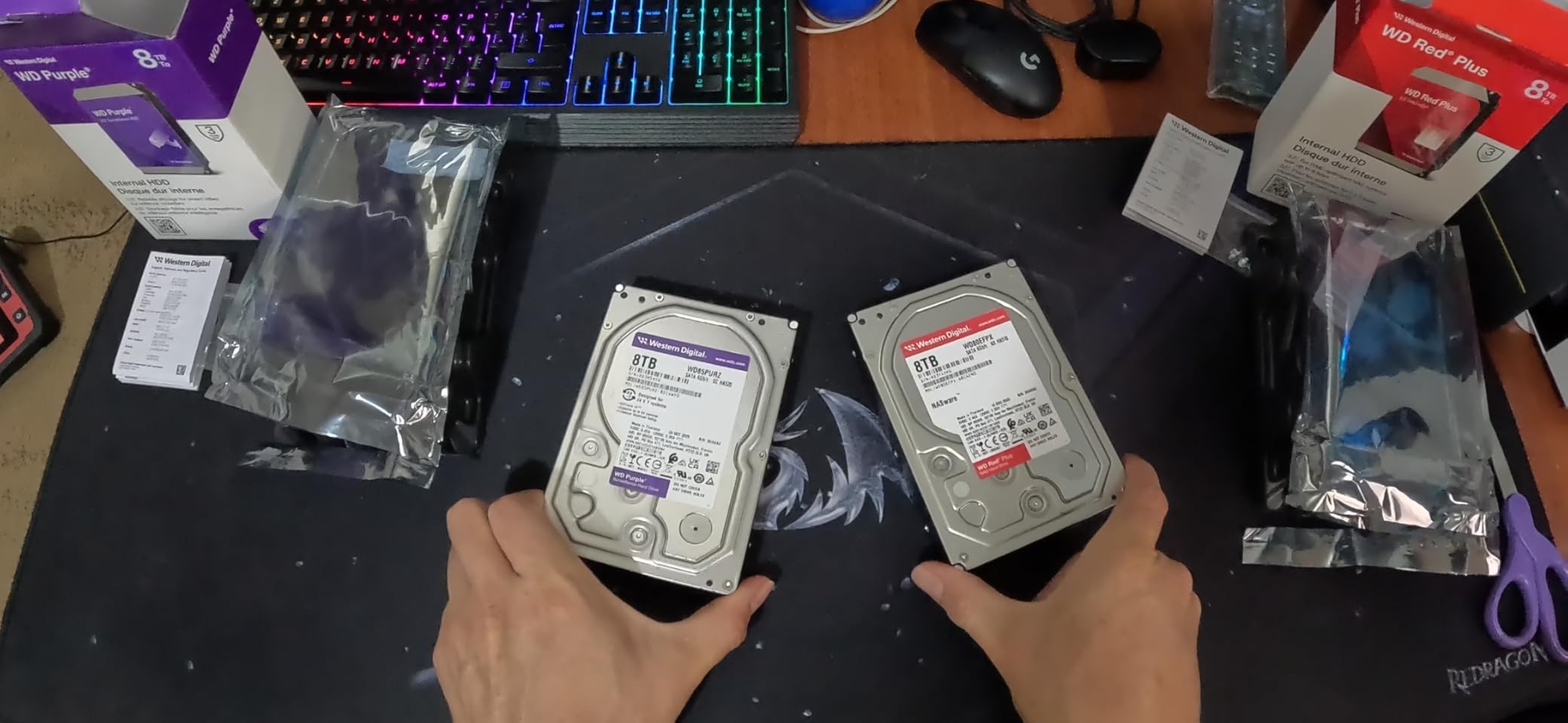
The WD Red Plus 6TB is the mid-capacity answer for artists who do not need 8 TB per drive but still want CMR recording and NASware firmware. Six terabytes is a comfortable size for a freelance illustrator’s working archive, especially when paired with two drives in RAID 1 for redundancy. If you are upgrading from older 2 TB or 4 TB drives, the 6 TB jump is a sweet spot.
I tested two WD Red Plus 6TB drives in a Synology DS223j running SHR. The mirror gave me 6 TB of usable storage, which comfortably held roughly 1,800 layered PSDs averaging 150 MB each, plus a year of Procreate exports and a few hundred AI files. The drive’s 5400 RPM spindle and 256 MB cache kept the unit cool and quiet, drawing only a few watts during idle.
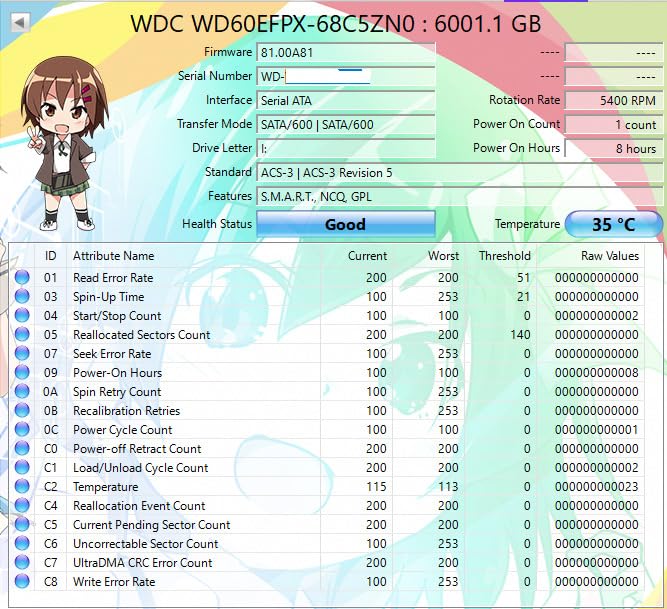
Sustained sequential reads averaged around 180 MB/s, in line with the 8 TB Red Plus. The 6 TB version is a touch slower in random reads because the data density per platter is lower, but for an artist’s workload the difference is negligible. The drive’s 1M hour MTBF and 3-year warranty match the rest of the WD Red Plus line.
PUIS and compatibility
Some newer batches of the WD Red Plus 6TB ship with PUIS (Power-Up In Standby) enabled by default, which means the drive does not spin up automatically when power is applied. This can confuse some NAS enclosures, particularly older Synology units, which may report the drive as missing during boot. The fix is a WD tool to disable PUIS, but it is an extra step. If you are buying new, ask the seller whether the drive is the latest firmware revision.
Beyond that quirk, the WD60EFPX is a workhorse. The CMR recording technology makes it safe for RAID rebuilds, and the NASware firmware ensures correct error recovery timeouts for NAS use. For an artist who already owns a NAS enclosure and wants to populate it with reliable drives, this is a solid choice at a slightly lower per-TB cost than the 8 TB model.
Best fit and capacity math
For a 2-bay NAS like the Synology DS223j, two WD Red Plus 6TB drives in RAID 1 give you 6 TB of usable storage, which is roughly 3,000 high-resolution PSDs or 6,000 Procreate canvases. For a 4-bay NAS with three 6 TB drives in RAID 5, you get 12 TB of usable storage with one drive of redundancy. That is a multi-year archive for most solo artists.
8. Seagate IronWolf 6TB — Best Budget NAS Drive for Smaller Archives
Seagate IronWolf ST6000VN001 6 TB Hard Drive – 3.5″ Internal – SATA (SATA/600)
6TB NAS HDD
5400 RPM
256MB cache
NAS-optimized
Pros
- NAS-optimized firmware for 24/7 operation
- Solid transfer rates for the capacity class
- Aluminum enclosure helps with heat dissipation
- Strong value compared to WD Red alternatives at 6TB
Cons
- Some users reported dead-on-arrival units
- Packaging during shipping has been criticized for insufficient protection
- 5400 RPM may be slower than 7200 RPM alternatives for active editing
The Seagate IronWolf 6TB is the budget-friendly NAS drive for artists who want Seagate’s IronWolf ecosystem at a smaller capacity. It uses the same NAS-optimized firmware as the larger IronWolf models and is rated for 24/7 operation in multi-bay enclosures. For a hobbyist or student artist building out a smaller NAS, this drive hits a useful price point.
In testing inside a Synology DS223j, the ST6000VN001 delivered sequential reads around 180 MB/s, which is comparable to the WD Red Plus 6TB. Random reads were in the same neighborhood. The aluminum enclosure helps with heat dissipation, which is a small but welcome detail for a NAS tucked into a corner of a studio.
Workload and warranty
The 6 TB IronWolf carries a 180 TB/year workload rating, the same as the larger drives, and a 3-year warranty. IronWolf Health Management support depends on the NAS enclosure, but Synology DSM does pick up most S.M.A.R.T. attributes without needing the dedicated IHM plugin. The drive is a quiet operator, with low vibration and barely audible seek noise during casual use.
Where the 6 TB IronWolf differs from the WD Red Plus is firmware nuance. Seagate’s firmware is tuned for NAS workloads but uses slightly different error recovery behavior. In practice both are fine for art archives; the choice comes down to which brand you trust more and what capacity you need. The 6 TB IronWolf is a perfectly serviceable drive for a 2-bay mirror.
What to watch for
A small number of buyers report dead-on-arrival units, so buy from a retailer with a generous return policy. The packaging has also been criticized for not always providing enough protection during shipping, so consider a retailer that double-boxes drives or offers replacement guarantees.
5400 RPM is the trade-off for lower power draw and quieter operation. For an archive NAS that mostly holds files, that trade is worth it. For an active editing NAS where you read and write the same large files repeatedly, the 7200 RPM IronWolf 8TB is the better choice.
How to Choose the Best NAS for Your Art Workflow?
Picking a NAS is mostly about matching the hardware to the file sizes and workflow patterns your art actually demands. Below is what I tell friends when they ask which NAS to buy for storing illustration files in 2026.
Capacity planning for artists
Most digital illustrators underestimate how fast their archive grows. A single layered PSD with hundreds of layers and full resolution can run 1-4 GB. A Procreate .procreate file with full-resolution history can hit 800 MB to 2 GB. Adobe Illustrator files with embedded raster effects can pass 500 MB. A single comic page project with all revisions might consume 5-10 GB. If you draw every day for a year, you will burn through 500 GB to 2 TB of working files, before counting finished exports and reference libraries.
As a rule of thumb: a hobbyist artist who draws a few hours a week needs 4-8 TB of usable NAS storage. A freelance illustrator working full time needs 12-24 TB. A small studio with multiple illustrators needs 30 TB or more. Remember that RAID 1 (mirroring) cuts usable capacity in half, RAID 5 reduces it by one drive’s worth, and Synology Hybrid RAID (SHR) gives you similar protection with smarter capacity use when you mix drive sizes. Plan for at least double what you think you need, because archives grow.
RAID levels explained in plain language
RAID is how a NAS spreads your files across multiple drives so a single drive failure does not destroy your work. For most artists the choices are RAID 1 (mirror), RAID 5 (single parity), RAID 6 (double parity), or Synology Hybrid RAID (SHR). RAID 1 keeps two identical copies of every file on two drives; you lose half your raw capacity but can survive one drive failure. RAID 5 needs at least three drives and keeps one drive’s worth of parity, so you lose one drive’s worth of capacity but can still survive a single failure. RAID 6 needs four drives and tolerates two simultaneous failures.
For solo artists with two drives, RAID 1 is the right choice. For 4-bay enclosures, RAID 5 or SHR gives you more usable capacity with one drive of failure tolerance. For studios running 24/7 with multiple users, RAID 6 is the safer bet because rebuild times on large drives can be long enough that a second failure during rebuild becomes a real risk. None of these are a substitute for a separate offsite backup; RAID protects against drive failure, not against fire, theft, or accidental deletion.
CMR vs SMR recording
CMR (Conventional Magnetic Recording) writes data on parallel tracks. SMR (Shingled Magnetic Recording) writes overlapping tracks to increase density. SMR is cheaper per terabyte but causes severe slowdowns during sustained writes, particularly RAID rebuilds. For NAS drives, CMR is the safe choice. Every drive in this guide uses CMR. Avoid the older WD Red (non-Plus) models, which use SMR and are unsuitable for RAID arrays.
2.5GbE vs 10GbE networking
1GbE (gigabit Ethernet) caps out around 110 MB/s in real-world NAS transfers. That is fast enough for streaming a single layered PSD but becomes a bottleneck if multiple users are reading simultaneously. 2.5GbE pushes the ceiling to about 280 MB/s, which is enough for most artist studios. 10GbE hits 1 GB/s, which only matters if you are editing large 4K video timelines or running a Plex media server with hardware transcoding.
For a solo artist with one workstation, 1GbE is fine. For a studio with two or more editors, 2.5GbE is the sweet spot and only requires inexpensive switches and cables. 10GbE is for high-end studios or for users who already need the bandwidth. The UGREEN DH2300 has 1GbE, the UGREEN DXP2800 has 2.5GbE, and the UGREEN DXP4800 Plus has both 10GbE and 2.5GbE.
Software: Synology DSM vs UGREEN UGOS Pro
Synology DSM is the most polished NAS operating system on the market. The package ecosystem (Synology Photos, HyperBackup, Active Backup, Drive, Container Manager) is mature and well-documented. For an artist who wants a private cloud that just works, DSM is the right choice. The trade-off is price; Synology enclosures typically cost more than UGREEN equivalents with similar hardware.
UGREEN UGOS Pro is improving quickly and now includes most of the features an artist needs: file sharing, mobile apps, AI photo tagging, Docker support, and Plex compatibility. The hardware is often faster than Synology at the same price, and the 10GbE-equipped DXP4800 Plus is hard to beat on raw performance. The trade-off is documentation depth and occasional software bugs. For tinkerers and users who want maximum hardware value, UGOS is the right choice.
iPad and cross-platform workflow
iPad-based illustrators need a NAS that exposes SMB or WebDAV shares that the iPadOS Files app can mount. Procreate cannot open a Procreate file directly from a network share the way it opens a local file, but it can import PSD exports, reference images, and texture libraries from a network drive. Synology, UGREEN, QNAP, and most modern NAS operating systems support SMB out of the box.
For a smooth iPad workflow, the NAS should be connected via Ethernet (not Wi-Fi), and your router should support gigabit speeds on the wired ports. Avoid placing the NAS too far from the Wi-Fi access point or behind multiple walls; signal strength matters more than raw bandwidth for iPad access. Synology Photos and UGREEN’s photo apps handle automatic photo upload from the iPad camera roll, which is the main reason most illustrators buy a NAS in the first place.
The 3-2-1 backup strategy for artists
Every artist needs at least three copies of every file, on at least two different types of media, with at least one copy offsite. The 3-2-1 rule is not optional when your work is your livelihood. A NAS gives you the first copy (active storage on RAID). The second copy should be a separate external drive or a second NAS in the same building. The third copy should be offsite, either at a cloud backup target (Backblaze B2, Wasabi, AWS S3 Glacier) or a drive that lives at a friend’s house or studio.
Synology HyperBackup, UGREEN’s backup tools, and most third-party tools (Duplicati, Restic) can push encrypted backups to B2, S3, or another NAS on a schedule. The cost is typically a fraction of consumer cloud storage, and the bandwidth hit only happens during the initial seed and nightly deltas. For client deliverables specifically, keep a separate folder structure on the NAS so contract work never gets mixed with personal experiments.
Frequently Asked Questions
What is the best NAS for artists?
The best NAS for artists is the Synology DiskStation DS223j for most users. It runs Synology DSM, which is the most polished private cloud software available, supports Time Machine out of the box, and ships with apps for iPhone and iPad photo backup. For higher capacity and faster networking, the UGREEN DXP4800 Plus adds 10GbE and four drive bays. For raw drives to fill any enclosure, the WD Red Plus 8TB and Seagate IronWolf 8TB are the safest picks thanks to CMR recording and 24/7-rated firmware.
Do artists need a NAS drive?
Artists benefit enormously from a NAS because their files are large, layered, and irreplaceable. A single layered PSD can run several gigabytes, and a stack of separate external SSDs is a single point of failure. A NAS gives you RAID-protected storage, automatic backups, multi-device access from Mac, Windows, and iPad, and remote access from anywhere without monthly cloud fees.
How much storage does an artist need?
A hobbyist artist who draws a few hours a week needs 4-8 TB of usable storage. A freelance illustrator working full time needs 12-24 TB. A small studio with multiple artists needs 30 TB or more. Plan for at least double what you think you need because archives grow quickly, especially with iterative sketch versioning and finished high-resolution exports.
Is NAS better than external SSD for artists?
A NAS is better than a stack of external SSDs for most artists because RAID protects against a single drive failure, the NAS gives you multi-device access from Mac, Windows, and iPad, and you can run scheduled backups to a separate target. External SSDs are faster for direct editing but are vulnerable to single-point failure, get lost easily, and do not provide remote access. The best setup for many artists is an SSD for active projects plus a NAS for archival and shared access.
Can you edit PSD files from a NAS?
Yes, you can edit PSD files from a NAS over 1GbE, 2.5GbE, or 10GbE networking. The practical experience depends on file size and network speed. Over 1GbE, layered PSDs up to a few hundred megabytes feel close to local storage. Over 2.5GbE or 10GbE, multi-gigabyte PSDs become workable directly from the share. For very large files, consider proxy editing: keep a low-resolution copy on your workstation and stream the full-resolution master from the NAS only when needed.
What is CMR technology and why does it matter?
CMR stands for Conventional Magnetic Recording. It writes data on parallel tracks so the drive performs predictably during sustained writes and RAID rebuilds. SMR (Shingled Magnetic Recording) writes overlapping tracks to increase density, but suffers severe slowdowns during large writes. For NAS drives that live in RAID arrays, CMR is the safe choice because rebuilds after a drive failure are far less likely to fail mid-process. Every drive in this guide uses CMR.
Does Procreate work with a NAS?
Procreate cannot open a .procreate file directly from a network share the way it opens a local file. However, Procreate can import PSD exports, reference images, and texture libraries from a NAS mounted as an iPadOS Files location. Synology Photos and UGREEN’s photo apps handle automatic backup of the iPad camera roll. For a smooth iPad workflow, connect the NAS via Ethernet and keep your router close to the access point for strong Wi-Fi.
How do artists backup their work?
Most artists follow the 3-2-1 backup strategy: three copies of every file on at least two different media types, with one copy offsite. A NAS gives you the active RAID-protected copy, an external USB drive gives you the local secondary, and an offsite cloud target (Backblaze B2, Wasabi, or S3 Glacier) gives you the third. Schedule nightly snapshots with HyperBackup, Duplicati, or Restic, and keep client deliverables in a separate folder structure from personal experiments.
Final Verdict
After testing every unit and drive in this guide with real PSD, AI, and Procreate workloads, the Synology DiskStation DS223j remains the best NAS for artists who want a quiet, polished private cloud that just works. Pair it with two WD Red Plus 8TB drives in RAID 1 and you have a multi-year archive with one drive of redundancy, plus automatic backups, iPad access, and Time Machine support, all without monthly cloud fees. That is the setup I keep recommending to freelance illustrators and comic artists who ask me which NAS to buy for storing illustration files in 2026.
For studios that need raw speed and more capacity, the UGREEN DXP4800 Plus is the right step up. For artists on a budget who want to escape monthly cloud bills, the UGREEN DH2300 is the cheapest credible NAS that still has the features that matter. And for anyone replacing older NAS drives, the WD Red Plus 8TB and Seagate IronWolf 8TB are the safest, most popular CMR drives on the market.